
1. Important Safety Information
Please read all instructions carefully before using this monitor. Keep this manual for future reference.
- Power Source: Use only the power cord and adapter supplied with the monitor. Ensure the power outlet is properly grounded.
- Ventilation: Do not block ventilation openings. Allow adequate space around the monitor for proper airflow.
- Moisture: Do not expose the monitor to rain, moisture, or high humidity. Avoid placing liquids near or on the monitor.
- Cleaning: Disconnect the power cord before cleaning. Use a soft, dry cloth. Do not use liquid cleaners or aerosol cleaners.
- Placement: Place the monitor on a stable, flat surface. Avoid direct sunlight or heat sources.
- Servicing: Do not attempt to service this product yourself. Refer all servicing to qualified service personnel.
2. Package Contents
Verify that all items are present in the package before proceeding with the setup.
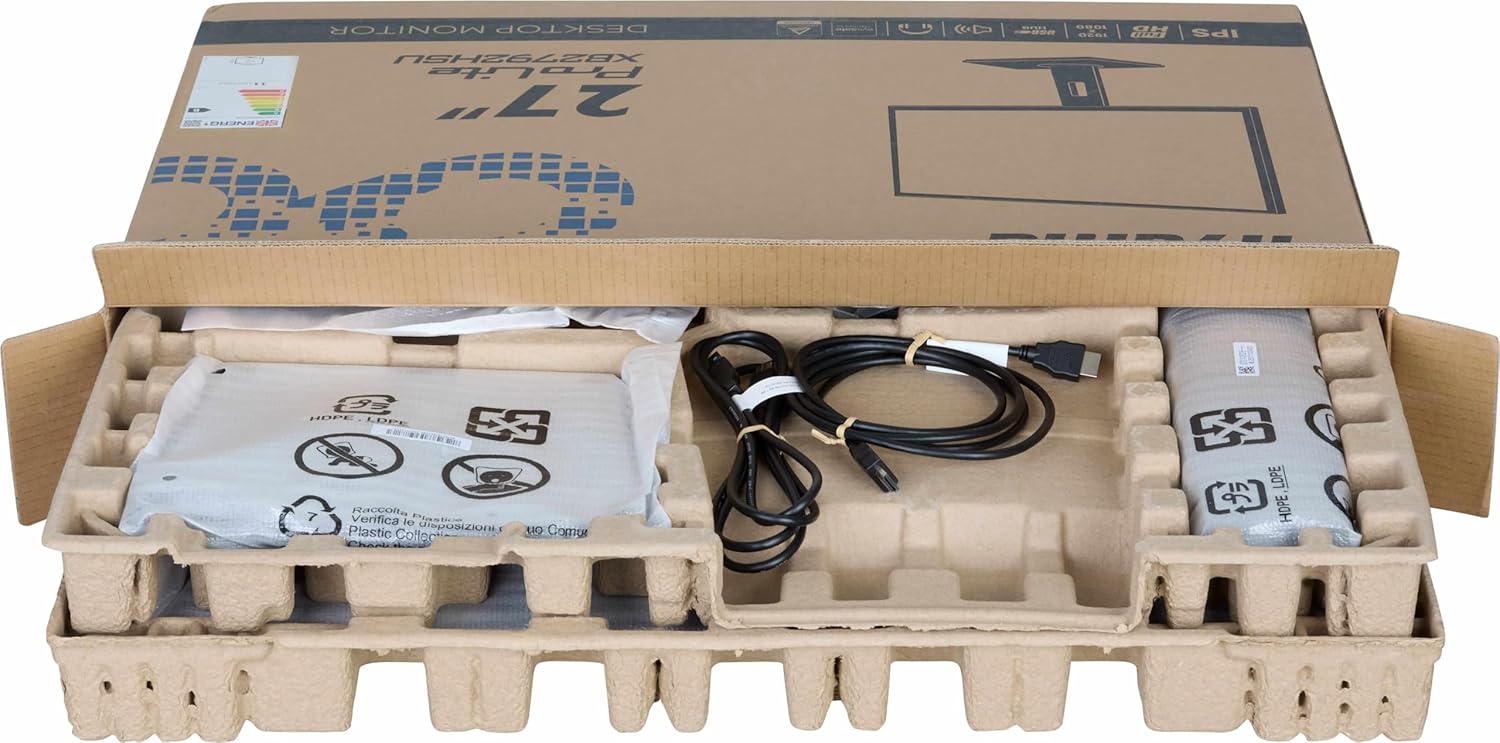
Image: The iiyama ProLite XB2792QSU-B1 monitor and its accessories, including cables and stand components, neatly packed in the retail box.
- iiyama ProLite XB2792QSU-B1 Monitor
- Monitor Stand (Base and Neck)
- Power Cable
- HDMI Cable
- USB Cable (for USB hub functionality)
- Quick Start Guide / Safety Guide

Image: A close-up view of the power cable, HDMI cable, and USB cable included with the monitor.
3. Setup Instructions
3.1 Assembling the Stand
- Carefully remove the monitor from its packaging, keeping it protected on a soft surface (e.g., foam packaging).
- Attach the stand neck to the back of the monitor. Ensure it clicks securely into place or is fastened with screws if provided.
- Attach the stand base to the stand neck. Tighten the thumb screw or screws from the bottom of the base to secure it.

Image: The rear of the iiyama ProLite XB2792QSU-B1 monitor, showing the stand securely attached to the monitor panel.
3.2 Connecting Cables
Ensure the monitor and your computer are powered off before making any connections.
- Power Connection: Connect the power cable to the monitor's power input and then to a grounded electrical outlet.
- Video Connection: Connect one end of the HDMI or DisplayPort cable to the corresponding port on your computer's graphics card and the other end to the HDMI or DisplayPort input on the monitor.
- USB Hub Connection (Optional): Connect the supplied USB cable from your computer's USB port to the upstream USB port on the monitor to enable the monitor's built-in USB 3.2 hub.
- Audio Connection (Optional): If you wish to use external speakers or headphones connected to the monitor, connect an audio cable from your computer's audio output to the monitor's audio input, or connect headphones directly to the monitor's audio output jack.

Image: A detailed view of the monitor's connectivity panel, showing the power input, HDMI ports, DisplayPort, USB 3.2 ports, and audio jack.
3.3 Initial Power On
- Power on your computer.
- Press the power button on the monitor. The power indicator light should illuminate.
- The monitor should automatically detect the input signal. If not, you may need to manually select the input source using the On-Screen Display (OSD) menu.
4. Operating the Monitor
4.1 On-Screen Display (OSD) Menu
The OSD menu allows you to adjust various monitor settings. The control buttons are typically located on the bottom or rear of the monitor.

Image: The front view of the iiyama ProLite XB2792QSU-B1 monitor, displaying its slim bezel design and the location of the control buttons (usually on the bottom right bezel or rear).
- Press the Menu button to open the OSD.
- Use the navigation buttons (usually arrows) to move through the menu options.
- Press the Select/OK button to confirm a selection or enter a sub-menu.
- Press the Exit/Back button to return to the previous menu or exit the OSD.
4.2 Common OSD Settings
- Picture: Adjust Brightness, Contrast, Sharpness, Gamma, OverDrive.
- Color: Adjust Color Temperature, RGB levels, or select preset color modes.
- Input Select: Manually switch between HDMI and DisplayPort inputs.
- Audio: Adjust volume for the built-in speakers or headphone output.
- OSD Settings: Adjust OSD language, position, and timeout.
- Information: Display current resolution, refresh rate, and model information.
4.3 Ergonomic Adjustments
The monitor stand allows for various adjustments to optimize your viewing comfort.

Image: A side profile of the iiyama ProLite XB2792QSU-B1 monitor, illustrating its adjustable stand that allows for height, tilt, and swivel movements.
- Height Adjustment: Gently push or pull the monitor panel up or down to adjust its height.
- Tilt Adjustment: Hold the top and bottom edges of the monitor panel and gently tilt it forwards or backwards.
- Swivel Adjustment: Rotate the monitor panel left or right on its stand base.
- Pivot Function: The monitor can be rotated 90 degrees to a portrait orientation. Ensure the monitor is at its maximum height and tilted back slightly before pivoting to avoid hitting the desk.
5. Maintenance
5.1 Cleaning the Monitor
- Always unplug the monitor from the power outlet before cleaning.
- Use a soft, lint-free cloth slightly dampened with water or a mild, non-abrasive screen cleaner.
- Do not spray cleaner directly onto the screen. Apply it to the cloth first.
- Avoid using benzene, thinner, ammonia-based cleaners, or abrasive materials, as these can damage the screen or casing.
5.2 Storage
If storing the monitor for an extended period, disconnect all cables and pack it in its original packaging if possible. Store in a cool, dry place away from direct sunlight and extreme temperatures.
6. Troubleshooting
If you encounter issues with your monitor, refer to the following common problems and solutions.
| Problem | Possible Solution |
|---|---|
| No power / Power LED off |
|
| No signal / "No Signal" message |
|
| Image is blurry or distorted |
|
| Colors are incorrect |
|
| USB ports not working |
|
If the problem persists after trying these solutions, please contact iiyama customer support.
7. Technical Specifications
Below are the key technical specifications for the iiyama ProLite XB2792QSU-B1 monitor.
| Feature | Specification |
|---|---|
| Model Number | XB2792QSU-B1 |
| Screen Size | 27 inches |
| Panel Type | IPS |
| Resolution | 2560 x 1440 (QHD) |
| Refresh Rate | 120Hz |
| Aspect Ratio | 16:9 |
| Response Time | 5 Milliseconds |
| Brightness | 350 cd/m² |
| Viewing Angle | 178° (H) / 178° (V) |
| Hardware Connectivity | 1x HDMI, 1x DisplayPort, 2x USB 3.2 Gen 1, 3.5mm Audio Out |
| Item Dimensions (D x W x H) | 8.25"D x 24.25"W x 15.59"H |
| Item Weight | 5.5 Kilograms |
| Color | Black |
8. Warranty and Support
This iiyama monitor comes with a manufacturer's warranty. For detailed warranty terms and conditions, please refer to the warranty card included in your product packaging or visit the official iiyama website.
For technical support, troubleshooting assistance, or service inquiries, please contact iiyama customer support through their official channels. Have your monitor's model number (XB2792QSU-B1) and serial number ready when contacting support.
Official iiyama Website: www.iiyama.com


