1. Introduction
Thank you for choosing the HUO JI Z-11 Wireless Mechanical Gaming Keyboard. This keyboard offers versatile connectivity options, customizable features, and a durable design for an enhanced typing and gaming experience. Please read this manual carefully to ensure proper setup and operation.

Image 1: HUO JI Z-11 Wireless Mechanical Gaming Keyboard overview.
Product Overview Video
Video 1: This video provides a visual overview of the HUO JI Z-11 Wireless Mechanical Keyboard, demonstrating its design, keycaps, and the functionality of the control knob.
2. Setup
2.1 Included Components
- HUO JI Z-11 Wireless Mechanical Gaming Keyboard
- USB Type-C Cable
- 2.4GHz USB Receiver
- Two-in-one Key Puller / Switch Puller
- 2x Replacement Red Switches
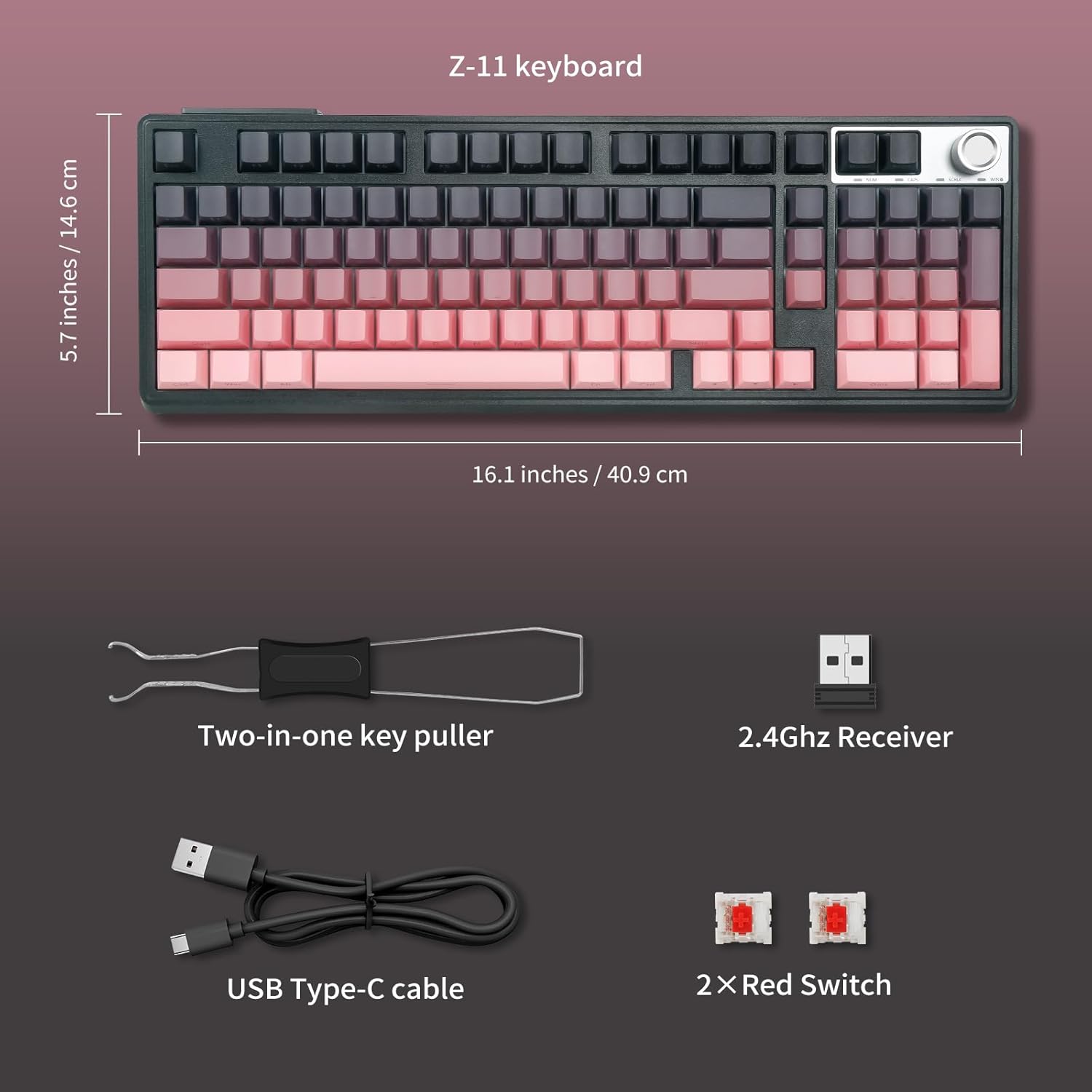
Image 2: The Z-11 keyboard and its included accessories, such as the USB-C cable, 2.4GHz receiver, key puller, and spare switches.
2.2 Connection Modes
The Z-11 keyboard supports three connection methods: Bluetooth 5.0, 2.4GHz wireless, and USB-C wired. You can connect to up to five devices simultaneously and switch between them using FN+ combination keys.

Image 3: Visual representation of the keyboard's tri-mode connection capabilities.
2.2.1 2.4GHz Wireless Mode
- Locate the 2.4GHz USB receiver stored in the compartment on the back of the keyboard.
- Slide the power switch on the keyboard to the 'ON' position.
- Plug the 2.4GHz USB receiver into an available USB port on your computer.
- Press FN + R on the keyboard to switch to 2.4GHz wireless mode. The indicator light will confirm the connection.

Image 4: The keyboard's adjustable feet and the convenient storage for the 2.4GHz USB receiver.
2.2.2 Bluetooth Mode
- Slide the power switch on the keyboard to the 'ON' position.
- Press FN + Q, FN + W, or FN + E to select one of the three Bluetooth channels. The corresponding key will flash, indicating pairing mode.
- On your device (computer, tablet, smartphone), enable Bluetooth and search for new devices.
- Select "HUO JI Z-11" from the list of available devices to pair. The flashing light will become solid once connected.
- To switch between paired Bluetooth devices, press FN + Q/W/E.
2.2.3 USB-C Wired Mode
- Connect the provided USB Type-C cable to the keyboard's USB-C port.
- Connect the other end of the USB cable to an available USB port on your computer.
- Press FN + T to switch to USB-C wired mode. The keyboard will be ready for use.
3. Operating Instructions
3.1 Basic Functions
The Z-11 keyboard features a 96% layout with 98 keys, including a dedicated number pad and arrow keys. All keys support anti-ghosting for simultaneous input without conflicts.
3.2 Multimedia and Shortcut Keys
The keyboard includes 12 multimedia key shortcuts accessible via the FN key:
| Function Key | Windows (FN+A) | Mac OS (FN+S) |
|---|---|---|
| FN+F1 | My Computer | Brightness Down |
| FN+F2 | Browser | Brightness Up |
| FN+F3 | ||
| FN+F4 | Calculator | Calculator |
| FN+F5 | Media Player | Media Player |
| FN+F6 | Stop | Stop |
| FN+F7 | Previous Track | Previous Track |
| FN+F8 | Play/Pause | Play/Pause |
| FN+F9 | Next Track | Next Track |
| FN+F10 | Mute | Mute |
| FN+F11 | Volume Down | Volume Down |
| FN+F12 | Volume Up | Volume Up |

Image 5: Detailed guide for FN key functions on both Windows and Mac OS.
3.3 Backlight Control
The keyboard features multiple rainbow backlight and sidelit lighting effects. Use the following combinations to control the lighting:
- FN + \|: Switch between different lighting modes.
- FN + ↑ / ↓: Adjust backlight brightness.
- FN + ← / →: Adjust lighting effect speed.
- FN + Space: Turn backlight on/off.
- FN + R + Ctrl: Switch sidelit lighting on/off.
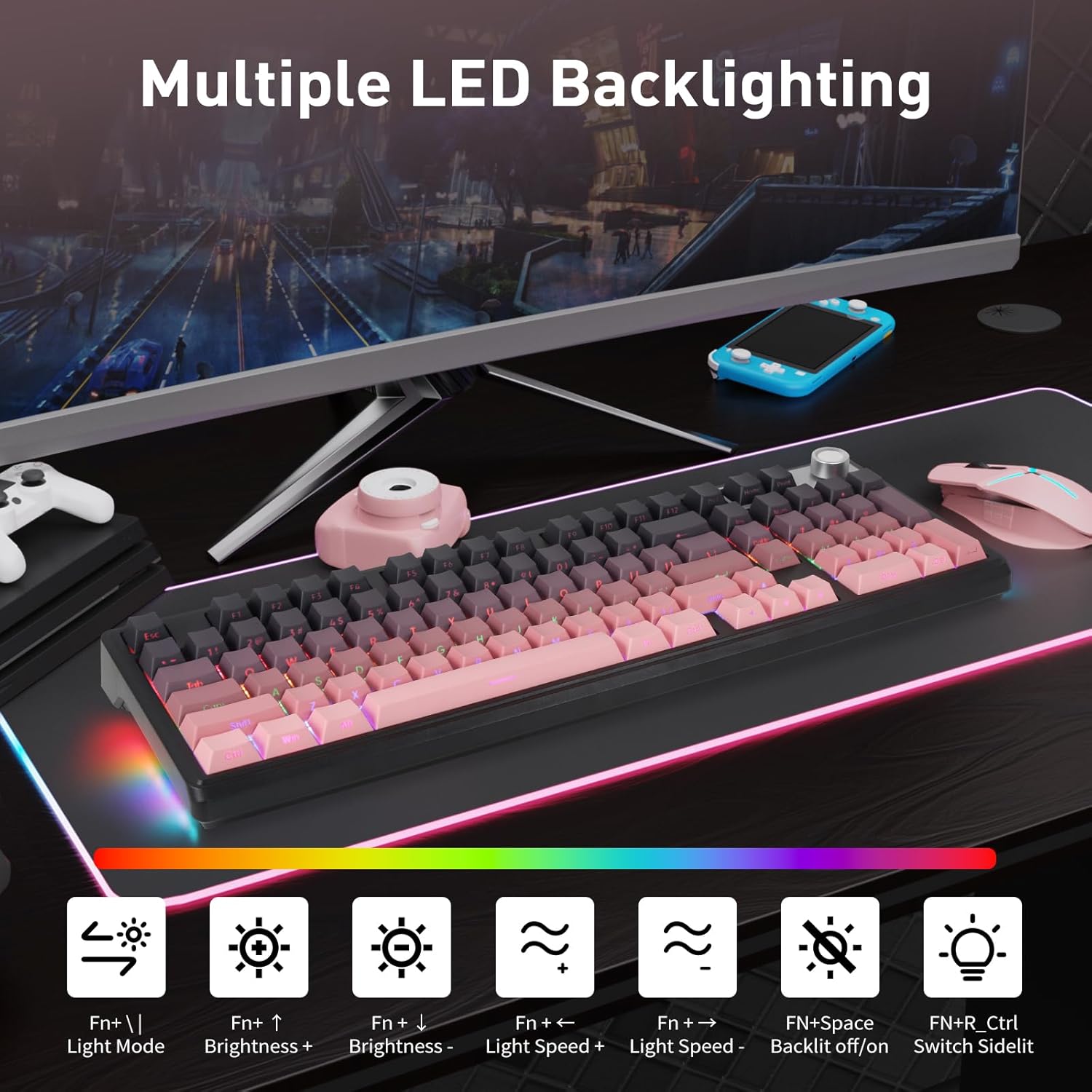
Image 6: The keyboard showcasing its multiple LED backlighting options and control functions.
3.4 Control Knob Functionality
The multi-function knob on the keyboard allows for quick control of multimedia and lighting settings.
- Press and hold the knob for 3 seconds to switch between Multimedia Mode and Lighting Control Mode.
- In Multimedia Mode:
- Click the knob to mute/unmute audio.
- Rotate the knob to adjust volume (Volume+ / Volume-).
- In Lighting Control Mode:
- Click the knob to switch between lighting effects.
- Rotate the knob to adjust backlight brightness (Brightness+ / Brightness-).
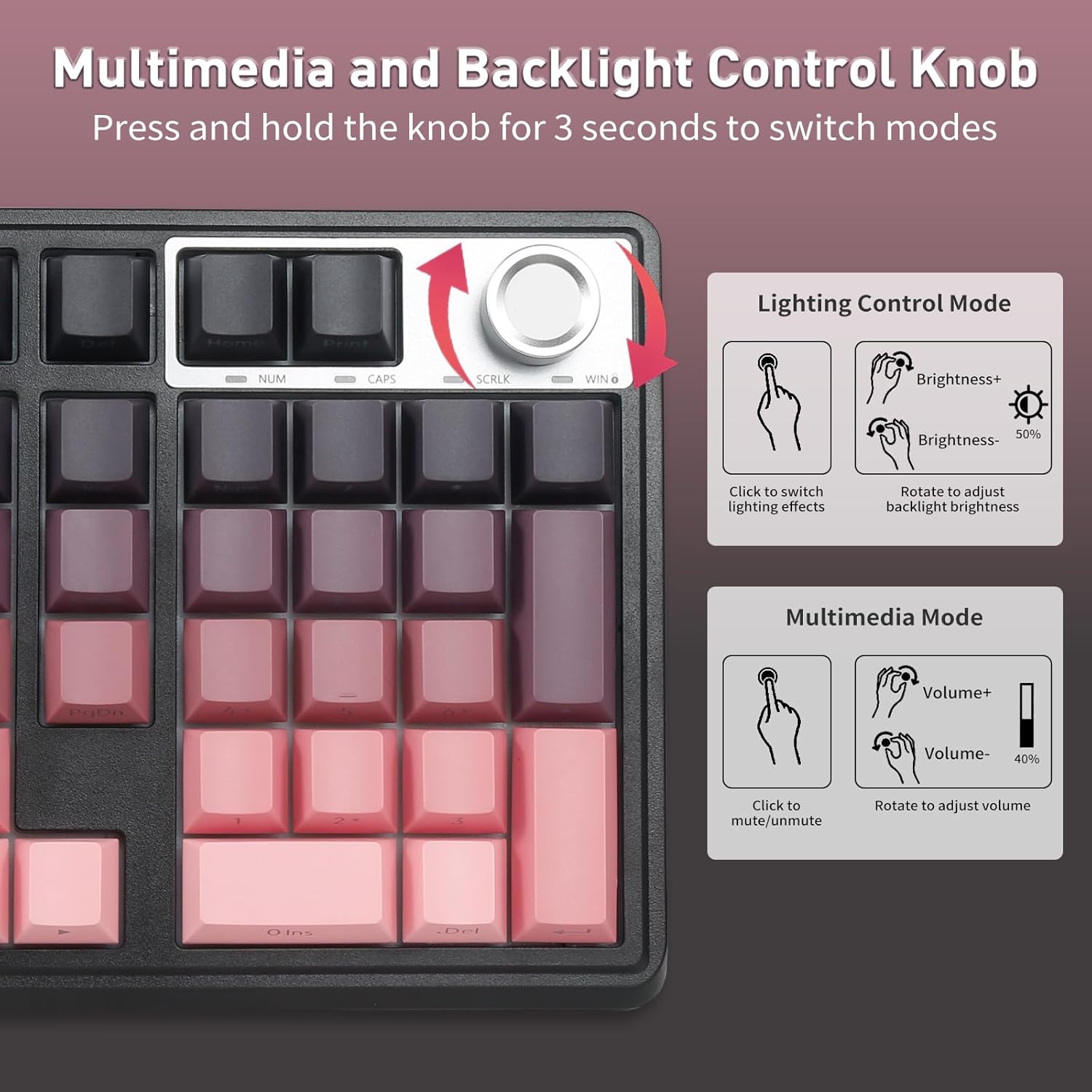
Image 7: The control knob and its dual functionality for managing audio and lighting settings.
4. Customization
4.1 Hot-Swappable Switches
The Z-11 keyboard features a hot-swappable PCB, allowing you to easily replace 3-pin mechanical switches without soldering. This enables customization of your typing feel.
- Use the included switch puller to carefully remove the keycap.
- Insert the switch puller's prongs into the two clips on the top and bottom of the switch.
- Gently squeeze the clips and pull the switch upwards to remove it.
- Align the pins of the new 3-pin switch with the holes on the PCB.
- Press the new switch firmly until it clicks into place. Ensure it is seated correctly to avoid bent pins.
- Replace the keycap.

Image 8: Illustration of the hot-swappable red switches and the process of replacement.
4.2 Keycaps
The keyboard features double-shot injection PBT keycaps with gradient colors and side-engraved legends. These keycaps are designed for durability, resistance to fading, and a soft touch.
5. Maintenance
5.1 Battery Charging
The keyboard has a built-in 4000mAh rechargeable battery. Connect the USB Type-C cable to the keyboard and a power source (e.g., computer USB port, USB wall adapter) to charge. A full charge provides approximately 30 hours of use with backlighting ON or 200 hours with backlighting OFF.
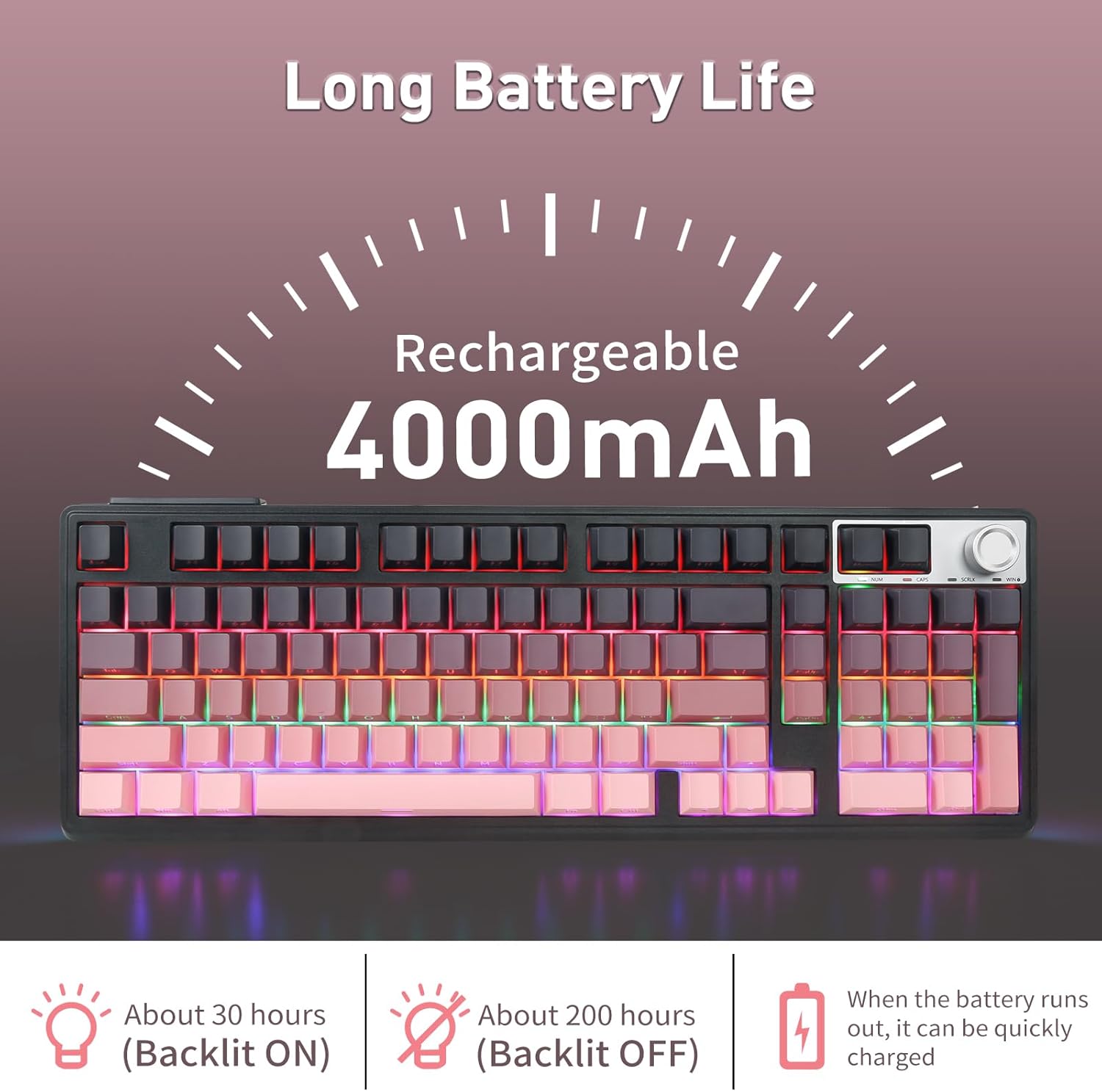
Image 9: Battery life estimates for the 4000mAh rechargeable battery.
5.2 Auto Power Saving
To conserve battery life, the keyboard will automatically turn off its backlight after 1 minute of inactivity in wireless mode. Press any key to wake up the keyboard.

Image 10: The auto power saving function helps extend battery life.
5.3 Cleaning
To clean your keyboard, gently wipe the keycaps and chassis with a soft, damp cloth. For deeper cleaning, remove keycaps using the provided key puller and clean underneath. Avoid using harsh chemicals or abrasive materials.
6. Troubleshooting
- Keyboard not responding:
- Ensure the keyboard is powered on.
- Check the connection mode (Bluetooth, 2.4GHz, or wired) and ensure it matches your device's connection.
- For wireless modes, ensure the battery is charged.
- Try reconnecting the USB receiver or re-pairing the Bluetooth connection.
- Test in wired mode to rule out wireless interference.
- Keys not registering or double-typing:
- Ensure switches are properly seated. If a switch feels loose, remove the keycap and gently press the switch down until it clicks.
- Consider replacing the affected switch with one of the spare switches provided.
- Backlight not working or inconsistent:
- Check backlight settings using FN + ↑ / ↓ for brightness and FN + \| for modes.
- Ensure the backlight is not turned off (FN + Space).
- Bluetooth connection issues:
- Ensure the keyboard is in Bluetooth pairing mode (FN + Q/W/E).
- Forget the device on your computer/device and re-pair.
- Ensure your device's Bluetooth is enabled and discoverable.
- 2.4GHz connection issues:
- Ensure the USB receiver is securely plugged in.
- Try a different USB port.
- Ensure the keyboard is in 2.4GHz mode (FN + R).
7. Specifications
| Feature | Detail |
|---|---|
| Model | Z-11 |
| Connectivity Technology | Bluetooth 5.0, 2.4GHz Wireless, USB-C Wired |
| Layout | 96% (98 keys) |
| Switches | Hot-swappable 3-pin Red Switches (pre-lubed) |
| Keycaps | Double-shot injection PBT, gradient color, side-engraved |
| Backlight | Multiple Rainbow LED Backlight and Sidelit effects |
| Battery Capacity | 4000mAh |
| Battery Life (approx.) | 30 hours (backlight ON), 200 hours (backlight OFF) |
| Anti-Ghosting | Full N-Key Rollover |
| Compatible Devices | PC, Laptop, Mac, Gaming Console, Smartphone |
| Product Dimensions | 15.2 x 5.3 x 1.6 inches (38.6 x 13.5 x 4.1 cm) |
| Item Weight | 2.75 pounds (1.25 kg) |
| Material | Metal, Plastic |
| Included Components | USB Cable, 2.4GHz Receiver, Key Puller, 2x Red Switches |
8. Warranty and Support
This product comes with a standard manufacturer's warranty. For specific warranty details, please refer to the documentation included with your purchase or contact the retailer. For technical support, product inquiries, or warranty claims, please contact HUO JI customer service through the official website or your purchase platform.
We recommend registering your product to receive updates and support.


