
PAMOX Playsmart
PAMOX PlaySmart Kids Toy Phone Instruction Manual
Model: Playsmart
1. Product Overview
The PAMOX PlaySmart Kids Toy Phone is an interactive learning device designed for children aged 3-12. It features a 4-inch HD touchscreen, dual cameras, and comes preloaded with over 200 educational games. This device is designed to provide a safe and engaging digital experience, fostering learning and creativity without the need for internet connectivity.
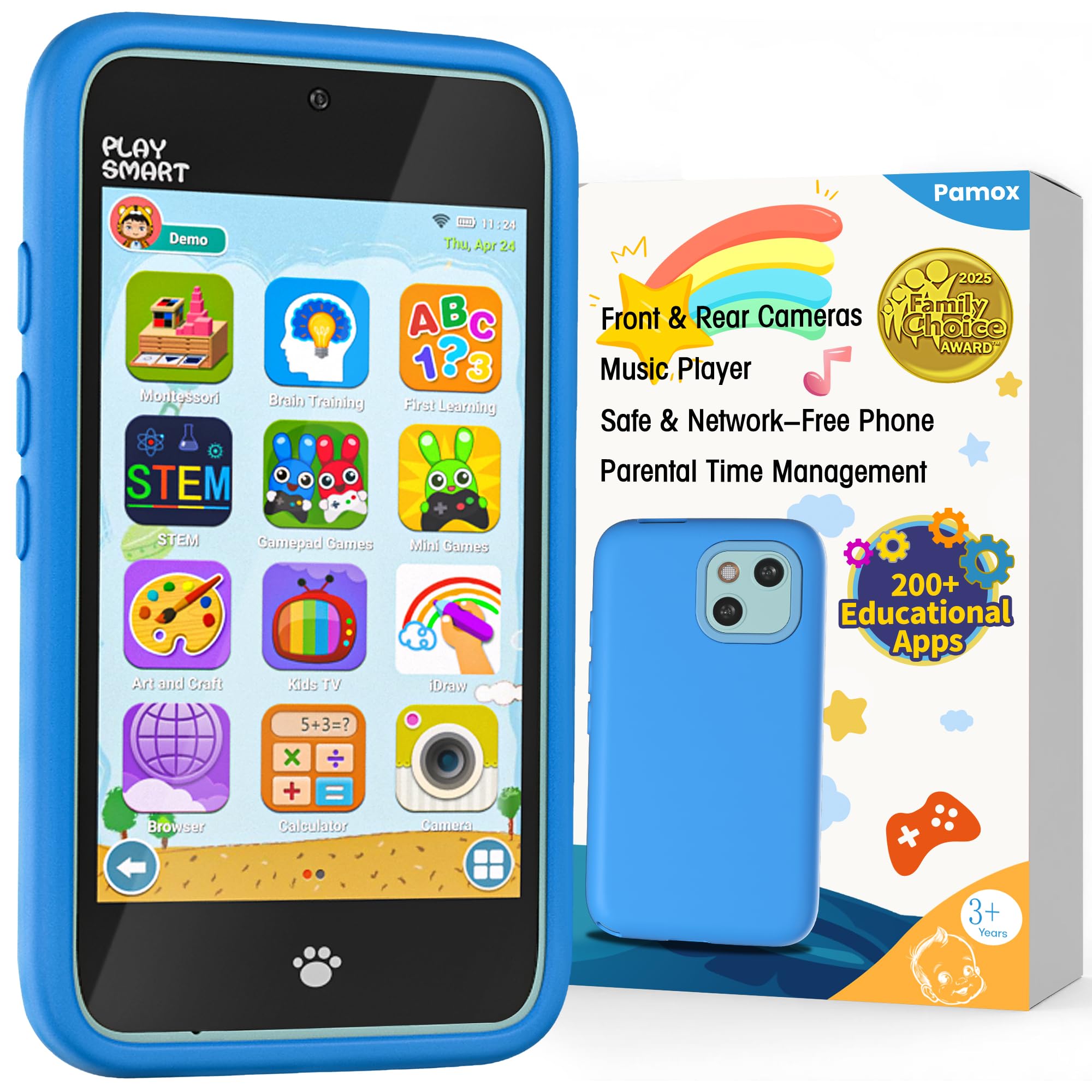
Image: The PAMOX PlaySmart Kids Toy Phone in blue, showcasing its sleek design and user interface.
2. Safety Information
- Adult Supervision: Always ensure children use the device under adult supervision.
- Choking Hazard: Keep small parts away from young children.
- Battery Safety: The device contains a non-removable lithium-ion battery. Do not attempt to open or replace the battery. Use only the provided charging cable.
- Water Exposure: This device is not waterproof. Avoid contact with water or other liquids.
- Cleaning: Clean the device with a soft, dry cloth. Do not use abrasive cleaners.
- Eye Protection: The 4-inch HD touchscreen is designed with optimized lighting to reduce blue light exposure. Encourage breaks during extended use to protect eye health.
3. What's in the Box
Your PAMOX PlaySmart Kids Toy Phone package includes:
- PAMOX PlaySmart Kids Toy Phone (Blue)
- Silicone Shock-Absorbing Case
- Charging Cable (USB)
- Instruction Manual (this document)
Video: An official PAMOX video showcasing the unboxing and contents of the Kids Toy Phone package, including the phone, case, and charging cable.
4. Device Layout
Familiarize yourself with the key components of your PlaySmart device:
- Front Camera: Located at the top center of the screen.
- Power On/Off Button: Located on the right side of the device.
- Volume Up/Down Buttons: Located below the Power button on the right side.
- Rear Dual Cameras: Located on the back of the device.
- Home Button (Paw Print Icon): Located at the bottom center of the screen.
- Charging Port: Located at the bottom of the device.
- Headphone Jack: Located at the bottom of the device.
- SD Card Slot: For additional storage of photos and files.
Video: A user demonstrates the physical features of the toy phone, including the power button, volume controls, cameras, and ports, highlighting its realistic design.
5. Setup
- Charging the Device: Before first use, fully charge the device using the provided USB charging cable. Connect the cable to the charging port on the bottom of the phone and to a compatible USB power adapter (not included).
- Powering On/Off: Press and hold the Power On/Off button on the right side of the device until the screen lights up. To power off, press and hold the same button and follow the on-screen prompts.
- Initial Setup: Upon first power-on, you may be prompted to set up a parental passcode. This is recommended to manage access to certain features and settings.
- Installing the Protective Case: The device comes with a silicone shock-absorbing case. Carefully fit the case around the phone to provide protection against drops and bumps.
6. Operating Instructions
6.1. Navigation
- Touchscreen: Navigate the device by tapping and swiping on the 4-inch HD touchscreen.
- Home Button: Tap the paw print icon at the bottom of the screen to return to the main menu.
- Volume Control: Use the Volume Up and Volume Down buttons on the right side to adjust audio levels.
6.2. Educational Games
The PlaySmart phone includes over 200 preloaded educational games covering various subjects:
- First Learning: ABCs, 123s, basic concepts.
- Brain Training: Memory games, logic puzzles.
- STEM: Science, Technology, Engineering, and Mathematics activities.
- Art & Craft: Drawing, coloring, mosaic puzzles.
- Montessori: Shape recognition, pattern matching.
To access games, tap on the respective icon from the main menu. New games unlock daily to keep content fresh and engaging.

Image: A child happily interacting with the PAMOX PlaySmart Toy Phone, displaying the variety of educational games available on the screen.
6.3. Camera and Video Functions
Capture photos and videos using the dual cameras:
- Taking Photos: Tap the "Camera" icon. Use the front or rear camera. Apply fun stickers and frames before or after taking a picture.
- Recording Videos: Tap the "Video" icon to start recording.
- Viewing Media: Access saved photos and videos through the "Gallery" icon.

Image: A family taking a selfie with the PAMOX PlaySmart Toy Phone, demonstrating the dual camera feature and fun stickers.
6.4. Music Player
The device includes a music player. Children can listen to preloaded songs or download their own music files via the USB cable for offline enjoyment.
6.5. Other Features
- Calculator: A basic calculator for simple arithmetic.
- Flashlight: A built-in flashlight function.
7. Parental Control
The PlaySmart phone is equipped with parental control features to ensure responsible usage:
- App Management: Customize which age-appropriate apps are accessible to your child.
- Time Limits: Set daily or weekly time limits for device usage to prevent overuse.
- Usage Statistics: Track which apps your child is using and for how long.
- Account Setup: Create personalized accounts for each child.
Access parental control settings by entering the passcode you set during initial setup. This system helps create a safe digital environment for your child.

Image: The parental control interface of the PAMOX PlaySmart Toy Phone, showing options for managing apps, setting time limits, and viewing usage statistics.
8. Maintenance
- Cleaning: Use a soft, lint-free cloth to clean the screen and body of the device. Do not use liquid cleaners or aerosols.
- Storage: Store the device in a cool, dry place away from direct sunlight and extreme temperatures.
- Battery Care: To prolong battery life, avoid fully discharging the battery frequently. Charge the device regularly.
- Data Transfer: Use the provided USB cable to transfer photos, videos, and music files to and from a computer.
9. Troubleshooting
| Problem | Solution |
|---|---|
| Device does not power on. | Ensure the device is fully charged. Connect to the charger and try again. |
| Screen is frozen or unresponsive. | Press and hold the Power On/Off button for 10-15 seconds to force a restart. |
| Cannot access certain apps/features. | Check parental control settings. Ensure the correct passcode is entered. |
| Poor camera quality. | Ensure the camera lens is clean and free from smudges. Use in well-lit environments. |
| Battery drains quickly. | Reduce screen brightness. Close unused applications. Ensure the device is not running continuously in the background. |
10. Specifications
- Model Number: Playsmart
- Product Dimensions: 5.12 x 2.76 x 0.59 inches
- Item Weight: 6.7 ounces
- Screen: 4-inch HD Touchscreen
- Cameras: Dual (Front + Rear)
- Battery: 1500mAh Lithium Ion (included)
- Recommended Age: 36 months - 12 years
- Storage: (Implied from feature bullets: "saving plenty of photos and story files without frequent data clearing")
11. Warranty and Support
For warranty information and customer support, please refer to the contact details provided on the product packaging or visit the official PAMOX website. Keep your purchase receipt as proof of purchase.
Ask a question about this manual
Ask about setup, troubleshooting, compatibility, parts, safety, or missing instructions. Manuals+ will review the question and use this page’s manual context to help answer it.