1. Introduction
The Carlinkit Mini Ultra 3 adapter converts your vehicle's existing wired CarPlay or Android Auto system into a wireless connection. This manual provides instructions for setup, operation, and maintenance to ensure optimal performance.
Important Note: This adapter is designed for vehicles with factory-installed wired CarPlay or Android Auto. It cannot convert between CarPlay and Android Auto ecosystems (e.g., wired CarPlay to wireless Android Auto).
2. Product Overview
The Carlinkit Mini Ultra 3 offers a seamless wireless experience for your in-car entertainment and navigation systems.
Key Features:
- Converts wired CarPlay to wireless CarPlay.
- Converts wired Android Auto to wireless Android Auto.
- Broad compatibility with iOS 10+ and Android 11.0+ devices.
- Operates reliably in extreme temperatures (-20°C to 60°C / -4°F to 140°F).
- Retains original vehicle controls: steering wheel, touchscreen, and microphone.
- Plug & Play setup with automatic reconnection.
- Includes USB-A and Type-C connectivity options.

Image: The Carlinkit Mini Ultra 3 adapter shown alongside a car's infotainment screen displaying the CarPlay interface, highlighting its function.

Image: A visual representation of the Mini Ultra 3 adapter with indicators for light blue (power), dark green (CarPlay connected), and dark blue (Android Auto connected) statuses.
3. Setup Instructions
Follow these steps to set up your Carlinkit Mini Ultra 3 adapter for wireless CarPlay or Android Auto.
- Step 1: Insert the Adapter
Plug the Carlinkit Mini Ultra 3 adapter into your vehicle's USB-A or USB-C port. Use the included Type-C converter if your car only has a USB-C port.
Image: A hand inserting the Carlinkit Mini Ultra 3 adapter into a car's USB-A port, illustrating the first step of installation.
- Step 2: Enable Bluetooth and Wi-Fi on Your Phone
On your iPhone or Android phone, ensure both Bluetooth and Wi-Fi are turned on. Do not connect to any Wi-Fi network yet.
Image: A smartphone screen displaying the settings menu with Bluetooth and Wi-Fi toggles enabled, as required for setup.
- Step 3: Pair Your Phone via Bluetooth
On your car's infotainment screen, a Bluetooth name (e.g., "VehiConn_xxxx") will appear. Search for this Bluetooth name on your phone and pair with it.
Image: The car's display showing a Bluetooth pairing name and a smartphone searching for that name to establish a connection.
- Step 4: Confirm Connection
After successful Bluetooth pairing, a prompt will appear on your car's screen. Tap "Connect" and agree to use wireless CarPlay or Android Auto. Your phone will then automatically connect to the adapter's Wi-Fi for data transfer.
Image: The car's infotainment screen showing the fully connected wireless CarPlay or Android Auto interface, ready for use.
Once the initial setup is complete, the adapter will automatically connect to your phone each time you start your car, provided Bluetooth and Wi-Fi are enabled on your phone.
4. Operating Instructions
After successful connection, you can operate wireless CarPlay or Android Auto using your vehicle's existing controls.
Control Methods:
- Touch Control: Interact directly with the car's touchscreen display.
- Steering Wheel Controls: Use your vehicle's steering wheel buttons for audio, calls, and navigation.
- Knob Control: Utilize the car's physical control knobs for menu navigation and selections.
- Voice Control: Activate Siri (for CarPlay) or Google Assistant (for Android Auto) using your car's microphone for hands-free commands.

Image: Depicts the various ways to control the in-car system, including touch screen, steering wheel buttons, rotary knobs, and voice commands.
5. Compatibility
The Carlinkit Mini Ultra 3 adapter is designed for broad compatibility with vehicles and smartphones.
Vehicle Compatibility:
- Compatible with vehicles that have factory-installed wired CarPlay or Android Auto.
- Supports over 98% of car models equipped with these systems.
- Note: Not compatible with native wireless systems (e.g., some BMW, Tesla models) or vehicles without existing wired CarPlay/Android Auto.
Smartphone Compatibility:
- For Wireless CarPlay: iPhone 6 or newer running iOS 10+ versions.
- For Wireless Android Auto: Android phones running Android 11.0 or newer versions.

Image: A visual guide illustrating the compatibility of the adapter with various iPhone and Android phone models, as well as a wide range of car brands.
6. Troubleshooting and Firmware Updates
If you encounter issues or wish to update the adapter's firmware, follow these steps:
- Connect to the Adapter's Wi-Fi: Plug the adapter into your car's USB port. On your mobile phone, turn on Wi-Fi and connect to the adapter's Wi-Fi signal (it will appear as a network).
- Access the Settings Interface: Open a web browser on your phone and enter the URL
192.168.50.100. - Check for Updates: In the settings interface, navigate to the "Upgrade" section to check for and install available firmware updates.

Image: A smartphone screen displaying the adapter's web-based settings interface, specifically the section for online firmware updates.
Common Issues:
- No Connection: Ensure Bluetooth and Wi-Fi are enabled on your phone. Try restarting both your phone and the car's infotainment system. Re-pair the device.
- Intermittent Connection: Check for firmware updates. Ensure the adapter is securely plugged into the USB port. Avoid placing other wireless devices directly next to the adapter.
- Audio Lag: While minimal lag is inherent in wireless systems, significant lag might be improved with firmware updates.
- Overheating: The Mini Ultra 3 features an aluminum body for heat dissipation. If the device feels excessively hot, ensure it has adequate ventilation and is not covered.
7. Specifications
| Feature | Detail |
|---|---|
| Product Model | Mini Ultra 3 |
| Dimensions | 0.98 x 0.98 x 0.88 inches (24.98 x 24.98 x 22.35 mm) |
| Item Weight | 0.24 ounces (6.8 g) |
| Material | Aluminum Alloy + ABS+PC |
| Power Input | 5V ± 0.2V 1.0A |
| CPU | Arm Cortex-A7 |
| WiFi Frequency | 2.4GHz, 5GHz |
| Connectivity | USB-A/Type-C |
| Operating Temperature | -20°C to 60°C (-4°F to 140°F) |
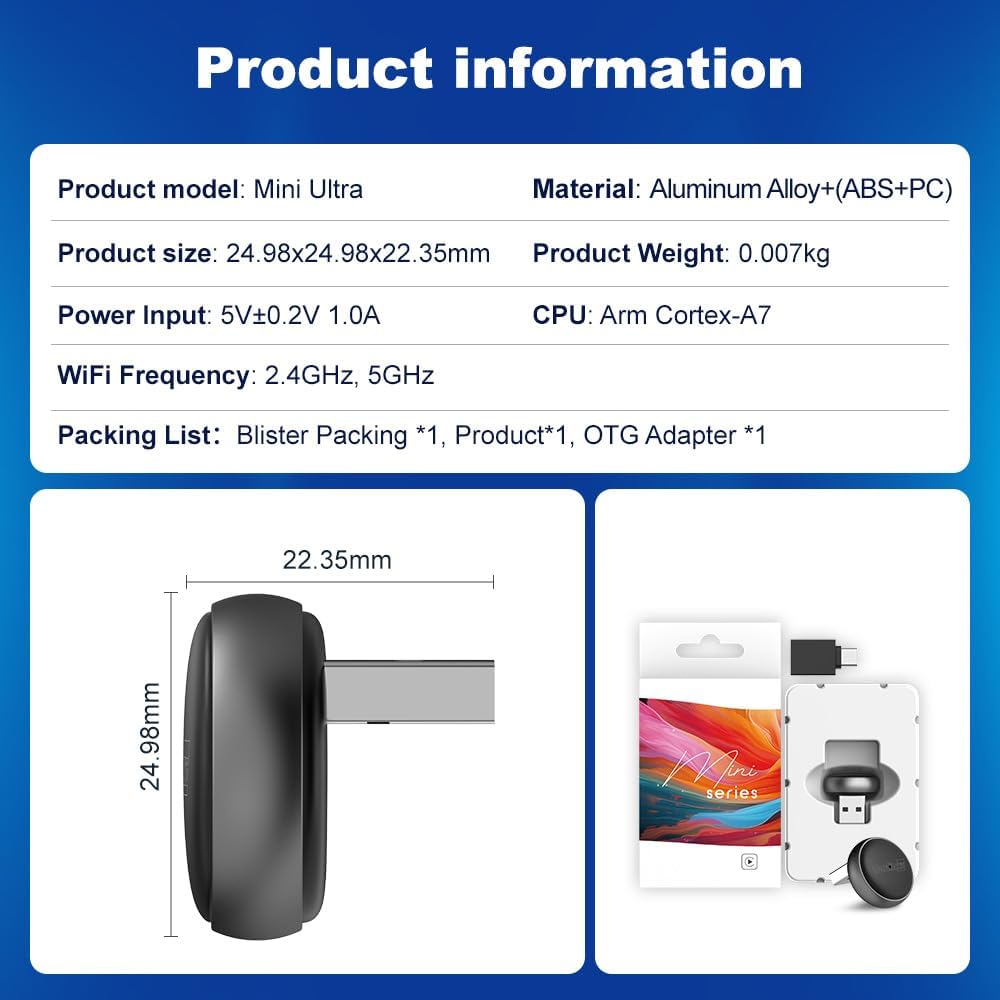
Image: A detailed table of product specifications and a diagram showing the precise dimensions of the Carlinkit Mini Ultra 3 adapter.
8. Maintenance
To ensure the longevity and optimal performance of your Carlinkit Mini Ultra 3 adapter, follow these general maintenance guidelines:
- Cleaning: Use a soft, dry cloth to gently wipe the adapter. Avoid using liquid cleaners or abrasive materials.
- Storage: When not in use for extended periods, store the adapter in a cool, dry place away from direct sunlight and extreme temperatures.
- Handling: Handle the adapter with care. Avoid dropping it or subjecting it to strong impacts.
- Ventilation: Ensure the adapter is not obstructed when plugged in, allowing for proper heat dissipation.
9. Warranty and Support
The Carlinkit Mini Ultra 3 adapter comes with a one-year warranty from the date of purchase, covering manufacturing defects.
For technical support, troubleshooting assistance, or warranty claims, please refer to the contact information provided with your product packaging or visit the official Carlinkit website.
Regular firmware updates are released to improve performance and compatibility. It is recommended to check for updates periodically as described in the Troubleshooting section.


