Introduction
Thank you for choosing the SWGOTA 4G Kids Smartwatch T40. This device is designed to provide communication, safety, and entertainment for children, while offering peace of mind for parents. It features 4G connectivity for video calls, real-time GPS tracking, an SOS emergency button, and various educational and practical functions. Please read this manual carefully to ensure proper use and optimal performance of your smartwatch.
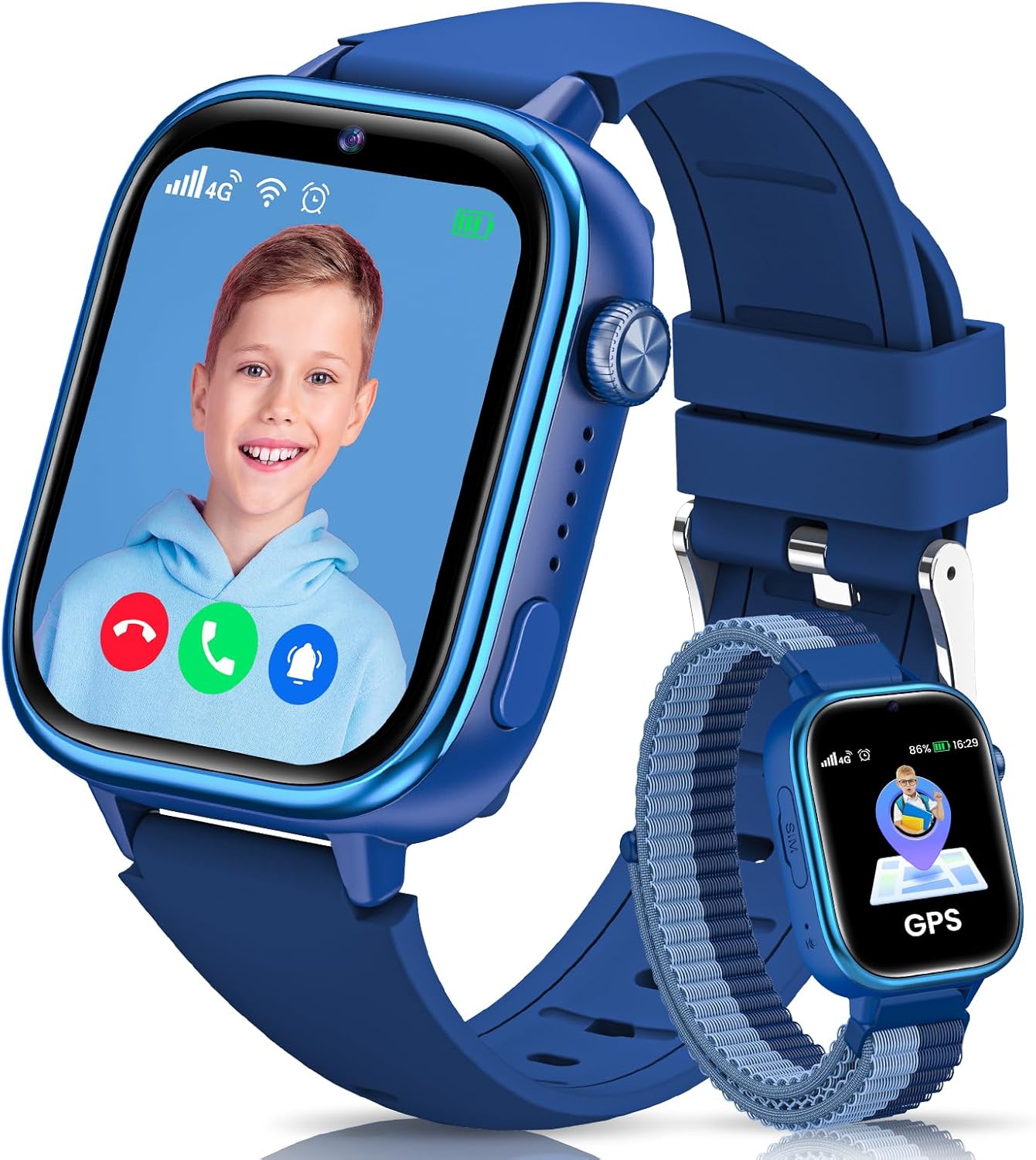
Image: The SWGOTA 4G Kids Smartwatch T40, featuring a video call in progress on its screen, alongside a smaller watch displaying a GPS icon.
Package Contents
Please check the box for the following items:
- Smartwatch (1 unit)
- Silicone Strap (1 unit)
- Nylon Strap (1 unit)
- Tempered Glass Screen Protectors (2 units)
- Replacement Ear Extensions (1 pair)
- Ear Removal Tool (1 unit)
- SIM Card Ejector Tool (1 unit)
- USB Charging Cable (1 unit)
- User Manual (this document)

Image: A visual representation of all items included in the smartwatch package, such as the watch, two different straps, screen protectors, tools, and a charging cable.
Setup Guide
1. Charging the Device
Before first use, fully charge the smartwatch. Connect the magnetic USB charging cable to the charging port on the back of the watch and to a standard USB power adapter (not included). The watch display will indicate charging status.
2. SIM Card Installation
The SWGOTA T40 requires a Nano SIM card for 4G connectivity. Ensure the SIM card is activated and supports 4G networks. Use the provided SIM ejector tool to open the SIM card slot on the side of the watch. Insert the Nano SIM card with the gold contacts facing up, then close the tray securely.

Image: A diagram illustrating the correct type of SIM card (Nano SIM) and how to insert it into the smartwatch.
3. App Installation and Pairing
To manage the smartwatch features, parents need to install the 'Setracker2' application on their smartphone.
- Download 'Setracker2' from your smartphone's app store (iOS or Android) or scan the QR code provided in the watch packaging.
- Open the app, register an account, and log in.
- In the app, select 'Add Device' and scan the 15-digit IMEI barcode found on the back of the watch or in its settings.
- Follow the on-screen prompts to complete the pairing process. Ensure the watch has network signal for successful connection.

Image: A visual guide detailing the steps to download the Setracker2 app, register, scan the IMEI, and connect the smartwatch.
Key Features & Operating Instructions
1. 4G HD Video Calls & Voice Communication
The smartwatch supports smooth HD video calls, voice calls, and voice chat via its 4G connectivity. Parents can manage up to 15 frequent contacts through the Setracker2 app and block unknown calls.
- Video Call: Initiate video calls directly from the watch to pre-approved contacts.
- Phone Call: Make and receive standard phone calls.
- Voice Chat: Send and receive short voice messages, similar to instant messaging.
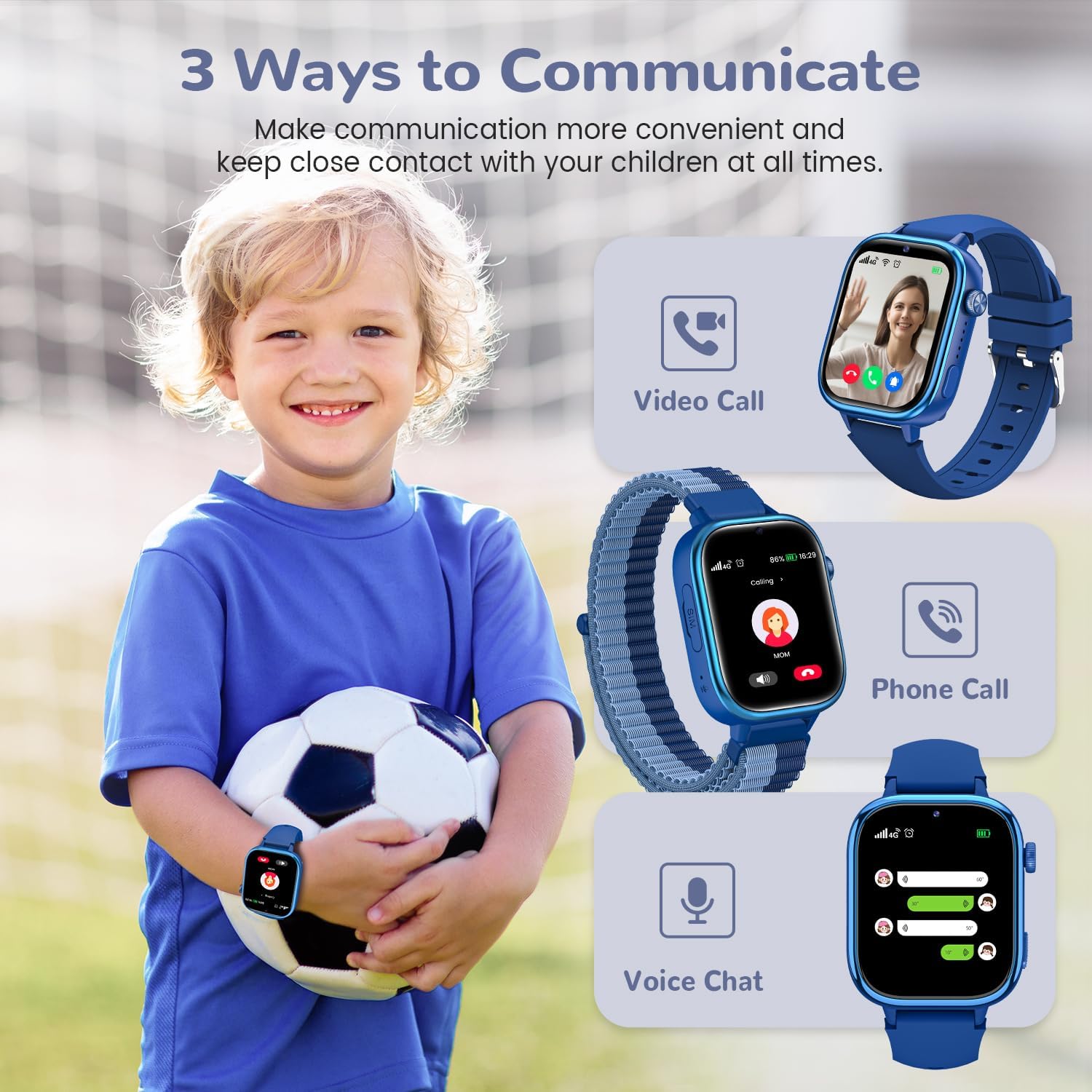
Image: A child with the smartwatch, demonstrating the three communication methods: video call, phone call, and voice chat.

Image: An illustration of a child making an HD video call to their mother using the smartwatch.

Image: The smartwatch showing an incoming voice call, emphasizing the phone call function.

Image: The smartwatch displaying a voice chat interface, allowing for sending and receiving audio messages.
2. Real-time Location Tracking & Safe Zones
Utilizing GPS and LBS positioning systems, parents can monitor their child's location in real-time via the Setracker2 app. Customizable safe zones can be set, triggering alerts if the child enters or exits these predefined areas. Three map modes are available for enhanced accuracy.

Image: A smartphone displaying a map with real-time location tracking, highlighting features like Real-time Location, Safe Zone, History Footprint, and 4G connectivity.

Image: A smartphone screen showing the Setracker2 app's map interface, illustrating historical footprints and safe zone settings.
3. SOS Emergency Function
In an emergency, the child can press and hold the SOS button for 2 seconds. The smartwatch will automatically and repeatedly dial up to 3 pre-set emergency contacts until a call is answered, ensuring immediate assistance.

Image: A visual representation of the SOS emergency function, showing a child activating the SOS button and the watch cycling through emergency contacts.

Image: The smartwatch screen showing an active SOS alert, with additional icons for pedometer, unknown call rejection, camera, and photo album.
4. School Mode
Parents can set up to three customizable time periods for School Mode via the app. When active, the watch will only display the time and block all incoming messages and calls, minimizing distractions during class and promoting concentration.

Image: Children in a classroom, with the smartwatch displaying a shield icon, indicating School Mode is active to prevent distractions.

Image: A child in a classroom, with the smartwatch displaying the time and options to disable dialing and applications during school mode.
5. Educational Games
The smartwatch includes 7 educational games designed to enhance reaction speed, logical thinking, and creativity. These games offer a balanced approach to learning and relaxation, encouraging autonomous learning.

Image: The smartwatch screen showing a list of available games, along with other utility functions like stopwatch, alarm, watch face selection, and calculator.
6. Pedometer & Heart Rewards
An integrated pedometer tracks daily activity, encouraging children to stay active. Parents can send
Related Documents - T40
 | SWGOTA Smartwatch Data Management and Service Terms Information on accessing, sharing, and deleting data from SWGOTA Smartwatches, including details on service terms, reliability, and customer support contact. |
 | Declaración de Transparencia de Datos SWGOTA Smartwatch (ES) Detalles sobre los datos generados y transmitidos por el smartwatch SWGOTA, incluyendo tipos de datos personales y no personales, volumen, formato, almacenamiento, acceso, recuperación y eliminación. Información sobre privacidad y uso para el modelo Women's Smartwatch. |
 | Declaración de Transparencia de Datos para SWGOTA Smartwatch Detalles sobre la recopilación, uso, almacenamiento y protección de datos generados por los productos en línea SWGOTA, incluyendo información personal, de salud y de uso del dispositivo. |
 | Dichiarazione Trasparenza Dati SWGOTA Smartwatch: Gestione Dati Utente Scopri come SWGOTA gestisce i dati raccolti dai suoi smartwatch connessi, inclusi dati personali, sanitari e di utilizzo. Informazioni su archiviazione, conservazione e accesso ai dati. |
 | 4G Kids Smart Watch User Manual - Setup, Features, and Safety Guide This user manual provides comprehensive instructions for the 4G Kids Smart Watch, covering safety warnings, product details, SIM card insertion, app download and binding, and main app functions like phone book, group chat, GPS tracking, pedometer, alarm, video chat, and SOS settings. |