
1. Introduction
Thank you for choosing the Pisichen 24 inch Touch Screen Gaming Monitor. This manual provides essential information for setting up, operating, and maintaining your monitor. Please read it thoroughly before use to ensure optimal performance and safety.
This monitor features a 24-inch QHD (2560x1440P) display with a 165Hz refresh rate, 2ms response time, and 10-point projected capacitive touchscreen functionality. It supports FreeSync and HDR, offering a vibrant and responsive visual experience for both gaming and professional applications.

Image: The Pisichen 24-inch 2K 165Hz Touch Screen Monitor highlighting its key features like HDR, IPS Panel, and 10-point Touch.
2. Package Contents
Before proceeding with the setup, please verify that all components are present in the package:
- Pisichen 24 inch Touch Screen Monitor
- Monitor Stand (Base and Neck)
- DP Cable
- HDMI Cable
- USB B Touch Cable
- USB C-C Cable
- DC Power Adapter
- User Manual (this document)
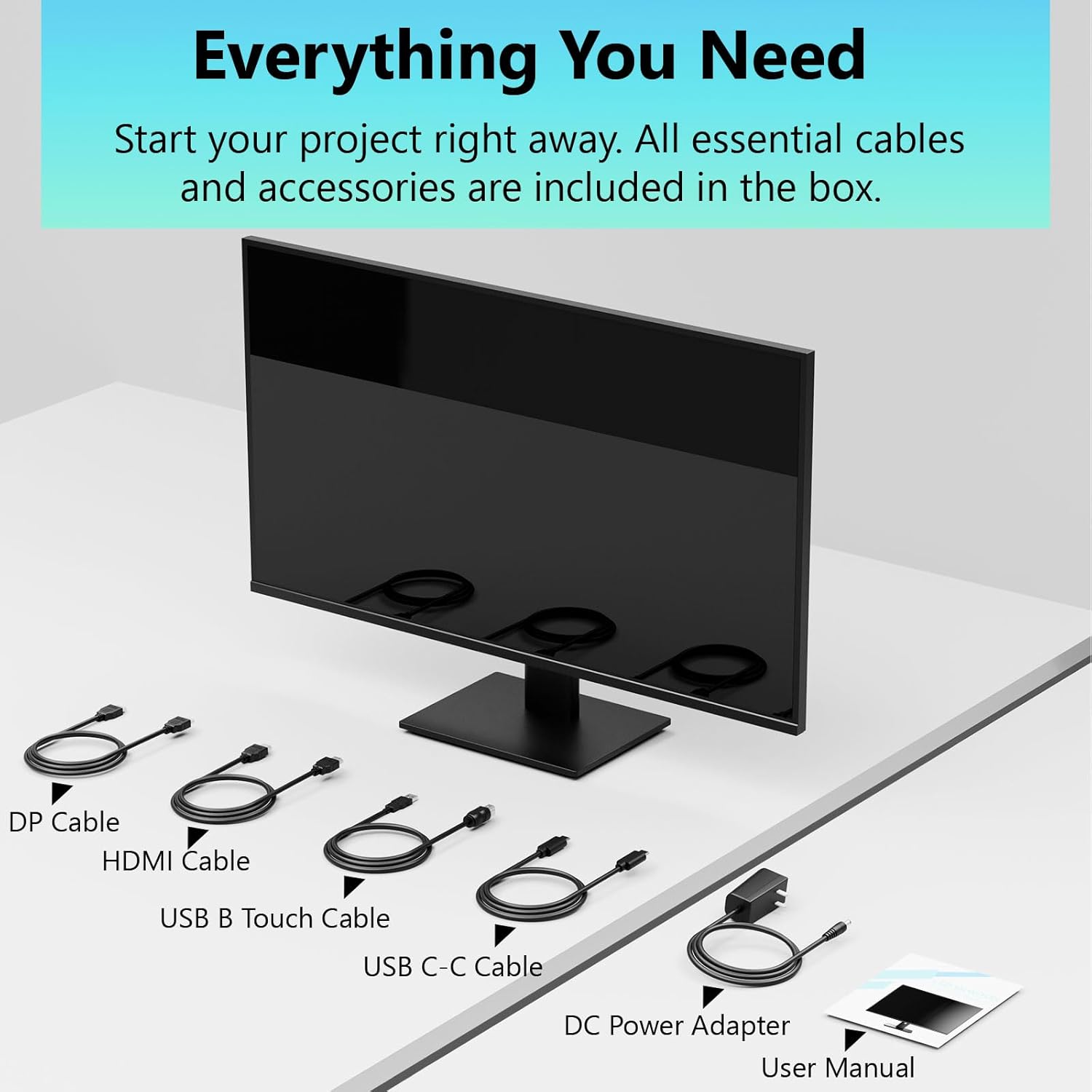
Image: All essential cables and accessories included in the box for the monitor setup.
3. Setup Instructions
3.1 Assembling the Stand
- Carefully remove the monitor from its packaging, placing it face down on a soft, clean surface to prevent scratches.
- Attach the stand neck to the monitor's rear panel.
- Secure the stand base to the stand neck using the provided screws.
- Ensure all connections are firm before placing the monitor upright.
3.2 VESA Mount Installation (Optional)
This monitor supports VESA mounting. If you plan to use a VESA-compatible arm or wall mount, remove the stand and attach the VESA mount according to the mount's instructions. The VESA pattern is typically 75x75mm or 100x100mm (refer to specifications for exact details).
3.3 Connecting to a Device
The monitor offers multiple connectivity options:
- HDMI: Connect one end of the HDMI cable to the monitor's HDMI port and the other end to your computer's HDMI output.
- DisplayPort (DP): Connect one end of the DP cable to the monitor's DP port and the other end to your computer's DP output.
- USB Type-C: For compatible devices, connect the USB C-C cable to the monitor's USB Type-C port and your device's USB Type-C port. This single cable can transmit video, data, and power (charging).
- USB Type-B (for Touch Functionality): To enable the touch screen feature, connect the USB B Touch Cable from the monitor's USB Type-B port to an available USB Type-A port on your computer.

Image: The monitor's rear panel with various connectivity options, including HDMI, DisplayPort, and USB-C ports.
3.4 Power Connection
Connect the DC Power Adapter to the monitor's power input port, then plug the adapter into a power outlet.
3.5 Initial Power On and Touch Compatibility
Press the power button on the monitor. The display should light up. If no image appears, ensure all cables are securely connected and the correct input source is selected on the monitor (via the OSD menu).
For touch functionality, ensure the USB B Touch Cable is connected to your computer. Touch compatibility may vary by operating system and device. Most Windows PCs support multi-touch. For Mac devices, single-touch click is generally supported, but multi-touch may require specific drivers or configurations. Game consoles (PS3/4/5, Xbox, Steam Deck) and some other devices (Fire TV, Apple products like iPhone/iPad) typically do not support touch functionality.

Image: A compatibility chart illustrating which devices support multi-touch or single-touch, and which devices do not support touch functionality with the monitor.
4. Operating Instructions
4.1 Power On/Off
Press the power button located on the monitor to turn it on or off. The power indicator light will show the monitor's status.
4.2 On-Screen Display (OSD) Menu
The OSD menu allows you to adjust various monitor settings. Use the control buttons (usually located on the back or bottom of the monitor) to navigate the menu. Common menu options include:
- Picture Settings: Brightness, Contrast, Sharpness, Color Temperature, HDR mode.
- Display Settings: Aspect Ratio, Input Source selection (HDMI, DP, USB-C).
- Gaming Settings: FreeSync, Response Time (Overdrive), Crosshair.
- Audio Settings: Volume (if internal speakers or audio output are present).
- System Settings: Language, OSD Transparency, Reset to Factory Defaults.
4.3 Touch Screen Functionality
The monitor supports 10-point multi-touch, allowing for intuitive interaction directly on the screen. Ensure the USB B Touch Cable is connected to your computer for this feature to work.
- Single Tap: Equivalent to a left-click.
- Tap and Hold: Equivalent to a right-click.
- Pinch-to-Zoom: Use two fingers to zoom in or out.
- Swipe: Navigate through content or scroll.

Image: A user interacting with the monitor's touch screen, highlighting its precision and responsiveness for creative tasks.
4.4 Ergonomic Adjustments
The monitor stand allows for tilt adjustments to achieve the most comfortable viewing and touch angle. Gently adjust the screen to your preferred position.
4.5 Eye Care Features
The monitor includes advanced eye-comfort features such as Flicker-Free technology and Low Bluelight mode to reduce eye strain during prolonged use. These settings can typically be adjusted within the OSD menu.

Image: Visual representation of the monitor's advanced eye-comfort features, including Flicker-Free and Low Bluelight technologies.
5. Maintenance
5.1 Cleaning the Monitor
- Always power off the monitor and unplug the power cord before cleaning.
- Use a soft, lint-free cloth lightly dampened with water or a mild, non-abrasive screen cleaner.
- Do not spray cleaner directly onto the screen. Apply it to the cloth first.
- Avoid using benzene, thinner, ammonia-based cleaners, or abrasive materials, as these can damage the screen surface.
5.2 Storage
When storing the monitor for an extended period, ensure it is powered off, unplugged, and stored in a cool, dry place away from direct sunlight and extreme temperatures. Use the original packaging if available for best protection.
6. Troubleshooting
If you encounter issues with your monitor, refer to the following common troubleshooting steps:
- No Power: Ensure the power adapter is securely connected to both the monitor and a working power outlet. Check if the power indicator light is on.
- No Image/Signal:
- Verify that the video cable (HDMI, DP, or USB-C) is securely connected to both the monitor and your computer.
- Ensure the correct input source is selected in the monitor's OSD menu.
- Check your computer's display settings to ensure the monitor is detected and enabled.
- No Touch Functionality:
- Confirm the USB B Touch Cable is connected from the monitor to your computer.
- Check your computer's device manager to see if the touch screen driver is installed and functioning correctly.
- Refer to the "Initial Power On and Touch Compatibility" section for device-specific limitations.
- Flickering or Distorted Image:
- Check the video cable for damage or loose connections.
- Try a different video cable or port.
- Adjust the refresh rate in your computer's display settings.
- Dead Pixels: A small number of bright or dark pixels are common in LCD/LED technology and are not considered a defect unless they exceed manufacturer specifications.
If the problem persists after trying these steps, please contact customer support.
7. Specifications
| Feature | Specification |
|---|---|
| Brand | Pisichen |
| Model Number | 24IN165HZ-QHD |
| Screen Size | 23.8 inches |
| Resolution | QHD Wide 1440p (2560 x 1440) |
| Aspect Ratio | 16:9 |
| Refresh Rate | 165 Hz |
| Response Time | 2 Milliseconds |
| Display Type | LED IPS |
| Brightness | 400 Candela (cd/m²) |
| Contrast Ratio | 3000:1 |
| Viewing Angle | 178 Degrees |
| Color Gamut | 99% |
| Picture Quality Enhancement | HDR |
| Adaptive Sync | FreeSync |
| Connectivity Technology | DisplayPort, HDMI, USB Type-C, USB Type-B |
| Additional Features | Tilt Adjustment, 10-Point Touchscreen |
| Item Dimensions (D x W x H) | 0.75"D x 21.5"W x 12.7"H |
| Item Weight | 5.38 Kilograms |
| Color | Black |
8. Warranty Information
This product comes with a 1-year limited warranty from the date of purchase. The warranty covers manufacturing defects and workmanship under normal use. It does not cover damage caused by misuse, accidents, unauthorized modifications, or external factors. Please retain your proof of purchase for warranty claims.
9. Customer Support
For technical assistance, warranty claims, or further inquiries, please contact Pisichen customer support. You may find contact information on the official Pisichen website or through your retailer.
For additional resources and product information, visit the Pisichen Store on Amazon.