
1. Introduction
The Bikevee GPS Cycling Computer BKV300B is designed to provide cyclists with essential ride data. It features a clear 2.4-inch LCD display with automatic backlight, GPS tracking, and an auto start/stop function for convenience. Its waterproof design ensures reliable performance in various weather conditions.

Image 1.1: The Bikevee GPS Cycling Computer BKV300B.
Key Features
- Long Battery Life: Up to 28 hours of continuous use with a 650mAh rechargeable battery.
- Clear 2.4" LCD Display: Easy-to-read screen with automatic backlight for day and night visibility.
- Auto Start/Stop: Automatically records ride data when cycling begins and pauses when stopped.
- Accurate Odometer: Tracks current speed, average speed, maximum speed, total distance, and trip time.
- IPX7 Waterproof: Designed to withstand various weather conditions.
- Lightweight Design: Weighs approximately 50g (0.11lb) for minimal impact on your bike.

Image 1.2: The Bikevee GPS Cycling Computer BKV300B is lightweight and portable.
2. What's Included
Verify that all components are present in the package before proceeding with installation.
- Bike Computer (Main Unit)
- USB-C Charging Cable
- Standard Bike Out Front Mount
- Hexagon Socket Screw
- Hexagon Wrench
- Sponge (for mounting)
- User Manual

Image 2.1: Package contents including the bike computer, charging cable, mount, and tools.
3. Setup
3.1. Mounting the Device
The Bikevee GPS Cycling Computer BKV300B is designed for easy, wireless installation on your bicycle handlebars.
- Place the Mount: Position the standard bike out front mount horizontally on your handlebar. Use the provided sponge for a secure fit.
- Secure the Mount: Use the hexagon socket screw and wrench to firmly attach the mount to your handlebar.
- Attach the Computer: Place the bike computer onto the mount.
- Lock the Computer: Turn the bike computer clockwise by 90 degrees until it clicks securely into place.

Image 3.1: Step-by-step guide for mounting the cycling computer.
3.2. Initial GPS Connection
For the first use, ensure you are in an open area. The device will take approximately 30 to 90 seconds to receive the satellite signal and calibrate the time. Subsequent connections will be significantly faster.

Image 3.2: The device utilizes five satellite positioning systems for accurate tracking.
3.3. Setting Time Zone and Units
To adjust settings, long press the right button (gear icon) to enter the settings page. Navigate through the settings using the right button and adjust values with the left button (power/play icon).
- Time Zone: Find the time zone setting. Press the left button to change to your country's time zone.
- Units: Find the unit settings. Press the left button to switch between kilometers (KM/H) and miles (MPH). When switching to miles, the temperature display will automatically change to Fahrenheit.

Image 3.3: Setting the time zone on the device.

Image 3.4: Adjusting speed units (KM/H or MPH).
4. Operating Instructions
4.1. Button Functions
The device has three main buttons for control:
- Left Button (Power/Play/Pause):
- Press and hold for two seconds to power on or off.
- Click to display cycling data (play icon) or not display cycling data (pause icon).
- Middle Button (Settings):
- Long press to enter the settings page.
- Right Button (Next Page):
- Click to move to the next data page.

Image 4.1: Overview of button functions and display indicators.
4.2. Data Display
The device supports the display of 14 types of cycling data, organized across multiple screens. Use the right button to cycle through these screens.
| Data Type | Description |
|---|---|
| Ride Time | Duration of the current ride. |
| Ride Distance | Distance covered in the current ride. |
| Average Speed | Average speed during the current ride. |
| Maximum Speed | Highest speed recorded during the current ride. |
| Total Distance | Cumulative distance recorded by the device. |
| Clock | Current time. |
| Temperature | Current ambient temperature. |
| Ascent | Total elevation gain during the ride. |
| Gradient | Current incline/decline percentage. |
| Altitude | Current elevation. |
| Average Gradient | Average incline/decline percentage. |
| Total Time | Total accumulated time the device has been active. |
| Maximum Gradient | Steepest incline/decline recorded. |
| Maximum Altitude | Highest altitude reached. |
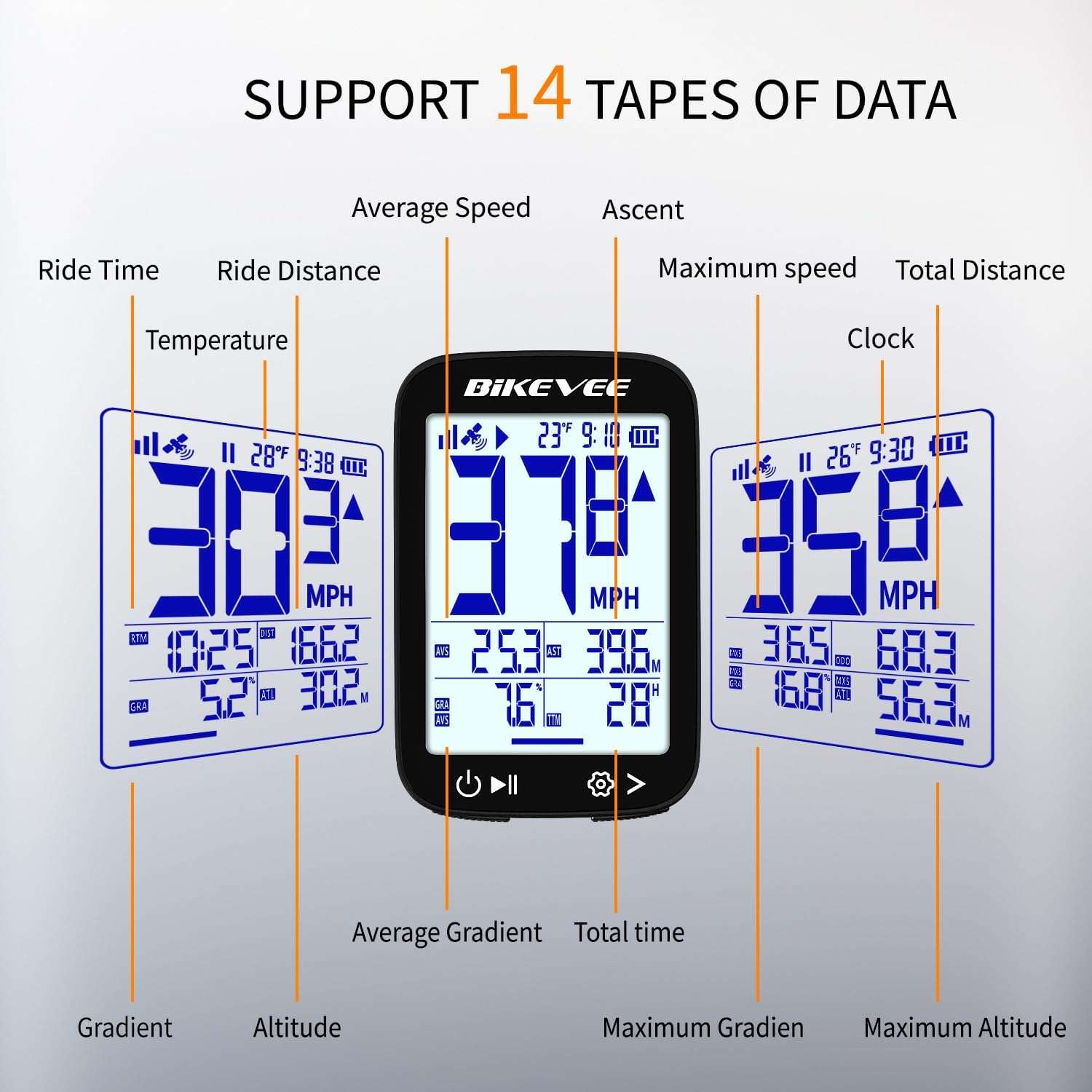
Image 4.2: Examples of data displayed on the cycling computer screen.
4.3. Auto Start/Stop and Backlight
- The device automatically begins recording when movement is detected and pauses when you stop, resuming when you start cycling again.
- The automatic backlight adjusts to ambient light conditions, ensuring visibility day or night.
5. Maintenance
5.1. Waterproofing
The Bikevee GPS Cycling Computer BKV300B features an IPX7 waterproof rating. This means it is protected against temporary immersion in water (up to 1 meter for 30 minutes). It is suitable for use in rain and wet conditions.
Important: Do not immerse the device in water for extended periods or use it for underwater activities. Ensure the USB-C charging port cover is securely closed to maintain water resistance.

Image 5.1: The device is IPX7 waterproof, suitable for rainy conditions.
5.2. Cleaning and Care
- Wipe the device with a soft, damp cloth to remove dirt or sweat.
- Avoid using abrasive cleaners or solvents, as these can damage the screen or casing.
- Store the device in a cool, dry place when not in use.
6. Troubleshooting
If you encounter issues with your Bikevee GPS Cycling Computer BKV300B, refer to the following common problems and solutions:
- Device does not power on:
- Ensure the battery is charged. Connect the device to a power source using the USB-C cable.
- Press and hold the power button for at least 2 seconds.
- GPS signal loss or inaccurate readings:
- Ensure you are in an open area with a clear view of the sky. Dense tree cover or tall buildings can obstruct the signal.
- For first-time use or after a long period of inactivity, allow more time (30-90 seconds) for initial satellite acquisition.
- If issues persist, try restarting the device.
- Display is difficult to read:
- Check if the automatic backlight is functioning correctly. Ensure the screen is clean and free from smudges.
- Some data fields may appear smaller. Focus on the primary speed display for quick readings.
- Mount does not fit securely:
- Ensure the correct sponge or rubber pad is used with the mount to match your handlebar diameter.
- Tighten the hexagon socket screw firmly, but do not overtighten.
- Auto Start/Stop not working:
- Ensure the device is securely mounted and has a clear GPS signal.
- Movement detection requires a certain level of activity to trigger.
7. Specifications
| Feature | Detail |
|---|---|
| Model Number | BKV300B |
| Brand | Bikevee |
| Display Type | LCD |
| Screen Size | 2.4 Inches |
| Dimensions (L x W x H) | 70 x 45 x 16 mm (2.76 x 1.77 x 0.63 inches) |
| Item Weight | 50 Grams |
| Battery Type | Lithium Ion |
| Battery Capacity | 650mAh |
| Battery Life | Up to 28 Hours |
| Sensor Type | GPS Sensor (supports GPS, BDS, QZSS, Glonass, Galileo) |
| Waterproof Rating | IPX7 |
| Human Interface Input | Buttons |
| Mounting Type | Handlebar Mount |
| Charging Port | USB-C |
8. Warranty & Support
8.1. Warranty Information
The Bikevee GPS Cycling Computer BKV300B comes with a two-year warranty from the date of purchase. This warranty covers manufacturing defects and malfunctions under normal use. It does not cover damage caused by misuse, accidents, unauthorized modifications, or improper installation.
Please retain your proof of purchase for warranty claims.
8.2. Customer Support
For technical assistance, troubleshooting, or warranty inquiries, please contact Bikevee customer support through the retailer where the product was purchased or visit the official Bikevee website for contact information.


