Introduction
Thank you for purchasing the VBESTLIFE 16in Portable 4K Ultra HD Monitor. This manual provides essential information for setting up, operating, and maintaining your new display. Please read this manual thoroughly before using the product to ensure proper operation and to prevent damage.
The VBESTLIFE 16in Portable 4K Ultra HD Monitor offers a stunning 4K resolution with a 120Hz refresh rate, 100% sRGB color field, and built-in speakers, making it ideal for various applications including PC, laptop, phone, and gaming. Its portable design allows for flexible use in different environments.
Package Contents
Upon opening the package, please verify that all the following items are included:
- 1 x VBESTLIFE 16in Portable Display
- 1 x Protective Case
- 2 x Type-C to Type-C Cable
- 1 x Mini HD Display Interface to HD Display Interface Cable
- 1 x User Manual (this document)

Image: The VBESTLIFE 16in Portable Monitor shown with its included accessories: two Type-C to Type-C cables and one Mini HDMI to HDMI cable.
Product Overview
Familiarize yourself with the various components and interfaces of your portable monitor.

Image: Front view of the VBESTLIFE 16in Portable Monitor, displaying a desert landscape, with its protective case folded to serve as a stand.

Image: Side view of the VBESTLIFE 16in Portable Monitor, highlighting the various input and control ports located on the left side of the device.
Interfaces:
- Mini HD Display Interface: For video input from devices like PCs, laptops, and gaming consoles.
- Type-C (Full Featured): Supports both video input and power delivery from compatible devices.
- Type-C (Power Delivery): Dedicated port for power input to the monitor.
- 3.5mm Headphone Jack: For audio output to external headphones or speakers.
Setup and Connection
Follow these steps to set up and connect your VBESTLIFE portable monitor to various devices.
- Positioning the Monitor: Use the included protective case as a stand. Fold the case to create a stable viewing angle for the monitor.
- Power Connection:
- Connect one end of a Type-C cable to the Type-C (Power Delivery) port on the monitor and the other end to a power adapter (not included) or a powered USB port.
- Alternatively, if your device supports full-featured Type-C output (power and video), you can use a single Type-C cable connected to the Type-C (Full Featured) port on the monitor.
- Video Input Connection:
- For Mini HDMI: Connect one end of the Mini HD Display Interface to HD Display Interface Cable to the Mini HD Display Interface port on the monitor and the other end to the HDMI port on your source device (e.g., laptop, PC, gaming console).
- For Type-C (Full Featured): Connect one end of a Type-C to Type-C cable to the Type-C (Full Featured) port on the monitor and the other end to a compatible Type-C port on your source device (e.g., laptop, smartphone).
- Audio Output (Optional): If you wish to use external headphones or speakers, connect them to the 3.5mm Headphone Jack on the monitor.
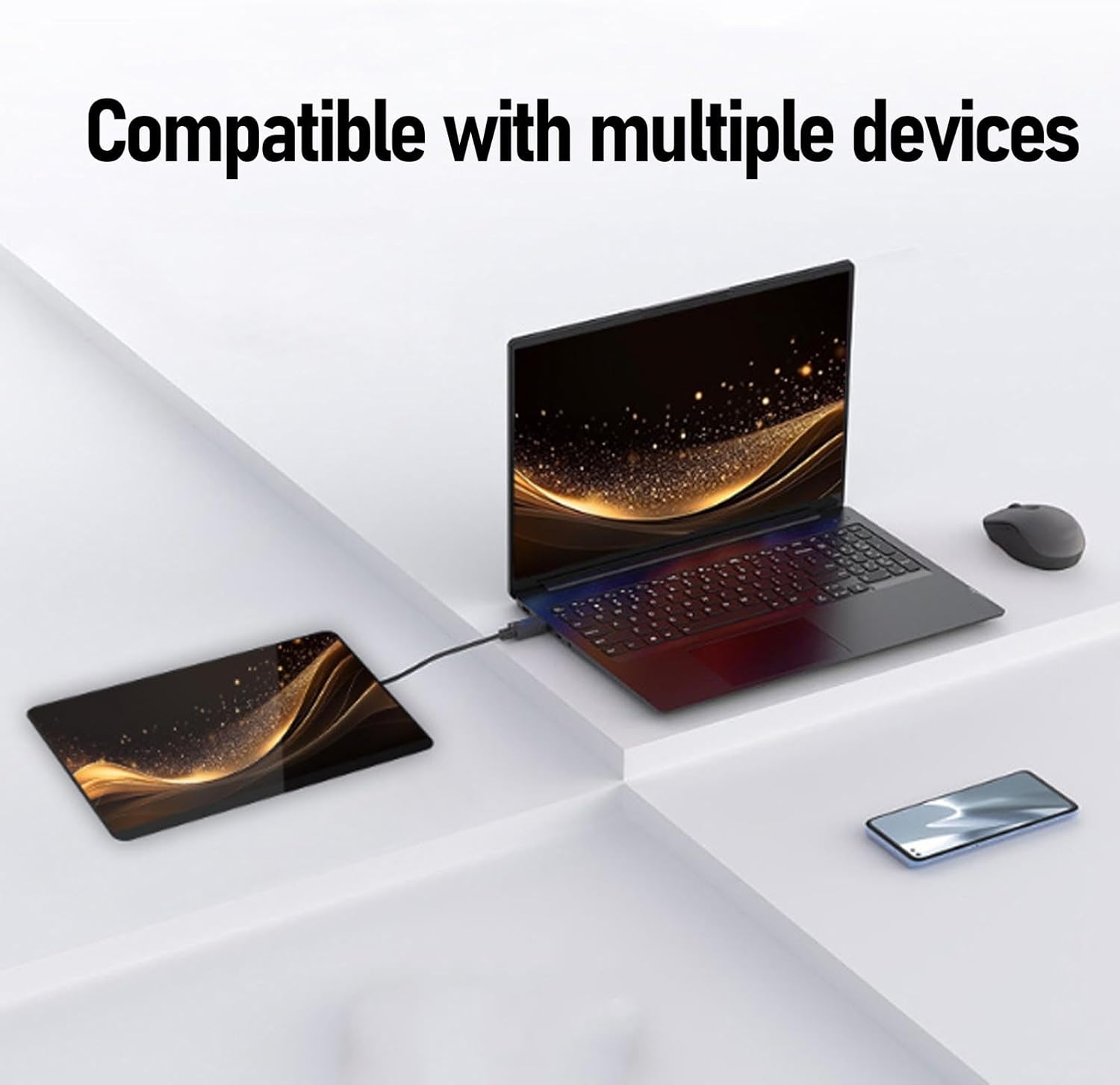
Image: The VBESTLIFE 16in Portable Monitor connected via cable to a laptop, with a smartphone also visible, demonstrating multi-device compatibility.

Image: A collage showing the VBESTLIFE 16in Portable Monitor connected to various devices, including a notebook computer, a desktop computer setup, and gaming consoles, illustrating its versatility.
Operating Instructions
Power On/Off:
Once connected to a power source and a video input, the monitor should automatically power on. If not, locate the power button (usually on the side) and press it to turn on the display. Press and hold to power off.
On-Screen Display (OSD) Menu:
The monitor features an OSD menu for adjusting various settings. Use the control buttons (typically located on the side) to navigate the menu. Common settings include:
- Brightness/Contrast: Adjust display luminance and contrast levels.
- Color Settings: Modify color temperature, hue, and saturation.
- Input Source: Manually select the video input source (Mini HDMI, Type-C).
- Audio Settings: Control volume for the built-in speakers or headphone jack.
- Low Blue Light Mode: Activate this mode to reduce harmful blue light emissions for eye comfort.
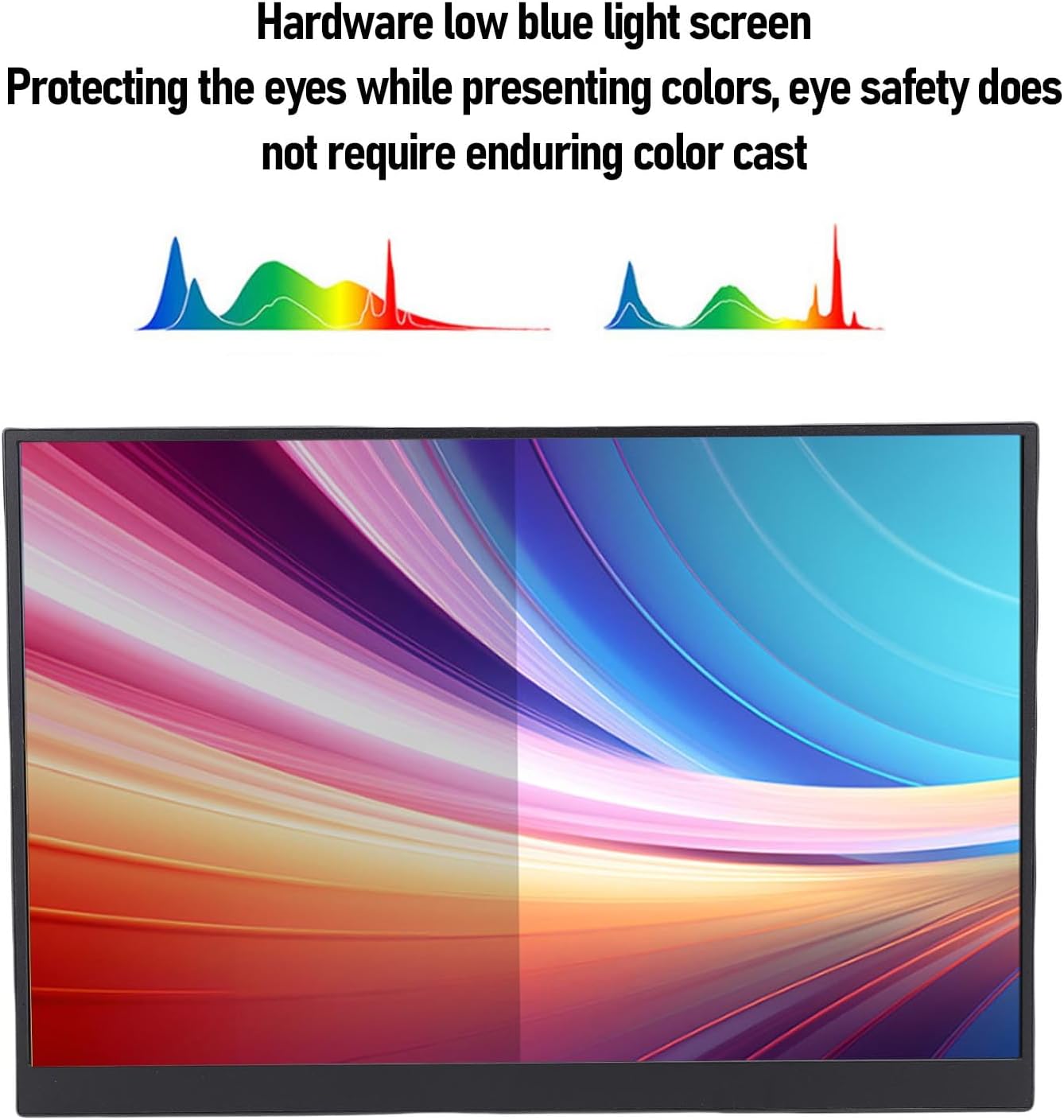
Image: The VBESTLIFE 16in Portable Monitor displaying a split screen, illustrating the effect of the low blue light mode on color presentation, designed to protect eyes.
Display Orientation:
The monitor supports both landscape and portrait modes. The orientation can be adjusted through your connected device's display settings (e.g., Windows Display Settings, Android Display Settings).

Image: A visual representation of the VBESTLIFE 16in Portable Monitor's ability to smoothly switch between horizontal (landscape) and vertical (portrait) screen orientations.
Multi-Screen Collaboration:
To extend or duplicate your primary display, configure the display settings on your connected PC or laptop. This allows for enhanced productivity by providing additional screen real estate.
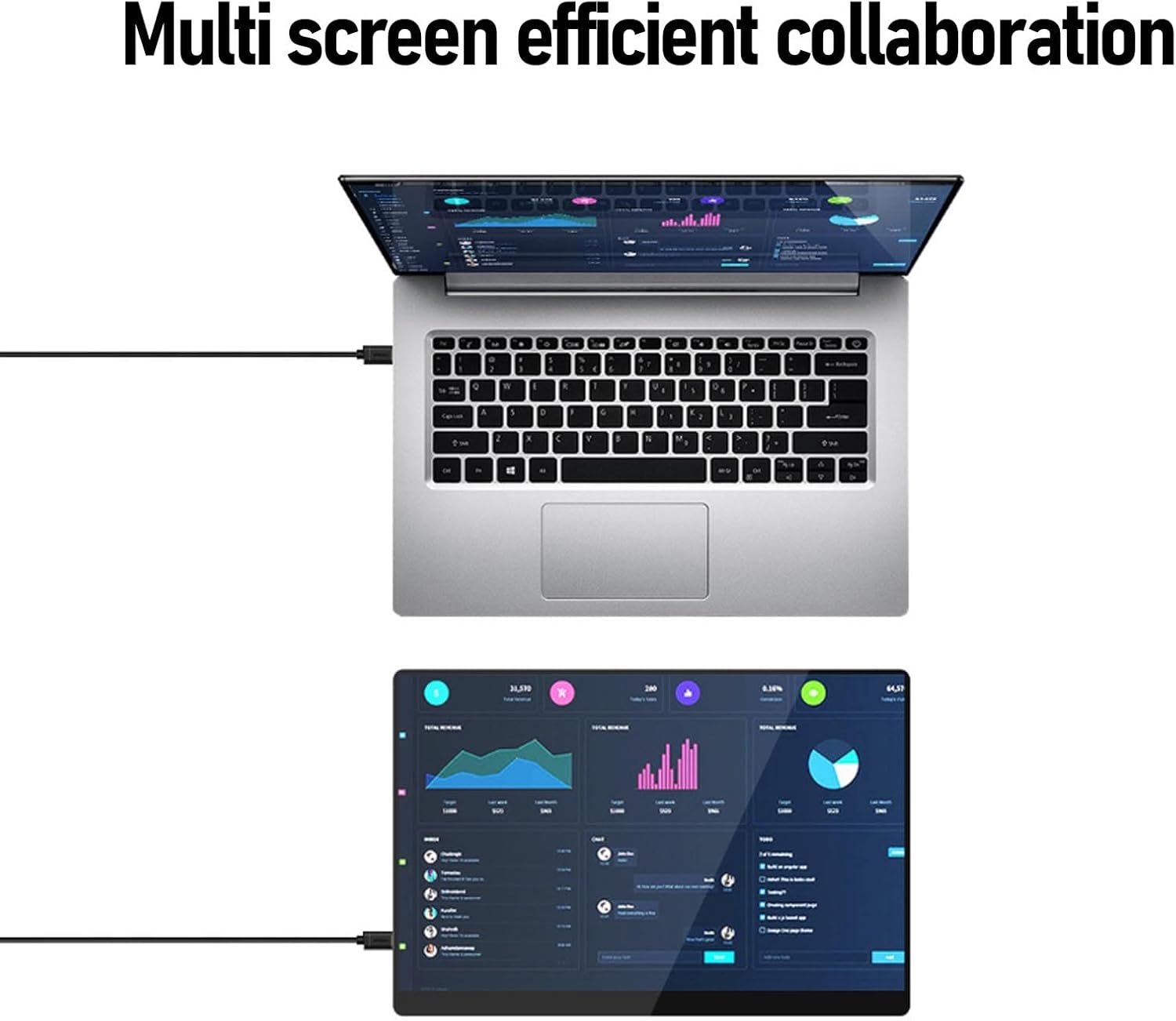
Image: A laptop connected to the VBESTLIFE 16in Portable Monitor, demonstrating an efficient multi-screen collaboration setup for increased productivity.
Maintenance and Care
Proper maintenance ensures the longevity and optimal performance of your monitor.
- Cleaning the Screen: Use a soft, lint-free cloth specifically designed for electronics. For stubborn smudges, lightly dampen the cloth with water or a screen cleaning solution. Do not spray liquid directly onto the screen.
- Cleaning the Casing: Wipe the monitor's casing with a soft, dry cloth. Avoid abrasive cleaners or solvents.
- Storage: When not in use, store the monitor in its protective case in a cool, dry place away from direct sunlight and extreme temperatures.
- Handling: Always handle the monitor by its edges. Avoid applying pressure to the screen.
- Ventilation: Ensure the monitor's ventilation openings are not blocked to prevent overheating.
Troubleshooting
If you encounter issues with your monitor, refer to the following common problems and solutions:
| Problem | Possible Cause | Solution |
|---|---|---|
| No display/Black screen |
|
|
| No sound from speakers/headphone jack |
|
|
| Flickering or distorted image |
|
|
Specifications
Detailed technical specifications for the VBESTLIFE 16in Portable 4K Ultra HD Monitor:
| Feature | Description |
|---|---|
| Item Type | 16in Computer Display |
| Material | ABS, Electronics |
| Size | 16 inch |
| Resolution | 4K (3840 x 2160) |
| Refresh Rate | 120Hz |
| Color Field | 100 percent sRGB |
| Touch Screen | No |
| Interface 1 | Mini HD display interface x 1 |
| Interface 2 | Type C (Full Featured) x 1 |
| Interface 3 | Type C (Power Delivery) x 1 |
| Interface 4 | 3.5mm Headphone Jack x 1 |
| Built-in Speakers | Yes (2 speakers) |
| Dimensions (Parcel) | 40 x 28 x 7 cm |
| Weight (Parcel) | 2.12 kg |
Warranty and Support
For warranty information and technical support, please refer to the contact details provided by your retailer or visit the official VBESTLIFE website. Keep your purchase receipt as proof of purchase for warranty claims.
Manufacturer: VBESTLIFE
ASIN: B0FN7TN1LM
Date First Available: Aug. 21 2025


