1. Setup and Installation
This section provides instructions for installing your Ossuret car radio in an Opel Meriva B (2009-2014) vehicle.
1.1 Package Contents
Before beginning installation, verify that all components are present:
- Ossuret 9-inch Android 13 Car Radio Unit
- USB Cable
- RCA Harness
- GPS Antenna
- Canbus Decoder
- Power Cables and Connectors
1.2 Installation Process
The Ossuret car radio is designed for direct installation in compatible Opel Meriva B models (2009-2014). It is recommended that installation be performed by a qualified technician.
- Preparation: Ensure the vehicle's ignition is off and the battery is disconnected before starting installation.
- Remove Original Radio: Carefully remove the existing car radio and trim from the dashboard.
- Connect Wiring: Connect the provided power cables, RCA harness, USB cable, GPS antenna, and Canbus decoder to the corresponding ports on the new Ossuret unit and the vehicle's wiring harness. Ensure all connections are secure.
- Test Functionality: Before fully securing the unit, temporarily reconnect the battery and turn on the ignition to test basic functions such as power, audio, and display.
- Secure Unit: Once tested, carefully mount the Ossuret car radio into the dashboard opening and secure it with the appropriate fasteners. Reinstall any removed trim pieces.
- Final Check: Reconnect the battery fully and perform a comprehensive check of all features.

Image: Comparison of the Opel Meriva B dashboard before and after the Ossuret car radio installation, demonstrating the integrated fit.
2. Operating Instructions
This section details the various functions and features of your Ossuret car radio.
2.1 Basic Operation
- Power On/Off: The unit powers on automatically with the vehicle's ignition. To manually power off, press and hold the power button (if available) or use the software interface.
- Touchscreen Interface: The 9-inch capacitive touchscreen allows for intuitive control of all functions. Tap, swipe, and pinch gestures are supported.
- Volume Control: Adjust the audio volume using the on-screen controls or the vehicle's steering wheel controls.
2.2 Steering Wheel Control
The unit supports the vehicle's factory steering wheel controls. This allows for safe adjustment of tracks, channels, and volume without taking your hands off the wheel.

Image: Display showing the configuration options for mapping vehicle steering wheel buttons to radio functions.
2.3 Wireless Carplay / Android Auto
The car radio is compatible with Wireless Apple Carplay and Android Auto. The Zlink application is pre-installed and activated for this functionality.
- Connection: Connect your smartphone via Wi-Fi or Bluetooth. Once paired, Carplay or Android Auto will launch automatically.
- Features: Access navigation, music, calls, messages, and other compatible smartphone applications directly on the car radio screen.

Image: The car radio screen showing both Apple Carplay and Android Auto interfaces, along with examples of voice commands for navigation and music playback.
2.4 Bluetooth Functionality
The integrated Bluetooth module allows for hands-free calling and wireless music streaming.
- Hands-Free Calling: Pair your phone to make and receive calls. The built-in microphone captures your voice, and the car speakers provide clear audio.
- Phonebook Sync: Download your phone's contacts to the radio for easy access.
- Audio Streaming: Play music wirelessly from your smartphone or other Bluetooth-enabled devices.
2.5 GPS Navigation
The unit includes GPS navigation capabilities. Ensure the GPS antenna is properly installed for optimal signal reception.
- Map Software: The system comes with pre-installed map software. You can also download other navigation applications from the Google Play Store.
- Route Guidance: Follow voice prompts and on-screen directions for turn-by-turn navigation.

Image: A digital map displaying a red pin icon, symbolizing GPS navigation functionality.
2.6 FM Radio
Access local and regional radio stations using the built-in FM tuner.
- Station Search: Use the touchscreen to scan for available stations or manually tune to a specific frequency.
- Presets: Save your favorite stations for quick access.

Image: The car radio screen showing the FM radio interface, including frequency display and a list of available stations.
2.7 Split Screen Display
The split-screen feature allows you to run two applications simultaneously, such as navigation and music playback.
- Activation: Refer to the Android operating system's instructions for activating split-screen mode.
- Usage: Drag compatible apps to either side of the screen to use them concurrently.

Image: The car radio dashboard screen displaying a split-screen view, with navigation on one side and music playback controls on the other.
2.8 USB Connection
The unit supports USB connections for various peripherals.
- Media Playback: Connect a USB flash drive to play audio or video files.
- External Devices: Support for DVR, DAB+, and TPMS devices via USB.
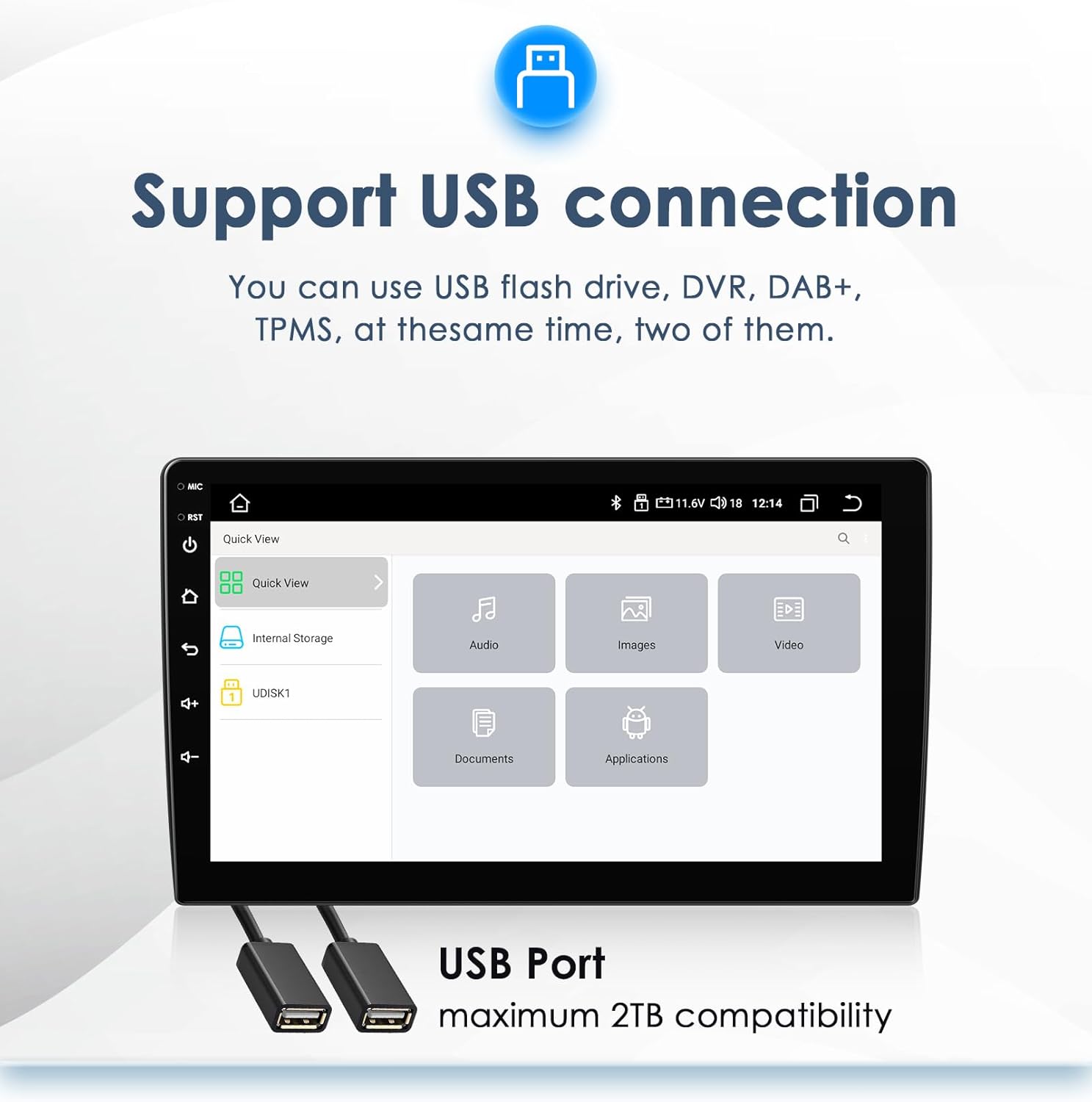
Image: The car radio interface displaying options for accessing media from internal storage or a connected USB drive, with two USB ports shown below.
2.9 Rear View Camera Input
The system supports a rear view camera input, enhancing safety during reversing maneuvers.
- Automatic Display: When the vehicle is shifted into reverse, the screen automatically switches to the rear camera view.
- Blind Spot Reduction: Provides a clear view of the area behind the vehicle, helping to avoid obstacles.

Image: The car radio screen displaying a rear view camera feed with adjustable parking guidelines, indicating support for a backup camera system.
2.10 Voice Control
Utilize voice commands for various functions, improving convenience and safety while driving.
- Activation: Activate voice control through the system settings or by using a dedicated button (if available).
- Commands: Issue commands for navigation, music playback, making calls, and more.
3. Maintenance
Proper maintenance ensures the longevity and optimal performance of your Ossuret car radio.
3.1 Cleaning
- Screen: Use a soft, lint-free cloth specifically designed for electronic screens. Do not use abrasive cleaners or solvents.
- Unit Exterior: Wipe the exterior with a soft, damp cloth. Avoid getting moisture into any openings.
3.2 Software Updates
Periodically check for software updates to ensure your system has the latest features and performance improvements. Updates can typically be found through the system settings or the manufacturer's official website.
4. Troubleshooting
This section addresses common issues you might encounter with your car radio.
| Problem | Possible Cause | Solution |
|---|---|---|
| No Power | Loose power connection, blown fuse, vehicle battery issue. | Check power cables and fuses. Ensure vehicle battery is charged. |
| No Sound | Volume too low, incorrect audio source, loose speaker connections. | Increase volume. Select correct audio source. Check speaker wiring. |
| GPS Signal Lost | GPS antenna obstruction or disconnection. | Ensure GPS antenna has a clear view of the sky and is securely connected. |
| Bluetooth Pairing Failure | Device not in pairing mode, incorrect password, interference. | Ensure both devices are in pairing mode. Re-enter password. Try pairing in a different location. |
| Touchscreen Unresponsive | Software glitch, screen damage. | Restart the unit. If issue persists, contact support. |
If you encounter problems not listed here or if the suggested solutions do not resolve the issue, please contact customer support.
5. Specifications
Key technical specifications for the Ossuret 9-inch Android 13 Car Radio:
- Screen Size: 9 inches
- Operating System: Android 13
- Memory: 2GB RAM + 32GB Internal Storage
- Connectivity: Bluetooth, USB, WiFi
- Special Features: Wireless Carplay/Android Auto, GPS Navigation, Rear Camera Input, Steering Wheel Control
- Audio Output Mode: Stereo
- Touchscreen Type: Capacitive
- Included Components: USB Cable, RCA harness, GPS antenna, Canbus
- Package Dimensions: 30 x 25 x 13 cm
- Weight: 1.8 kg
6. Warranty and Support
For warranty information, please refer to the documentation provided with your purchase or contact the seller directly. Ossuret is committed to providing quality products and customer satisfaction.
6.1 Customer Support
If you require technical assistance, have questions about product functionality, or need to report an issue, please contact the seller or Ossuret customer support through the contact information provided at the point of purchase or on the official Ossuret website.