
1. Introduction and Overview
This manual provides instructions for the installation, operation, and maintenance of your Biorunn DUDUAUTO Car Radio Stereo, Model DUDU5. This head unit is designed for Toyota Prius XW50 models manufactured between 2015 and 2020. It features a 9.5-inch in-cell touch screen, an 8-core processor, GPS navigation, and integrated wireless Car-Play and Android Auto functionalities.
Before proceeding with installation or operation, please read this manual thoroughly to ensure proper use and to maximize your device's performance.
Important: If you are unsure about compatibility with your specific vehicle, please provide your car model details and a picture of your center console to the seller for verification before installation.
2. Package Contents
Verify that all items listed below are included in your package. If any items are missing or damaged, please contact your retailer.
- 1 x Car Stereo Head Unit
- 1 x Power Cord
- 2 x USB Cables
- 1 x RCA Cable
- 1 x Reversing Camera Input Cable
- 1 x GPS Antenna
- 1 x 4G Antenna
- 1 x Microphone (MIC)

Figure 2.1: Package Contents. This image displays all the accessories and the main head unit included in the product package, laid out for easy identification.
Note: Optional accessories such as a 360° panoramic camera, DVR, front/rear view camera, TPMS, BT SWC, atmosphere light HUD head-up display, rear window LED Screen, rear entertainment screen, and thermometer are not included and must be purchased separately.
3. Setup and Installation
Professional installation is highly recommended for this car stereo system to ensure correct wiring and functionality. Incorrect installation can lead to damage to the device or your vehicle's electrical system.
3.1 Pre-Installation Check
- Ensure the vehicle's ignition is off and the battery is disconnected before starting any electrical work.
- Confirm all necessary tools are available.
- Review your vehicle's specific dashboard disassembly instructions.
3.2 Wiring Connections
Refer to the provided wiring diagram (not included in this manual, typically with the product or available online) for specific connections. Key connections include:
- Power Cord: Connect to the vehicle's power supply, ground, and accessory wires.
- USB Cables: For external USB devices or charging.
- RCA Cable: For audio output to external amplifiers or subwoofers.
- Reversing Camera Input: Connect your reversing camera for automatic display when reversing.
- GPS Antenna: Mount in a location with a clear view of the sky for optimal signal reception.
- 4G Antenna: Mount for cellular network connectivity.
- Microphone: Connect for hands-free calling and voice commands.
3.3 Mounting the Head Unit
Carefully remove the original car stereo and install the DUDUAUTO head unit into the dashboard opening. Secure it using the appropriate mounting brackets and screws. Ensure all cables are properly routed and not pinched.
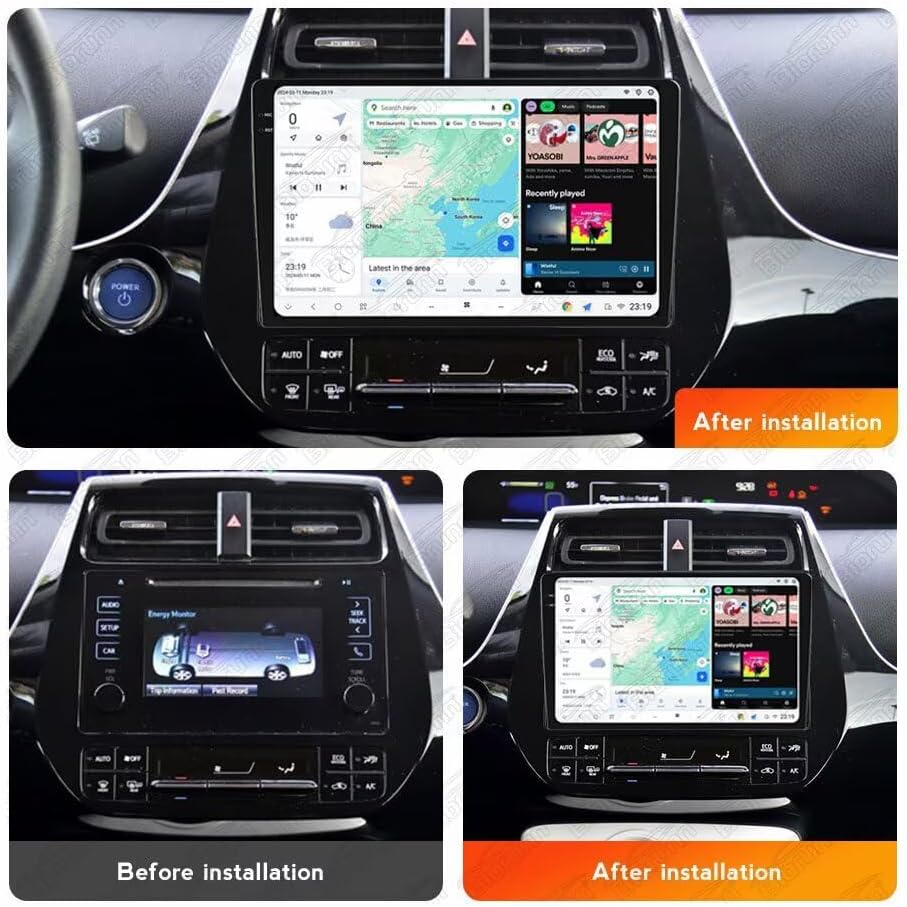
Figure 3.1: Before and After Installation. This image illustrates the visual transformation of the Toyota Prius XW50 dashboard with the DUDUAUTO car stereo installed.
4. Operating Instructions
The DUDUAUTO car stereo operates on the DUDU OS, an Android-based system, offering a user-friendly interface with various features.
4.1 Powering On/Off
The unit typically powers on automatically with the vehicle's ignition. To manually power off or restart, refer to the physical buttons or on-screen controls.
4.2 DUDU OS Interface
The DUDU OS offers flexible operation modes:
- Simplified Mode: Easy to operate and use, ideal for basic functions.
- Enthusiast Mode: Allows for customizable module combinations and advanced settings.

Figure 4.1: DUDU OS Modes. This image demonstrates the 'Simplified Mode' for ease of use and the 'Enthusiast Mode' for advanced customization within the DUDU OS.
4.3 Wireless Car-Play / Android Auto
The unit supports both wireless and wired Car-Play and Android Auto. This allows seamless integration with your smartphone for navigation, music, calls, and messages.
- Connection: Connect your smartphone via Bluetooth for wireless Car-Play/Android Auto, or use a USB cable for a wired connection.
- Functionality: Access phone features directly from the car stereo screen, enhancing safety and convenience while driving.

Figure 4.2: Car-Play and Android Auto Interface. This image illustrates the user interfaces for both Apple Car-Play and Android Auto as displayed on the DUDUAUTO head unit, highlighting their wireless and wired connectivity.
4.4 Navigation (GPS)
The built-in GPS module supports 3 modes (L1 B1 E1) for accurate positioning. Pre-installed navigation software or downloadable apps can be used for turn-by-turn directions.
4.5 Multimedia Playback
Play audio and video files from various sources, including USB drives, Bluetooth streaming, and online services via 4G LTE or 5G WiFi connectivity.
4.6 Voice Control (Optional)
If the optional voice control software is purchased and installed, you can operate various functions using voice commands. Refer to the voice control software's specific instructions for usage.
4.7 Customization
The DUDU OS allows for free theme downloads and DIY wallpapers. Layouts can be changed for left and right-hand drive vehicles, and plug-ins can be freely selected to personalize your experience.
5. Maintenance
Regular maintenance ensures the longevity and optimal performance of your car stereo.
- Screen Cleaning: Use a soft, lint-free cloth slightly dampened with a screen cleaner (not abrasive chemicals) to clean the touch screen.
- Software Updates: The DUDU OS supports online OTA (Over-The-Air) updates. Regularly check for and install updates to benefit from new features and performance improvements.
- General Care: Avoid exposing the unit to extreme temperatures, direct sunlight for prolonged periods, or excessive moisture.
6. Troubleshooting
If you encounter issues with your DUDUAUTO car stereo, refer to the following common troubleshooting steps:
| Problem | Possible Cause | Solution |
|---|---|---|
| Unit does not power on | Loose power connection, blown fuse, vehicle battery issue. | Check all power connections. Inspect vehicle fuses. Ensure vehicle battery is charged. |
| No sound output | Volume too low, mute activated, speaker wiring issue, incorrect audio source. | Increase volume. Check mute status. Verify speaker connections. Select correct audio source. |
| Touch screen unresponsive | Temporary software glitch, screen calibration needed. | Restart the unit. If issue persists, perform a factory reset (data will be lost). |
| GPS signal weak or lost | Antenna obstruction, poor mounting location, software issue. | Ensure GPS antenna has a clear view of the sky. Check antenna connection. Update GPS software. |
| Car-Play/Android Auto not connecting | Bluetooth/USB connection issue, phone settings, app compatibility. | Ensure Bluetooth is on and paired. Try a different USB cable. Check phone settings and app permissions. Restart phone and head unit. |
If the problem persists after attempting these solutions, please contact customer support for further assistance.
7. Specifications
Below are the detailed technical specifications for the DUDUAUTO Car Radio Stereo, Model DUDU5:
| Feature | Specification |
|---|---|
| Operating System | Android, DUDU OS |
| CPU | 8-Core UIS7862 |
| Screen Size | 9.5 Inches |
| Resolution | 1280 x 720 |
| Screen Type | In-Cell Touch Screen |
| RAM | 4GB |
| ROM (Internal Storage) | 64GB |
| GPS | 3 mode L1 B1 E1 |
| Microphone | Condenser MIC |
| USB Interface | USB 2.0*3 |
| Power Amplifier | TDA7851 |
| DSP | AK7604 |
| Audio Output | Fiber + Coaxial RCA 2.1 Channel output |
| Bluetooth | Blue-tooth 5.0 |
| Filter Capacitance | 6800uF |
| Car-Play/Android Auto | Built-in wired + wireless |
| Network | 4G LTE external card slot + 5G WiFi |
| Radio Chip | TDA7708 |
| Voice Command | Buttons, Keyboard, Mouse, Touchscreen (Voice Control optional software required) |

Figure 7.1: In-Cell Screen. This image emphasizes the clarity and resolution of the 9.5-inch In-Cell Touch Screen.
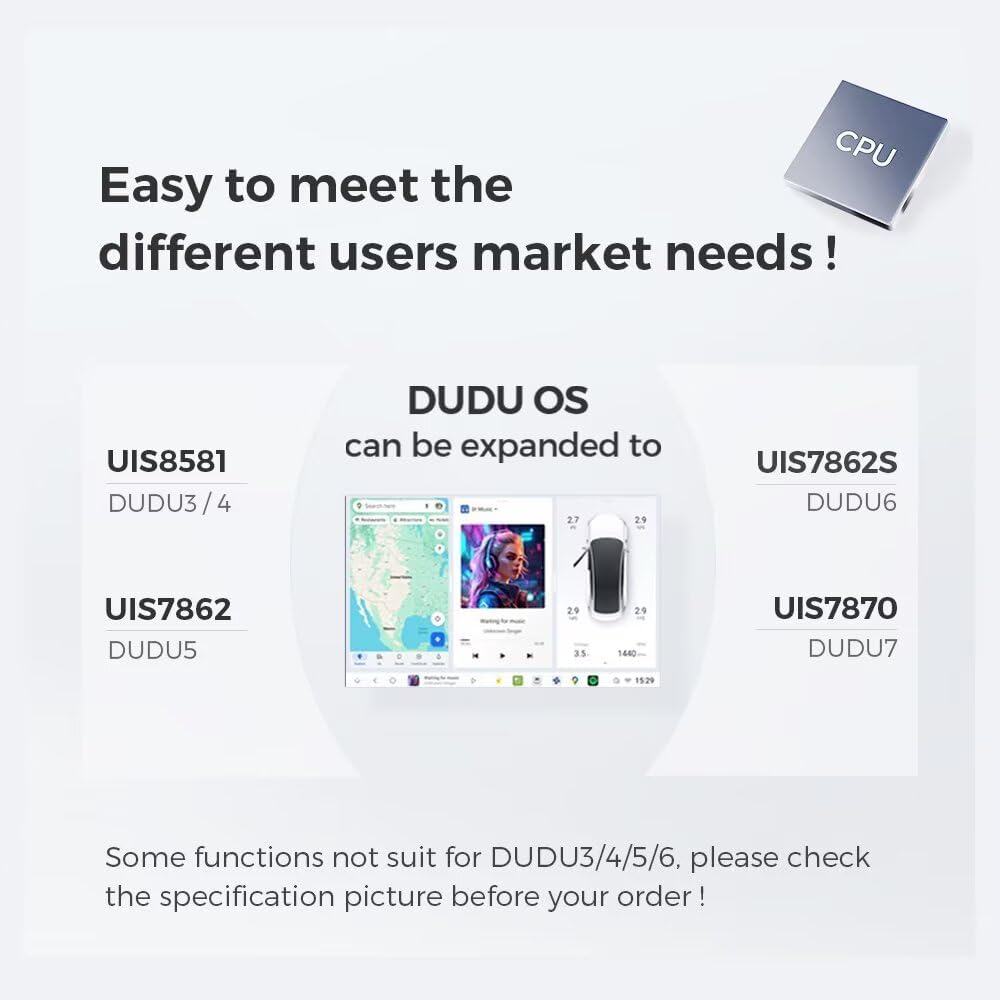
Figure 7.2: CPU and OS Compatibility. This diagram shows how different DUDU OS versions (DUDU3/4, DUDU5, DUDU6, DUDU7) are compatible with various CPU models (UIS8581, UIS7862, UIS7862S, UIS7870).
8. Warranty and Support
For warranty information, please refer to the documentation provided with your purchase or contact your retailer. Biorunn is committed to providing quality products and customer satisfaction.
8.1 Customer Support
If you require technical assistance, have questions about your product, or need to report an issue, please contact the seller or Biorunn customer support through the official channels provided at the time of purchase. When contacting support, please have your product model (DUDU5) and purchase details readily available.