
Inefala A4339A3-EU60
Inefala 2 DIN Car Stereo User Manual
Model: A4339A3-EU60
Brand: Inefala
1. Introduction
This manual provides detailed instructions for the installation, operation, and maintenance of your Inefala 2 DIN Car Stereo, Model A4339A3-EU60. Please read this manual thoroughly before using the product to ensure proper function and to prevent damage.
2. Important Safety Information
- Always consult a professional for installation to avoid electrical damage or vehicle malfunction.
- Do not operate the device in a way that distracts you from driving. Always prioritize road safety.
- Ensure all wiring is correctly connected to prevent short circuits or fire hazards.
- Keep the device away from water and excessive moisture.
- Do not attempt to repair the unit yourself. Refer to qualified service personnel.
3. Package Contents
Verify that all items are present in the package:
- Inefala 2 DIN Car Stereo Unit
- Power Cable
- Horn Cable
- Mounting Brackets
- Rearview Camera
- User Manual (this document)
- External Microphone
- Remote Control

Image 3.1: Product dimensions and included accessories.
4. Product Overview
The Inefala 2 DIN Car Stereo is a versatile multimedia system designed for your vehicle, offering a range of features for enhanced driving experience.
Key Features:
- 7-inch HD Touchscreen: High-resolution display (1024x600) for clear visuals.
- Wireless CarPlay & Android Auto: Seamless integration with your smartphone for navigation, music, calls, and messages.
- Mirror Link: Duplicate your phone screen onto the car stereo display.
- Bluetooth Function: Hands-free calling and wireless audio streaming.
- FM Radio: Access to local radio stations with 18 preset options.
- Rearview Camera Input: Supports a rearview camera for safer parking and reversing.
- Steering Wheel Control (SWC): Compatible with your vehicle's steering wheel controls for convenient operation.
- USB-A & USB-C Ports: For media playback and device charging.
- Online Video Playback: Stream videos from platforms like YouTube when connected to the internet.
- Video Output: Connect to external monitors for passenger entertainment.

Image 4.1: Front view of the car stereo and its main features.
5. Setup and Installation
Professional installation is highly recommended for this product. Incorrect wiring can lead to damage to the unit or your vehicle's electrical system.
5.1 Wiring Diagram
Refer to the detailed wiring diagram provided with your unit for specific connections. General connections include:
- Power Cable: Connect to vehicle's power supply (ACC, B+, GND).
- Horn Cable: For speaker connections.
- Rearview Camera Input (CAMIN): Connect the rearview camera's video signal.
- Video Output (V-OUT1, V-OUT2): For connecting external monitors.
- Audio Output (R-OUT, L-OUT): For connecting external amplifiers or speakers.
- MIC Input: For the external microphone.
- ANT: Antenna connection for FM radio.
- SWC (Steering Wheel Control): Connect to vehicle's steering wheel control wires.
Image 5.1: Rear panel connections of the car stereo.
5.2 Mounting
Use the provided mounting brackets to secure the 2 DIN unit into your vehicle's dashboard opening. Ensure it is firmly seated and does not obstruct any vehicle controls.
6. Operating Instructions
6.1 Power On/Off
Press the power button (usually a rotary knob) to turn the unit on or off. A short press typically mutes/unmutes, while a long press powers the unit off.
6.2 Wireless CarPlay & Android Auto
To use Wireless CarPlay or Android Auto:
- Ensure your smartphone's Bluetooth and Wi-Fi are enabled.
- On the car stereo, navigate to the CarPlay/Android Auto application.
- Follow the on-screen prompts to pair your phone via Bluetooth. Once paired, the system will establish a Wi-Fi connection for wireless functionality.
- You can now access navigation, music, calls, and messages directly from the car stereo display using voice commands or touch.
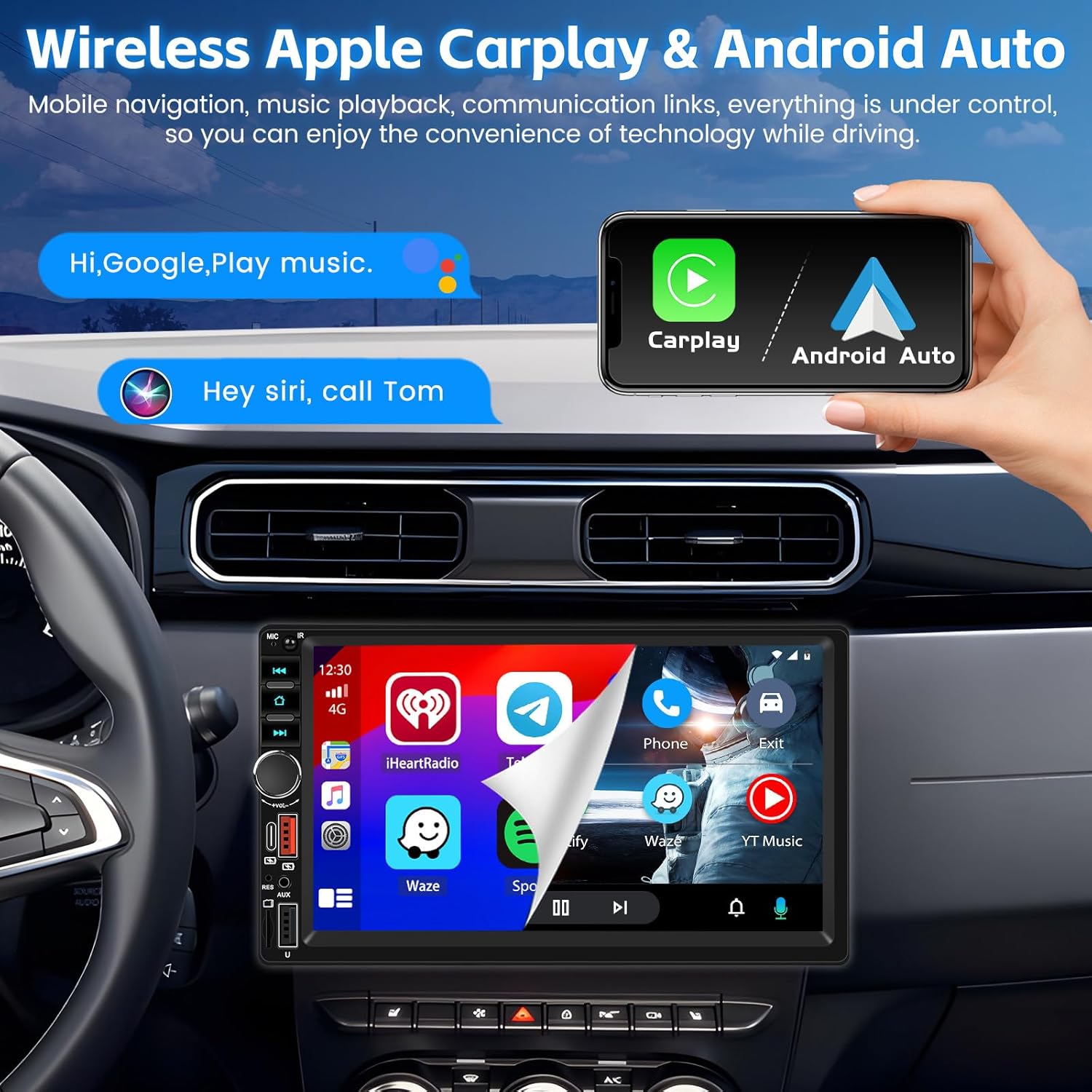
Image 6.1: Wireless CarPlay and Android Auto interface.
6.3 Mirror Link Function
Mirror Link allows you to display your smartphone's screen directly on the car stereo. This can be done wirelessly or via a USB cable, depending on your phone model and the stereo's capabilities.
- Connect your phone via USB or follow the wireless pairing instructions in the Mirror Link app on the stereo.
- Once connected, your phone's screen will be mirrored.

Image 6.2: Mirror Link and multiple interface options.
6.4 Bluetooth Function
To pair your phone via Bluetooth:
- Go to the Bluetooth menu on the car stereo.
- Enable Bluetooth on your smartphone and search for available devices.
- Select 'Inefala Car Stereo' (or similar name) from the list on your phone.
- Confirm the pairing code if prompted.
Once connected, you can make hands-free calls and stream audio from your phone.

Image 6.3: Bluetooth and FM Radio functions.
6.5 FM Radio
Access the FM Radio application. You can manually tune to stations or use the auto-scan function to find and save available stations. The unit supports 18 preset stations.
6.6 Online Video Playback & Video Output
When the unit is connected to the internet (e.g., via Wi-Fi hotspot from your phone), you can access online video platforms like YouTube. The video output feature allows you to send the video signal to external monitors, such as headrest screens, for passenger viewing.

Image 6.4: Online video playback and sharing to external screens.
6.7 Rearview Camera
When the vehicle is shifted into reverse gear, the car stereo will automatically display the rearview camera feed, complete with parking guidelines, if connected correctly.

Image 6.5: Rearview camera display and steering wheel controls.
6.8 Steering Wheel Control (SWC)
If your vehicle supports SWC, connect the appropriate wires during installation. You can then configure the buttons on your steering wheel to control functions like volume, track skipping, and mode switching on the car stereo.
7. Maintenance
- Cleaning the Screen: Use a soft, lint-free cloth to gently wipe the touchscreen. For stubborn smudges, slightly dampen the cloth with water or a screen-safe cleaner. Avoid harsh chemicals.
- General Cleaning: Keep the unit free from dust and debris. Use a soft brush or compressed air for vents and buttons.
- Software Updates: Periodically check the manufacturer's website for any available software updates to ensure optimal performance and access to new features.
8. Troubleshooting
| Problem | Possible Cause | Solution |
|---|---|---|
| Unit does not power on. | Incorrect power wiring, blown fuse, vehicle battery issue. | Check power connections (ACC, B+, GND). Inspect vehicle fuses. Ensure vehicle battery is charged. |
| No sound. | Speaker wires disconnected, volume too low, mute activated, incorrect audio source. | Check speaker connections. Increase volume. Deactivate mute. Select correct audio source. |
| Bluetooth not connecting. | Bluetooth off on phone/stereo, device not in pairing mode, interference. | Ensure Bluetooth is enabled on both devices. Put stereo in pairing mode. Try pairing again. Clear previous pairings. |
| CarPlay/Android Auto not working. | Phone not compatible, Wi-Fi/Bluetooth issues, app not updated. | Verify phone compatibility. Ensure Wi-Fi and Bluetooth are active. Update phone OS and apps. Re-pair the device. |
| Rearview camera not displaying. | Camera not connected, reverse trigger wire not connected, camera malfunction. | Check camera video input (CAMIN) and reverse trigger wire connection. Test camera functionality. |
9. Specifications
- Screen Material: IPS
- System: 8268K
- Voltage: 12 V
- Maximum Output Power: 4 x 45 W
- CarPlay/Android Auto: Supported (Wireless)
- Radio Band: FM
- Radio Frequency: 87.5-108 MHz
- Screen Resolution: 1024 x 600
- Supported Audio Formats: MP3/AAC/OGG/FLAC/APE
- Supported Video Formats: AVI/3GP/MP4/MOV/MPG/MKV/VOB/RMVB/RM
- Connectivity: Bluetooth, USB-A, USB-C, AUX, RCA
- Special Features: Voice Control, Screen Mirroring, Rearview Camera Input, Steering Wheel Control
- Color: Black
- Model Number: A4339A3-EU60
- Country of Origin: China
10. Warranty and Support
This Inefala product comes with a 24-month customer support period. For any inquiries or assistance, please contact our customer service team. We aim to provide responses within 24 hours.
For support, please refer to the seller information on your purchase platform or contact Inefala directly via the contact details provided with your product documentation.
Ask a question about this manual
Ask about setup, troubleshooting, compatibility, parts, safety, or missing instructions. Manuals+ will review the question and use this page’s manual context to help answer it.