
Introduction
Thank you for choosing the Inefala 2K 4-Channel Wi-Fi Dash Camera. This manual provides detailed instructions for the proper installation, operation, and maintenance of your device. Please read this manual thoroughly before using the product to ensure optimal performance and safety.
This dash camera system offers comprehensive vehicle surveillance with a 2K front camera and three 1080P auxiliary cameras, providing 360-degree coverage. Key features include Wi-Fi connectivity for smartphone control, G-sensor for collision detection, loop recording, advanced night vision, and a parking monitor function.
What's in the Box
Please verify that all components are present in the package:
- 1 x Inefala 2K 4-Channel Dash Camera (Main Unit)
- 1 x Suction Cup Mount
- 1 x Rear View Camera
- 1 x Power Cable (Car Charger)
- 1 x Extended Line (for rear camera connection)
- 1 x 128GB TF Card
- 1 x User Manuals
- Anti-Slip Mats

Specifications
| Feature | Detail |
|---|---|
| Brand | Inefala |
| Model Number | Inefala-L5958G128-EU60 |
| Color | Black |
| Screen Size | 3 Inches IPS |
| Front Camera Resolution | 2K |
| Auxiliary Camera Resolution | 3 x 1080P (Internal Left, Internal Right, Rear) |
| Field of View | Front: 150 Degrees, Internal/Rear: 120 Degrees |
| Video Format | AVI |
| Photo Format | JPG |
| Frame Rate | 30 frames per second |
| Memory Card | TF Card (128GB included, supports up to 64GB C10 high-speed cards) |
| Special Features | 360-degree coverage, Reverse Assistance, App Control, G-sensor, Integrated Wi-Fi, Motion Detection, Night Vision, Exposure Compensation, Loop Recording |
| Compatible Devices | Smartphone |
| OSD Languages | Chinese, English, French, German, Italian, Spanish, Portuguese, Russian, Polish, Japanese, Korean, Thai |
| App Name | Viidure |
| Product Dimensions | 3.6D x 12W x 14.9H centimeters |
Setup and Installation
The Inefala Dash Camera is designed for easy installation in most vehicles. Follow these steps for proper setup:
- Prepare the SD Card: Insert the included 128GB TF card into the designated slot on the main unit. Ensure it is inserted correctly. It is recommended to format the SD card within the camera settings before first use.
- Mount the Main Unit: Attach the suction cup mount to a clean, dry area on your windshield, ideally behind the rearview mirror to avoid obstructing your view. Secure the main dash camera unit onto the mount.
- Install Auxiliary Cameras:
- The main unit has integrated internal left and right cameras. Adjust their angles as needed.
- Install the separate rear view camera at the back of your vehicle. Route the extended line cable discreetly to connect it to the main unit.
- Power Connection: Connect the car charger (power cable) to the dash camera's power input and plug the other end into your vehicle's 12V power outlet (cigarette lighter socket). The camera will typically power on and begin recording automatically when the vehicle starts.
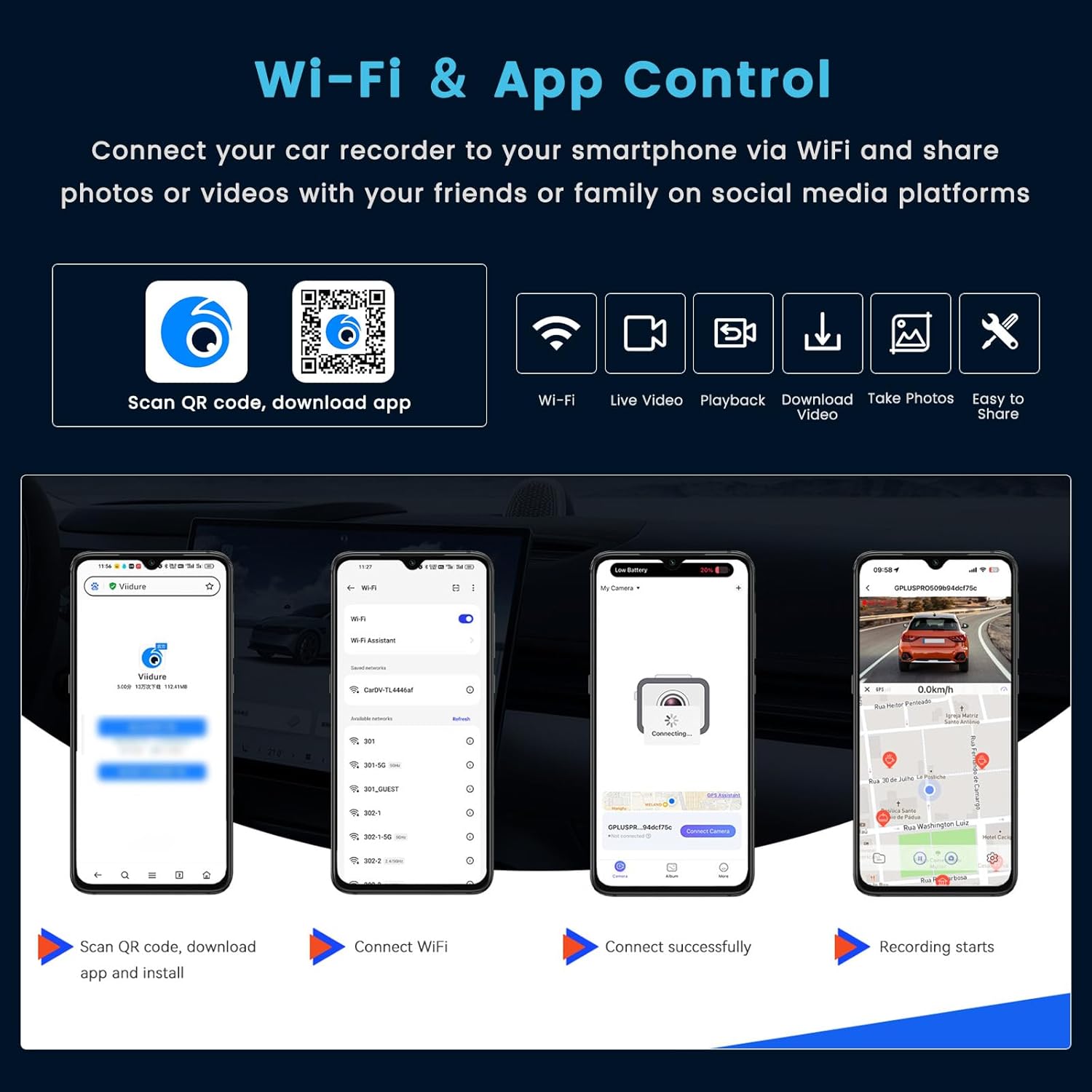
- Wi-Fi and App Setup:
- Download the "Viidure" app on your smartphone by scanning the QR code provided in the manual or searching your app store.
- Enable Wi-Fi on your dash camera through its menu settings.
- On your smartphone, connect to the dash camera's Wi-Fi network. The network name and password will be displayed on the camera screen or in the manual.
- Open the Viidure app to connect to the camera and access live view, playback, and settings.
Operating Instructions
Basic Operation
- Power On/Off: The camera typically powers on automatically when your vehicle starts and powers off when the engine is turned off. You can also manually power it on/off using the power button.
- Menu Navigation: Use the physical buttons on the camera (Menu, Up, Down, OK) to navigate through settings and modes on the 3-inch IPS screen.
Recording Features
- Continuous Loop Recording: The camera records video in continuous loops. When the memory card is full, it automatically overwrites the oldest unlocked video files.
- G-Sensor (Gravity Sensor): In the event of a sudden impact or collision, the built-in G-sensor automatically detects the event and locks the current video file, preventing it from being overwritten by loop recording. This ensures critical footage is preserved.
- Motion Detection: When enabled, the camera will automatically start recording if it detects movement in its field of view while parked. This feature is part of the parking monitor function.
- Parking Monitor: Provides surveillance when your vehicle is parked. This feature requires a hardwire kit (not included) for continuous power supply to function effectively for 24-hour monitoring.
- Night Vision: Equipped with 8 IR lights and exposure compensation, the camera enhances visibility and captures clear footage even in low-light or nighttime conditions.


360-Degree Coverage
The system utilizes a 2K front camera and three 1080P auxiliary cameras (internal left, internal right, and rear) to provide comprehensive 360-degree surveillance around your vehicle. The internal cameras feature adjustable lenses for optimal angle capture.

Wi-Fi and App Control
The Viidure app allows you to control your dash camera remotely via Wi-Fi:
- Live View: Stream real-time video from all cameras directly to your smartphone.
- Playback: Review recorded videos directly on your phone.
- Download: Save important video clips or photos to your smartphone's gallery.
- Photo Capture: Take still images from the live view.
- Settings: Adjust camera settings, such as resolution, G-sensor sensitivity, and loop recording duration.
Maintenance
- Cleaning: Regularly clean the camera lenses and screen with a soft, lint-free cloth. Avoid using abrasive cleaners or solvents.
- SD Card Management: Format the TF card periodically (e.g., once a month) through the camera's settings to ensure optimal recording performance and prevent data corruption. Back up any important files before formatting.
- Firmware Updates: Check the manufacturer's website or the Viidure app for any available firmware updates to ensure your camera has the latest features and bug fixes.
- Temperature: Avoid exposing the dash camera to extreme temperatures for extended periods, as this can affect battery life and component longevity.
Troubleshooting
If you encounter issues with your Inefala Dash Camera, refer to the following common problems and solutions:
- Camera not powering on:
- Ensure the car charger is securely plugged into both the camera and the vehicle's power outlet.
- Check if the vehicle's power outlet is functioning (e.g., by plugging in another device).
- Try a different power cable if available.
- Recording issues (no recording, corrupted files):
- Ensure the TF card is inserted correctly and is not full.
- Format the TF card within the camera's settings.
- Use a high-speed (Class 10 or higher) TF card. The included 128GB card is suitable.
- Check the loop recording settings to ensure it is enabled.
- Wi-Fi connection problems:
- Ensure Wi-Fi is enabled on the dash camera.
- Verify you are connecting to the correct Wi-Fi network broadcast by the camera.
- Restart both the camera and your smartphone.
- Ensure the Viidure app is updated to the latest version.
- Poor video quality:
- Clean the camera lenses.
- Ensure the protective film has been removed from the lenses.
- Check video resolution settings in the camera menu or app.
- G-sensor not working or too sensitive:
- Adjust the G-sensor sensitivity setting in the camera menu or app. Lower sensitivity for fewer false triggers, higher for more detection.
Warranty and Support
Inefala provides a 24-month customer assistance period for this product. Should you encounter any issues or require support, please contact Inefala customer service. Responses are typically provided within 24 hours.
For further assistance, please refer to the contact information provided in your product packaging or visit the official Inefala website.