
1. Introduction
The ATOMSTACK Swift 7W Laser Engraver and Cutter is a versatile tool designed for both high-precision engraving and robust cutting tasks. It is suitable for beginners and experienced users alike, enabling a wide range of DIY projects, creative designs, and small-scale production. This manual provides essential information for setting up, operating, maintaining, and troubleshooting your device.

Figure 1.1: The ATOMSTACK Swift 7W Laser Engraver and Cutter, showcasing its compact design and various creative applications.

Figure 1.2: Overview of the ATOMSTACK Swift, emphasizing its capabilities for precise engraving and powerful cutting, designed for ease of use by beginners.
Key Features:
- Powerful Laser Module: Equipped with a 7000mW laser for efficient engraving and cutting.
- High Precision: Achieves 0.08mm accuracy for detailed and lifelike results.
- Fast Speed: Engraving speeds up to 10000 mm/min (600mm/s) for improved efficiency.
- Versatile Material Compatibility: Engraves over 200 materials, including wood, leather, coated metal, and acrylic. Cuts 4mm basswood plywood in one pass and 6mm basswood plywood in multiple passes.
- Easy Assembly: Modular design allows full assembly within 5 minutes.
- Portable Design: Compact (460×420×130mm) and lightweight (2.8kg) for easy transport and outdoor use.
- Smart Operation: Compatible with LightBurn, LaserGRBL, and exclusive AtomStack Studio software for PC, and the AtomStack App for smartphones. Features include image templates, material parameter presets, and automatic accessory recognition.
- Optimized Work Area: Standard 300×300mm engraving area, expandable to 300×800mm with an optional Y-axis extension kit.
- Enhanced Safety: Includes axis limit switches, a laser filter cover for eye protection, a flame alarm, and tilt detection.
Video 1.1: An overview of the ATOMSTACK Swift Laser Engraver and Cutter, demonstrating its assembly, operation, and various creative applications for both indoor and outdoor use.
2. Setup
The ATOMSTACK Swift features a modular design for quick and easy assembly, allowing you to begin your projects swiftly.
Assembly Steps:
- Unboxing: Carefully remove all components from the packaging.
- Frame Assembly: Connect the main frame components as per the included quick start guide. The modular design allows for assembly within approximately 5 minutes.
- Laser Module Installation: Securely attach the laser module to the gantry.
- Cable Connection: Connect the power cable and USB cable to the device and your computer.
- Initial Power On: Power on the device and ensure all indicators are functioning correctly.

Figure 2.1: The ATOMSTACK Swift laser engraver shown in its modular components, illustrating the ease of assembly directly from the box.

Figure 2.2: A banner emphasizing the easy installation process of the ATOMSTACK Swift, designed for quick setup.
3. Operating Instructions
Follow these steps to operate your ATOMSTACK Swift laser engraver and cutter effectively.
Operation Steps:
- Software Installation: Install the recommended software. For PC users, AtomStack Studio (free, exclusive), LightBurn, or LaserGRBL are supported. For smartphone users, the AtomStack App is available.
- Material Placement: Place the material to be engraved or cut on the working surface. Use the vertical scale lines on the X and Y axes for precise measurement and positioning.
- Focus Adjustment: Use the focus knob on the laser module for quick and easy focusing. No additional tools are required for this adjustment.
- Design Import/Creation: Import your design into the software or create a new one. AtomStack Studio offers image templates and material parameter presets.
- Parameter Settings: Adjust engraving or cutting parameters (speed, power, passes) based on the material type and desired outcome.
- Start Operation: Initiate the engraving or cutting process through the software. Monitor the operation closely.

Figure 3.1: A banner illustrating the quick focus feature of the ATOMSTACK Swift, allowing easy adjustment without tools.
Material Compatibility:
The ATOMSTACK Swift can engrave over 200 materials, including:
- Acrylic
- Glass (Note: For reflective objects like glass or metal, it is recommended to blacken the surface first to create an absorbable layer for better results.)
- Coated Metal
- Cylinder objects (with optional rotary roller/chuck)
- Wood (basswood plywood, etc.)
- Paper
- Cardboard
- Stainless Steel
- Food
- Leather
- Fabric
- Rubber
For cutting, it is primarily suitable for wooden materials, black acrylic, and leather. Avoid cutting hard materials such as metal, ceramic, and glass.

Figure 3.2: An image displaying a wide range of materials compatible with the ATOMSTACK Swift for engraving and cutting.

Figure 3.3: The ATOMSTACK Swift highlighting its 300x300mm optimal work area, suitable for various project sizes.

Figure 3.4: A banner detailing the ideal work area of the ATOMSTACK Swift, including its expandability with an optional Y-axis extension kit.
Software and Connectivity:
The ATOMSTACK Swift supports various software options for flexible operation:
- PC Software: LightBurn, LaserGRBL, and the exclusive AtomStack Studio. AtomStack Studio offers AI Text-to-Image, templates, material parameter presets, and automatic accessory recognition.
- Smartphone App: The free AtomStack App allows control via smartphone.
Connectivity options include Wi-Fi, hotspot, or USB cable, supporting Windows, macOS, Android, and iOS systems.
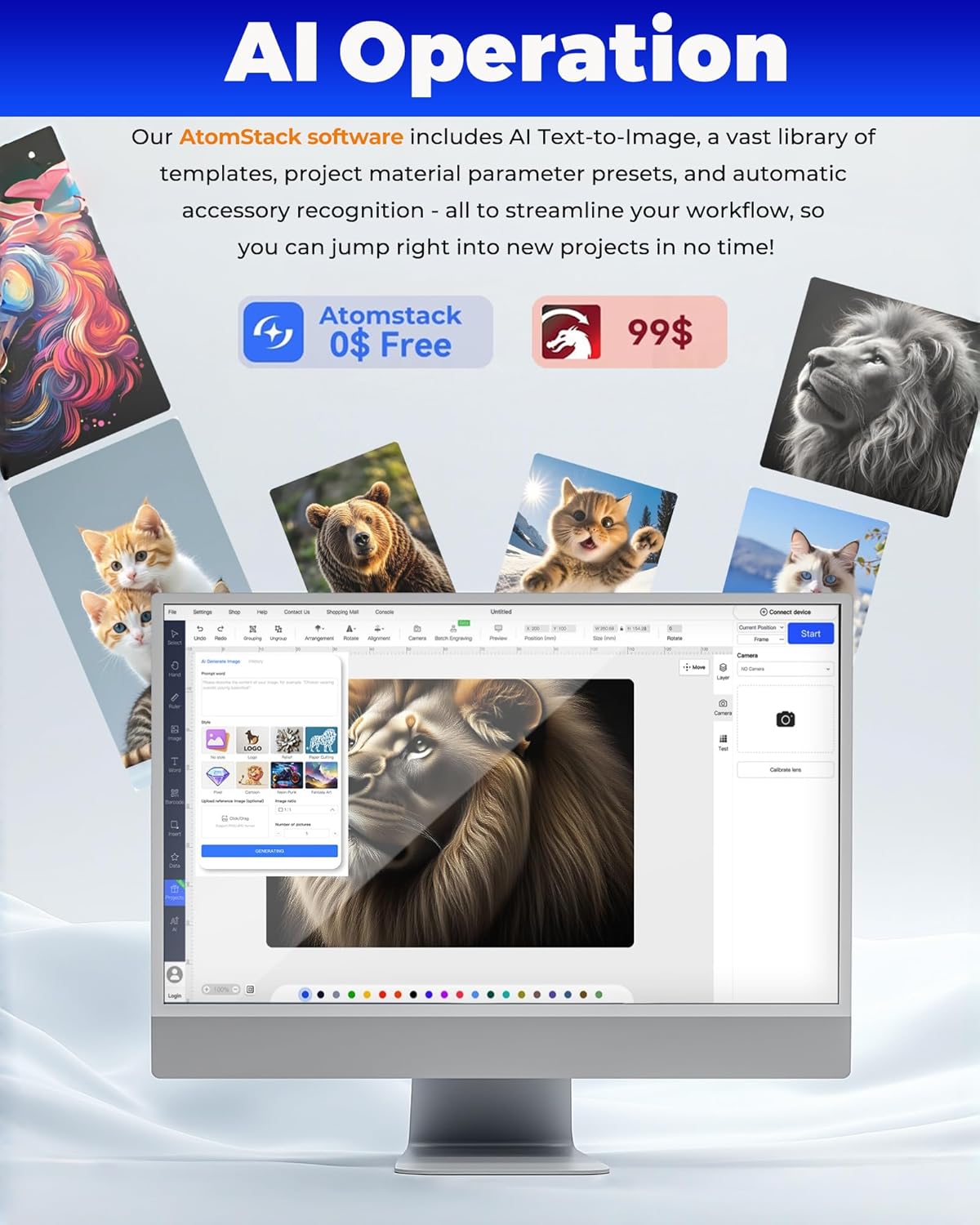
Figure 3.5: The AtomStack Studio software interface, demonstrating its AI operation features and design capabilities.

Figure 3.6: A banner outlining the various software options compatible with the ATOMSTACK Swift, including free and paid solutions.

Figure 3.7: The ATOMSTACK Swift demonstrating its versatile connectivity options, including Wi-Fi, hotspot, and USB, compatible with multiple operating systems.
Optional Accessories:
- Y-axis Extension Kit: Expands the engraving area from 300×300mm to 300×800mm for larger projects. (Must be purchased separately).
- Rotary Roller/Chuck: Enables engraving on cylindrical objects like cups, rings, and bottles. (Must be purchased separately).
- AC1 Camera: For precise visual positioning and batch engraving. (Must be purchased separately).
4. Safety Features
The ATOMSTACK Swift is equipped with several safety features to ensure user protection during operation.
- Eye Protection: The laser module features a filter cover, protecting your eyes and those around you from laser damage, often eliminating the need for separate safety goggles during observation.
- Tilt Detection: A built-in gyroscope automatically stops operation if the machine tilts more than 15 degrees, preventing accidents.
- Flame Alarm: In case of fire risk during operation, the flame alarm triggers automatically and shuts down the device. Operation can only resume after the hazard is cleared.
- Axis Limit Switches: Provide extra safety by preventing equipment damage from sudden collisions.

Figure 4.1: An image detailing the enhanced safety features of the ATOMSTACK Swift, including eye protection, tilt detection, and overheat alarm.

Figure 4.2: A banner explaining the eye protection feature of the ATOMSTACK Swift, provided by the laser filter cover.

Figure 4.3: A banner illustrating the tilt detection function, which automatically stops the machine if it tilts beyond 15 degrees.

Figure 4.4: A banner describing the flame alarm system, which automatically triggers and shuts down the device upon detecting a fire risk.
5. Maintenance
Regular maintenance ensures optimal performance and longevity of your laser engraver.
- Cleaning: Keep the laser module lens and working area clean from dust and debris. Use a soft, lint-free cloth.
- Lubrication: Periodically lubricate the guide rails to ensure smooth movement of the laser module.
- Firmware Updates: Check for and install any available firmware updates for improved functionality and performance.
6. Troubleshooting
This section addresses common issues you might encounter and provides solutions.
- Device Not Powering On: Check power connections and ensure the power adapter is correctly plugged in.
- Laser Not Firing: Verify software settings for laser power and ensure the laser module is properly connected.
- Poor Engraving/Cutting Quality: Adjust focus, speed, and power settings. Ensure the material is compatible and properly prepared. Clean the laser lens if necessary.
- Connection Issues: Check USB or Wi-Fi connections. Restart the device and computer/smartphone.
7. Specifications
Detailed technical specifications for the ATOMSTACK Swift 7W Laser Engraver and Cutter.
| Feature | Specification |
|---|---|
| Product Dimensions | 16.73 x 16.54 x 5.31 inches |
| Item Model Number | AtomStack Swift |
| Item Weight | 11.02 pounds |
| Working Area | 300×300mm (expandable) |
| Laser Output Power | 7000mW |
| Engraving Accuracy | 0.08mm |
| Engraving Speed | Up to 10000 mm/min (600mm/s) |
| Manufacturer | Shenzhen AtomStack Technologies Co., Ltd. |
| Date First Available | August 20, 2025 |
8. Warranty and Support
For warranty information and technical support, please refer to the manufacturer's official website or contact their customer service. Keep your purchase receipt for warranty claims. The manufacturer, Shenzhen AtomStack Technologies Co., Ltd., is committed to providing assistance for their products.


