Introduction
Thank you for choosing the CAMECHO 7 Inch Double Din Car Stereo. This multimedia MP5 player is designed to enhance your driving experience with its 7-inch touchscreen, Bluetooth connectivity, mirror link functionality, FM radio, and various input options. This manual provides detailed instructions for installation, operation, and maintenance to ensure optimal performance and longevity of your device.

Image: Front view of the CAMECHO 7 Inch Double Din Car Stereo installed in a vehicle dashboard.
What's in the Box
Please check the package contents upon unboxing to ensure all items are present:
- 1 x Double Din Radio
- 1 x Power Cable
- 1 x Horn Cable
- 1 x Mounting Brackets
- 1 x User Manual

Image: Visual representation of the package contents, including the head unit, cables, brackets, and user manual.
Specifications
Key technical specifications for the CAMECHO 7 Inch Double Din Car Stereo:
| Product Dimensions | 3.1 x 7 x 4 inches (7.0"L x 4.0"H x 3.1"D) |
| Item Weight | 1.54 pounds |
| Model Number | B0FN3HHW99 |
| Connectivity Technology | Bluetooth |
| Controller Type | Steering Wheel Control |
| Special Features | Built-In Bluetooth, Equalizer, FM Tuner, Multi Color Illumination, Touchscreen |
| Compatible Devices | Smartphone |
| Connector Type | USB Type-C |
| Audio Output Mode | Stereo |
| Video Encoding Support | AVI, 3GP, MP4, MOV, MPG, MKV, VOB, RMVB, RM |
Setup and Installation
Proper installation is crucial for the functionality and safety of your car stereo. It is recommended to have this unit installed by a professional if you are unfamiliar with car audio wiring.
1. Wiring Connections
Refer to the wiring diagrams below for correct connections. Ensure all connections are secure to prevent malfunctions.

Image: Detailed wiring diagrams for the main power harness and speaker connections, along with rear panel port introductions.
- Power Cable: Connect the yellow wire to the constant 12V power supply, the red wire to the accessory 12V supply (switched with ignition), and the black wire to ground.
- Speaker Cables: Connect the speaker wires according to the color codes for front left, front right, rear left, and rear right speakers.
- Steering Wheel Control (KEY): Connect the steering wheel control wire(s) to your vehicle's steering wheel control interface (if applicable).
- Reverse Camera (REVERSE): Connect the reverse camera trigger wire to the vehicle's reverse light circuit.
- Antenna (ANT): Connect your car's radio antenna.
2. Rearview Camera Connection (Optional)
If you are installing an optional rearview camera, connect it as shown in the diagram. The unit will automatically display the rearview image when the vehicle is in reverse gear.

Image: Diagram showing how to connect an optional rearview camera, including power and video signal connections.
Operating Instructions
1. Basic Operation
- Power On/Off: Short press the volume knob to mute, long press to power off.
- Volume Control: Rotate the volume knob to adjust the sound level.
- Touchscreen: Navigate menus and control functions by touching the 7-inch display.
2. Bluetooth Hands-Free
Connect your mobile phone via Bluetooth for hands-free calling and audio streaming.

Image: The car stereo screen displaying a phone call interface, with a smartphone shown next to it, indicating Bluetooth connectivity.
- Enable Bluetooth on your mobile phone.
- On the car stereo, go to the Bluetooth menu and search for available devices.
- Select the car stereo's Bluetooth name (e.g., "CAMECHO BT") from your phone's list and pair.
- Once paired, you can make/receive calls and play music wirelessly.
3. FM Radio & Equalizer
Access FM radio stations and customize your audio experience with the built-in equalizer.

Image: The car stereo screen displaying the FM radio tuner at 90.00 MHz and separate screens for equalizer settings, including standard presets and custom adjustments.
- FM Radio: Select the FM function to scan for stations or manually tune to a frequency. Save your favorite stations as presets.
- Equalizer (EQ): Access the EQ settings to choose from preset sound modes (e.g., Pop, Classic, Rock) or customize the audio frequencies to your preference.
4. Mirror Link Function
Mirror your smartphone screen onto the car stereo display for navigation, video playback, and other applications.

Image: The car stereo screen displaying a mirrored smartphone screen, with icons indicating support for wired Android and iOS mirror link.
- Connect your Android or iOS phone to the stereo using a USB cable.
- Follow the on-screen prompts to enable mirror link. This may require installing a specific app on your phone.
- Once connected, your phone's screen will be displayed on the stereo, allowing for control via the stereo's touchscreen.
5. Steering Wheel Control
Utilize your vehicle's existing steering wheel buttons to control the stereo for a safer driving experience.

Image: The car stereo screen displaying the steering wheel control learning interface, with a steering wheel shown. Also depicted are various input ports: TF Card, AUX, USB, Type-C Charging, and USB Charging.
- Access the steering wheel control settings in the system menu.
- Follow the instructions to program your steering wheel buttons to control functions like volume, track skip, and mode selection.
6. Multimedia Playback
The unit supports various media inputs for audio and video playback.
- USB/Type-C: Insert a USB drive or connect a device via the Type-C port for media playback or phone charging.
- SD Card: Insert an SD card into the dedicated slot for media playback.
- AUX Input: Connect external audio devices using a 3.5mm AUX cable.
7. Color Key Light Setting
Customize the backlight color of the physical buttons on the unit.
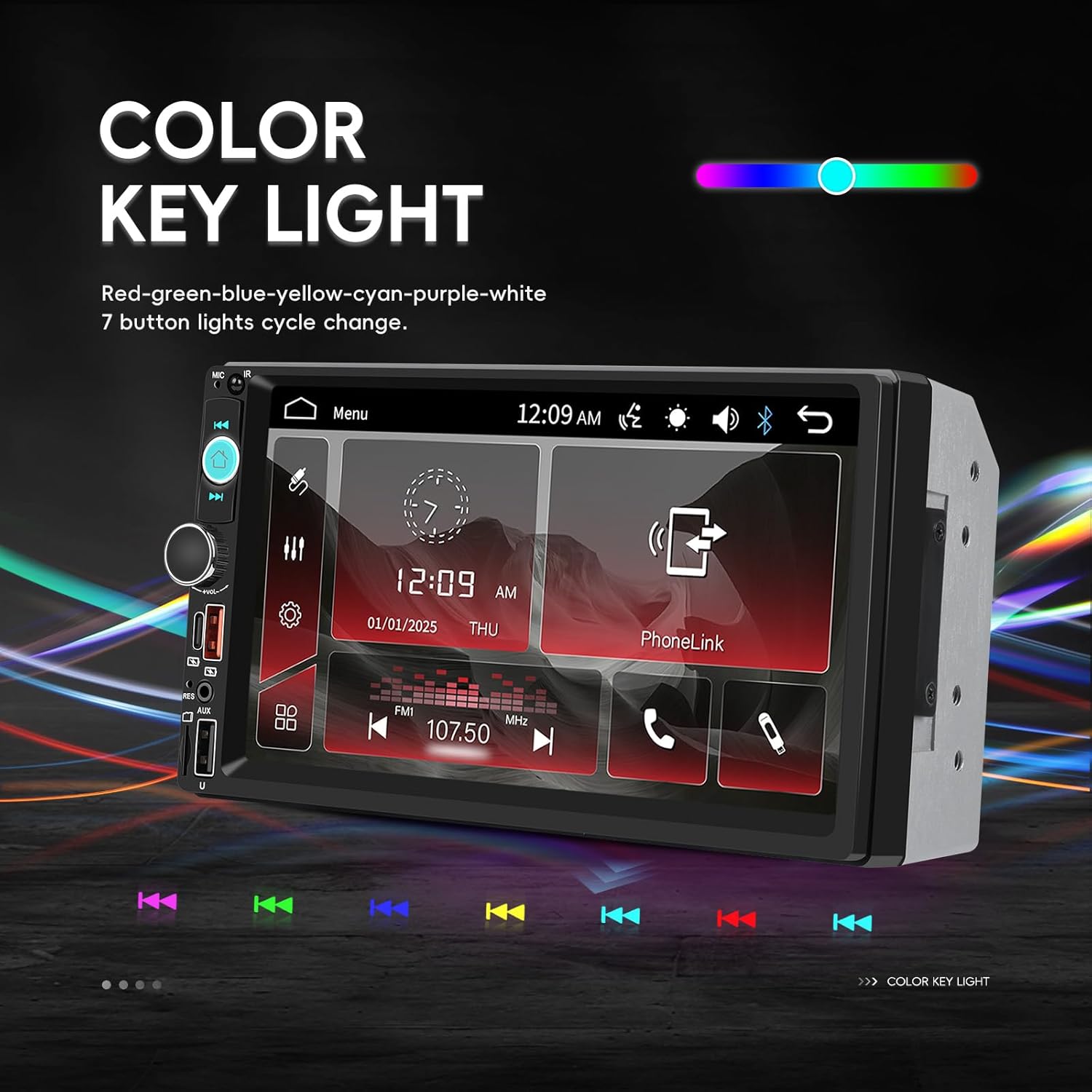
Image: The car stereo screen displaying options for changing the color of the key lights, showing a spectrum of colors and individual color selections.
- Navigate to the system settings menu.
- Find the 'Color Key Light' or 'Illumination' option.
- Choose from various colors (Red, Green, Blue, Yellow, Cyan, Purple, White) or set it to cycle through colors automatically.
Maintenance
To ensure the longevity and optimal performance of your CAMECHO car stereo, follow these maintenance guidelines:
- Cleaning the Screen: Use a soft, lint-free cloth to gently wipe the touchscreen. For stubborn smudges, slightly dampen the cloth with water or a screen-safe cleaner. Avoid harsh chemicals or abrasive materials.
- General Cleaning: Keep the unit free from dust and debris. Use a soft brush or compressed air to clean around buttons and ports.
- Avoid Extreme Temperatures: Do not expose the unit to extreme heat or cold for extended periods, as this can affect electronic components.
- Check Connections: Periodically check all wiring connections to ensure they are secure and free from corrosion.
Troubleshooting
If you encounter issues with your car stereo, refer to the following common problems and solutions:
| Problem | Possible Cause | Solution |
|---|---|---|
| No power/Unit does not turn on | Incorrect wiring, blown fuse, vehicle battery issue. | Check power cable connections (yellow, red, black). Verify vehicle fuses and the stereo's fuse. Ensure vehicle battery is charged. |
| No sound output | Speaker wires incorrectly connected, volume too low, mute function active, faulty speakers. | Check all speaker wire connections. Increase volume. Ensure unit is not muted. Test with different audio sources. |
| Touchscreen unresponsive or inaccurate | Screen calibration needed, software glitch, physical damage. | Try restarting the unit. Check for a screen calibration option in settings. If issue persists, contact support. |
| Bluetooth not connecting | Bluetooth not enabled, incorrect pairing process, interference. | Ensure Bluetooth is enabled on both devices. Delete previous pairings and re-pair. Move closer to the unit. |
| Mirror Link not working | Incorrect USB cable, required app not installed, phone settings. | Use a high-quality USB data cable. Ensure the necessary mirror link app is installed and permissions are granted on your phone. |
If these solutions do not resolve the issue, please contact customer support for further assistance.
Warranty and Support
Your CAMECHO 7 Inch Double Din Car Stereo is covered by a 30-day return/replacement policy from the date of purchase. For specific warranty details beyond this period, please refer to the terms provided by your retailer.
Customer Support
For any technical assistance, troubleshooting, or inquiries regarding your product, please contact our customer support team:
Email: CAMECHOVIP@126.com

Image: A customer service representative ready to assist with product inquiries.


