
Introduction
Thank you for choosing the uninell UR1 Robot Vacuum and Mop Combo. This manual provides essential information for the safe operation, maintenance, and troubleshooting of your device. Please read it thoroughly before using the product and retain it for future reference.
The uninell UR1 is designed to provide efficient and convenient cleaning for various floor types, including hardwood, low-mid-pile carpet, tile, and marble. It features 5000Pa suction power, a 3-in-1 sweep, vacuum, and mop function, and multiple control methods for ease of use.
Important Safety Instructions
Before using your uninell UR1, please observe the following safety precautions:
- Always ensure the power adapter is compatible with your local voltage.
- Do not operate the robot vacuum near open flames or flammable materials.
- Keep hair, loose clothing, fingers, and all parts of the body away from openings and moving parts.
- Do not immerse the robot vacuum or its charging dock in water or other liquids.
- Supervise children and pets when the robot vacuum is operating.
- Only use manufacturer-specified attachments and accessories.
- If the power cord is damaged, it must be replaced by the manufacturer or a qualified service agent to avoid hazards.
- Do not use the robot vacuum to pick up large debris, sharp objects, or liquids.
- Ensure the charging dock is placed against a wall in an open area, free from obstacles.
Product Overview
Components
The uninell UR1 Robot Vacuum and Mop Combo includes the following components:
- UR1 Robot Vacuum
- Charging Dock
- Power Adapter
- Remote Control (with AAA Batteries x 2)
- 2-in-1 Dust Box (pre-installed)
- Mop Holder (with Mop Pad)
- Extra Mop Pad
- Side Brushes (2 pairs)
- HEPA Filters (2 pieces)
- Cleaning Brush
- Instruction Manual (this document)
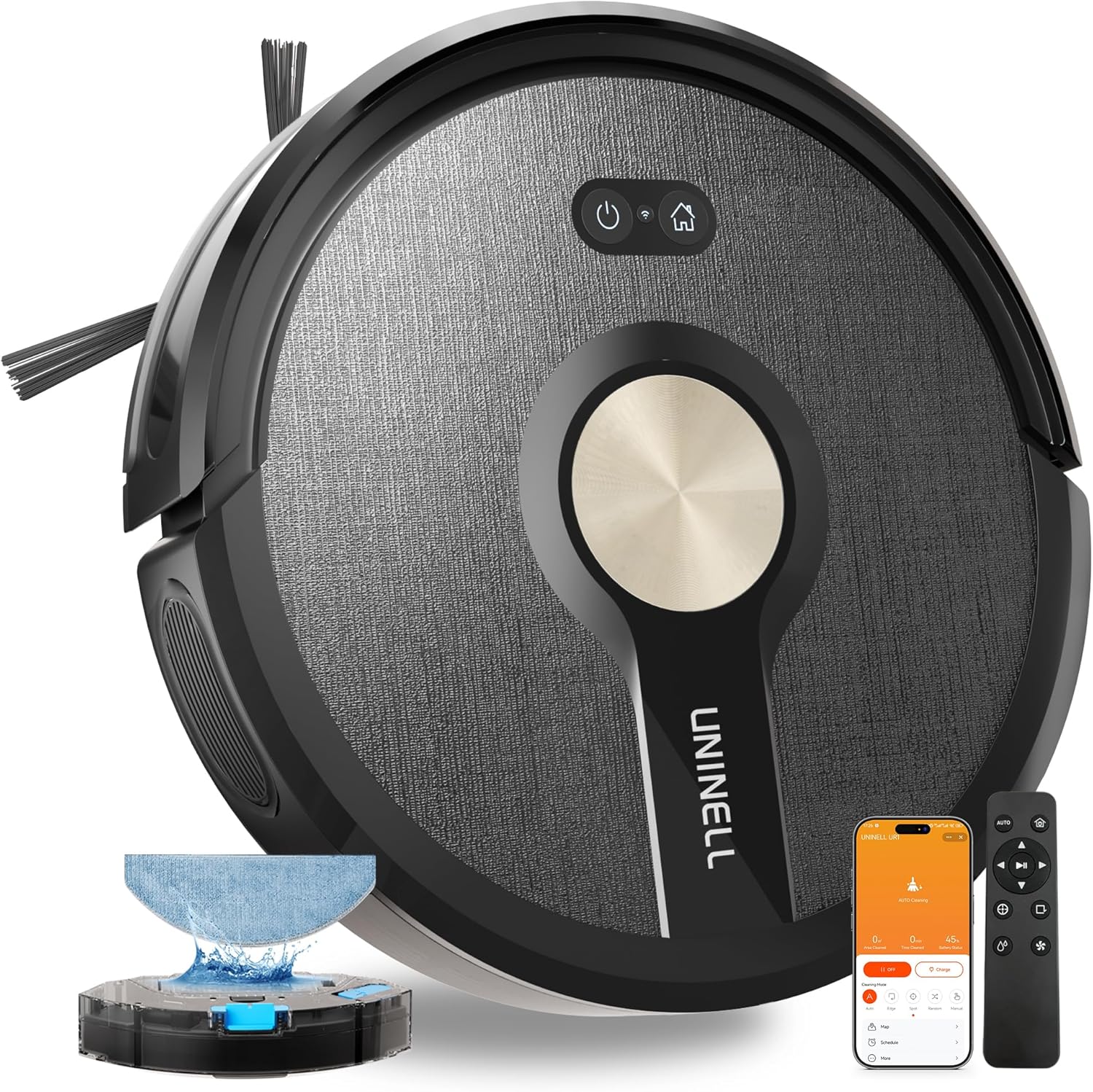
Image: The uninell UR1 Robot Vacuum and Mop Combo, showcasing its sleek black design.

Image: A diagram illustrating the 450ml dustbin and 250ml water tank of the UR1 robot vacuum, highlighting its 3-in-1 sweep, vacuum, and mop capabilities with adjustable suction power and water flow.

Image: The UR1 robot vacuum navigating under a sofa, demonstrating its ultra-slim 2.99-inch design for deep reach cleaning.

Image: A visual representation of the four intuitive control methods for the UR1 robot vacuum: Voice Assistant (Alexa, Google Home), Smartphone App (Smartlife or Tuya), Button Control, and Remote Control.

Image: The UR1 robot vacuum detecting a carpet and automatically boosting suction to remove dust and pet fur, illustrating its auto-carpet boost feature.
Setup Guide
1. Unpacking and Initial Placement
- Carefully remove all components from the packaging.
- Remove all protective films and stickers from the robot and charging dock.
- Place the charging dock against a wall in an open, uncluttered area. Ensure there is at least 0.5 meters (1.6 feet) of clear space on both sides and 1.5 meters (4.9 feet) in front of the dock.
- Connect the power adapter to the charging dock and plug it into a wall outlet. Ensure the cable is neatly tucked away to prevent entanglement.
2. Charging the Robot Vacuum
- Manually place the UR1 robot vacuum onto the charging dock. Ensure the charging contacts on the robot align with those on the dock.
- The indicator lights on the robot will illuminate to show it is charging. For first-time use, fully charge the robot (approximately 4-5 hours) before operation.
3. Installing Side Brushes and Mop Pad
- Turn the robot over. Press the side brushes onto their respective posts until they click into place. Match the colors (red to red, green to green if applicable).
- Attach a clean mop pad to the mop holder.
- Fill the 2-in-1 dust box with water (for mopping) and reinsert it into the robot.
4. App Connection (Optional)
- Download the "Smartlife" or "Tuya" app from your smartphone's app store.
- Follow the in-app instructions to connect your UR1 robot vacuum to your home's 2.4GHz Wi-Fi network.
- Once connected, you can control the robot, set schedules, and monitor its status from your smartphone.
Operating Instructions
Starting a Cleaning Cycle
- Using the Robot Buttons: Press the power button on the robot to start an automatic cleaning cycle. Press it again to pause.
- Using the Remote Control: Use the remote control to start/pause cleaning, select cleaning modes, or direct the robot manually.
- Using the App: Open the Smartlife or Tuya app, select your UR1 device, and choose your desired cleaning mode (Auto, Spot, Edge, Random) or start/pause cleaning.
- Voice Control: If connected to Alexa or Google Home, use voice commands such as "Alexa, turn on UR1" or "Hey Google, start cleaning with UR1."
Cleaning Modes
The UR1 offers four cleaning modes:
- Auto Mode: The robot intelligently navigates and cleans the entire home.
- Spot Mode: Focuses on a specific area for intensive cleaning.
- Edge Mode: Cleans along walls and furniture edges.
- Random Mode: Cleans in a random path, suitable for smaller, less complex areas.

Image: A diagram illustrating the UR1 robot vacuum's whole-home cleaning capability with up to 180 minutes of runtime, covering 2100 sq.ft. (200 m²) for multi-room cleaning.

Image: A visual representation of the four cleaning modes: Auto (cleans entire home), Edge (cleans corners and edges), Spot (focuses on specific areas), and Random (cleans in a random path).
Automatic Recharging
When the battery level drops below 15% or when a cleaning cycle is complete, the UR1 robot vacuum will automatically return to its charging dock to recharge.
Video: An overview of the uninell 5000Pa robot vacuum and mop combo, showcasing its features and cleaning capabilities in various home settings.
Maintenance
Regular maintenance ensures optimal performance and extends the lifespan of your uninell UR1. Always turn off the robot and disconnect it from the charging dock before performing any maintenance.
1. Emptying the Dustbin and Cleaning Filters
- Press the dustbin release button and pull out the 2-in-1 dust box.
- Open the dustbin cover and empty the collected debris into a trash can.
- Remove the HEPA filter and sponge filter. Tap them gently to remove dust. Rinse the dustbin and sponge filter with water (do not rinse the HEPA filter).
- Allow all parts to air dry completely before reassembling and reinserting into the robot.
2. Cleaning the Main Brush and Side Brushes
- Remove the main brush cover and lift out the main brush. Use the cleaning tool to cut and remove any hair or debris tangled around the brush.
- Pull off the side brushes. Remove any hair or debris and wipe them clean.
- Reinstall all brushes securely.
3. Cleaning Sensors and Charging Contacts
- Wipe the anti-drop sensors, anti-collision sensors, and charging contacts on both the robot and the charging dock with a clean, dry cloth.
- Ensure no dust or debris obstructs these components for proper operation.
4. Cleaning the Mop Pad
- Remove the mop pad from the mop holder.
- Rinse the mop pad thoroughly with water after each use. For heavily soiled pads, hand wash with mild detergent.
- Allow the mop pad to air dry completely before reattaching.
Troubleshooting
If you encounter issues with your uninell UR1, refer to the following common problems and solutions:
| Problem | Possible Cause | Solution |
|---|---|---|
| Robot does not turn on. | Low battery; power switch off. | Charge the robot fully; ensure the main power switch is on. |
| Robot cannot return to charging dock. | Charging dock obstructed; robot too far from dock. | Clear obstacles around the dock; place the robot closer to the dock. |
| Suction power is weak. | Full dustbin; clogged filters/brushes. | Empty dustbin; clean filters and brushes. |
| Robot gets stuck frequently. | Loose cables, small objects, or high thresholds. | Clear the cleaning area; use virtual boundaries if available. |
| Mopping function is ineffective. | Water tank empty; mop pad dirty. | Refill water tank; clean or replace mop pad. |
| App connection issues. | Incorrect Wi-Fi (not 2.4GHz); poor signal. | Ensure 2.4GHz Wi-Fi; restart router and robot; try pairing again. |
If the problem persists, please contact uninell customer support for assistance.
Specifications
| Feature | Detail |
|---|---|
| Brand | uninell |
| Model Name | UR1 |
| Suction Power | 5000Pa |
| Battery Life | Up to 180 minutes |
| Battery Type | Lithium Ion |
| Dustbin Capacity | 450 Milliliters |
| Water Tank Capacity | 250 Milliliters (integrated into 2-in-1 dust box) |
| Filter Type | HEPA Filter, Sponge |
| Noise Level | 50 Decibels (sub-50dB) |
| Control Methods | App Control (Smartlife/Tuya), Remote Control, Voice Control (Alexa/Google Home), Button Control |
| Navigation | Gyro-Navigation |
| Special Features | Anti-Collision, Anti-Fall, Edge Cleaning, Low Noise, Scheduling, Auto-Carpet Boost, Tangle-Free Design, Ultra-Slim 2.99" Design |
| Item Dimensions (L x W x H) | 33"L x 33"W x 7"H (Note: The 2.99" height is specified in product features for clearance under furniture. The overall L x W x H might refer to packaging or a different measurement.) |
| Surface Recommendation | Hardwood Floor, Low-Mid-Pile Carpet, Tile Floor, Marble Floor |
Warranty and Support
For warranty information and customer support, please refer to the warranty card included in your product packaging or visit the official uninell website. You may also contact the seller directly for assistance with product-related inquiries.
Return Policy: The product is eligible for a 30-day refund/replacement policy. Please check the specific terms and conditions with your retailer.