
1. Important Safety Instructions
Please read all safety instructions carefully before using this product and keep this manual for future reference. Failure to follow these instructions may result in electric shock, fire, or serious injury.
General Safety
- This appliance can be used by children aged 8 years and above and persons with reduced physical, sensory or mental capabilities or lack of experience and knowledge if they have been given supervision or instruction concerning use of the appliance in a safe way and understand the hazards involved.
- Children shall not play with the appliance. Cleaning and user maintenance shall not be made by children without supervision.
- Do not allow the robot to pick up large objects, sharp objects, or liquids.
- Ensure the charging dock is placed against a wall on a level surface, away from heat sources and direct sunlight.
- Do not operate the robot in areas with open flames or explosive materials.
Battery Safety
- The robot contains a lithium-ion battery. Do not expose the battery to high temperatures or direct sunlight.
- Only use the original charging dock and power adapter provided by uninell.
- If the battery leaks, avoid contact with skin and eyes. If contact occurs, rinse with plenty of water and seek medical attention.
- Do not attempt to disassemble, repair, or modify the battery pack.
2. Product Overview
What's in the Box
The package includes all necessary components for operating and maintaining your uninell UR1 Robot Vacuum and Mop Combo.

Image: A visual representation of all items included in the product box. This includes the UR1 robot, charging dock, remote control, two AAA batteries, a mop holder with one mop pad, an extra mop pad, a cleaning brush, two side brushes, and two HEPA filters, along with the instruction manual.
- Instruction Manual
- Remote Control
- Mop Holder (with Mop Pad)
- 2-in-1 Dust Box
- AAA Batteries x 2
- Extra Mop Pad
- Charging Dock
- UR1 Robot
- Cleaning Brush
- Side Brushes
- HEPA Filters
Robot Components
Familiarize yourself with the various parts of your UR1 robot for optimal use and maintenance.

Image: An exploded view diagram of the UR1 robot, highlighting key components such as the edge-sweeping brush, floor-sealing rubber strip, microfiber mop pad, anti-fall sensor, dual-surface motorized brush, and central suction nozzle. This illustrates the smart design for deep cleaning.
- Top Cover: Access to dust bin and power button.
- Power Button: Start/pause/stop cleaning.
- Dust Bin/Water Tank: Collects debris and holds water for mopping.
- Side Brushes: Sweep debris from edges and corners.
- Main Brush: Collects dust and debris from floors.
- Driving Wheels: Allow the robot to move across various surfaces.
- Universal Wheel: Provides directional movement.
- Anti-Drop Sensors: Detects stairs and prevents falls.
- Charging Contacts: Connects with the charging dock.
- Bumper: Detects obstacles for collision avoidance.
Design Features
The UR1 is engineered for efficient and thorough cleaning in various home environments.

Image: The UR1 robot vacuum is shown cleaning under a sofa, highlighting its slim 2.99-inch (7.6 cm) body. This design allows it to reach and clean hidden spots under beds, sofas, and cabinets that taller vacuums cannot access.
- Ultra-Slim Design: At 2.99 inches (7.6 cm) tall, the UR1 can easily clean under furniture.
- Quiet Operation: Operates at less than 50 dB, allowing for undisturbed daily activities.
- Pet-Friendly Design: Features dual side brushes and an anti-tangle roller brush, ideal for collecting pet hair and debris.
3. Setup
Unpacking and Preparation
- Remove the robot and all accessories from the packaging.
- Remove any protective films or stickers from the robot and charging dock.
- Install the two side brushes by pressing them onto the posts until they click into place.
- Place the charging dock against a wall in an open area, ensuring there are no obstacles within 1 meter (3 feet) to the front and 0.5 meters (1.5 feet) to the sides. Connect the power adapter to the charging dock and plug it into a wall outlet.
Initial Charge
Before first use, fully charge the robot. Place the robot onto the charging dock, ensuring the charging contacts align. The indicator light on the robot will show charging status. A full charge takes approximately 4-5 hours.
App Connection (SmartLife/Tuya)
For advanced features and control, connect your UR1 to the SmartLife or Tuya app.

Image: A hand holding a smartphone displaying the SmartLife or Tuya app. The app interface shows options to start cleaning, adjust suction levels, and set cleaning schedules, indicating full control over the UR1 robot vacuum from anywhere.
- Download the "SmartLife" or "Tuya Smart" app from your smartphone's app store.
- Register an account and log in.
- Ensure your phone is connected to a 2.4GHz Wi-Fi network. The robot does not support 5GHz Wi-Fi.
- Follow the in-app instructions to add your UR1 device. This typically involves pressing and holding the robot's power button until a Wi-Fi indicator light flashes, then confirming in the app.
Remote Control Setup
The remote control provides a simple way to operate the robot without the app.

Image: A person comfortably seated on a sofa, using a remote control to direct the UR1 robot vacuum. This highlights the convenience of remote control operation, especially for users who prefer not to use a smartphone app.
- Open the battery compartment on the back of the remote control.
- Insert the two AAA batteries provided, ensuring correct polarity.
- Close the battery compartment. The remote control is now ready for use.
4. Operating Instructions
Starting, Pausing, and Stopping Cleaning
- Using the Robot Button: Press the power button on the robot once to start cleaning. Press again to pause. Press and hold to send it back to the charging dock.
- Using the App: Open the SmartLife/Tuya app, select your UR1, and tap the 'Start' or 'Pause' button.
- Using the Remote Control: Use the 'Start/Pause' button on the remote.
- Using Voice Commands: Integrate with Amazon Alexa or Google Home. Say commands like "Alexa, turn on the UR1" or "Hey Google, start cleaning with UR1."

Image: A person sitting with a dog, near an Amazon Echo device, which is shown with a voice command bubble "Alexa, turn on the UR1." This demonstrates the intelligent voice command feature, allowing users to start or stop cleaning hands-free.
Cleaning Modes
The UR1 offers multiple cleaning modes to suit different needs.
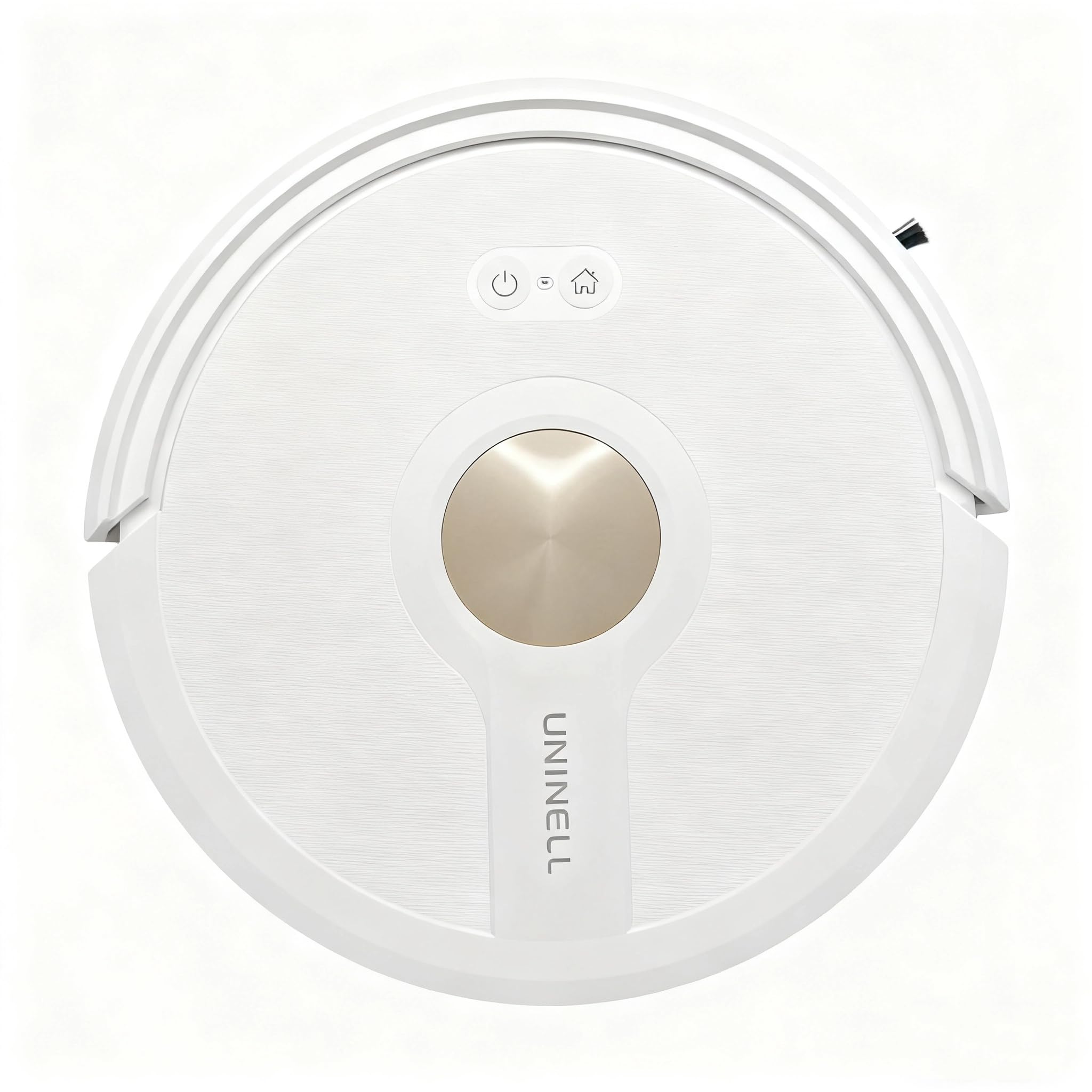
Image: Four distinct panels show the UR1 robot vacuum operating in different modes. 'Auto' mode depicts the robot cleaning the entire home in a systematic path. 'Edge' mode shows it cleaning along walls and corners. 'Spot' mode illustrates the robot focusing on a specific dirty area in a spiral pattern. 'Random' mode displays the robot cleaning in an unsystematic path.
- Auto Cleaning: The robot cleans the entire home systematically.
- Edge Cleaning: The robot cleans along walls and furniture edges.
- Spot Cleaning: The robot focuses on a specific area, cleaning in a spiral pattern.
- Random Cleaning: The robot cleans in a random path, suitable for smaller, less structured areas.
Vacuuming and Mopping
The UR1 combines vacuuming and mopping for a comprehensive clean.

Image: The UR1 robot vacuum is shown alongside its removable dual-function tank, which serves as both a 450ml dust bin and a 250ml water tank. This illustrates the flexibility to vacuum, mop, or perform both functions simultaneously by switching between cleaning modes.
- Install Mop Holder: Attach the mop holder with a damp mop pad to the bottom of the robot.
- Fill Water Tank: Open the water tank cap on the 2-in-1 dust box and fill it with clean water. Do not use cleaning solutions that are not approved for robot vacuums.
- Adjust Settings: Use the app to adjust suction power (3 levels: Eco, Standard, Max) and water flow (3 levels: Low, Middle, High) according to your floor type and cleaning needs.

Image: The UR1 robot vacuum is depicted moving from a hard floor onto a carpet. An overlay graphic shows an increase in suction power as it transitions to the carpeted area, demonstrating its smart carpet detection and automatic power boost feature for deep cleaning.
- Smart Carpet Detection: The UR1 automatically increases suction strength when it detects carpets to extract deep-seated dirt and dust.
- Climbing Ability: The robot can climb over obstacles up to 0.6 inches (1.5 cm) high, such as door sills and low carpets.
Scheduling Cleanings
Set a cleaning schedule via the app to ensure your home is always clean.

Image: A smartphone displaying the scheduling feature within the UR1 app. Multiple cleaning times are set for different days, such as 06:37 on Monday for mopping and 12:30 on Thursday for sweeping. This illustrates how users can pre-set cleaning times for a consistently tidy home.
- Open the SmartLife/Tuya app and navigate to the scheduling section.
- Set desired cleaning times and days. You can also select specific cleaning modes for scheduled tasks.
- Confirm your schedule. The robot will automatically start cleaning at the programmed times.
Returning to Charging Dock
- Automatic Return: The robot will automatically return to the charging dock when its battery is low or when a cleaning cycle is complete.
- Manual Return: You can send the robot back to the charging dock at any time using the app, remote control, or by pressing and holding the power button on the robot.
Seamless Navigation
The UR1 utilizes Gyro navigation technology and smart sensors for efficient movement.

Image: A triptych of images demonstrating the UR1's navigation capabilities. The first shows anti-drop sensors preventing the robot from falling down stairs. The second illustrates the robot climbing over a 20mm (0.79 inch) obstacle between rooms. The third depicts the anti-collision system guiding the robot around furniture, ensuring safe and thorough cleaning.
- Gyro Navigation: Systematically maps and cleans your home, ensuring comprehensive coverage over time.
- Anti-Drop Sensors: Prevents the robot from falling down stairs or off ledges.
- Anti-Collision System: Detects obstacles and navigates around them to prevent damage to furniture and the robot.
5. Maintenance
Regular maintenance ensures optimal performance and extends the lifespan of your UR1 robot vacuum.
Dust Bin and Filter Maintenance
- Emptying the Dust Bin: Press the release button to remove the 2-in-1 dust box. Open the dust bin cover and empty the contents into a trash can.
- Cleaning the Filter: Remove the HEPA filter and sponge filter from the dust bin. Tap them gently to remove dust. Rinse the sponge filter with water if necessary, ensuring it is completely dry before reinstallation. Do not wash the HEPA filter with water.
- Reinstallation: Place the dry filters back into the dust bin, then reattach the dust bin to the robot.
Main Brush Maintenance
The anti-tangle roller brush is designed to minimize hair wrapping, but occasional cleaning is still required.

Image: A side-by-side comparison showing the UR1's upgraded roller brush, which has a design that prevents pet hair from wrapping around it, next to a conventional roller brush heavily tangled with hair. This highlights the anti-tangle feature of the UR1's brush.
- Flip the robot over. Pinch the tabs on the main brush guard to remove it.
- Lift out the main brush.
- Use the cleaning tool (or scissors) to cut and remove any hair or debris wrapped around the brush.
- Reinstall the main brush and its guard.
Side Brush Maintenance
- Gently pull the side brushes upwards to remove them.
- Remove any hair or debris. If the brushes are damaged or worn, replace them with new ones.
- Push the clean or new side brushes back onto their posts until they click.
Water Tank and Mop Pad Maintenance
- After mopping, remove the mop holder and detach the mop pad.
- Empty any remaining water from the water tank.
- Wash the mop pad by hand or machine. Allow it to air dry completely before reuse.
- Clean the water tank with a damp cloth if needed.
Sensor and Charging Contact Maintenance
Wipe all sensors and charging contacts with a clean, dry cloth regularly to ensure proper function.
- Anti-drop sensors (on the bottom of the robot).
- Charging contacts (on the bottom of the robot and on the charging dock).
- Anti-collision sensors (on the front bumper of the robot).
Smart Maintenance Alerts
The UR1 app provides real-time tracking of component usage.

Image: A smartphone displaying the 'Consumable Parts Status' screen within the UR1 app. It shows the remaining lifespan percentage for the filter, side brushes, and brush roller, along with estimated remaining usage time. This feature provides smart maintenance alerts to ensure optimal cleaning efficiency.
The app will notify you when it's time to clean or replace consumables like the HEPA filter, side brushes, and main brush, ensuring your robot maintains optimal cleaning efficiency.
6. Troubleshooting
If you encounter issues with your UR1 robot vacuum, refer to the following common problems and solutions.
| Problem | Possible Cause | Solution |
|---|---|---|
| Robot does not turn on or charge. | Battery is completely drained; charging contacts are dirty; power adapter not connected. | Ensure the robot is correctly placed on the charging dock. Clean charging contacts on both the robot and dock. Check if the power adapter is securely plugged in. |
| Robot gets stuck frequently. | Too many obstacles; robot is trapped under low furniture; sensors are dirty. | Clear cables, toys, and other obstacles from the cleaning path. Use virtual boundaries if available in the app. Clean all sensors. |
| Poor cleaning performance. | Dust bin is full; filters are clogged; brushes are tangled or worn. | Empty the dust bin. Clean or replace filters. Clean or replace main brush and side brushes. |
| App cannot connect to the robot. | Incorrect Wi-Fi band (5GHz); weak Wi-Fi signal; incorrect pairing steps. | Ensure your phone is connected to a 2.4GHz Wi-Fi network. Move the robot closer to the router. Re-attempt the pairing process as per app instructions. |
| Robot makes unusual noises. | Debris caught in brushes or wheels; component malfunction. | Check and clean the main brush, side brushes, and wheels for any trapped debris. If the noise persists, contact customer support. |
7. Specifications
Technical details for the uninell UR1 Robot Vacuum and Mop Combo.
| Feature | Specification |
|---|---|
| Model Name | UR1 |
| Suction Power | Up to 5000Pa |
| Battery Life | Up to 180 minutes |
| Battery Type | Lithium Ion |
| Dust Bin Capacity | 450 mL |
| Water Tank Capacity | 250 mL |
| Dimensions (L x W x H) | 33 cm x 33 cm x 7.6 cm (13"L x 13"W x 2.99"H) |
| Noise Level | < 50 dB |
| Control Methods | App (SmartLife/Tuya), Remote Control, Voice (Alexa/Google Home) |
| Surface Recommendation | Hard Floor, Carpet |
| Special Features | Anti-Collision, Anti-Drop Sensors, Gyro Navigation, Carpet Detection, Self-Charge |
8. Warranty and Support
Warranty Information
The uninell UR1 Robot Vacuum and Mop Combo comes with a 2-year warranty from the date of purchase. This warranty covers manufacturing defects and malfunctions under normal use. Please retain your proof of purchase for warranty claims. The warranty does not cover damage caused by misuse, accidents, unauthorized repairs, or normal wear and tear of consumables (e.g., brushes, filters, mop pads).
Customer Support
For technical assistance, warranty claims, or any questions regarding your uninell UR1 robot vacuum, please contact uninell customer support through the contact information provided on the product packaging or the official uninell website. Our support team is available to help you with any issues you may encounter.