
1. Introduction
This manual provides detailed instructions for the installation, operation, and maintenance of your Baetaey 2025 WiFi Signal Booster. This device is designed to extend your existing 2.4GHz Wi-Fi network coverage, eliminating dead zones and providing a stable connection throughout your home or office. Please read this manual carefully before using the product to ensure proper setup and optimal performance.
Important Note: This device extends your existing 2.4GHz network and does not increase your original internet speed. It is compatible with most standard routers.
2. Package Contents
Please check the package contents upon unboxing. If any items are missing or damaged, please contact customer support.
- Baetaey 2025 WiFi Signal Booster Unit
- User Manual (this document)
- Ethernet Cable (may be included depending on package)
3. Product Overview
The Baetaey 2025 WiFi Signal Booster features a compact design with adjustable external antennas and indicator lights for easy monitoring.
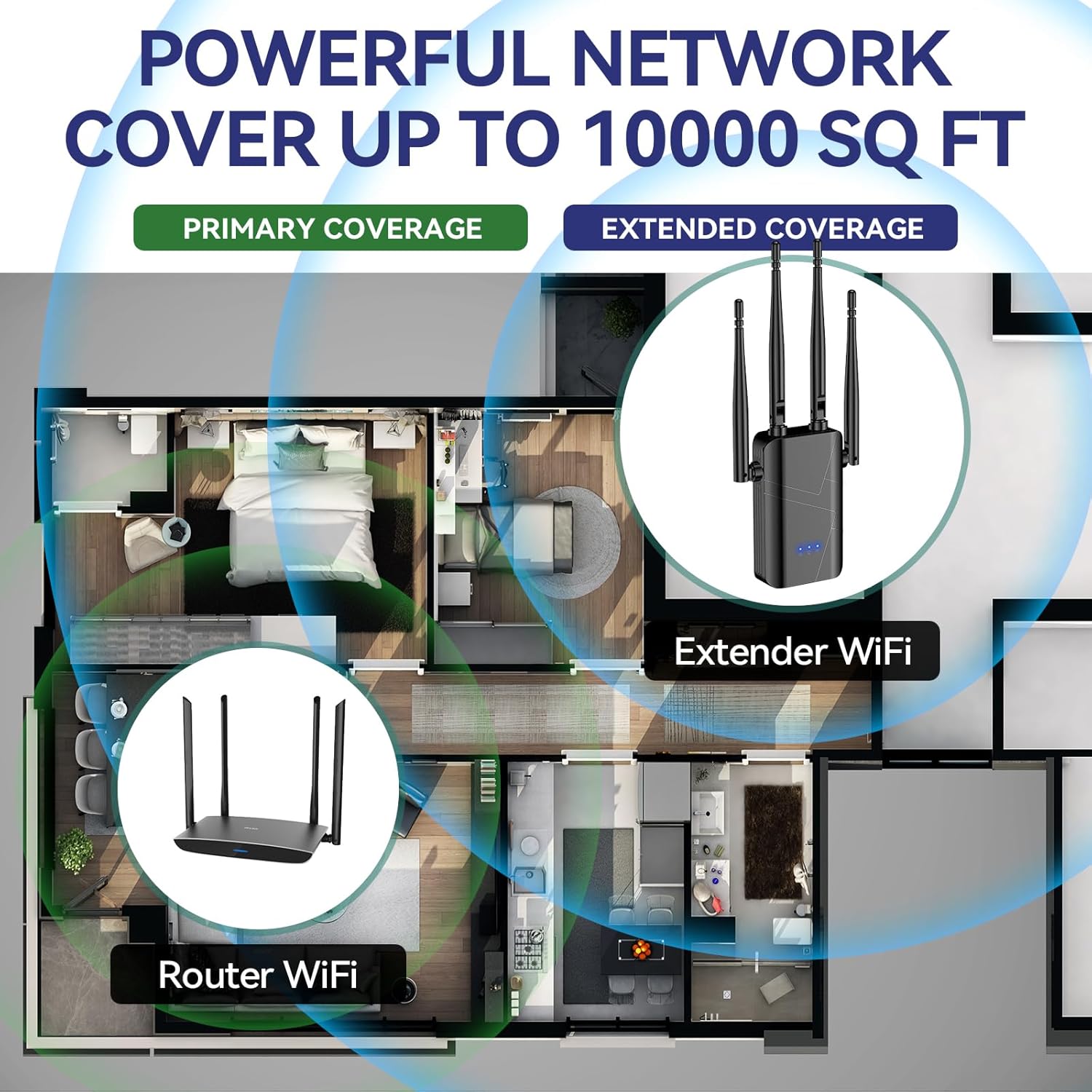
Figure 3.1: Baetaey 2025 WiFi Signal Booster. This image shows the main unit with its four adjustable external antennas, designed to enhance signal distribution.

Figure 3.2: Powerful External Antennas. The device is equipped with four advanced external antennas to centralize WiFi to the device for stronger connectivity.
3.1 Key Features
- 2.4GHz Network Extension: Broadens coverage for your existing 2.4GHz Wi-Fi network.
- Multiple Operating Modes: Supports Repeater, Bridge, Access Point, and Router modes.
- WPS Button Setup: One-click setup for quick installation.
- Four External Antennas: Adjustable antennas for optimized signal distribution.
- Ethernet Port: Provides a wired connection option for devices.
- Security Protocols: Compatible with standard security protocols (WPA-PSK/WPA2-PSK/WPA).

Figure 3.3: High-Performance WiFi Chip. This diagram highlights the internal components, including the overvoltage protection controller, LED indicators, security encryption module, Ethernet port, and WPS/reset button.
4. Setup and Installation
Follow these steps to set up your Baetaey 2025 WiFi Signal Booster.
4.1 Optimal Placement
For optimal performance, position the extender in a central location between your main router and the area needing better coverage. Avoid placing it near large metal objects, microwave ovens, or other devices that may cause interference. Ensure the extender is within range of your router during setup.

Figure 4.1: Coverage Illustration. This image demonstrates how the WiFi booster extends primary coverage from a router to provide extended coverage throughout a home.

Figure 4.2: Boosted WiFi Coverage. This diagram illustrates how the extender works with any WiFi router to boost existing WiFi signals' coverage, extending it to areas previously experiencing low signal.
4.2 Quick Setup using WPS Button
- Power On: Plug the WiFi Signal Booster into an electrical outlet near your main router. Wait for the power indicator light to become stable.
- Activate WPS on Router: Press the WPS button on your main router. Refer to your router's manual for the exact location and procedure, as this may vary.
- Activate WPS on Extender: Within two minutes of pressing WPS on your router, press the WPS button on the Baetaey WiFi Signal Booster.
- Connection Confirmation: The indicator lights on the extender will flash and then become solid, indicating a successful connection.
- Relocate (Optional): Once connected, you can unplug the extender and move it to a more central location within your home, ensuring it remains within the extended range of your router.

Figure 4.3: WPS Button Setup. This image highlights the WPS button on the device, used for a quick and easy one-click installation process.
4.3 Manual Setup (Web Browser)
If your router does not have a WPS button or if WPS setup fails, you can configure the extender via a web browser.
- Power On: Plug the WiFi Signal Booster into an electrical outlet near your main router.
- Connect to Extender's Network: On your computer or mobile device, connect to the Wi-Fi network broadcast by the extender (e.g., "Baetaey_Extender" or similar). No password is required initially.
- Access Setup Page: Open a web browser and enter the default IP address or domain name provided in the quick start guide (e.g., http://192.168.1.254 or http://repeater.net).
- Login: Enter the default username and password (usually "admin" for both, refer to the quick start guide for specifics).
- Select Mode: Choose the desired operating mode (Repeater, Access Point, or Router).
- Configure Settings: Follow the on-screen instructions to select your main Wi-Fi network, enter its password, and configure the extender's network name (SSID) and password.
- Apply Settings: Save the settings and wait for the extender to restart.
- Verify Connection: Connect your devices to the new extended Wi-Fi network.
5. Operating Modes
The Baetaey 2025 WiFi Signal Booster supports multiple operating modes to suit various networking needs:
- Repeater Mode: Extends the range of an existing wireless network. This is the most common mode for eliminating Wi-Fi dead zones.
- Access Point (AP) Mode: Converts a wired network connection into a wireless access point. Ideal for adding Wi-Fi capability to a wired-only network.
- Router Mode: Functions as a basic router, creating a new private network from a modem connection.
- Bridge Mode: Connects two separate network segments, often used to connect wired devices to a wireless network.

Figure 5.1: Multi-Mode Functionality. This image illustrates the various features and modes supported by the extender, including its stable chipsets, 2.4GHz frequency band, Ethernet port, and easy setup.
6. Device Connectivity
Once the WiFi Signal Booster is set up, you can connect your devices to the extended network.
6.1 Wireless Connection
On your Wi-Fi enabled device (smartphone, tablet, laptop, smart TV, etc.), search for available Wi-Fi networks. Select the network name (SSID) of your extender (e.g., "YourRouterName_EXT" or the custom name you set during manual setup) and enter the password.

Figure 6.1: Universal Compatibility. The extender connects to over 70 devices, compatible with all WiFi enabled devices, routers, and access points, meeting the needs of multiple family members simultaneously.
6.2 Wired Connection (Ethernet Port)
The extender includes an Ethernet port, allowing you to connect a wired device (such as a desktop computer, gaming console, or smart TV) directly to the extender for a stable and fast connection.
- Ensure the extender is powered on and successfully connected to your main Wi-Fi network.
- Connect one end of an Ethernet cable to the Ethernet port on the extender.
- Connect the other end of the Ethernet cable to the Ethernet port on your wired device.

Figure 6.2: Ethernet Port. This image shows the Ethernet port on the device, providing a maximum and stable speed through access points for wired connections.

Figure 6.3: Wired Speed and Reliability. This image illustrates how to quickly connect your device to an Ethernet port for wired speed and reliability anywhere in your home.
7. Troubleshooting
If you encounter issues with your WiFi Signal Booster, refer to the following common problems and solutions:
| Problem | Possible Cause | Solution |
|---|---|---|
| No power/Indicator lights off | Device not plugged in or power outlet issue. | Ensure the extender is securely plugged into a working electrical outlet. Try a different outlet. |
| Cannot connect to the extender's Wi-Fi network | Incorrect password, extender not configured, or out of range. | Verify the Wi-Fi password. Ensure the extender is set up correctly (WPS or manual). Move closer to the extender. |
| Extender not connecting to main router (WPS fails) | WPS timeout, router WPS issue, or extender too far from router during setup. | Ensure WPS is activated on the router first. Try manual setup via web browser. Move the extender closer to the router for initial setup. |
| Poor signal strength from extender | Improper placement, interference, or extender too far from main router. | Relocate the extender to a more central position between your router and the desired coverage area. Avoid obstructions. Ensure the extender receives a strong signal from the main router. |
| Internet speed is not faster | The extender is designed to extend coverage, not increase internet speed. | This is expected behavior. The extender provides a stronger signal in dead zones, but your overall internet speed is determined by your Internet Service Provider (ISP) and main router. |
| Only 2.4GHz network available | The device only supports 2.4GHz frequency band. | This extender is designed to work with and extend 2.4GHz networks only. It does not support 5GHz networks. |
If the problem persists, try resetting the extender to factory defaults (usually by pressing and holding the reset button for 5-10 seconds) and repeat the setup process.
8. Specifications
| Feature | Detail |
|---|---|
| Model | Baetaey 2025 WiFi Signal Booster (ASIN: B0FN2SYKQH) |
| Wireless Communication Standard | 802.11bgn |
| Frequency Band Class | Single-Band (2.4GHz only) |
| Antennas | Four adjustable external antennas |
| Ports | 1x Ethernet Port |
| Security Protocols | WPA-PSK/WPA2-PSK/WPA |
| Operating Modes | Repeater, Bridge, Access Point, Router |
| Compatible Devices | Wi-Fi enabled devices (routers, smartphones, tablets, laptops, computers, smart TVs, gaming consoles, printers, security cameras, etc.) |
| Color | Black |
9. Maintenance
To ensure the longevity and optimal performance of your WiFi Signal Booster, follow these maintenance guidelines:
- Cleaning: Use a soft, dry cloth to clean the device. Do not use liquid cleaners or aerosols.
- Ventilation: Ensure the device is placed in a well-ventilated area to prevent overheating. Do not block the ventilation holes.
- Power: Unplug the device during electrical storms or when not in use for extended periods.
- Environment: Avoid exposing the device to extreme temperatures, humidity, or direct sunlight.
10. Warranty and Support
For warranty information or technical support, please refer to the product packaging or contact Baetaey customer service through the retailer where the product was purchased. Keep your purchase receipt for warranty claims.
Manufacturer: Baetaey