
1. Product Overview
The Sanpyl 5G Wireless Network Card is a high-performance module designed to provide wireless WAN connectivity for compatible laptops. It supports various protocols including 5GNR (Sub 6G/mmWave), LTE, UMTS (HSDPA/HSUPA), and Glonass, ensuring a stable and fast network connection. This module also features a dual-frequency GNSS receiver, DW5932e.
Note: This card is not compatible with Electronic User Identification Module (EIMD) cards.

Image 1: The Sanpyl 5G Wireless Network Card, highlighting its function as a 5G module.
2. Specifications
| Item Type | 5G Module Wireless WAN Card |
| Brand | Sanpyl |
| Model | T99W373 |
| Data Link Protocol | DW5932e |
| Interface | PCIe M.2 (3042 Key B slot) |
| Transmission Rate | Downlink 1.6Gbps (Cat19) |
| Compatible Devices | Laptops (see Compatibility section) |
3. Compatibility
This 5G module is compatible with a range of Latitude laptops and other devices that support a PCI M.2 specification 3042 Key B slot. Confirmed compatible Latitude models include:
- Latitude 5350
- Latitude 5450
- Latitude 5550
- Latitude 7030
- Latitude 7350
- Latitude 7450
- Latitude 7650
- Latitude 9450
- Latitude 3490
- Latitude 3590
- Latitude 3591
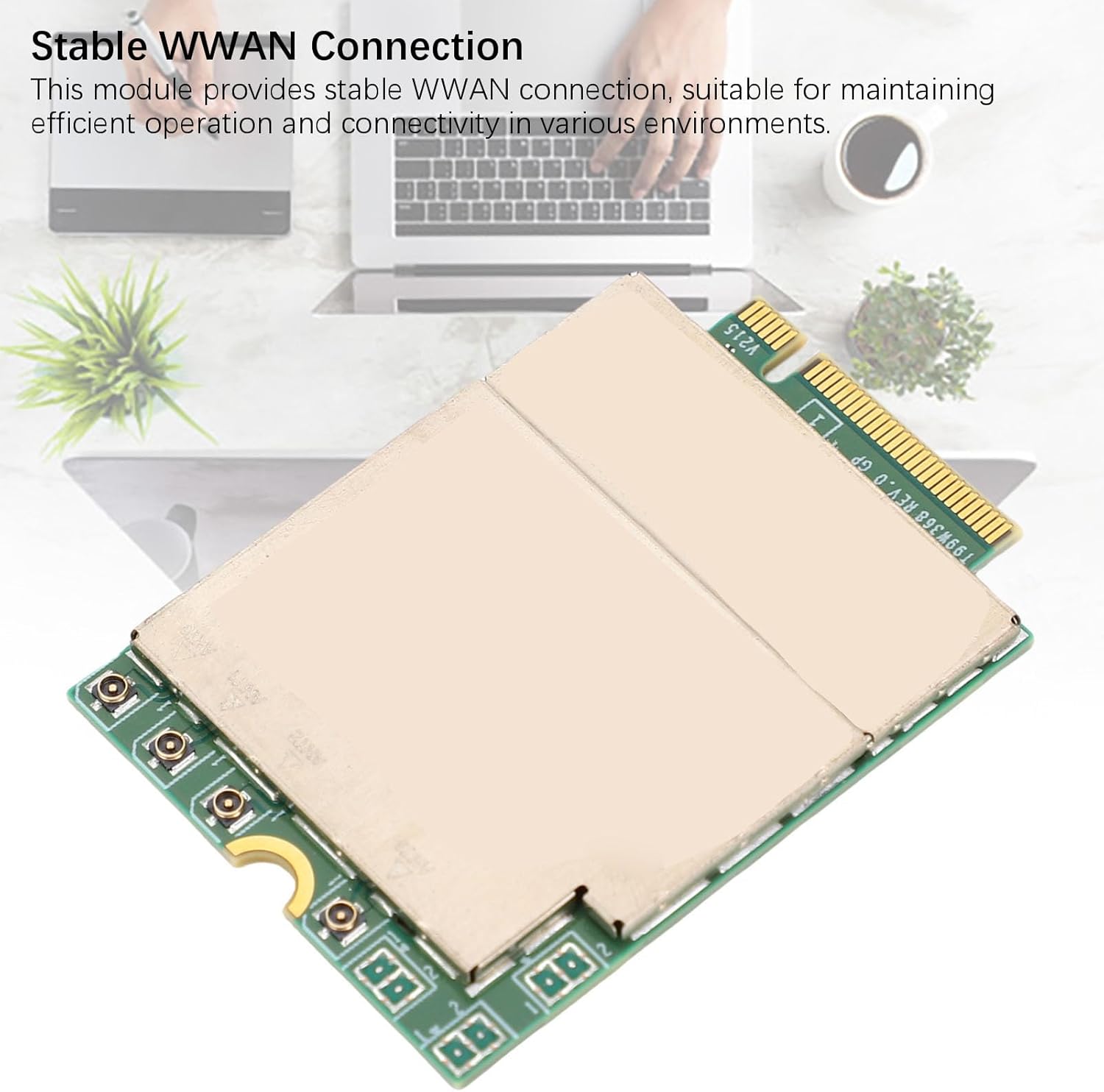
Image 2: Close-up view of the PCIe M.2 interface on the network card.
4. Installation and Setup
The Sanpyl 5G Wireless Network Card is designed for internal installation within compatible laptops. Installation typically involves accessing the laptop's internal components. It is recommended that installation be performed by a qualified technician or by following your laptop's specific service manual instructions.
- Prepare Your Laptop: Power off your laptop completely and disconnect it from all power sources. Remove the battery if it is external.
- Access the M.2 Slot: Carefully open your laptop's chassis to locate the internal M.2 slot (Key B type). Refer to your laptop's service manual for precise instructions on how to open the chassis and locate the slot.
- Insert the Network Card: Gently align the Sanpyl 5G Wireless Network Card with the M.2 slot. Insert the card at an angle and then press it down until it lies flat.
- Secure the Card: Secure the card in place with the provided screw (if applicable, or use the existing screw from your laptop).
- Connect Antennas (if applicable): If your laptop has internal WWAN antenna cables, carefully connect them to the corresponding connectors on the network card.
- Reassemble Laptop: Close the laptop chassis and reassemble any removed components.
- Install Drivers: After reassembling and powering on your laptop, you may need to install specific drivers for the T99W373 DW5932e module. These drivers are typically available from your laptop manufacturer's support website or Sanpyl's official support channels.

Image 3: Top-down view of the network card, showing its components and connectors.
5. Operation
Once installed and drivers are correctly configured, the Sanpyl 5G Wireless Network Card will enable your laptop to connect to 5G, LTE, and UMTS wireless WAN networks. This provides mobile broadband internet access, allowing you to stay connected in various environments.
- Network Connection: The module provides a stable WWAN connection, suitable for maintaining efficient operation and connectivity.
- High Speed: Enjoy fast and stable network performance with a downlink speed of up to 1.6Gbps, supporting Cat19.
- GNSS Functionality: The integrated DW5932e dual-frequency GNSS receiver supports Glonass and other protocols for location services.

Image 4: The network card, emphasizing its fast and stable network capabilities.
6. Maintenance
The Sanpyl 5G Wireless Network Card is a sealed electronic component and requires no user maintenance. Do not attempt to open or repair the module, as this may void the warranty and cause damage.
- Keep the laptop's internal environment clean and free from dust to ensure optimal performance of all components, including the network card.
- Ensure proper ventilation for your laptop to prevent overheating, which can affect the performance and lifespan of internal components.
7. Troubleshooting
If you encounter issues with your Sanpyl 5G Wireless Network Card, consider the following troubleshooting steps:
- No Network Connection:
- Verify that the card is correctly seated in the M.2 slot and secured.
- Ensure that all necessary drivers are installed and up to date. Check Device Manager in Windows for any unknown devices or driver errors.
- Confirm that your laptop's BIOS/UEFI settings allow for WWAN module operation.
- Check your operating system's network settings to ensure the WWAN adapter is enabled.
- Slow Connection Speed:
- Ensure you are in an area with good 5G/LTE coverage.
- Check for any background applications consuming bandwidth.
- Update network card drivers.
- Card Not Detected:
- Re-seat the card in the M.2 slot.
- Check for any physical damage to the card or the M.2 slot.
- Ensure your laptop model is listed as compatible.
If problems persist, contact Sanpyl customer support or your laptop manufacturer for further assistance.
8. Warranty and Support
This Sanpyl 5G Wireless Network Card comes with a manufacturer warranty for 90 days from the date of purchase. Please retain your proof of purchase for warranty claims.
For technical support, driver downloads, or warranty inquiries, please visit the official Sanpyl website or contact their customer service department. You can also refer to your laptop manufacturer's support resources for specific guidance related to WWAN module integration.
For more information about Sanpyl products, visit the Sanpyl Store on Amazon.
