
1. Introduction
Thank you for choosing the SWZEC Oryzom Smart Air Purifier V1 Pro. This device is designed to provide a healthier indoor environment by effectively removing airborne pollutants. Please read this manual thoroughly before operating the device to ensure proper use and maintenance.
The Oryzom Smart Air Purifier V1 Pro features a powerful HEPA filtering system, a PM2.5 sensor for real-time air quality monitoring, and convenient control options via a mobile app and voice assistants.
2. Safety Instructions
To reduce the risk of electric shock, fire, or injury, please observe the following safety precautions:
- Always unplug the air purifier before moving it, opening the grille, changing filters, or performing any cleaning.
- Do not operate the unit if the power cord or plug is damaged.
- Keep the air purifier away from water or other liquids. Do not use in wet environments like bathrooms.
- Do not insert fingers or foreign objects into the air inlets or outlets.
- Ensure the air inlets and outlets are not blocked.
- This appliance is not intended for use by persons (including children) with reduced physical, sensory or mental capabilities, or lack of experience and knowledge, unless they have been given supervision or instruction concerning use of the appliance by a person responsible for their safety.
- Use only genuine SWZEC replacement filters.
3. Product Overview
Familiarize yourself with the main components of your air purifier.
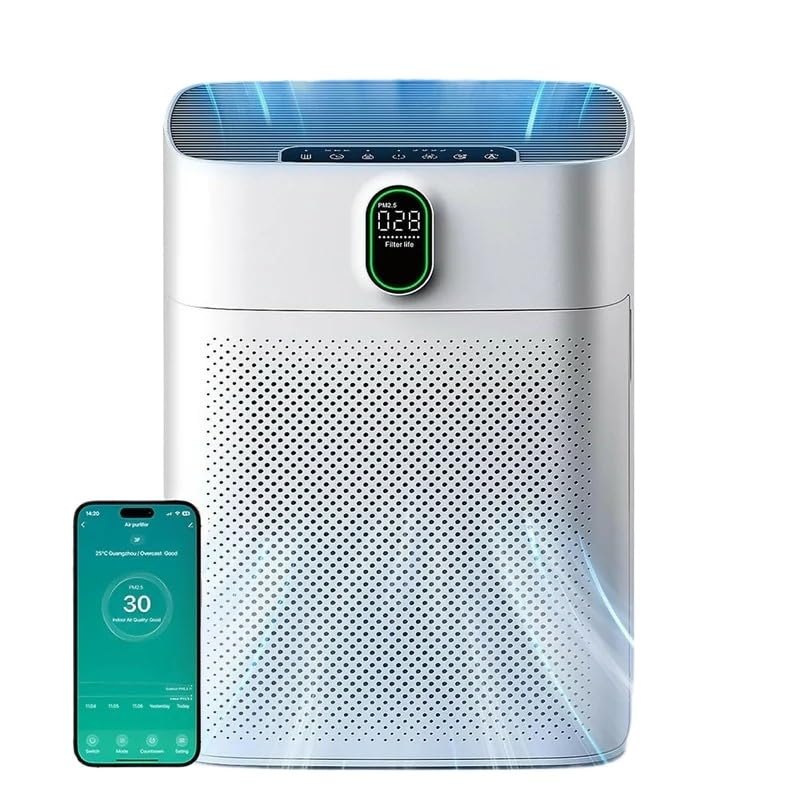
Figure 3.1: The Oryzom Smart Air Purifier V1 Pro, showcasing its sleek design, digital display for PM2.5 levels, and integration with a smartphone application for remote control and monitoring.
Key Features:
- High CADR: 300 m³/h (177 CFM) for effective purification in rooms up to 100 m².
- Advanced Filtration: Multi-layer system including Pre-filter, True HEPA, and Activated Carbon filter.
- Smart Control: Compatible with mobile app (Havaworks), Amazon Alexa, and Google Assistant.
- Real-time Monitoring: Integrated PM2.5 sensor with digital display.
- Quiet Operation: Sleep mode operates at less than 24 dB.
- Automatic Mode: Adjusts fan speed based on detected air quality.
4. Setup
4.1 Unpacking
- Carefully remove the air purifier from its packaging.
- Remove all protective films and packaging materials.
- Check for any damage during transit. If damaged, contact customer support.
4.2 Filter Installation
The filters are typically pre-installed but may be wrapped in plastic for protection. Ensure all plastic packaging is removed before first use.
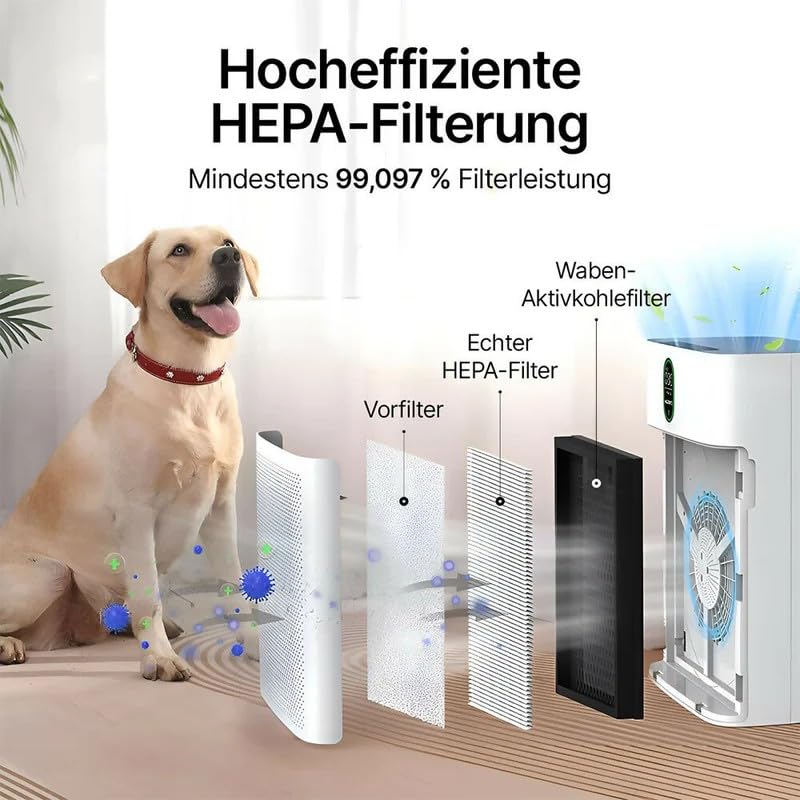
Figure 4.1: The high-efficiency HEPA filtration system, illustrating the three layers: a pre-filter for larger particles, a true HEPA filter for fine particulates, and a honeycomb activated carbon filter for odors and gases. This system achieves at least 99.097% filter performance.
- Locate the filter compartment cover (usually on the back or sides of the unit).
- Open the cover and remove the filter(s).
- Remove any plastic packaging from the filter(s).
- Reinsert the filter(s) into the compartment, ensuring correct orientation.
- Close the filter compartment cover securely.
4.3 Placement
Place the air purifier on a firm, level surface. Ensure there is at least 20 cm (8 inches) of space around the air inlets and outlets for optimal airflow.
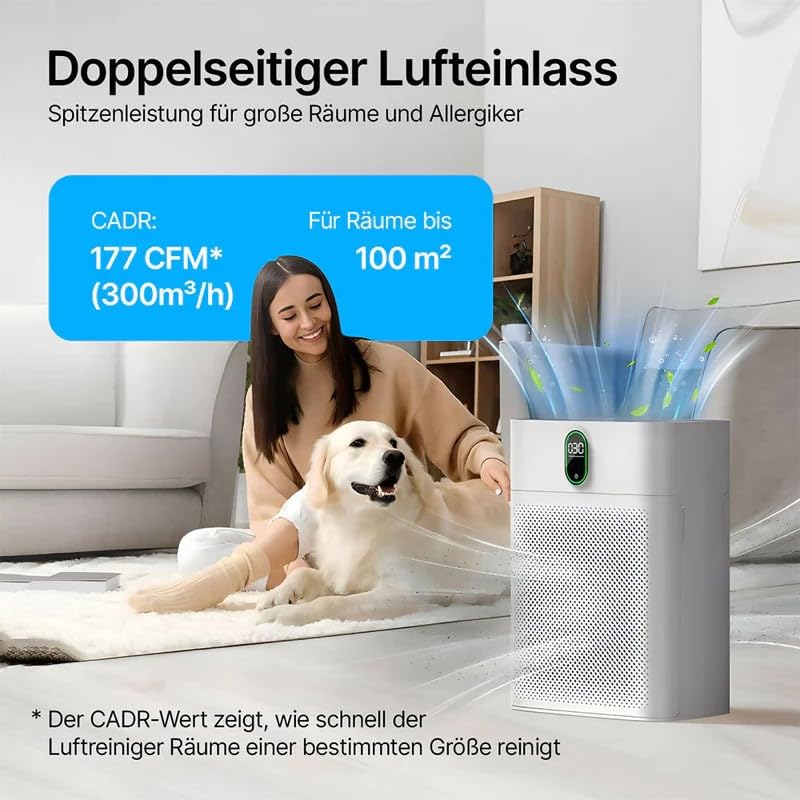
Figure 4.2: The air purifier features a double-sided air intake, providing top performance for large rooms up to 100 m² and effectively cleaning the air for allergy sufferers. It boasts a CADR of 300 m³/h (177 CFM).
4.4 Power Connection
Plug the power cord into a standard electrical outlet (100-240V AC, 50-60Hz).
5. Operation
5.1 Power On/Off
Press the power button on the control panel to turn the unit on or off.
5.2 Operating Modes
The air purifier offers several operating modes:
- Automatic Mode: The purifier automatically adjusts fan speed based on real-time air quality.
- Manual Mode: Allows you to manually select fan speed (Low, Medium, High).
- Sleep Mode: Operates at the lowest fan speed with display lights off for quiet operation.
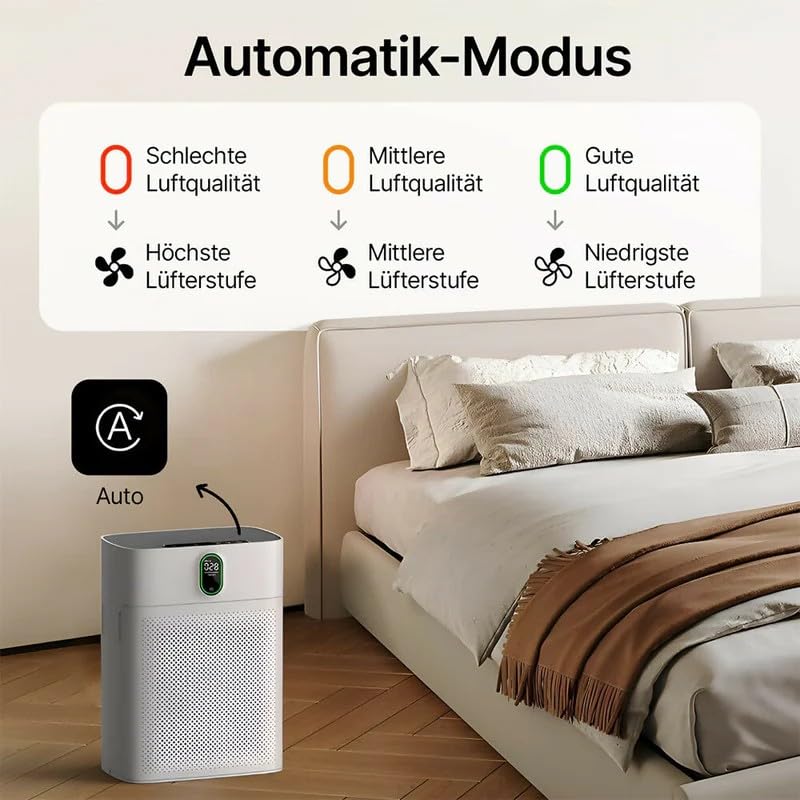
Figure 5.1: Explanation of the Automatic Mode. When air quality is bad, the purifier operates at the highest fan level. For medium air quality, it uses a medium fan level, and for good air quality, it switches to the lowest fan level.
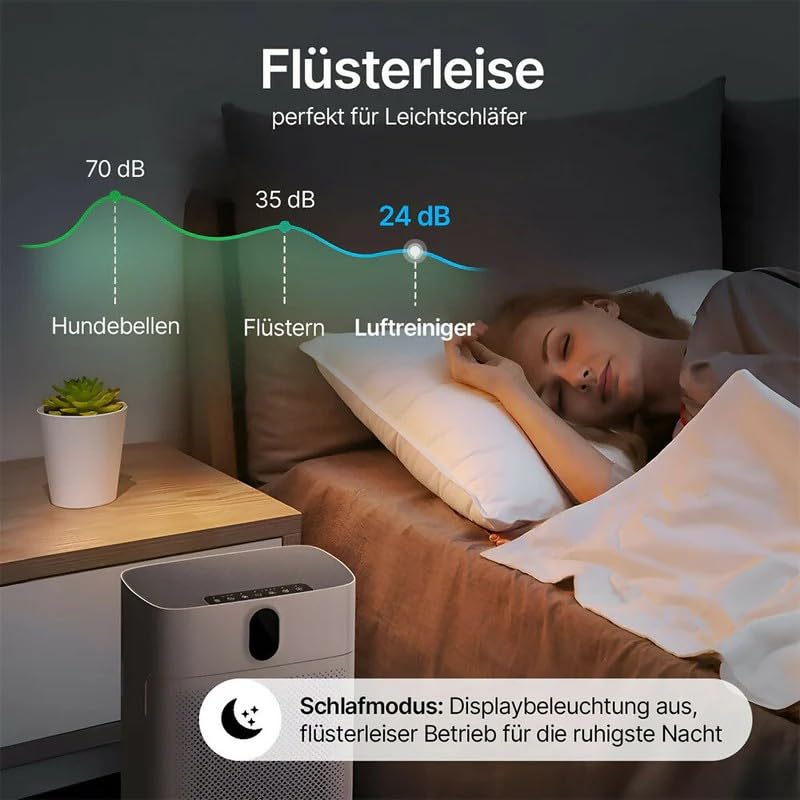
Figure 5.2: The air purifier operates at a whisper-quiet 24 dB in Sleep Mode, making it perfect for light sleepers. In this mode, the display lighting is off, ensuring the quietest operation for an undisturbed night.
5.3 Real-time Air Quality Monitoring
The integrated PM2.5 sensor provides real-time air quality readings on the digital display. The display shows the current PM2.5 concentration in µg/m³.
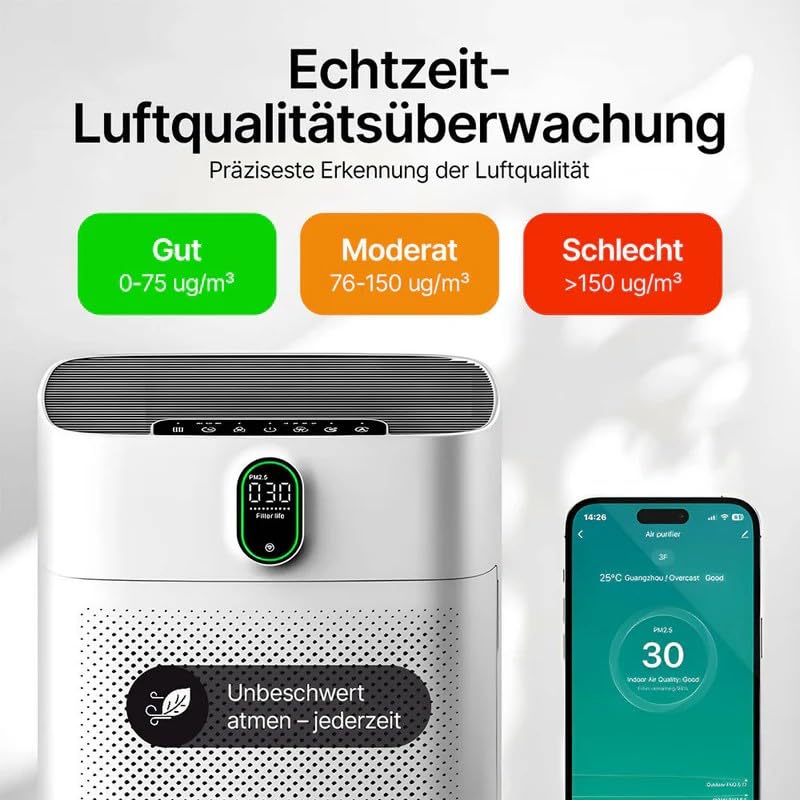
Figure 5.3: Real-time air quality monitoring provides the most precise detection of air quality. The display and app categorize air quality as Good (0-75 µg/m³), Moderate (76-150 µg/m³), or Bad (>150 µg/m³), allowing you to breathe freely at any time.
5.4 Smart Control (App & Voice)
The Oryzom Smart Air Purifier V1 Pro can be controlled via the free Havaworks mobile app and integrated with voice assistants like Amazon Alexa and Google Assistant.
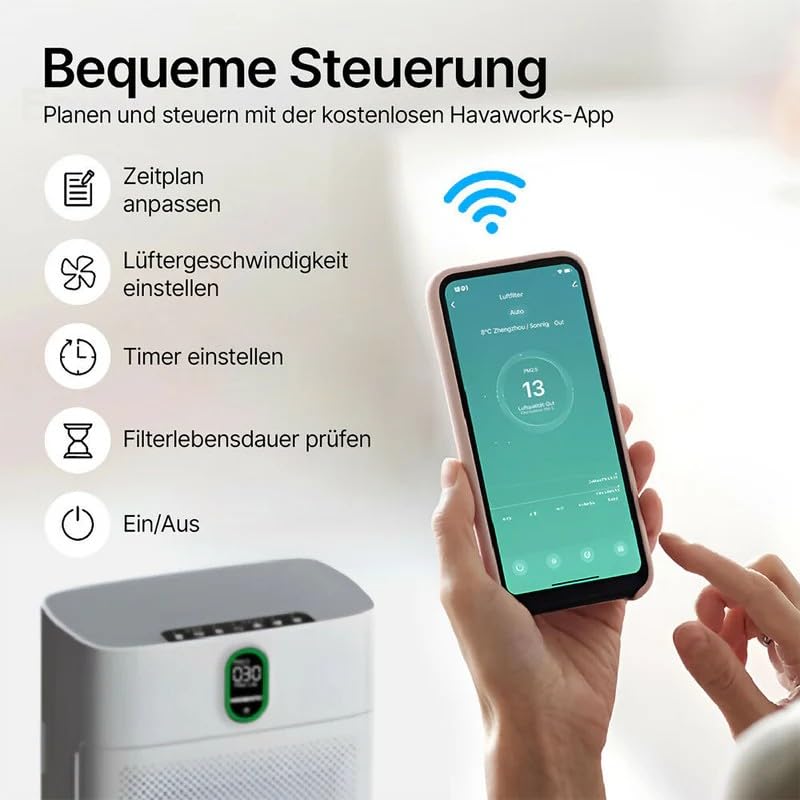
Figure 5.4: Convenient control is available through the free Havaworks app. This allows you to adjust the schedule, set fan speed, configure timers, check filter lifespan, and power the unit on or off remotely.
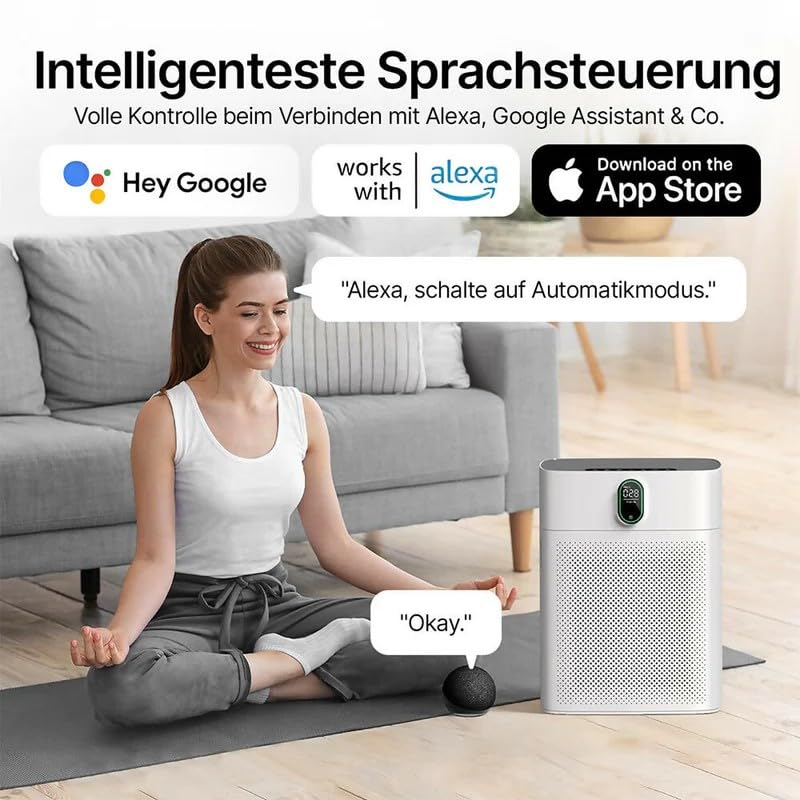
Figure 5.5: The air purifier supports smart voice control, offering full command when connected with Amazon Alexa, Google Assistant, and similar platforms. For example, you can say, "Alexa, switch to automatic mode."
App Pairing Instructions:
- Download the 'Havaworks' app from your smartphone's app store.
- Register or log in to your account.
- Follow the in-app instructions to add your Oryzom Smart Air Purifier V1 Pro. This typically involves putting the device into pairing mode (refer to the device's control panel for specific instructions, usually by holding a button for a few seconds).
- Once paired, you can control all functions remotely.
Voice Assistant Integration:
- Ensure your air purifier is successfully paired with the Havaworks app.
- Open the Alexa or Google Home app on your smartphone.
- Enable the 'Havaworks' skill/service.
- Link your Havaworks account when prompted.
- Discover devices. Your air purifier should now be controllable via voice commands.
6. Maintenance
6.1 Filter Replacement
The filter lifespan depends on usage and air quality. The app can help you monitor filter life. Replace the composite filter when indicated by the device or app, or approximately every 6-12 months.
- Unplug the air purifier from the power outlet.
- Open the filter compartment cover.
- Remove the old filter(s) and dispose of them properly.
- Insert new, genuine SWZEC replacement filter(s), ensuring correct orientation.
- Close the filter compartment cover securely.
- Plug in the air purifier and reset the filter life indicator (refer to the app or device manual for specific reset instructions).
6.2 Cleaning the Unit
Regular cleaning helps maintain optimal performance.
- Exterior: Wipe the exterior surfaces with a soft, dry cloth. Do not use abrasive cleaners or solvents.
- Air Inlets/Outlets: Use a soft brush or vacuum cleaner with a brush attachment to gently clean dust from the air inlets and outlets.
- Pre-filter: The pre-filter (first layer) can sometimes be gently vacuumed to extend its life, but it is part of the composite filter and should be replaced with the entire unit.
7. Troubleshooting
If you encounter issues with your air purifier, please refer to the following table:
| Problem | Possible Cause | Solution |
|---|---|---|
| Unit does not turn on | No power supply; Power cord not connected; Power button not pressed. | Check power outlet; Ensure power cord is securely plugged in; Press the power button firmly. |
| Weak airflow | Filters are dirty or clogged; Air inlets/outlets blocked. | Replace filters; Clear any obstructions from air inlets/outlets. |
| Unusual noise | Filter not installed correctly; Foreign object inside unit. | Reinstall filter correctly; Unplug and check for foreign objects (if safe to do so). |
| App cannot connect to device | Wi-Fi signal weak; Device not in pairing mode; Incorrect network credentials. | Ensure strong 2.4GHz Wi-Fi signal; Put device in pairing mode; Re-enter Wi-Fi password in app. |
| PM2.5 reading seems inaccurate | Sensor is dirty; High humidity. | Clean the PM2.5 sensor (refer to specific instructions if available, usually a small vent); Ensure unit is not in an excessively humid environment. |
If the problem persists after trying these solutions, please contact customer support.
8. Specifications
Technical specifications for the Oryzom Smart Air Purifier V1 Pro (Model HOSK):
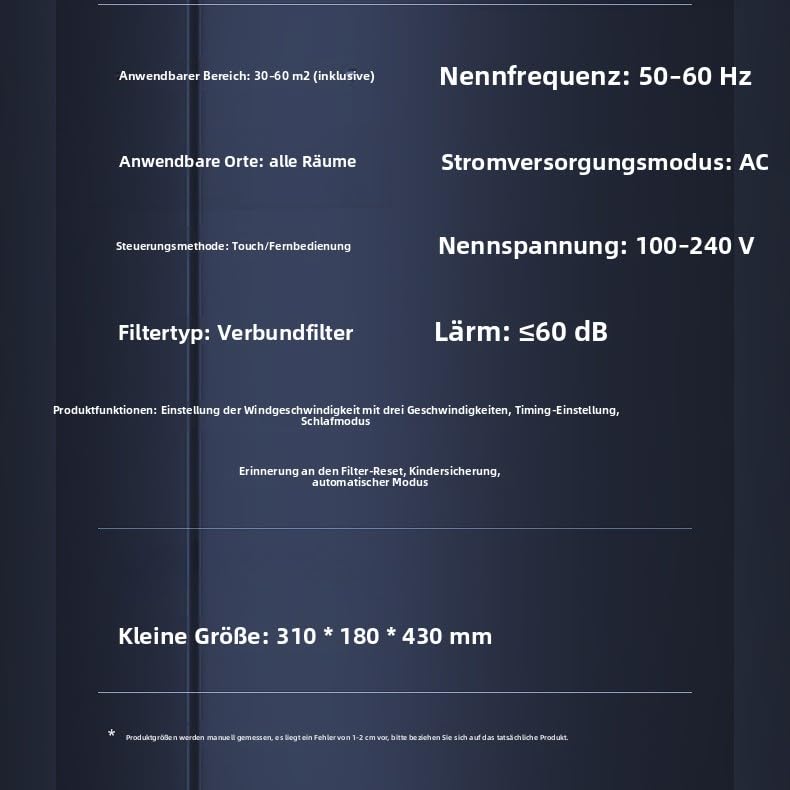
Figure 8.1: Detailed technical specifications for the air purifier, covering its operational parameters and physical attributes.
| Specification | Value |
|---|---|
| Model Number | HOSK |
| Brand | SWZEC |
| Applicable Area | 30-60 m² (inclusive) |
| CADR | 300 m³/h (177 CFM) |
| Rated Frequency | 50-60 Hz |
| Power Supply Mode | AC |
| Control Method | Touch / Remote Control (App/Voice) |
| Rated Voltage | 100-240 V |
| Filter Type | Composite Filter (Pre-filter, True HEPA, Activated Carbon) |
| Noise Level | ≤60 dB (as low as 24 dB in Sleep Mode) |
| Product Functions | 3-speed wind adjustment, Timing setting, Sleep mode, Filter reset reminder, Child lock, Automatic mode |
| Dimensions (L x W x H) | 310 x 180 x 430 mm (10D x 20W x 30H Centimeters) |
| Item Weight | 200 g |
Note: Product dimensions are measured manually; a 1-2 cm error may occur. Please refer to the actual product.
9. Warranty and Support
Your SWZEC Oryzom Smart Air Purifier V1 Pro comes with a standard manufacturer's warranty. Please refer to the warranty card included in your product packaging for specific terms and conditions.
For technical support, troubleshooting assistance, or to purchase replacement filters, please contact SWZEC customer service through the contact information provided on your purchase receipt or the official SWZEC website.