
1. Introduction
This manual provides detailed instructions for the installation, operation, and maintenance of your NINETOM 12.3-inch Ultra-Narrow Touchscreen Wireless CarPlay Android Auto Receiver. This device is specifically designed for Mercedes-Benz ML GL W166 X166 models manufactured between 2012 and 2015, equipped with the NTG 4.5/4.7 system. It offers an upgraded display and integrates modern smartphone connectivity features while retaining your vehicle's original functionalities.

Figure 1: NINETOM 12.3-inch Touchscreen Receiver with CarPlay interface.
2. Safety Information
- Professional Installation Recommended: Due to the complexity of automotive electrical systems and dashboard disassembly, professional installation is highly recommended. Incorrect installation can damage the device or vehicle.
- Electrical Safety: Ensure the vehicle's power is disconnected before beginning installation to prevent electrical shock or damage.
- Cable Management: Properly route and secure all cables to prevent interference with vehicle operation, pinching, or short circuits.
- Operating Environment: Do not expose the device to extreme temperatures, moisture, or direct sunlight for prolonged periods.
- Driving Safety: Always prioritize safe driving. Do not operate the touchscreen or engage in activities that distract you from the road.
3. Package Contents
Please verify that all items are present in your package:
- 12.3-inch Touchscreen Display Unit
- Power Cable Harness
- LVDS / USB Cable
- AMI Cable
- Mounting Bracket
- User Manual
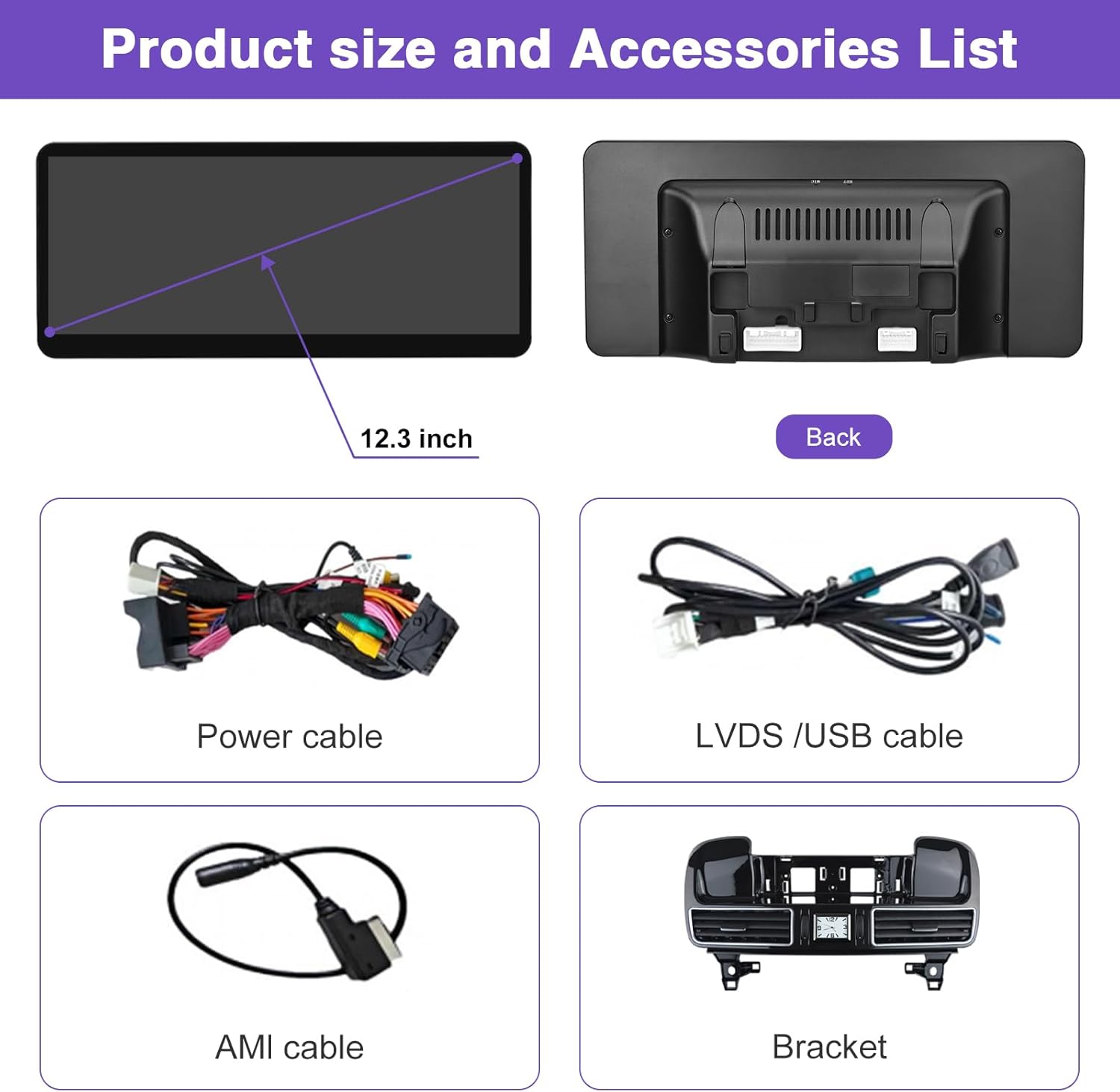
Figure 2: Product size and accessories list.
4. Setup & Installation
4.1 Pre-Installation Checklist
Before proceeding with installation, confirm the following:
- Your Mercedes-Benz vehicle is an ML GL W166 X166 model (2012-2015).
- Your vehicle's original system is NTG 4.5 or NTG 4.7. This product is not compatible with NTG 4.0 or NTG 5.0 systems.
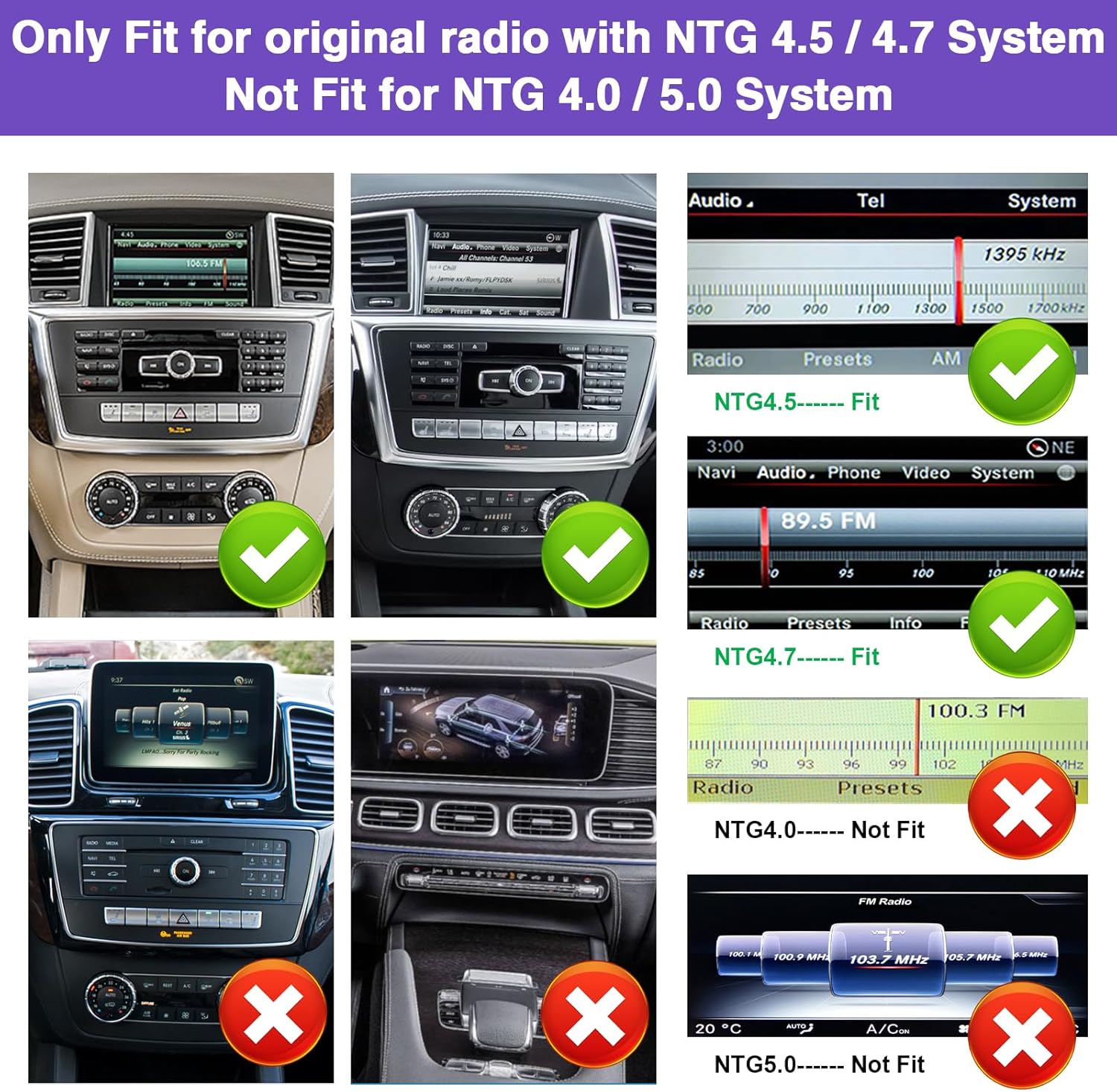
Figure 3: System compatibility check.

Figure 4: Original connector compatibility.
4.2 Wiring Instructions
Installation requires dashboard removal. Follow these steps carefully:
- Disconnect the vehicle's battery.
- Carefully remove the original head unit from the dashboard.
- Optical Fiber Cable Relocation: Unplug the original power cable from the head unit. Remove the original optical fiber cable from the original connector. Connect the male connector of the original power cable to the female connector of the new power cable. Then, connect the male connector of the new power cable to the female connector of the original car host power supply. Finally, plug the optical fiber cable into the correct position on the new harness.
Video 1: Detailed guide on how to relocate optical cables to the Linux harness for Mercedes-Benz vehicles.
4.3 Initial System Configuration
After physical installation, configure the screen resolution to match your original vehicle's display for optimal performance.
- Navigate to Setup -> Car Settings -> Original Car's Screen Resolution.
- Select a resolution compatible with your original vehicle screen. If unsure, manually test different resolutions until the display appears correctly. Incorrect resolution can cause the original system to display improperly.
Video 2: Instructions for setting the original resolution on the NINETOM display.

Figure 5: Before and after installation comparison.
5. Operating Instructions
5.1 Wireless CarPlay & Android Auto
Connect your smartphone wirelessly to access navigation, calls, messages, and music.
- Ensure the CarPlay/Android Auto option is enabled in Setup -> Smart Phone -> Smart Phone Setting.
- Turn on your mobile phone's Wi-Fi and Bluetooth.
- Search for the screen's Bluetooth device (name: "CAR-BT-XXXX") on your phone and pair.
- Allow contact and favorites sync if prompted.
- On your phone, click "Use CarPlay" or confirm the Android Auto connection.
Video 3: Step-by-step guide on how to set up Wireless CarPlay on Mercedes-Benz.
5.2 Wireless AirPlay (Screen Mirroring)
Mirror your iPhone screen to the display for videos, maps, and other apps.
- Ensure the AirPlay option is enabled in Setup -> Smart Phone -> Smart Phone Setting.
- On your iPhone, search for the screen's Wi-Fi network (name: "CAR-WIFI-XXXX") and connect to it.
- If a password is required, enter "66668888".
- From your iPhone's Control Center, select "Screen Mirroring" and choose "AirPlay" to begin mirroring.
Video 4: Guide on how to set up AirPlay (screen mirroring) on Mercedes-Benz.
5.3 Dual System Switching
Easily switch between the Linux interface and your car's original system.
- To switch from the Linux system to the original car system, simply long-press the "OEM Car Info" button on the screen.
- To switch back to the Linux system, touch the screen.

Figure 6: System switching functionality.
5.4 Basic Controls
- Touchscreen: The 12.3-inch display is fully capacitive and supports touch input for all Linux system functions.
- Original Controls: The system retains full functionality of your original car's controls, including the joystick, steering wheel buttons, and other factory controls.
- Voice Control: Utilize Siri or Google Assistant for hands-free navigation, calls, messages, and music playback through CarPlay or Android Auto.

Figure 7: Support for original car settings and controls.
5.5 Boot Logo Customization
You can customize the boot logo of your NINETOM display.
- Create a PNG image with a resolution of 1920x720 pixels.
- Rename the file to
updatelogo.png. - Place the file in the root directory of a USB drive.
- Insert the USB drive into the system. A prompt will appear asking you to confirm the logo change.
- Restart the system for the new logo to take effect.

Figure 8: How to change the boot logo.
6. Features Overview
The NINETOM 12.3" Touchscreen Receiver offers a range of advanced features:
6.1 Display Technology
- 12.3" HD IPS Display: Features a high-definition 1920x720 IPS display for clear and vibrant visuals.
- Ultra-Narrow Bezels & Aluminum Body: Modern design with minimal bezels and a premium aluminum construction.
- IN-CELL Full Lamination: Enhances clarity by eliminating air gaps, providing a brighter display.
- Anti-Reflection Layer: Reduces glare by up to 75% for improved visibility in various lighting conditions.

Figure 9: Narrow bezel and full lamination screen design.

Figure 10: Ultra 1920x720 resolution.
6.2 Integrated Functionality
- Wired & Wireless CarPlay/Android Auto: Seamless integration with your smartphone for navigation, communication, and entertainment.
- Screen Mirroring: Display your smartphone's content directly on the car screen.
- Linux System: Operates on a stable Linux system, ensuring reliable performance without freezing issues.
Video 5: Product demonstration of the 12.3-inch Ultra-Narrow Touchscreen for Mercedes-Benz C Class, showcasing its features.
6.3 Automatic Day/Night Mode
The screen automatically adjusts its brightness and display mode (day or night) based on your car's original headlights, ensuring optimal visibility at all times.

Figure 11: Day and Night Mode.
7. Troubleshooting
If you encounter issues, consider the following common solutions:
- No Audio/Sound Issues: Verify that the optical fiber cable is correctly installed and seated in the new harness. Ensure all power cables are securely connected.
- Display Not Working/Incorrectly Displayed: Check the screen resolution settings (refer to Section 4.3). Ensure all video cables (LVDS) are properly connected.
- CarPlay/Android Auto Connection Issues: Confirm that Wi-Fi and Bluetooth are enabled on your phone and the device. Ensure the correct Bluetooth device is paired and CarPlay/Android Auto options are enabled in the device settings (refer to Section 5.1).
- System Freezing/Unresponsive: Restart the device by turning off and on the vehicle's ignition. If the issue persists, contact NINETOM support.
- General Malfunctions: Many issues stem from incorrect cable connections or setting errors. Double-check all wiring and configuration settings.
If troubleshooting steps do not resolve the issue, please contact NINETOM customer support for assistance.
8. Specifications
| Display Size | 12.3 Inches |
| Resolution | 1920x720 |
| Touch Screen Type | Capacitive |
| Operating System | Linux |
| Compatibility | Mercedes-Benz ML GL W166 X166 (2012-2015) with NTG 4.5/4.7 System |
| Connectivity | Wireless/Wired CarPlay, Android Auto, Screen Mirroring, USB |
| Item Weight | 6 pounds |
| Product Dimensions | 1 x 1 x 1 inches (packaging dimensions may vary) |
9. Warranty & Support
Your NINETOM 12.3" Touchscreen Wireless CarPlay Android Auto Receiver comes with a 1-Year Warranty.
The warranty covers manufacturing defects and ensures the product functions as described. Installation of this product will not damage original wiring or affect your factory warranty.
For technical assistance, installation guidance, or warranty claims, please contact NINETOM customer support. Our team has extensive experience and is ready to assist you before and after your purchase.
- Contact Support: Refer to the contact information provided with your product packaging or visit the official NINETOM store on Amazon.
