
Introduction
This manual provides detailed instructions for the installation, operation, and maintenance of your TONGVEO 4K AI PTZ Camera. This camera is designed for professional video applications, offering 4K resolution, 20X optical zoom, and advanced AI auto-tracking capabilities. Please read this manual thoroughly before using the product to ensure proper and safe operation.
Safety Information
- Ensure the camera is installed in a stable location to prevent falls.
- Use only the power adapter supplied with the camera.
- Do not expose the camera to moisture or extreme temperatures.
- Avoid direct exposure of the lens to strong light sources to prevent damage.
- Do not attempt to disassemble or modify the camera. Refer all servicing to qualified personnel.
Package Contents
Please check the package contents upon unboxing. If any items are missing or damaged, contact customer support.
- TONGVEO 4K AI PTZ Camera
- Power Adapter
- Remote Control
- Wall Mount Bracket (includes)
- USB Cable
- User Manual (this document)
Product Features
4K Video & 20X Optical Zoom

The camera delivers crystal-clear 4K (3840x2160) video at 30 frames per second, combined with a powerful 20X optical zoom and 16X digital zoom for detailed image capture from a distance. The Field of View (FOV) is 63 degrees.
AI Auto-Tracking
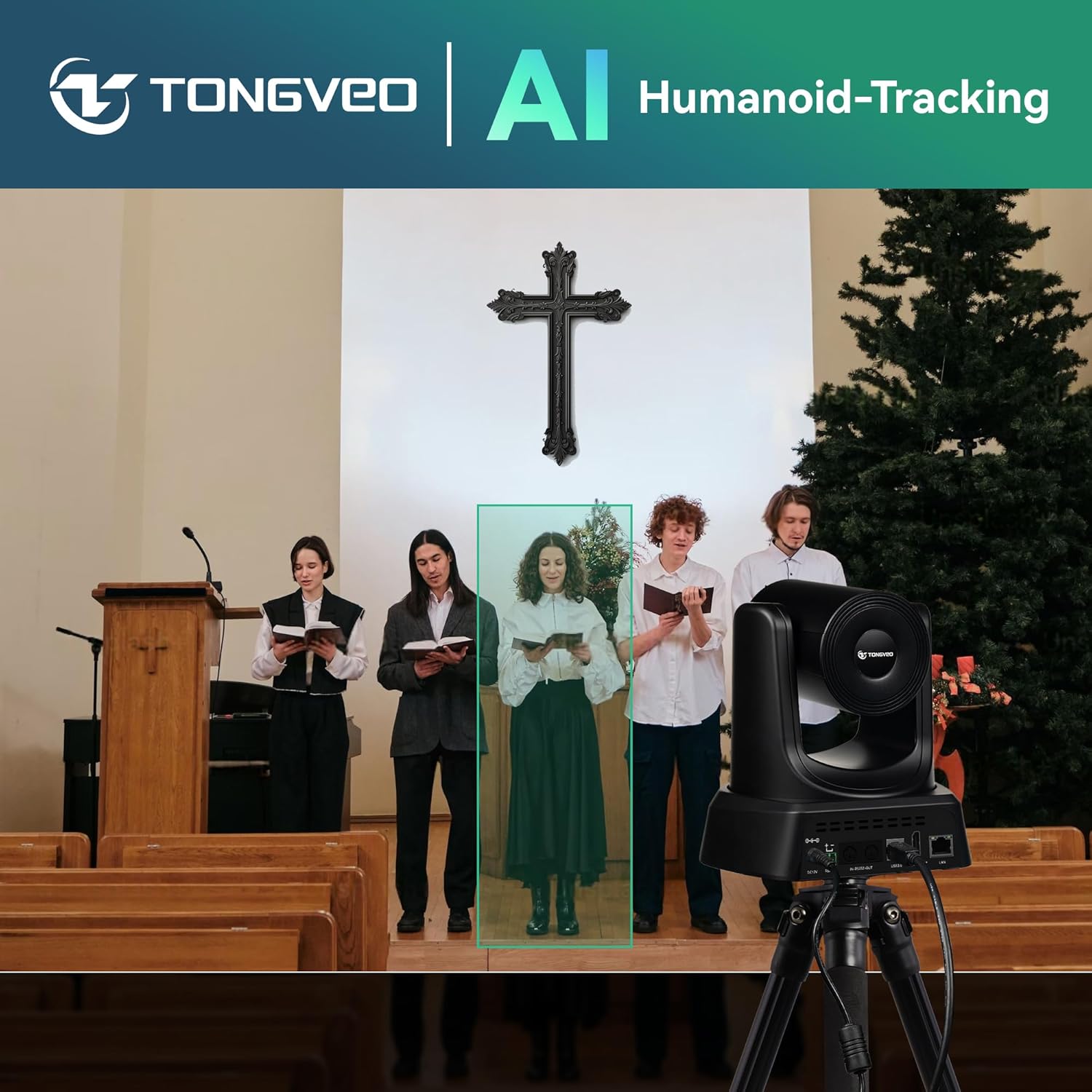
Equipped with advanced AI face and body recognition, the camera automatically tracks speakers, ensuring they remain centered in the frame for smooth and professional video output.
Versatile Connectivity

Connect the camera via HDMI, USB3.0, LAN, or Power over Ethernet (PoE). No additional drivers are required for most setups, ensuring plug-and-play functionality.
Smooth Pan/Tilt Movement

The camera offers precise and smooth pan (350°) and tilt (180°) movements, allowing for comprehensive coverage of your environment.
Setup
1. Physical Installation

The camera supports multiple installation methods:
- Wall Mount: Use the included bracket to securely mount the camera to a wall.
- Ceiling Mount: An optional ceiling mount can be used for overhead installation.
- Tripod Mount: The camera can be placed on a standard tripod for portable or temporary setups.
Ensure the mounting surface is sturdy enough to support the camera's weight and that the camera has a clear line of sight to the desired area.
2. Connecting the Camera
- Power Connection: Connect the power adapter to the DC12V port on the camera and plug it into a power outlet.
- Video Output:
- HDMI: Connect an HDMI cable from the camera's HDMI port to a display or capture device.
- USB3.0: Connect a USB3.0 cable from the camera's USB3.0 port to a computer for video conferencing or streaming.
- LAN/PoE: Connect an Ethernet cable to the LAN port. If using Power over Ethernet (PoE), ensure your network switch or injector supports PoE to power the camera and transmit data simultaneously.
- Control Connection (Optional): For advanced control, connect an RS485 cable to a compatible control system or use the LAN connection for IP control.
Once connected, the camera will power on. The status indicator light will illuminate.
Operating Instructions
1. Basic Camera Control

The camera can be controlled using the included remote control, dedicated software, or an optional joystick controller.
- Pan/Tilt: Use the directional buttons on the remote or software interface to move the camera horizontally (pan) and vertically (tilt).
- Zoom: Use the zoom in/out buttons to adjust the optical and digital zoom levels.
- Focus: The camera features auto-focus. Manual focus adjustment may be available via software.
2. AI Auto-Tracking
To activate AI auto-tracking:
- Ensure the camera is powered on and connected.
- Press the "Tracking" button on the remote control or enable the feature through the camera's software interface.
- The camera will automatically detect and follow a person within its field of view.
- To disable tracking, press the "Tracking" button again.
3. Preset Management
The camera allows you to save and recall specific pan, tilt, and zoom positions as presets.
- Setting a Preset: Position the camera to the desired view. Press the "SET" button on the remote, then press a number button (e.g., 1-9) to save the preset.
- Recalling a Preset: Press the corresponding number button (e.g., 1-9) to quickly move the camera to the saved position.
4. Software Compatibility
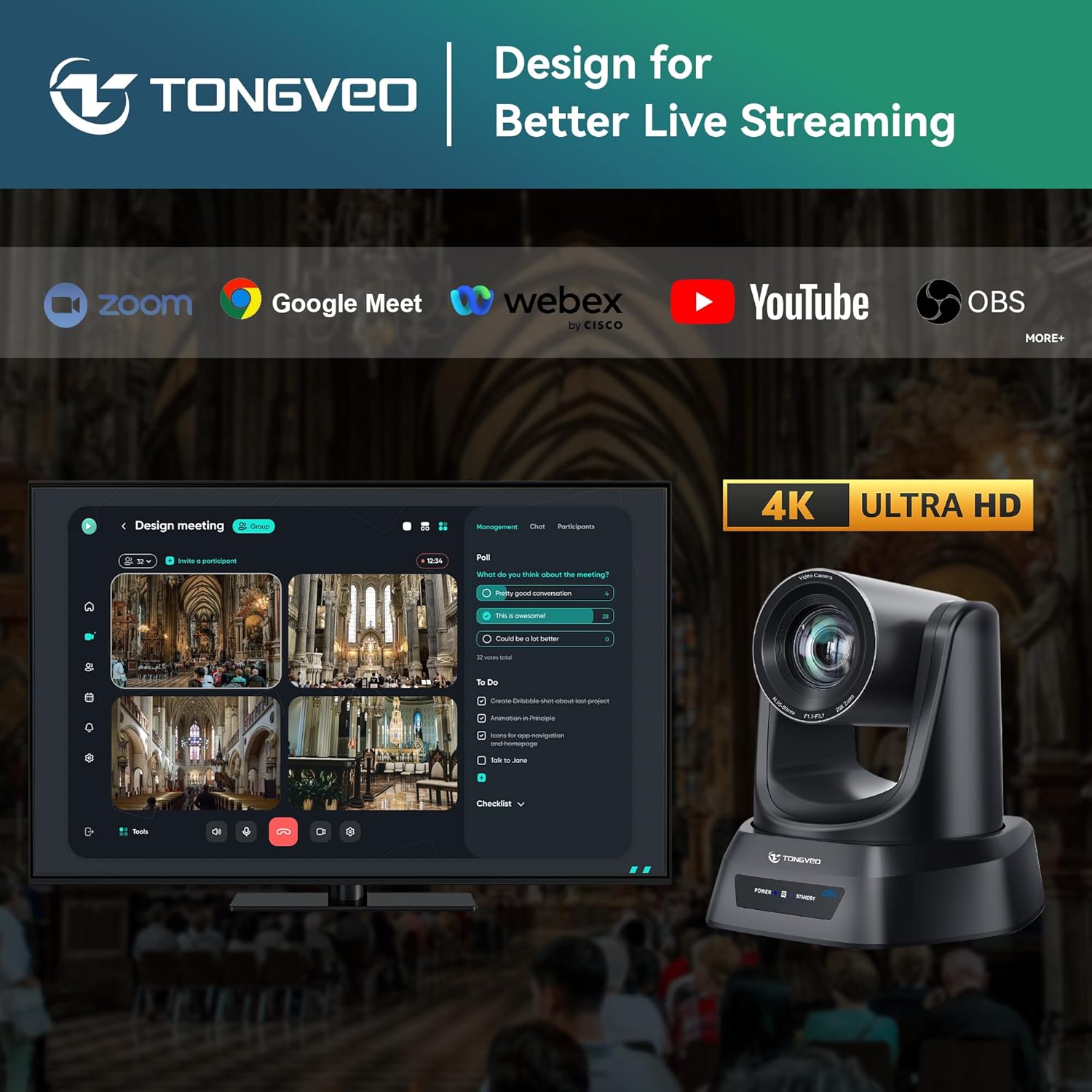
The TONGVEO 4K AI PTZ Camera is compatible with popular video conferencing and streaming platforms:
- Zoom Meetings
- Google Meet
- Webex by Cisco
- YouTube Live
- OBS Studio
- And other UVC/UAC compliant applications.
Select the TONGVEO camera as your video input device within your chosen software settings.
Maintenance
- Cleaning: Use a soft, dry cloth to clean the camera body. For the lens, use a specialized lens cleaning cloth and solution. Do not use harsh chemicals.
- Storage: When not in use for extended periods, store the camera in a dry, dust-free environment.
- Firmware Updates: Periodically check the TONGVEO official website for firmware updates to ensure optimal performance and access to new features.
Troubleshooting
| Problem | Possible Cause | Solution |
|---|---|---|
| No power | Power adapter not connected or faulty. | Check power connections. Ensure the power outlet is functional. |
| No video output | Incorrect cable connection; input source not selected on display; software not recognizing camera. | Verify HDMI/USB/LAN cable connections. Select correct input on display. Ensure camera is selected as video source in software. |
| Auto-tracking not working | Feature not enabled; subject too far or obscured; poor lighting. | Ensure AI tracking is enabled. Position subject within optimal range. Improve lighting conditions. |
| Remote control not responding | Batteries low or depleted; line of sight blocked. | Replace remote control batteries. Ensure no obstructions between remote and camera. |
Specifications
| Brand | TONGVEO |
| Model | 4K/AI 20X Zoom |
| Video Capture Resolution | 4K (3840x2160) |
| Optical Zoom | 20X |
| Digital Zoom | 16X |
| Photo Sensor Technology | CMOS |
| Maximum Focal Length | 109.98 Millimeters |
| Maximum Aperture | 3.5 Millimeters |
| Connectivity Technology | Ethernet, HDMI, USB3.0 |
| Video Capture Format | MP4 |
| Supported Audio Format | AAC, MP3, PCM |
Warranty and Support
TONGVEO provides professional and efficient after-sales support for this product. For warranty information, technical assistance, or service inquiries, please refer to the contact information provided on the official TONGVEO website or your purchase documentation.
For further assistance, visit the TONGVEO Store on Amazon.


