
1. Introduction
Thank you for choosing the BEYNIVAN 13-inch Android 15 Tablet. This manual provides essential information for setting up, operating, and maintaining your device. Please read it carefully to ensure optimal performance and longevity of your tablet.
1.1 Package Contents
Upon unboxing, please verify that all items listed below are present:
- BEYNIVAN 13-inch Android 15 Tablet
- Bluetooth Keyboard
- Mouse
- Protective Case
- Stylus
- Type-C Cable
- Charger
- User Manual (this document)

Image 1.1: BEYNIVAN 13-inch Android 15 Tablet with its complete accessory kit, including a keyboard, mouse, stylus, and protective case.
2. Product Overview
Familiarize yourself with the physical components of your BEYNIVAN tablet.
2.1 Key Features
- Operating System: Android 15
- Processor: High-performance Octa-core G99 (12nm process technology)
- Display: 13-inch FHD In-Cell display (2960 x 1840 resolution, 120Hz refresh rate, 93% screen-to-body ratio) with TÜV certified blue light reduction.
- Memory & Storage: 36GB RAM (12GB physical + 24GB expandable), 512GB ROM (expandable up to 1TB via Micro SD).
- Cameras: 8MP Front Camera, 13MP Rear Camera, 2MP Macro Lens.
- Battery: 11580mAh high-capacity battery with 20W fast charging and AI intelligent power management.
- Connectivity: Dual Nano SIM support for 4G LTE, Dual-band 2.4G+5G WiFi, Bluetooth 5.0, GPS, USB-C.
- Audio: Sweet 4 smart audio system with four amplified stereo speakers.
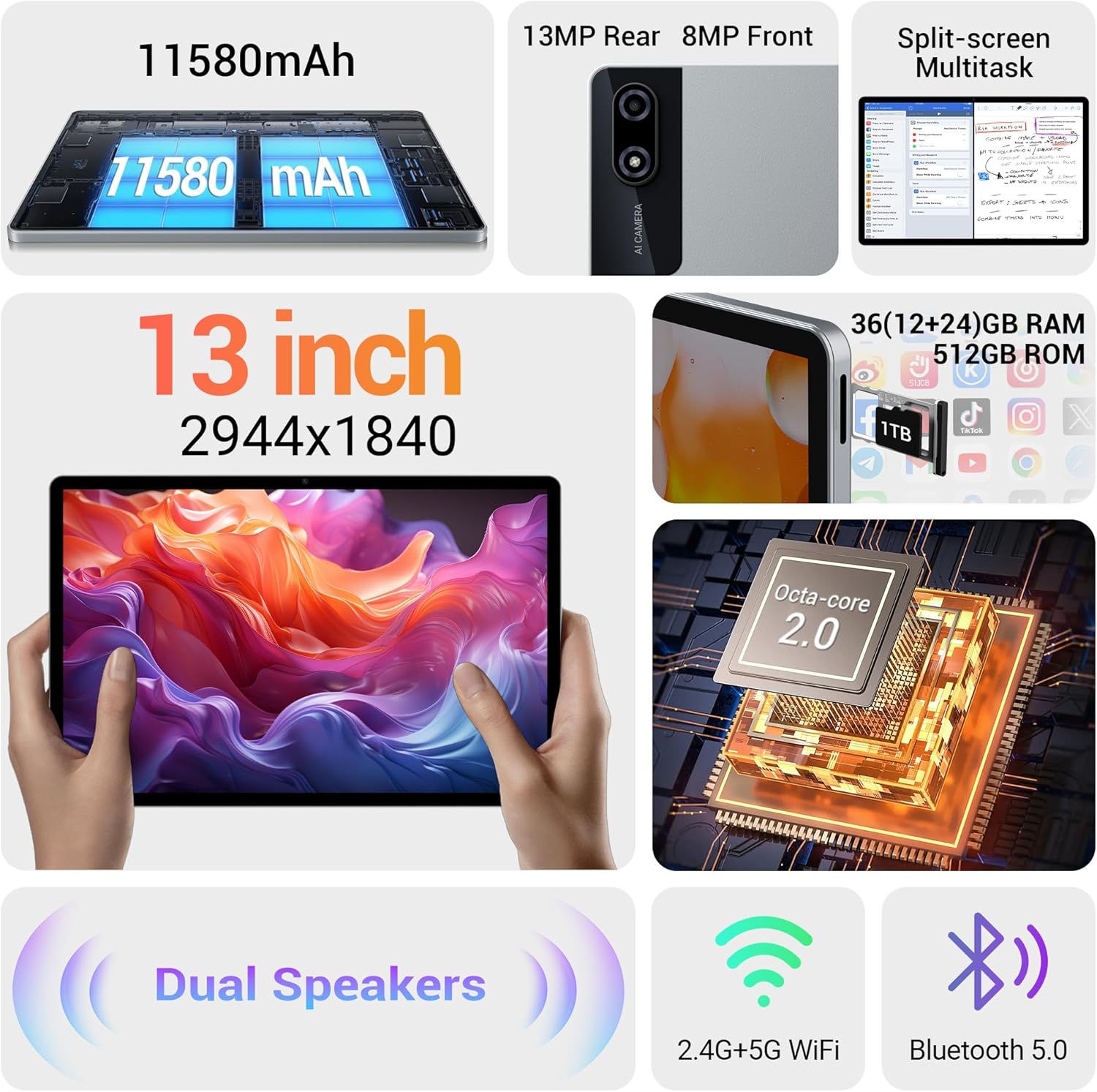
Image 2.1: Visual representation of the tablet's key specifications, including its 11580mAh battery, 13MP rear and 8MP front cameras, split-screen multitasking, 36GB RAM, 512GB ROM, and Octa-core 2.0 processor.
3. Setup
3.1 Initial Charging
Before first use, fully charge your tablet using the provided Type-C cable and charger. The tablet supports 20W fast charging.
3.2 Power On/Off
- To Power On: Press and hold the Power button until the BEYNIVAN logo appears.
- To Power Off: Press and hold the Power button, then select 'Power off' from the options on the screen.
- To Restart: Press and hold the Power button, then select 'Restart' from the options on the screen.
3.3 SIM Card and Micro SD Card Installation
Your tablet supports dual Nano SIM cards for 4G LTE connectivity and a Micro SD card for storage expansion up to 1TB.
- Locate the SIM/SD card tray on the side of the tablet.
- Insert the provided SIM ejector tool into the small hole next to the tray to open it.
- Carefully place your Nano SIM card(s) and/or Micro SD card into the designated slots on the tray. Ensure correct orientation.
- Gently push the tray back into the tablet until it clicks into place.

Image 3.1: The tablet's connectivity features, including dual-band Wi-Fi, Bluetooth 5.2, and the SIM/Micro SD card tray for 4G LTE access and storage expansion.
4. Operating Your Tablet
4.1 Basic Navigation
The Android 15 operating system offers intuitive touch-based navigation. Swipe, tap, and pinch to interact with the interface.
4.2 Connectivity
- Wi-Fi: Go to Settings > Network & internet > Wi-Fi to connect to available networks. The tablet supports dual-band 2.4G+5G Wi-Fi.
- 4G LTE: If a SIM card is installed, enable mobile data in Settings > Network & internet > Mobile network.
- Bluetooth: Enable Bluetooth in Settings > Connected devices > Bluetooth to pair with accessories like the included keyboard and mouse.
4.3 Face ID
Set up Face ID for convenient and secure unlocking. Go to Settings > Security & privacy > Face unlock and follow the on-screen instructions.
4.4 GPS Navigation
The integrated GPS allows for precise location services and navigation. Ensure location services are enabled in Settings > Location for optimal performance with mapping applications.
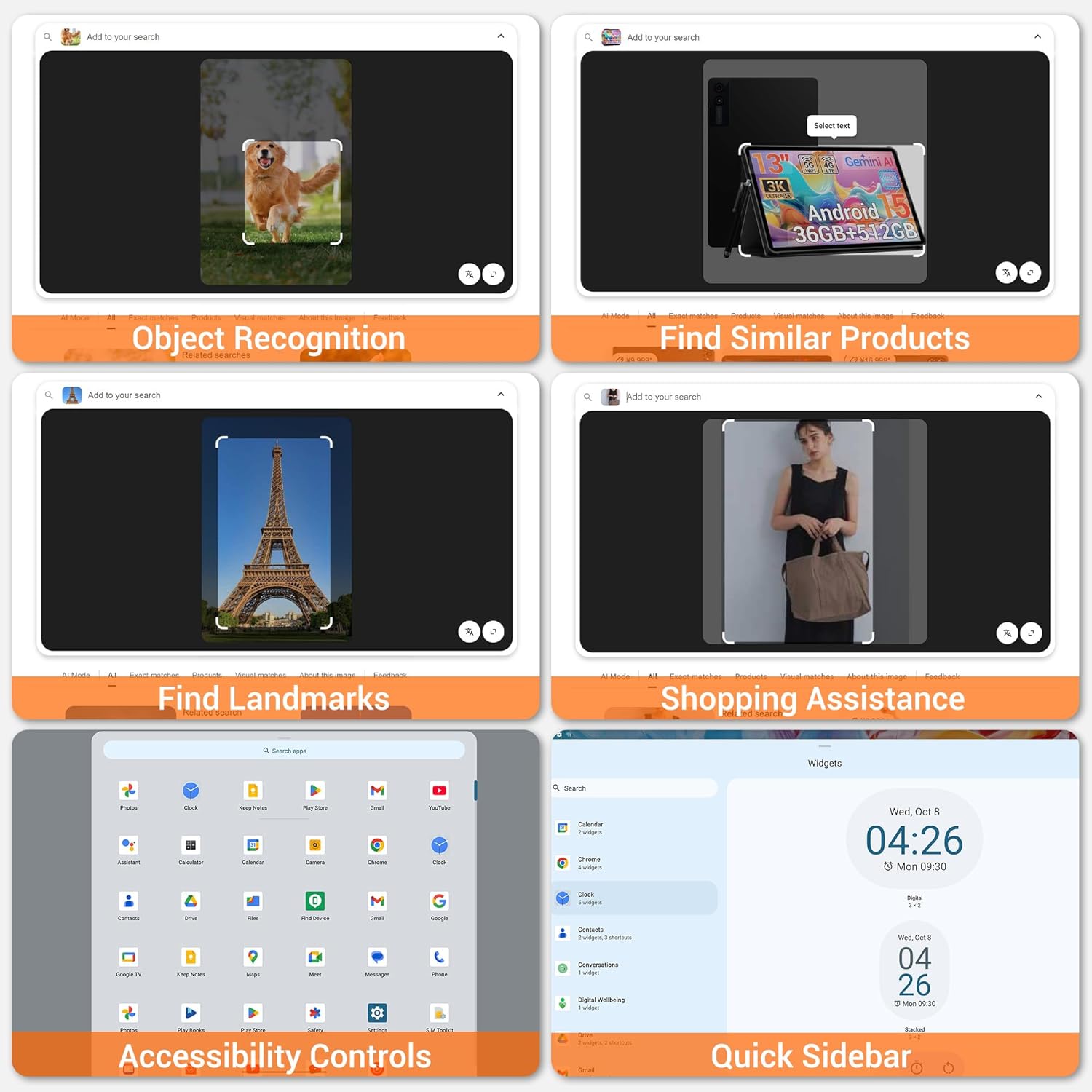
Image 4.1: Examples of Android 15 software functionalities, including object recognition, landmark identification, shopping assistance, accessibility controls, and the quick sidebar.
5. Storage and Performance
Your tablet is equipped with 36GB of RAM (12GB physical + 24GB virtual expansion) and 512GB of internal storage, ensuring smooth multitasking and ample space for your files.
5.1 Expanding Storage
If you require additional storage, you can insert a Micro SD card (up to 1TB) into the dedicated slot. This allows for extensive storage of photos, videos, and documents.

Image 5.1: Illustration of the tablet's 36GB RAM and 512GB ROM, highlighting the capability to expand storage up to 1TB with a Micro SD card, suitable for numerous applications and media files.
6. Camera Features
The tablet features an 8MP front camera and a 13MP rear camera, complemented by a 2MP macro lens for detailed close-up shots. An integrated photo editor is available for post-capture enhancements.
7. Battery Management
The 11580mAh battery provides extended usage times. The tablet incorporates AI intelligent power management and an energy-saving mode to optimize battery life by detecting and filtering background applications that consume excessive power.
7.1 Charging
Use the provided 20W fast charger for efficient recharging. Avoid using unapproved chargers to prevent damage to the battery or device.
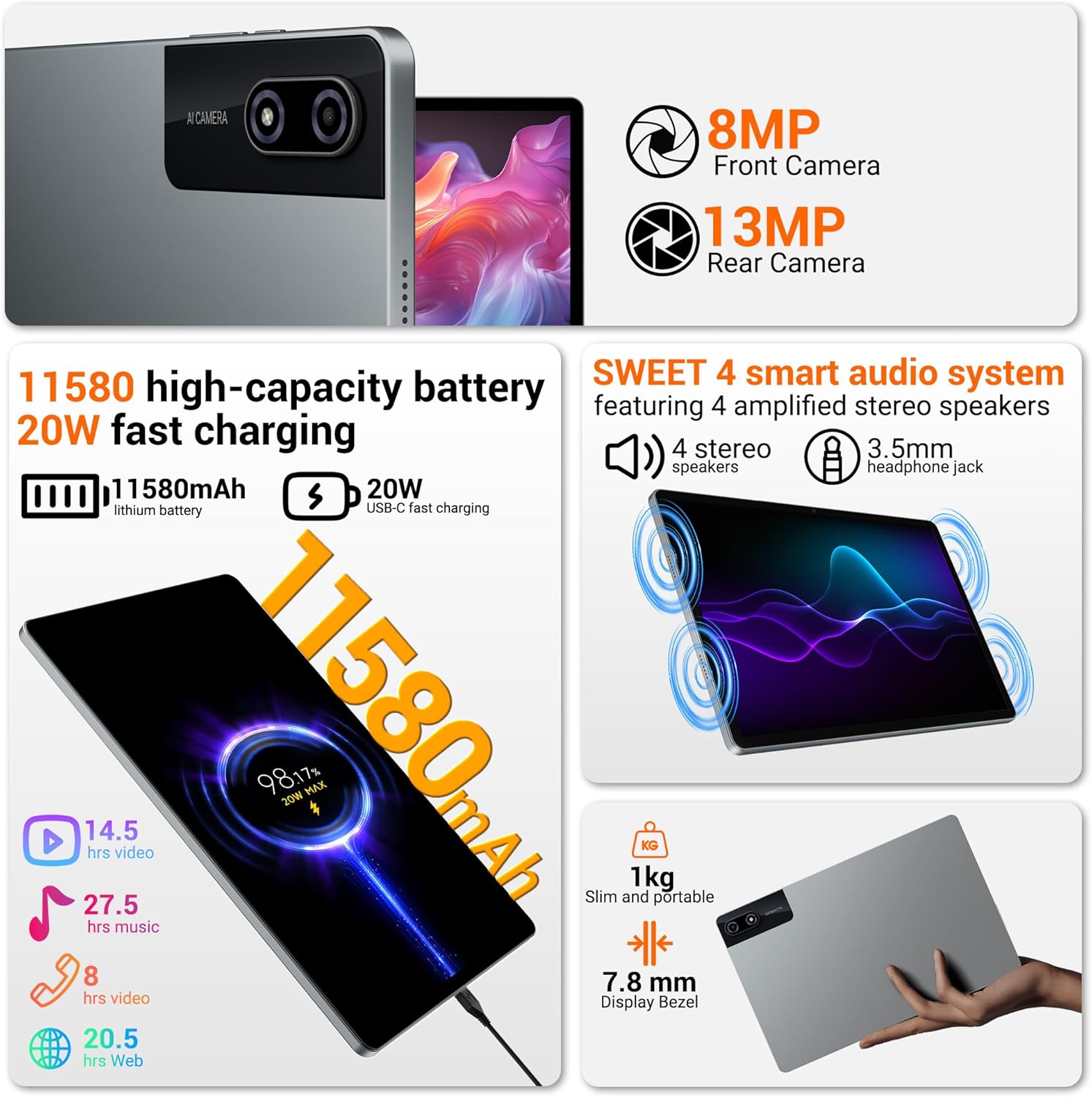
Image 7.1: Details on the tablet's 11580mAh high-capacity battery and 20W USB-C fast charging capability, along with estimated usage times for video, music, and web browsing.
8. Maintenance
8.1 Cleaning
Use a soft, lint-free cloth to clean the screen and body of the tablet. Avoid abrasive materials or harsh chemicals.
8.2 Software Updates
Regularly check for and install software updates to ensure your tablet has the latest features, security patches, and performance improvements. Go to Settings > System > System update.
9. Troubleshooting
This section addresses common issues you might encounter with your tablet.
9.1 Tablet Does Not Turn On
- Ensure the battery is sufficiently charged. Connect the charger and wait a few minutes before attempting to power on.
- Press and hold the Power button for at least 10-15 seconds to force a restart.
9.2 Poor Wi-Fi Connection
- Move closer to the Wi-Fi router.
- Restart your Wi-Fi router and the tablet.
- Check if other devices are experiencing similar issues.
9.3 Applications Crashing or Freezing
- Close and reopen the application.
- Clear the app's cache and data in Settings > Apps > [App Name] > Storage.
- Ensure the tablet's software is up to date.
9.4 Battery Drains Quickly
- Reduce screen brightness.
- Disable Wi-Fi, Bluetooth, and GPS when not in use.
- Close background applications.
- Check battery usage in Settings > Battery to identify power-hungry apps.
10. Specifications
| Feature | Specification |
|---|---|
| Brand | BEYNIVAN |
| Series | Tablet 13 Pulgadas |
| Package Dimensions | 38.9 x 23.4 x 5.4 cm |
| Item Weight | 1.76 kg |
| Color | Z127-gray |
| Screen Size | 13 Inches |
| Screen Resolution | 2960 x 1848 |
| Max Resolution | 2944 x 1840 |
| Processor Manufacturer | MediaTek |
| Graphics Card Description | Integrated |
| Connectivity Type | Bluetooth, WiFi |
| Wireless Connection Type | 802.11ax, 802.11g (Dual-band 2.4G+5G) |
| Operating System | Android 15 |
| Battery Type | 1 x 9V Lithium Battery (Included, Integrated) |
| Lithium Battery Energy Content | 9200 Watt-hours |
| Lithium Battery Weight | 99 Grams |
| Installed RAM Size | 36 GB (12GB physical + 24GB expandable) |
| Memory Storage Capacity | 512 GB (Expandable up to 1TB via Micro SD) |
| Special Features | 4G LTE and 5G Connectivity, Face ID, GPS |
| Hardware Interface | Bluetooth |
11. Warranty and Support
11.1 Product Warranty
Your BEYNIVAN 13-inch Android 15 Tablet comes with a one-year product warranty from the date of purchase. This warranty covers manufacturing defects and ensures your device functions as intended under normal use.
11.2 Customer Support
For any issues, questions, or support needs regarding your product, please contact BEYNIVAN customer service through the Amazon platform. Our support team is available 24 hours to assist you. Please provide your order details when contacting support to facilitate a quicker resolution.
Returns and exchanges are handled in accordance with Amazon's return policy.