1. Introduction
This manual provides detailed instructions for the BEYNIVAN 13-inch Android Tablet Z127. Please read this guide thoroughly before using your device to ensure proper operation and to maximize its features. Keep this manual for future reference.
2. What's in the Box
Upon unboxing your BEYNIVAN 13-inch Android Tablet Z127, verify that all the following items are included:
- BEYNIVAN 13-inch Android Tablet Z127
- Bluetooth Keyboard
- Mouse
- Protective Case
- Stylus Pen
- Type-C Cable
- Charger
- User Manual (this document)
3. Setup
3.1 Initial Power On
- Press and hold the power button located on the side of the tablet until the BEYNIVAN logo appears on the screen.
- Follow the on-screen prompts to select your language, connect to a Wi-Fi network, and set up your Google account.
3.2 Charging the Tablet
Before first use, fully charge the tablet. Connect the Type-C cable to the tablet's charging port and the other end to the provided charger. Plug the charger into a power outlet. The battery indicator on the screen will show charging status.
3.3 Inserting a SIM Card (Optional)
The tablet supports dual nano 4G/3G/2G SIM cards for cellular connectivity.
- Locate the SIM card tray on the side of the tablet.
- Use the provided SIM ejector tool to open the tray.
- Carefully place the nano SIM card(s) into the tray with the gold contacts facing down.
- Gently push the tray back into the slot until it clicks into place.

Figure 3.3.1: Inserting SIM and Micro SD cards. The tablet supports dual nano SIM cards and Micro SD card expansion up to 1TB.
3.4 Expanding Storage with Micro SD Card (Optional)
The tablet supports Micro SD card expansion up to 1TB.
- Locate the SIM card tray on the side of the tablet.
- Use the provided SIM ejector tool to open the tray.
- Carefully place the Micro SD card into the designated slot on the tray.
- Gently push the tray back into the slot until it clicks into place.
3.5 Connecting Accessories
The tablet comes with a Bluetooth keyboard and mouse. To connect them:
- Ensure the keyboard and mouse are powered on and in pairing mode.
- On your tablet, go to Settings > Connected devices > Bluetooth.
- Turn on Bluetooth and scan for available devices.
- Select the keyboard or mouse from the list to pair. Follow any on-screen prompts.
4. Operating Instructions
4.1 Display and Visuals
The BEYNIVAN Z127 features a 13-inch In-Cell Full HD display with a resolution of 2960x1848 pixels and a 120Hz refresh rate. It offers a 93% screen-to-body ratio for an immersive viewing experience.
- Eye Protection Mode: The TÜV certified blue light technology automatically adjusts brightness to reduce blue light emissions, protecting your eyes during prolonged use. This can be configured in Display Settings.
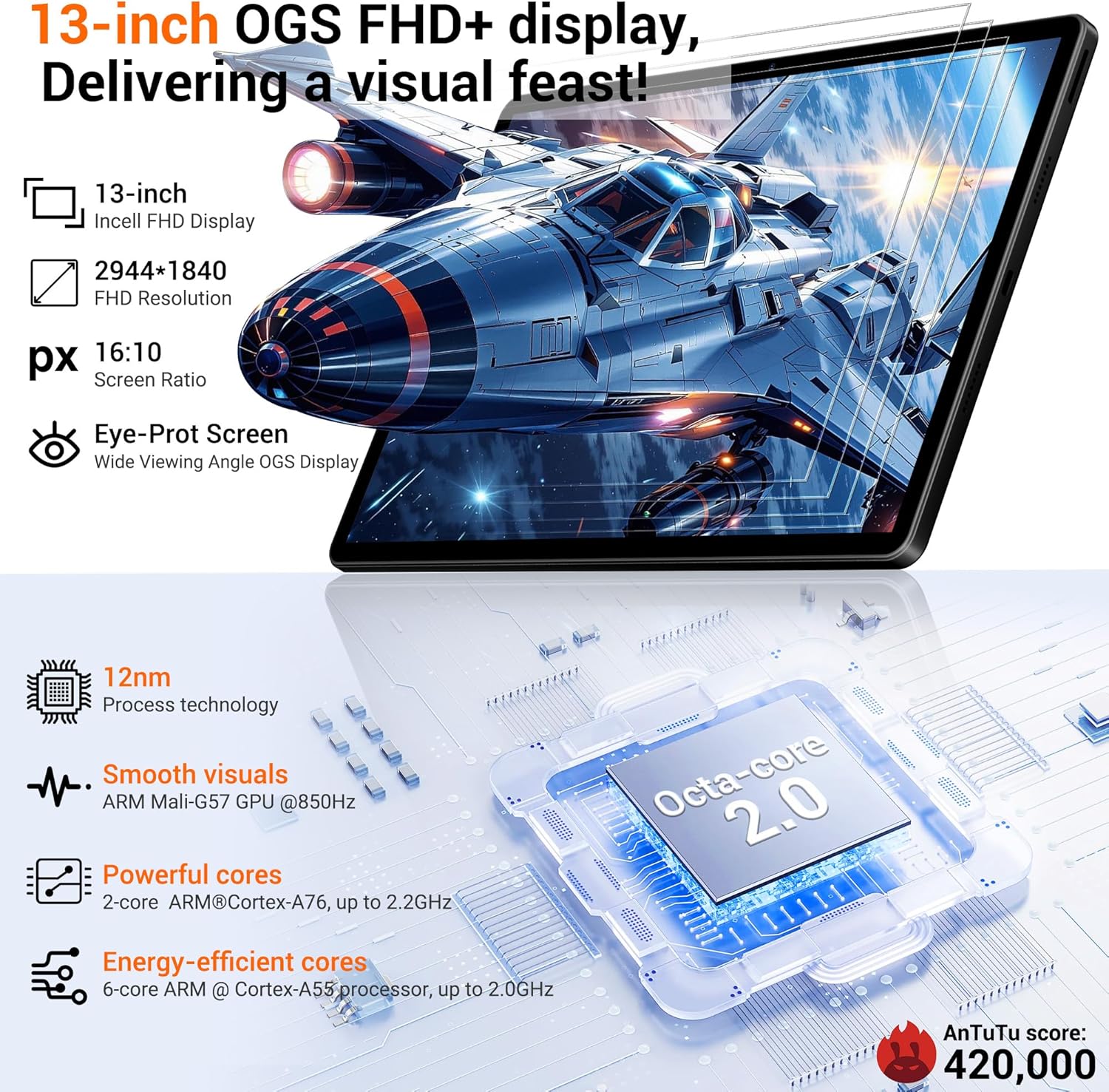
Figure 4.1.1: Tablet display and processor details.
4.2 Performance and Storage
The tablet is powered by an octa-core G99 processor and runs on Android 15. It comes with 36GB RAM (12GB physical + 24GB expandable virtual memory) and 512GB internal ROM, expandable up to 1TB via Micro SD card.
- Multitasking: The generous RAM and powerful processor ensure smooth operation even with multiple applications running simultaneously.
- Storage Management: Utilize the 512GB internal storage for apps and media. Expand further with a Micro SD card for additional photos, videos, and documents.

Figure 4.2.1: Tablet memory and storage capabilities.
4.3 Connectivity
The tablet supports various connectivity options:
- Wi-Fi: Dual-band 2.4G+5G Wi-Fi for stable and fast internet access.
- Cellular: 4G LTE support with dual SIM card slots for mobile data and VoLTE calls.
- Bluetooth: Bluetooth 5.0 for connecting wireless accessories like headphones, keyboards, and mice.
- GPS: Integrated GPS with A-GPS support for navigation.
Figure 4.3.1: Tablet connectivity features.
4.4 Camera
The tablet is equipped with an 8MP front camera and a 13MP rear camera, complemented by a 2MP macro lens. An integrated photo editor is available for professional retouching.
- Front Camera: Ideal for video calls and selfies.
- Rear Camera: Suitable for capturing photos and videos.
- Macro Lens: For detailed close-up shots.

Figure 4.4.1: Camera specifications and other features.
4.5 Battery Management
The tablet features an 11580mAh high-capacity battery with 20W fast charging support. AI intelligent power management and power-saving mode optimize battery life by detecting and filtering background apps that consume energy.
- Charging: Use the provided Type-C cable and charger for optimal charging speed.
- Power Saving: Enable power-saving mode in settings to extend battery life when needed.

Figure 4.5.1: Overview of tablet features including battery.
4.6 Special Features
- Split-Screen Multitasking: Allows you to run two applications side-by-side for enhanced productivity. Activate from the recent apps menu.
- Face ID: Securely unlock your tablet using facial recognition. Set up Face ID in the Security settings.
- Gemini AI: The tablet integrates Gemini AI for enhanced smart features and user experience.
- AI Noise Reduction: Proprietary AI noise reduction filters common ambient noise for an immersive audio-visual experience.
- Quick Sidebar & Accessibility Controls: Access frequently used apps and system functions quickly through the customizable quick sidebar. Accessibility controls are available in settings for users with specific needs.
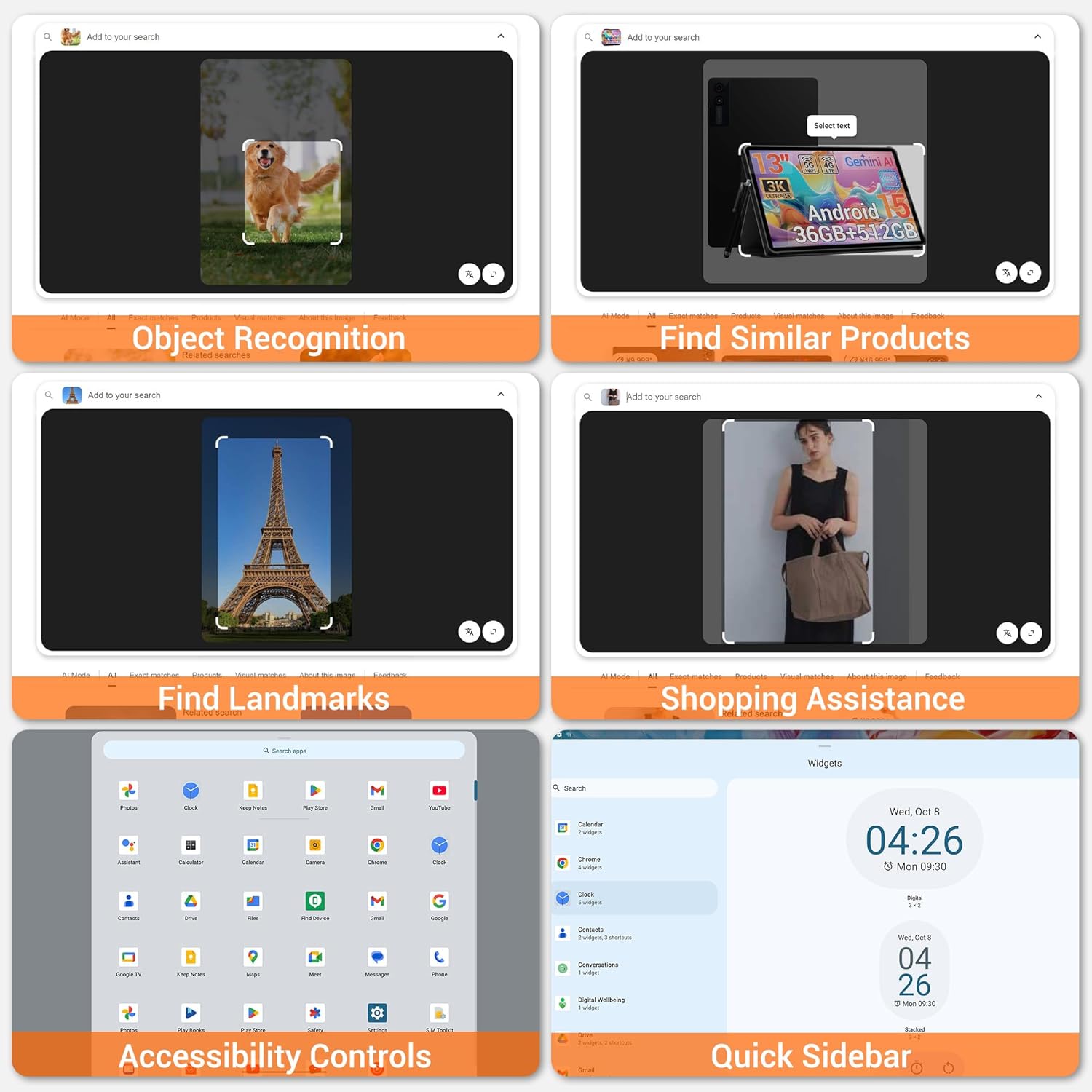
Figure 4.6.1: Tablet software features.
5. Maintenance
5.1 Cleaning the Tablet
To clean your tablet, use a soft, lint-free cloth. For stubborn smudges, slightly dampen the cloth with water or a screen cleaner designed for electronics. Avoid using harsh chemicals or abrasive materials.
5.2 Software Updates
Regularly check for and install software updates to ensure optimal performance, security, and access to new features. Go to Settings > System > System update to check for updates.
5.3 Battery Care
To prolong battery life:
- Avoid extreme temperatures.
- Do not let the battery drain completely frequently.
- Use the original charger and cable.
6. Troubleshooting
If you encounter issues with your BEYNIVAN Z127 tablet, refer to the following common solutions:
| Problem | Possible Solution |
|---|---|
| Tablet does not power on | Ensure the tablet is charged. Connect to the charger and wait a few minutes before attempting to power on again. |
| Slow performance | Close unnecessary background applications. Clear cache for frequently used apps. Consider performing a factory reset if the issue persists (back up data first). |
| Wi-Fi connectivity issues | Restart your Wi-Fi router and the tablet. Forget the network in tablet settings and reconnect. Ensure you are within range of the Wi-Fi signal. |
| Battery drains quickly | Reduce screen brightness. Disable unused features like GPS, Bluetooth, or Wi-Fi. Close background apps. Enable power-saving mode. |
| Accessories not connecting | Ensure Bluetooth is enabled on the tablet and the accessory is in pairing mode. Check battery levels of the accessories. |
If these solutions do not resolve your issue, please refer to the Warranty and Support section.
7. Specifications
| Feature | Detail |
|---|---|
| Brand | BEYNIVAN |
| Model Name | BEYNIVAN 13 (Z127) |
| Operating System | Android 15 |
| Processor | MediaTek Octa-core G99, up to 2.2 GHz (12nm process) |
| RAM | 36 GB (12 GB physical + 24 GB expandable) |
| Internal Storage | 512 GB ROM |
| Expandable Storage | Up to 1 TB via Micro SD card |
| Screen Size | 13 Inches |
| Screen Resolution | 2960 x 1848 pixels (FHD+ In-Cell Display) |
| Refresh Rate | 120 Hz |
| Front Camera | 8 MP |
| Rear Camera | 13 MP + 2 MP Macro Lens |
| Battery Capacity | 11580 mAh |
| Charging | 20W Fast Charging (Type-C) |
| Connectivity | Wi-Fi (2.4G+5G, 802.11ac/ax/g/n), 4G LTE, 5G, Bluetooth 5.0, GPS (A-GPS) |
| SIM Card Support | Dual Nano SIM (4G/3G/2G) |
| Audio | 4 Stereo Speakers, 3.5mm Headphone Jack |
| Dimensions (Package) | 38.79 x 23.4 x 5.2 cm |
| Item Weight | 1 kg |
8. Warranty and Support
Your BEYNIVAN 13-inch Android Tablet Z127 comes with a one-year product warranty.
- Customer Service: 24-hour customer service is available for any inquiries or issues.
- Contact: For support or warranty claims, please contact customer support via the Amazon platform where the product was purchased.