
1. Introduction
Welcome to your new LCLCTEK C&E-L8 Outdoor Solar WiFi Extender. This device is designed to extend your 2.4G WiFi network coverage in outdoor environments, utilizing solar power for continuous operation. Please read this manual carefully before installation and use to ensure optimal performance and longevity of your device.
2. Product Overview
2.1 Key Features
- Outdoor WiFi signal extension up to 300 feet (approximately 100 meters).
- Integrated solar panel for continuous power supply and built-in lithium-ion battery.
- Supports 2.4 GHz frequency band with a data rate of up to 300 Mbps.
- IP66 waterproof enclosure, built-in lightning arrester, and fiberglass antenna tubes for harsh outdoor conditions.
- Easy installation with a 360-degree adjustable wall mount.
2.2 Package Contents
- LCLCTEK C&E-L8 Outdoor Solar WiFi Repeater
- Mounting Bracket and Hardware
- User Manual (this document)
2.3 Product Visuals

Image showing the LCLCTEK C&E-L8 Outdoor Solar WiFi Extender and its packaging.
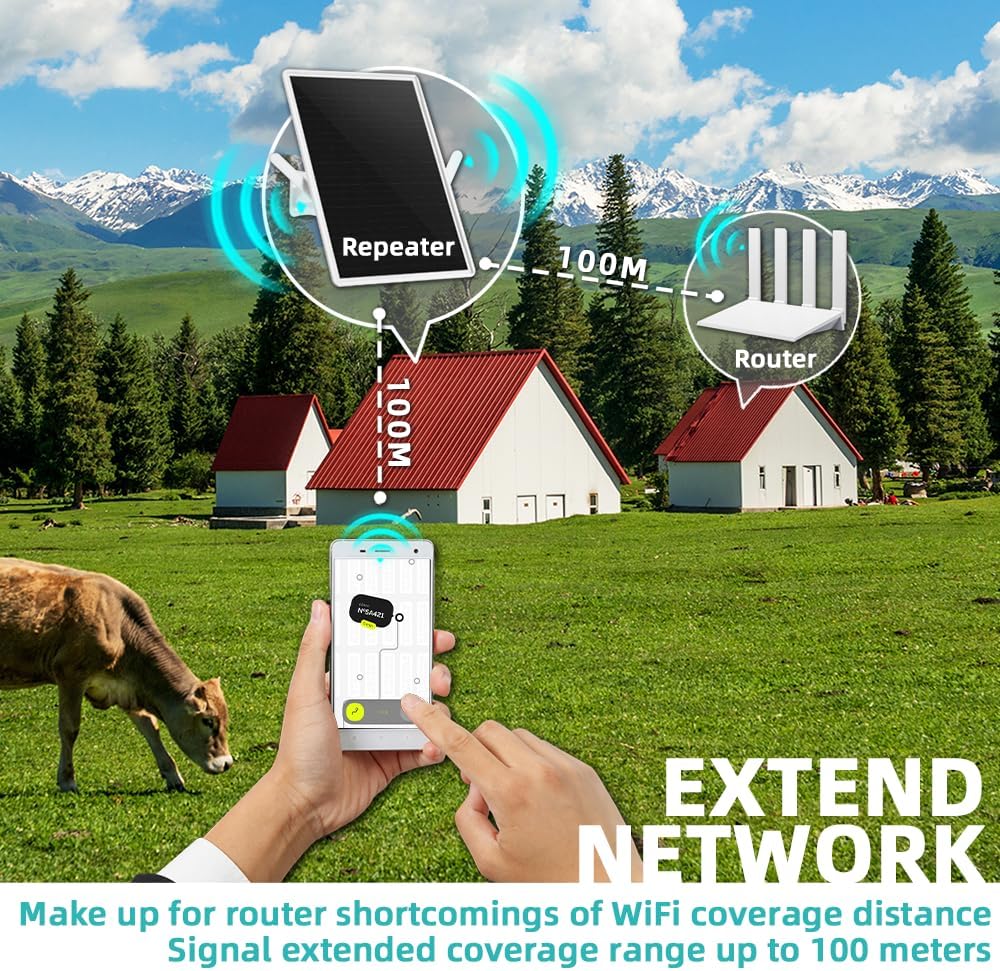
Diagram illustrating the WiFi extender's ability to extend network coverage up to 100 meters from the router.
3. Setup and Installation
3.1 Choosing an Installation Location
Select a location that receives ample direct sunlight throughout the day for optimal solar charging. The extender should be positioned within range of your existing WiFi router and in a line of sight to the area where you need extended coverage. Avoid obstructions like thick walls, metal structures, or large trees that can interfere with the WiFi signal.
3.2 Mounting the Device
The device comes with a 360-degree adjustable wall mount. Secure the mounting bracket to a stable surface (wall, pole, or tree) using the provided hardware. Ensure the solar panel faces the sun for maximum exposure.
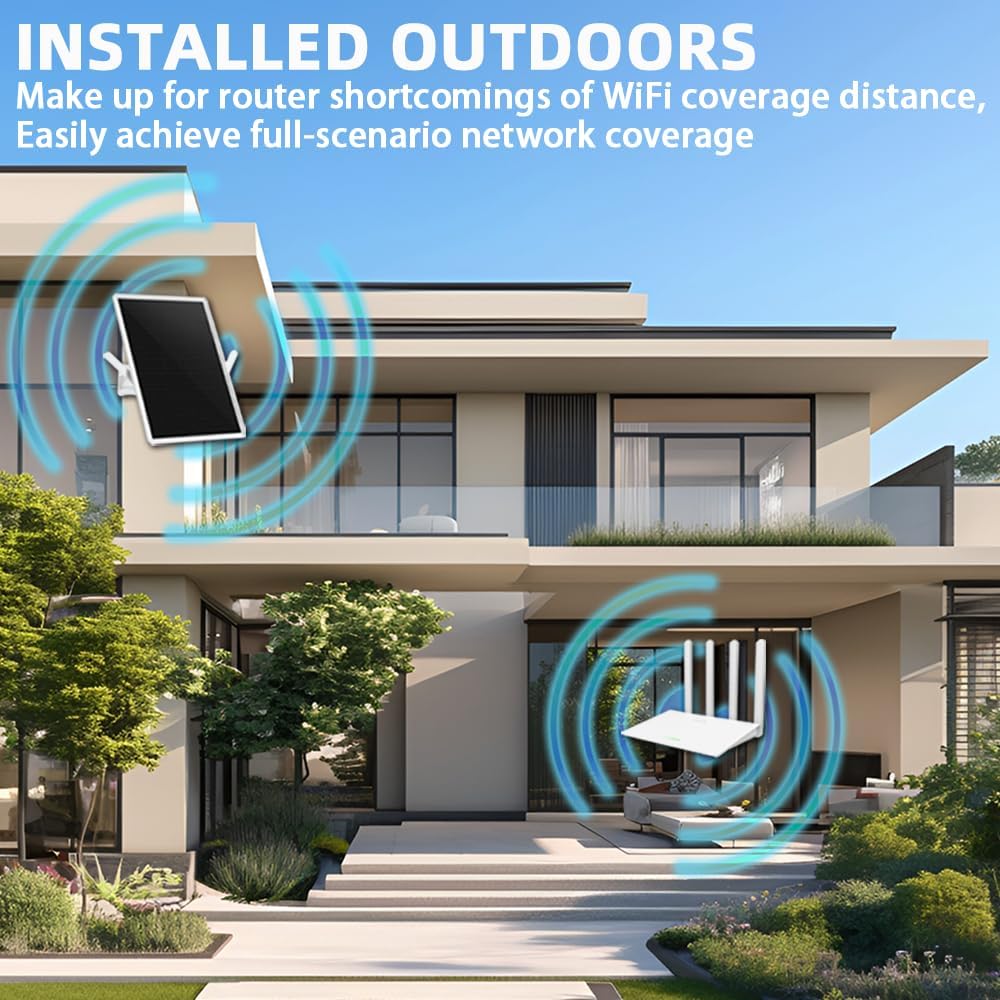
The WiFi extender installed on the exterior of a building, demonstrating its outdoor placement for network coverage.

Diagram illustrating the 360-degree adjustable wall mount for easy installation and positioning.
3.3 Initial Power-Up
Once mounted, ensure the solar panel is exposed to light. The device will begin charging its internal battery. For first-time use or after prolonged storage, it is recommended to fully charge the device under direct sunlight for several hours.
3.4 Connecting to Your Network
- Power on the extender. Wait for the indicator lights to stabilize (refer to the LED indicator section for details).
- On a WiFi-enabled device (smartphone, laptop), search for available WiFi networks.
- Connect to the network named "LCLCTEK_EXT" or similar (default SSID).
- Open a web browser and enter the default IP address (e.g., 192.168.10.1) or the setup URL provided in the quick start guide (if applicable).
- Follow the on-screen instructions to configure the extender. You will typically select your existing WiFi network and enter its password.
- Once configured, the extender will broadcast an extended WiFi signal. You can then connect your devices to this new extended network.
4. Operating Instructions
4.1 LED Indicators
Refer to the quick start guide for a detailed explanation of LED indicator statuses (e.g., power, WiFi signal, solar charging).
4.2 Network Management
To modify settings, access the extender's web interface using the configured IP address or hostname. You can change the extended network's SSID, password, and other advanced settings as required.
4.3 Optimal Performance
Ensure the solar panel remains clean and free of obstructions for efficient charging. Periodically check the signal strength between your router and the extender to ensure optimal placement and signal quality.
5. Maintenance
5.1 Cleaning
Wipe the solar panel and device casing with a soft, damp cloth as needed to remove dust, dirt, or debris. Do not use harsh chemicals or abrasive cleaners, as these may damage the device's surface or components.
5.2 Environmental Protection
The device is designed for outdoor use with an IP66 waterproof rating, protecting it from rain, snow, and dust. However, avoid submerging the device in water or exposing it to extreme physical impact.

Image illustrating the robust outdoor design of the WiFi extender, capable of withstanding various weather conditions like sun, rain, snow, thunder, wind, and hail.
6. Troubleshooting
6.1 No Power/Device Not Turning On
- Ensure the solar panel is receiving direct sunlight. Allow several hours for initial charging, especially after prolonged storage.
- Check for any visible physical damage to the device or solar panel.
6.2 Weak or No Extended WiFi Signal
- Relocate the extender closer to your main router.
- Ensure there are no significant obstructions (e.g., thick walls, metal objects) between the extender and the router, or between the extender and your client devices.
- Verify that the extender is properly configured and connected to your main WiFi network.
6.3 Cannot Access Web Interface
- Ensure your device is connected to the extender's WiFi network.
- Verify the IP address or URL used to access the interface.
- Try restarting the extender.
6.4 Slow Internet Speed
- This may indicate poor signal strength between the extender and the main router. Adjust placement for better signal reception.
- Ensure your main internet connection is stable and performing as expected.
- Reduce the number of devices connected to the extended network if possible to alleviate congestion.
7. Specifications
| Feature | Detail |
|---|---|
| Model Number | C&E-L8 |
| Brand | LCLCTEK |
| Frequency Band | 2.4 GHz |
| Data Rate | Up to 300 Mbps |
| Range | Up to 300 feet (approx. 100 meters) |
| Power Source | Solar Panel with Built-in Lithium Ion Battery |
| Waterproof Rating | IP66 |
| Product Dimensions | 13 x 3 x 9 inches |
| Item Weight | 3.83 pounds |
| Included Components | Repeater |
| Compatible Devices | WiFi-enabled devices (routers, smartphones, tablets, laptops, computers, smart TVs, gaming consoles, printers, security cameras, etc.) |
8. Warranty and Support
8.1 Warranty Information
Please refer to the warranty card included with your product or contact LCLCTEK customer support for detailed warranty terms and conditions. Keep your purchase receipt for warranty claims.
8.2 Customer Support
For technical assistance, troubleshooting, or further inquiries, please contact LCLCTEK customer support through their official website or the contact information provided in your product packaging. Our support team is available to help you with any questions or issues you may encounter.