
1. Product Overview
The IDEALROYAL X88 PRO T1 Android TV Stick is a compact and powerful streaming device designed to transform any compatible TV into a smart TV. Running on the latest Android TV 14.0 operating system, it offers seamless access to a wide range of applications, 4K video output, and enhanced connectivity features for an immersive entertainment experience.
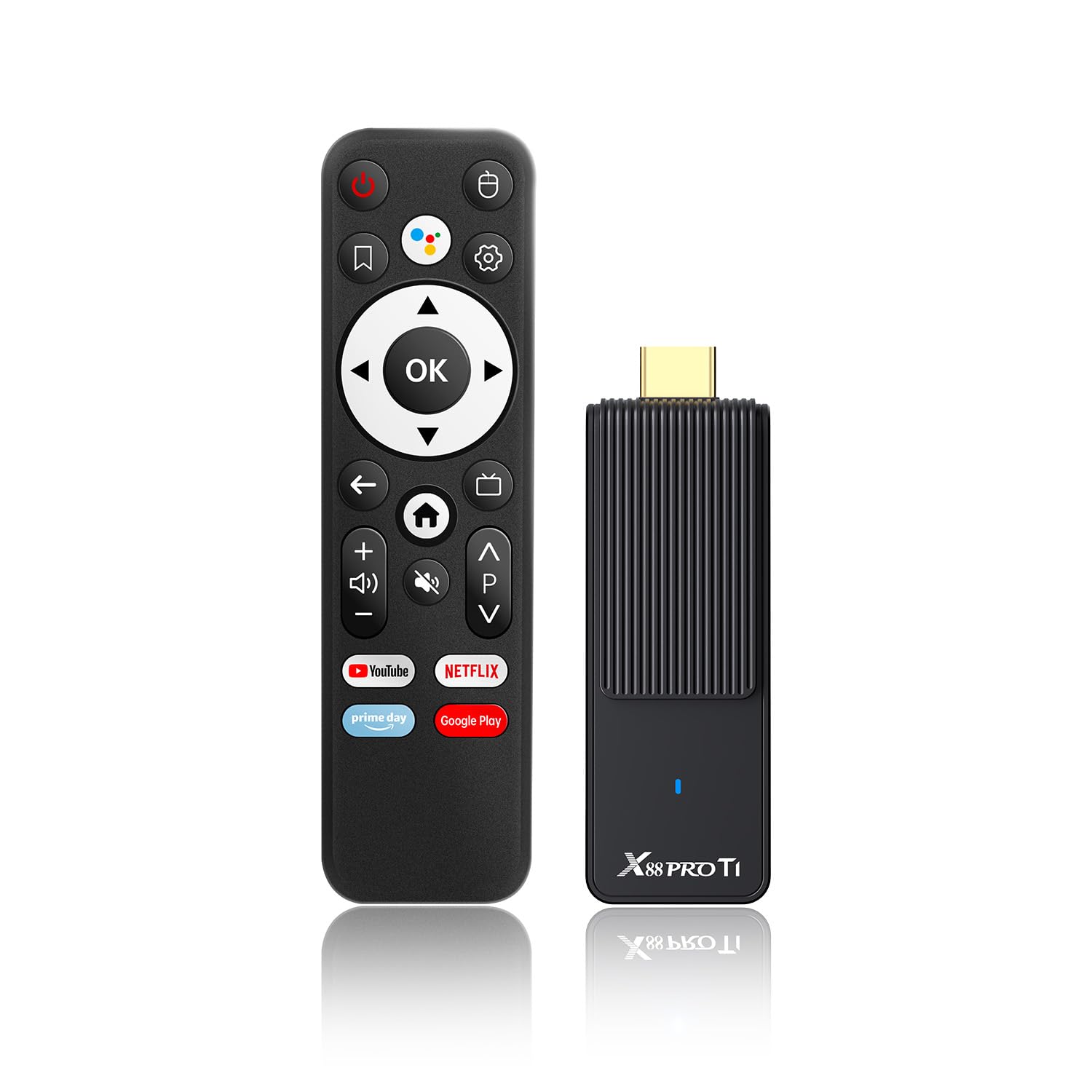
Image: The IDEALROYAL X88 PRO T1 Android TV Stick, its remote control, and a television displaying the Android TV interface with various streaming app icons.
2. What's in the Box
Upon opening your IDEALROYAL X88 PRO T1 package, you should find the following items:
- Android TV Stick (X88 PRO T1)
- Bluetooth Remote Control
- Power Adapter
- HD Cable
- User Manual

Image: A flat lay of the package contents, including the Android TV Stick, remote control, power adapter, HD cable, and user manual, each numbered for identification.
3. Product Features
- Android 14.0 TV OS: Equipped with the latest Android TV 14.0 operating system for powerful functions and 4K content, ensuring extensive compatibility with various applications.
- Powerful Processor: Features an RK3518 Quad-Core Cortex-A53 CPU with Mali-450 GPU, providing stable performance, strong image processing, and smooth loading of media without buffering.
- Memory & Storage: Comes with 2GB RAM and 16GB ROM to meet daily download needs, expandable up to 64GB via a Micro SD Card reader.
- Advanced Connectivity: Supports 2.4G WiFi 6 and 100M Ethernet for faster downloads, uploads, and a more stable signal. Bluetooth 5.0 allows for easy connection to a wide range of peripherals.
- Bluetooth Voice Remote: An improved Bluetooth remote control that does not require focused aiming. It allows direct navigation to the application list and one-click access to supported applications, including voice control.

Image: A detailed diagram highlighting the RK3518 Quad-Core Cortex-A53 CPU with Mali-450 GPU, illustrating its powerful performance and efficiency.

Image: A television screen showing vibrant 4K@60fps video content, with two children enthusiastically watching, demonstrating the device's high-resolution output.
4. Setup Guide
4.1 Physical Connection
- Connect the TV Stick: Plug the IDEALROYAL X88 PRO T1 Android TV Stick directly into an available HDMI port on your television. If space is limited, use the provided HD Cable extender.
- Connect Power: Connect the Power Adapter to the TV Stick's power input port (USB-C or Micro USB, depending on model) and then plug the adapter into a wall outlet.
- Select HDMI Input: Turn on your TV and use your TV remote to select the correct HDMI input source where the TV Stick is connected.
Video: A demonstration of connecting the TV Stick to a television's HDMI port and connecting the power adapter. This video illustrates the physical setup process.
4.2 Remote Control Pairing
The Bluetooth Voice Remote Control needs to be paired with the TV Stick for full functionality:
- Ensure the TV Stick is powered on and your TV is displaying its interface.
- Hold the remote control near the TV Stick (within 20cm).
- Press and hold the 'OK' button and the 'Back' button on the remote control simultaneously for approximately 10 seconds.
- Release the buttons when the light on the remote control flashes, indicating it's in pairing mode.
- The TV Stick will automatically detect and pair with the remote. A confirmation message will appear on the screen once connected successfully.
Video: A visual guide demonstrating how to pair the Bluetooth remote control with the Android TV Stick, showing the buttons to press and the on-screen confirmation.
4.3 Initial Software Setup
- Language Selection: Follow the on-screen prompts to select your preferred language.
- Connect to Wi-Fi: Select your Wi-Fi network from the list and enter the password. Ensure a stable internet connection for optimal performance.
- Google Account Login: Sign in with your Google account. This is necessary to access the Google Play Store and other Google services.
- Install Apps: The system may suggest installing popular apps like YouTube, Netflix, and Prime Video. Select the apps you wish to install or skip this step to install them later from the Google Play Store.
- Complete Setup: Follow any remaining on-screen instructions to finalize the setup process. Your IDEALROYAL X88 PRO T1 is now ready for use.
5. Operating Instructions
5.1 Navigating the Interface
Use the directional pad (up, down, left, right) and the 'OK' button on your Bluetooth remote to navigate through the Android TV interface. The 'Home' button will always return you to the main screen, and the 'Back' button will take you to the previous screen.
5.2 Using Voice Control
The Bluetooth remote features a dedicated voice control button. Press and hold this button, then speak your command or search query into the remote's microphone. You can search for movies, TV shows, open applications, or ask questions.

Image: A user holding the Bluetooth Voice Remote Control, with visual cues on the TV screen indicating active voice command input, demonstrating the ease of searching for content.
5.3 Installing and Managing Applications
Access the Google Play Store from the home screen to browse and install new applications. You can also manage your installed apps, including updating or uninstalling them, through the 'Apps' section in the settings.
5.4 4K Video Output
The IDEALROYAL X88 PRO T1 supports 4K Ultra HD video output at 60 frames per second (4K@60fps). Ensure your television is 4K compatible and that you are using a high-speed HDMI cable for the best visual quality. The device automatically adjusts resolution based on your TV's capabilities.
Video: A demonstration of the Android TV Stick's interface and content streaming capabilities, showcasing various applications and smooth navigation.
6. Maintenance
- Keep Software Updated: Regularly check for system updates in the settings menu to ensure optimal performance and access to the latest features and security patches.
- Clean the Device: Use a soft, dry cloth to clean the TV Stick and remote control. Avoid using liquid cleaners or abrasive materials.
- Proper Ventilation: Ensure the TV Stick is placed in a well-ventilated area to prevent overheating. Do not cover the device.
- Storage Management: Periodically clear cache for applications to free up storage space and improve performance. This can be done in the app settings.
7. Troubleshooting
- No Power/No Display:
- Ensure the power adapter is securely connected to both the TV Stick and a working power outlet.
- Verify that the TV Stick is properly plugged into an HDMI port on your TV.
- Check that your TV is set to the correct HDMI input source. - Remote Control Not Responding:
- Ensure the remote control batteries are fresh and correctly inserted.
- Re-pair the remote control with the TV Stick by following the instructions in Section 4.2. - Wi-Fi Connection Issues:
- Restart your Wi-Fi router and the TV Stick.
- Ensure the TV Stick is within range of your Wi-Fi router.
- Double-check the Wi-Fi password. - App Crashing/Freezing:
- Clear the cache and data for the problematic app in the device settings.
- Uninstall and reinstall the app.
- Ensure the TV Stick's software is up to date. - Poor Video Quality:
- Ensure your TV is 4K compatible if you expect 4K resolution.
- Check your internet connection speed; streaming 4K content requires a fast and stable connection.
- Use a high-quality HDMI cable.
8. Specifications
| Feature | Detail |
|---|---|
| Brand | IDEALROYAL |
| Model Name | X88 PRO T1 |
| Operating System | Android 14.0 TV OS |
| Processor | RK3518 Quad-Core Cortex-A53 CPU with Mali-450 GPU |
| RAM | 2GB |
| ROM | 16GB (Expandable up to 64GB via Micro SD Card) |
| Resolution | 4K |
| Connectivity Technology | Bluetooth 5.0, Ethernet, USB, Wi-Fi 6 (2.4G) |
| Connector Type | HDMI, Micro USB |
| Supported Internet Services | Google TV, Hulu, Netflix, Prime Video, YouTube |
| Controller Type | Remote Control, Voice Control |
| Form Factor | TV Stick |
| Product Dimensions | 3.95 x 1.3 x 0.55 inches |
| Item Weight | 6.4 ounces |
9. Warranty and Support
For warranty information and technical support, please refer to the official IDEALROYAL website or contact customer service through your purchase platform. Keep your proof of purchase for warranty claims.