
1. Introduction
This manual provides detailed instructions for the setup, operation, and maintenance of your Jiusion 1080P 50-1000x USB Digital Microscope. Please read this manual thoroughly before using the device to ensure proper functionality and to maximize your viewing experience. This digital microscope is designed for observing various objects with high magnification and clarity, compatible with a wide range of operating systems and devices.
2. Package Contents
Verify that all items listed below are included in your package:
- 1x Jiusion 1080P USB Digital Microscope
- 1x Metal Stand
- 1x User Manual
- 1x USB to Micro-USB Adapter
- 1x USB to USB-C Adapter
- 1x USB to Lightning Adapter

Figure 2.1: Contents of the Jiusion Digital Microscope package, including the microscope, metal stand, user manual, and various USB adapters for device compatibility.
3. Product Components
Familiarize yourself with the main components of your digital microscope:
- LEDs: 8 adjustable LED lights for illumination.
- 1080P Lens: High-definition optical lens.
- USB Plug: Standard USB connector for PC/Mac.
- Micro USB Plug: Adapter for older Android devices.
- Lightning Plug: Adapter for iPhone/iPad.
- USB-C Plug: Adapter for modern Android/iPhone/iPad devices.
- Camera Button: For capturing images or starting/stopping video recording.
- Brightness Control Wheel: Adjusts the intensity of the LED lights.
- Magnification Wheel: Adjusts focus and magnification.
- Lens Cover: Protective cover for the lens.
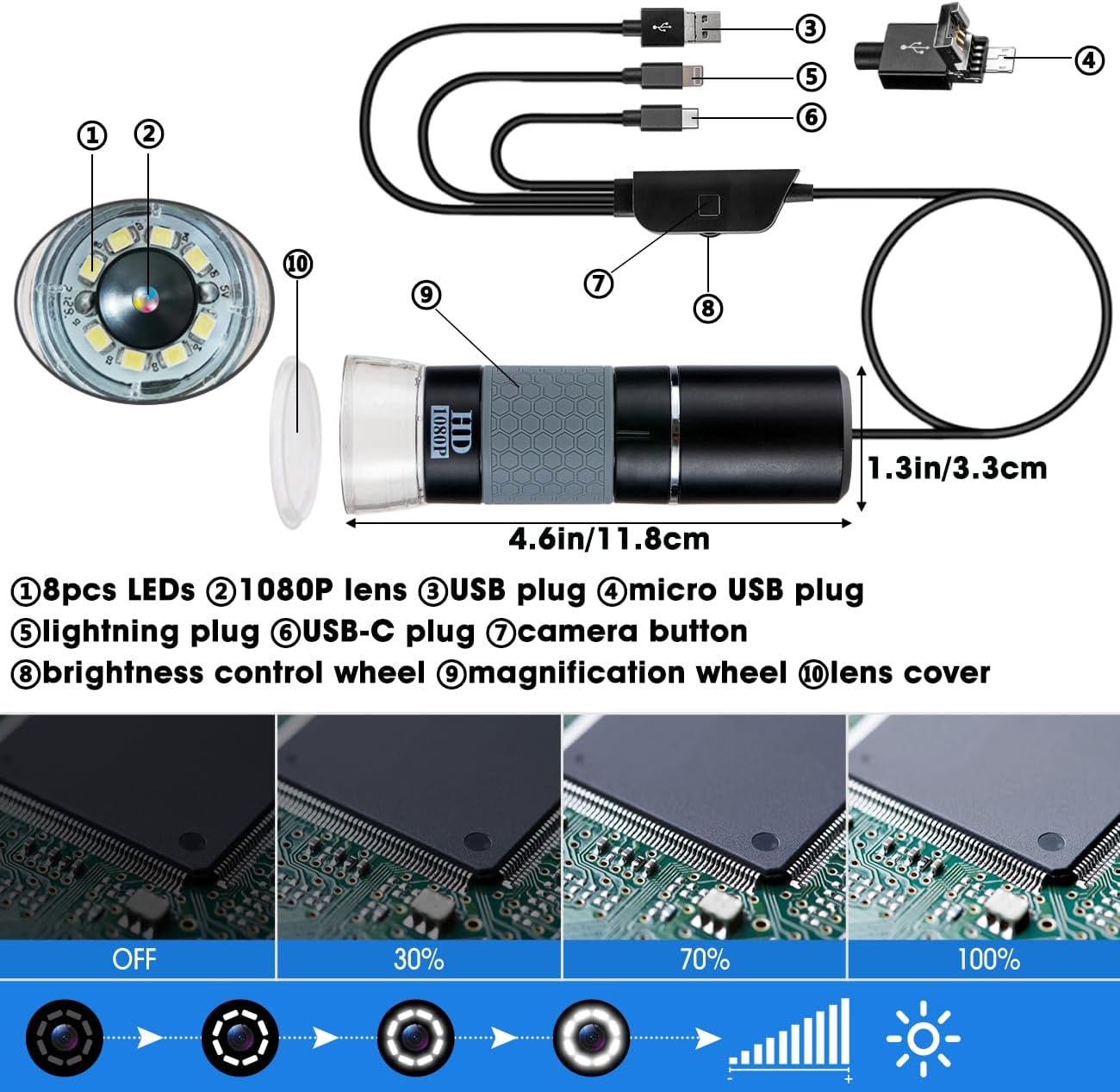
Figure 3.1: Detailed diagram illustrating the various parts of the Jiusion Digital Microscope, including the LED lights, lens, control buttons, and connection plugs.
4. Setup Guide
4.1. Stand Assembly
The included metal stand provides stability for precise observation. Assemble the stand by attaching the microscope holder to the base. Ensure all screws are tightened securely to prevent movement during use.

Figure 4.1: The sturdy metal stand provides stable support for the microscope, allowing for precise adjustments and consistent viewing.
4.2. Connecting the Microscope to Your Device
The microscope is compatible with various devices using the appropriate adapter:
- For PC (Windows/Mac/Linux/Chrome OS): Use the standard USB plug.
- For Android Devices: Use the Micro-USB or USB-C adapter depending on your phone's port.
- For iOS Devices (iPhone/iPad): Use the Lightning or USB-C adapter depending on your device's port.
Connect the microscope's USB cable to the correct adapter, then plug the adapter into your device's port.

Figure 4.2: The microscope comes with various adapters (Lightning, USB-C, USB, Micro-USB) to ensure broad compatibility with different smart devices and computers.
5. Software & App Installation
To view images and videos from the microscope, you will need to install a compatible application on your device.
5.1. For PC (Windows/Mac/Linux/Chrome OS)
For Windows, Mac, Linux, and Chrome OS, you can typically use built-in camera applications or download third-party software. Refer to the included user manual for recommended software or search online for
Ask a question about this manual
Ask about setup, troubleshooting, compatibility, parts, safety, or missing instructions. Manuals+ will review the question and use this page’s manual context to help answer it.