
1. Introduction
This manual provides essential instructions for setting up, operating, maintaining, and troubleshooting your Cricket Icon 6 (SL219C) smartphone. Please read this manual thoroughly to ensure proper use and to maximize the device's performance.
The Cricket Icon 6 (SL219C) is an Android smartphone featuring a 6.5-inch HD+ display, a 13MP camera, 64GB of internal storage, and 4GB of RAM. This device operates on the Android platform and is designed for reliable everyday performance.

Figure 1: Front and Rear View of the Cricket Icon 6 (SL219C) Smartphone. The front displays the home screen with app icons, while the rear shows the camera module and Cricket branding.
2. What's in the Box
Verify that all items are present in your product packaging:
- Cricket Icon 6 (SL219C) Smartphone
- USB-C Cable
- SIM Ejector Tool
3. Setup
3.1. Inserting the SIM Card and microSD Card
- Locate the SIM card tray on the side of your device.
- Insert the SIM ejector tool into the small hole on the SIM tray and press gently until the tray pops out.
- Place your Nano-SIM card into the designated slot on the tray. If using a microSD card for expanded storage, place it in the appropriate slot. Ensure the gold contacts face downwards.
- Carefully reinsert the tray into the phone until it clicks into place.
3.2. Initial Power On
- Press and hold the Power button (usually on the right side of the device) until the Cricket logo appears.
- Follow the on-screen prompts to select your language, connect to a Wi-Fi network, and set up your Google account.
3.3. Charging the Device
Connect the USB-C cable to the charging port at the bottom of the phone and plug the other end into a compatible USB power adapter (sold separately) or a computer. The battery indicator will show charging status.
4. Operating Instructions
4.1. Basic Navigation
- Touch: Tap an icon to open an app or select an item.
- Swipe: Drag your finger across the screen to scroll through lists or switch between home screens.
- Pinch: Use two fingers to zoom in or out on photos and web pages.
- Home Button: Returns to the home screen.
- Back Button: Returns to the previous screen.
- Recent Apps Button: Displays recently used applications.
4.2. Making Calls
- Tap the Phone icon on the home screen.
- Enter the phone number using the dial pad or select a contact from your contacts list.
- Tap the Call button to initiate the call.
4.3. Sending Messages
- Tap the Messages icon.
- Tap the 'Start chat' or '+' icon to compose a new message.
- Enter the recipient's phone number or select a contact.
- Type your message in the text field and tap the Send button.
4.4. Connecting to Wi-Fi
- Go to Settings > Network & internet > Wi-Fi.
- Toggle Wi-Fi on.
- Select your desired Wi-Fi network from the list.
- Enter the password if prompted and tap Connect.
4.5. Using the Camera
The Cricket Icon 6 features a 13MP main camera.
- Tap the Camera icon on the home screen.
- Frame your shot using the screen as a viewfinder.
- Tap the Shutter button to take a photo.
- Switch between photo and video modes as needed.
5. Maintenance
5.1. Battery Care
The device is equipped with a 3400 mAh battery. To prolong battery life:
- Avoid extreme temperatures.
- Do not leave the device charging for extended periods after it reaches 100%.
- Use the provided USB-C cable for charging.
5.2. Software Updates
Regularly check for and install software updates to ensure optimal performance and security.
- Go to Settings > System > System update.
- Follow the on-screen instructions to download and install any available updates.
5.3. Cleaning the Device
Use a soft, lint-free cloth to clean the screen and body of the phone. Avoid using harsh chemicals or abrasive materials.
5.4. Storage Management
The device has 64GB of internal storage, expandable via microSD. To manage storage:
- Go to Settings > Storage.
- View storage usage and free up space by uninstalling unused apps, deleting old files, or moving data to a microSD card.
6. Troubleshooting
6.1. Common Issues
- Device not powering on: Ensure the battery is charged. Connect to a charger for at least 15 minutes, then try powering on again.
- No network connection: Check if the SIM card is properly inserted. Verify that Airplane Mode is off (swipe down from the top of the screen to access Quick Settings).
- Apps crashing or freezing: Close and reopen the app. If the issue persists, clear the app's cache (Settings > Apps > [App Name] > Storage & cache > Clear cache).
- Slow performance: Close unused apps, clear cache, or restart the device.
6.2. Factory Reset
A factory reset will erase all data from your phone and restore it to its original factory settings. Back up important data before proceeding.
- Go to Settings > System > Reset options.
- Select Erase all data (factory reset).
- Confirm your decision and enter your PIN/password if prompted.
7. Specifications
| Feature | Specification |
|---|---|
| Model Name | Cricket Icon 6 (SL219C) |
| Operating System | Android |
| Screen Size | 6.5 Inches |
| RAM Memory Installed Size | 4 GB |
| Memory Storage Capacity | 64 GB (expandable via microSD) |
| CPU Model | Exynos 850 S5E3830 |
| CPU Speed | 2.2 GHz |
| Battery Power Rating | 3400 mAh |
| Wireless Carrier | Unlocked |
| Color | White |
| Manufacturer | Cricket |
8. Warranty and Support
8.1. Amazon Renewed Product Information
This Cricket Icon 6 (SL219C) is an Amazon Renewed product. Amazon Renewed products are inspected, undergo full diagnostic tests, thorough cleaning, and are refurbished as necessary to be fully functional. They are backed by the Amazon Renewed Guarantee.
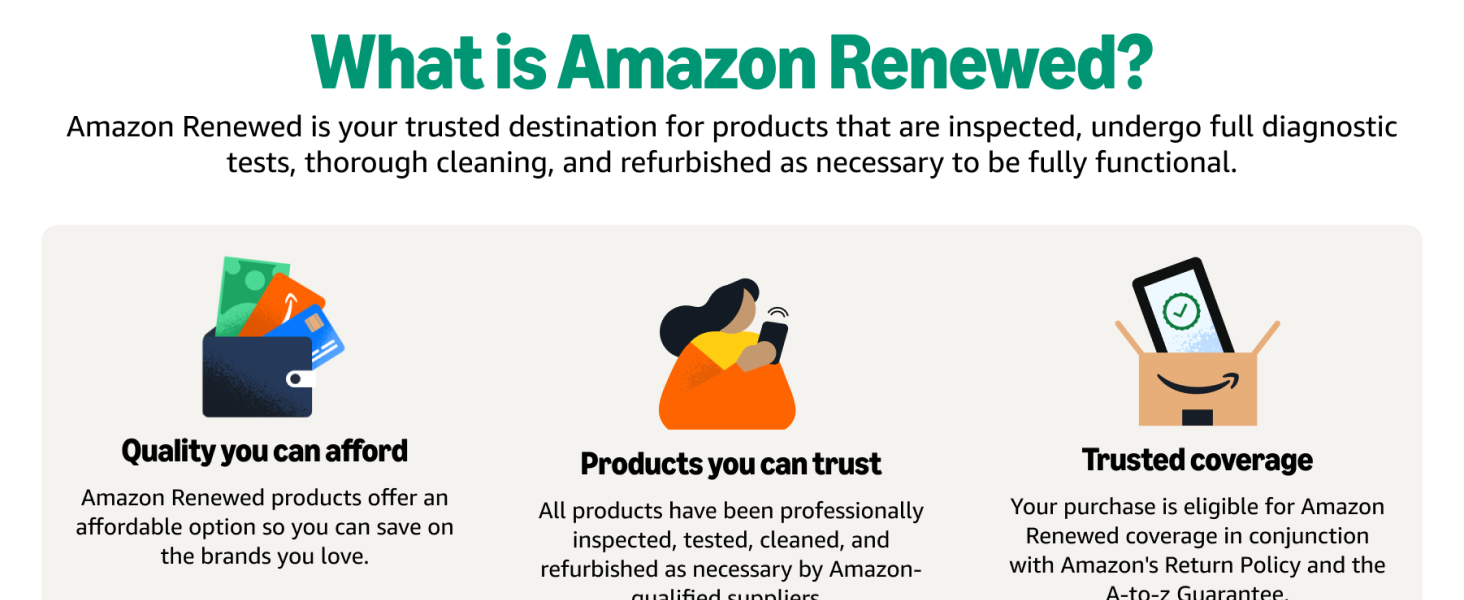
Figure 2: Explanation of the Amazon Renewed program, highlighting quality, trust, and coverage.
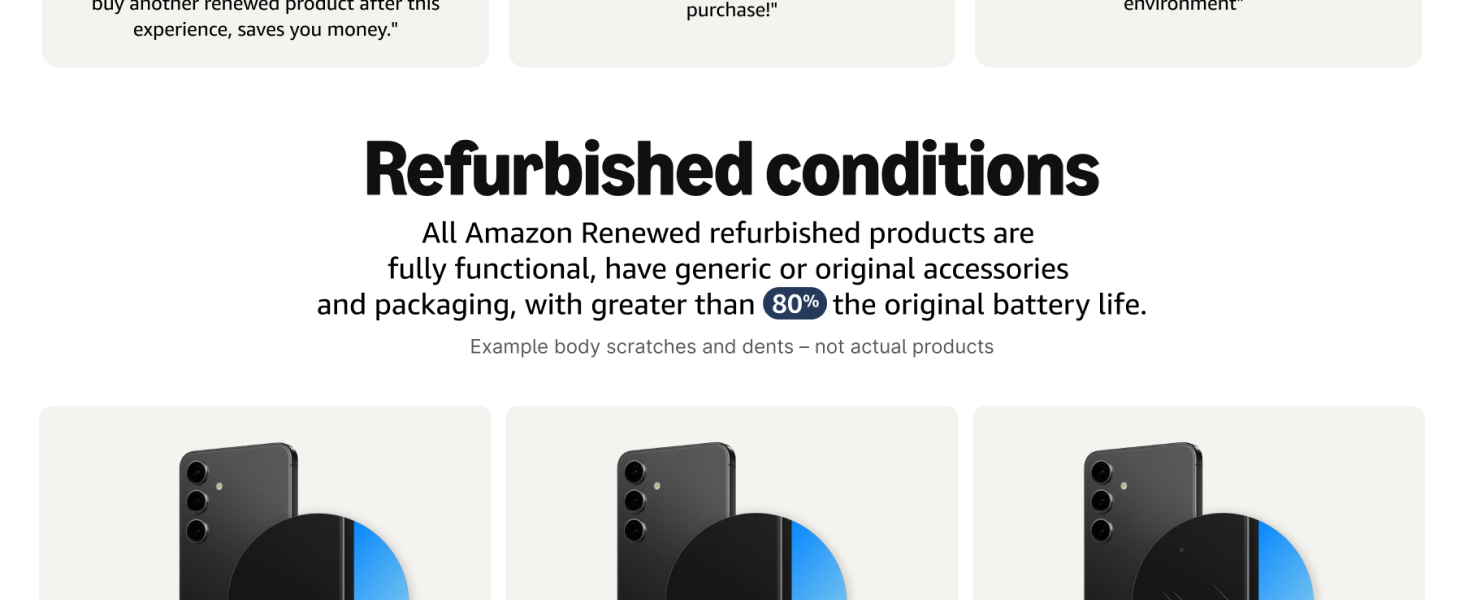
Figure 3: Details on the refurbished conditions of Amazon Renewed products, including functionality and battery life.
8.2. Return Policy
Your purchase is eligible for a 90-day refund/replacement return policy through Amazon Renewed. For specific details, please refer to the Amazon Renewed Guarantee terms and conditions.
8.3. Technical Support
For technical assistance or further inquiries regarding your Cricket Icon 6 (SL219C), please contact Amazon Renewed customer support or refer to the official Cricket Wireless support resources online.


