
Introduction
Welcome to your new HidrateSpark PRO 2 Smart Hydration Bottle. This manual provides essential information for setting up, operating, and maintaining your smart bottle to help you achieve your daily hydration goals. Please read these instructions carefully before using your bottle.
Key Features
- Automatic Hydration Tracking: The SipSense powered sensor uses advanced weight sensing to track every sip and syncs to the HidrateSpark app, contributing to your daily hydration goal. Features USB-C rechargeable battery with up to 21 days of life per charge.
- Bluetooth Sync & Free App Integration: Connect your bottle via Bluetooth to the free HidrateSpark app. Track your progress, receive personalized hydration goals, view history, join challenges, compete with friends, earn trophies, and manage multiple bottles from one app.
- Smart Drink Reminders (Glow & Sound): Stay hydrated with customizable 360° glow alerts and optional sound reminders when it’s time to drink. Personalize glow color, pattern, and timing, plus sound type, frequency, and volume.
- Apple Find My Compatible: Never lose your bottle again. Locate your HidrateSpark PRO 2 on a map using the Apple Find My app on your iPhone, iPad, Mac, or Apple Watch.
- 24 Hours Cold, Leakproof & Travel Friendly: Constructed from double-wall vacuum insulated recycled 18/8 stainless steel to keep drinks cold all day. Features a leakproof locking lid, ergonomic carry handle, and is designed to be cup holder friendly.
Setup Guide
1. Initial Charge
Before first use, fully charge your HidrateSpark PRO 2 sensor using the provided USB-C charger. The sensor is located at the bottom of the bottle. A full charge provides up to 21 days of battery life.

Image: The HidrateSpark PRO 2 sensor module being charged with a USB-C cable. The sensor is shown detached from the bottle base.
2. Download the HidrateSpark App
Download the free HidrateSpark app from your device's app store. The app is compatible with Apple Health, Fitbit, smart rings, and watches.
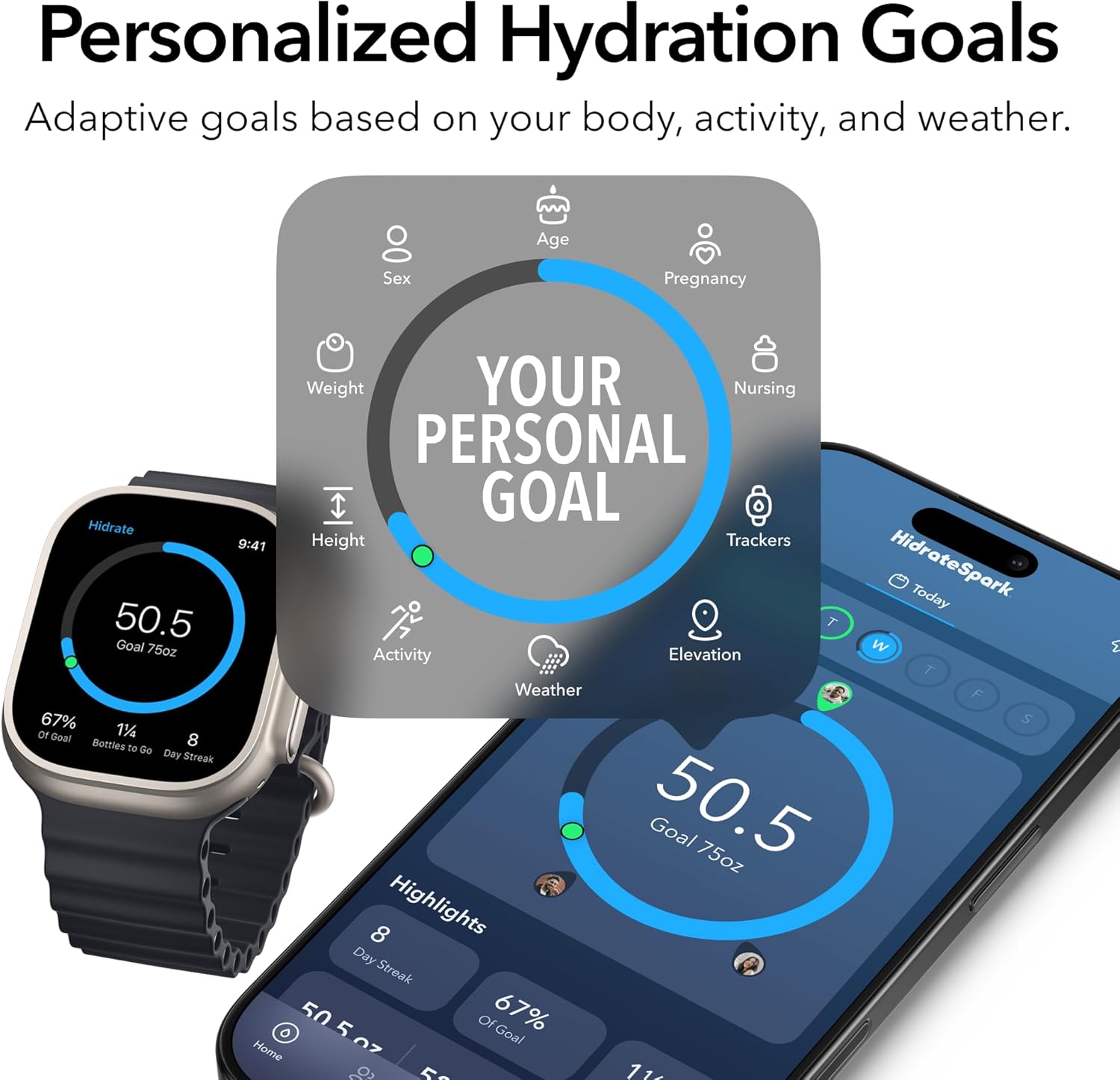
Image: A smartphone screen displaying the HidrateSpark app with a personalized hydration goal and tracking progress. An Apple Watch also shows hydration data.
3. Pair Your Bottle
Open the HidrateSpark app and follow the on-screen instructions to pair your bottle via Bluetooth. Ensure Bluetooth is enabled on your device.
Operating Instructions
Hydration Tracking
The SipSense sensor automatically tracks your water intake. Each sip is recorded and synced to the HidrateSpark app, contributing to your daily hydration goal.
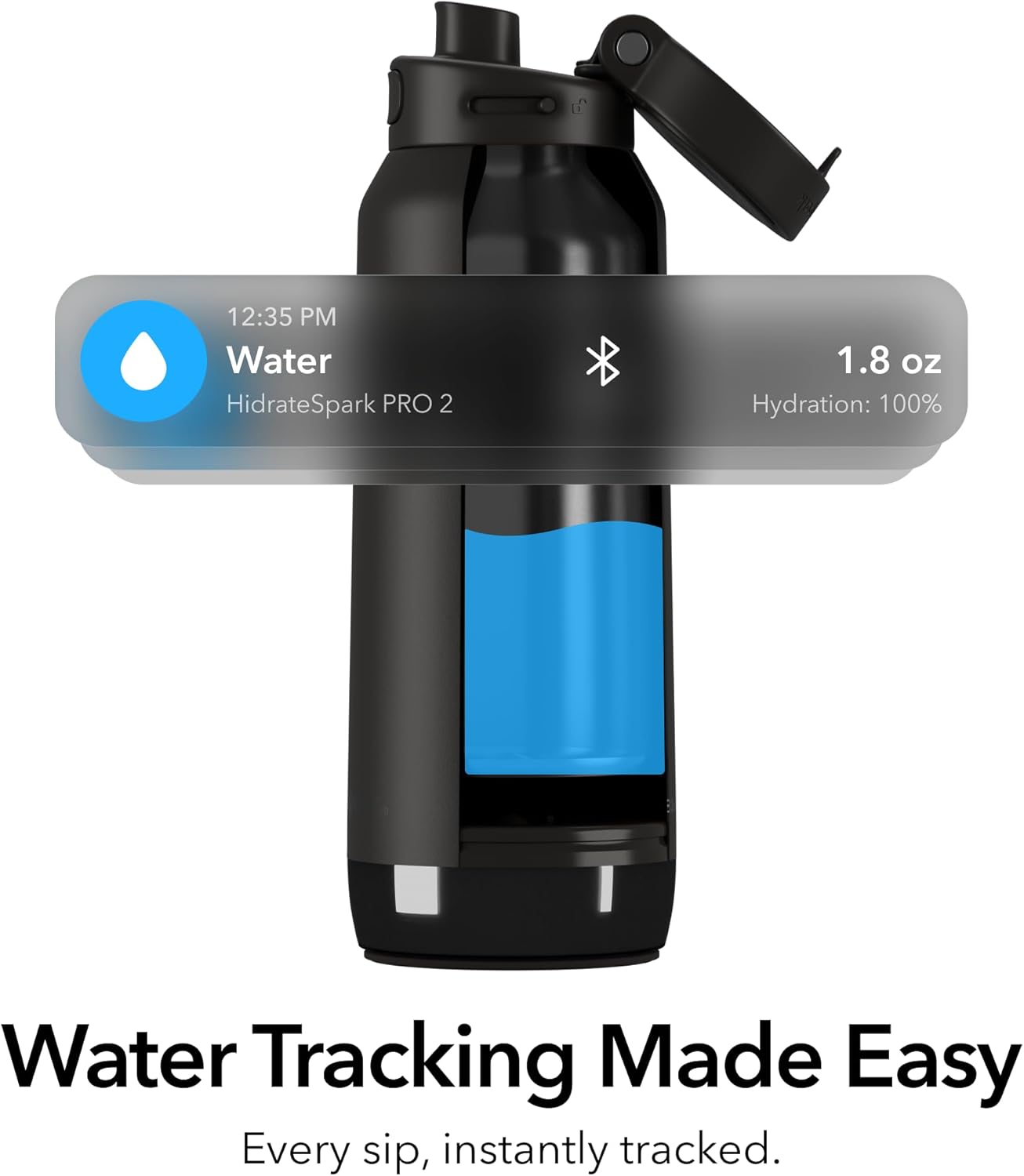
Image: A HidrateSpark PRO 2 bottle with a digital overlay showing a notification for "Water" and "1.8 oz" intake, indicating real-time tracking.
Smart Reminders
Your bottle will glow and can emit sounds to remind you to drink. Customize these reminders within the HidrateSpark app:
- Glow Alerts: Choose from various colors and patterns for the 360° glow.
- Sound Reminders: Select sound types, frequency, and volume.

Image: The bottom section of a HidrateSpark PRO 2 bottle glowing blue, with a graphic representing sound waves, illustrating the "Glow, Drink, Track" feature.
Apple Find My Integration
If you misplace your bottle, use the Apple Find My app on your compatible Apple device to locate it. The bottle's location will appear on a map.
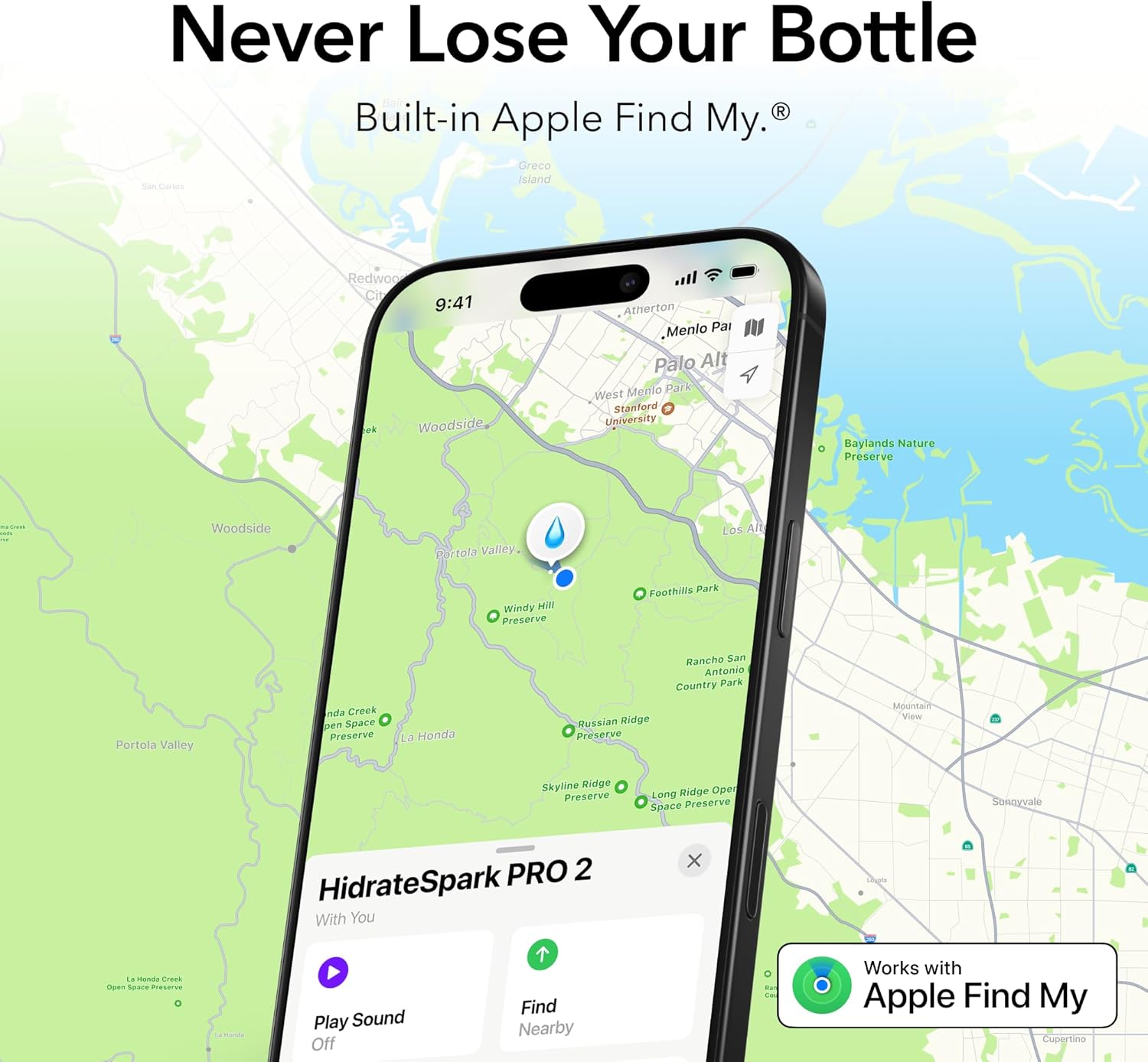
Image: A smartphone screen displaying the Apple Find My app, showing the location of a HidrateSpark PRO 2 bottle on a map.
Lid Operation
The bottle features a leakproof locking lid. To drink, simply press the button to open the lid. To close, push the lid down until it clicks securely. The lid does not require a separate latching mechanism for drinking.
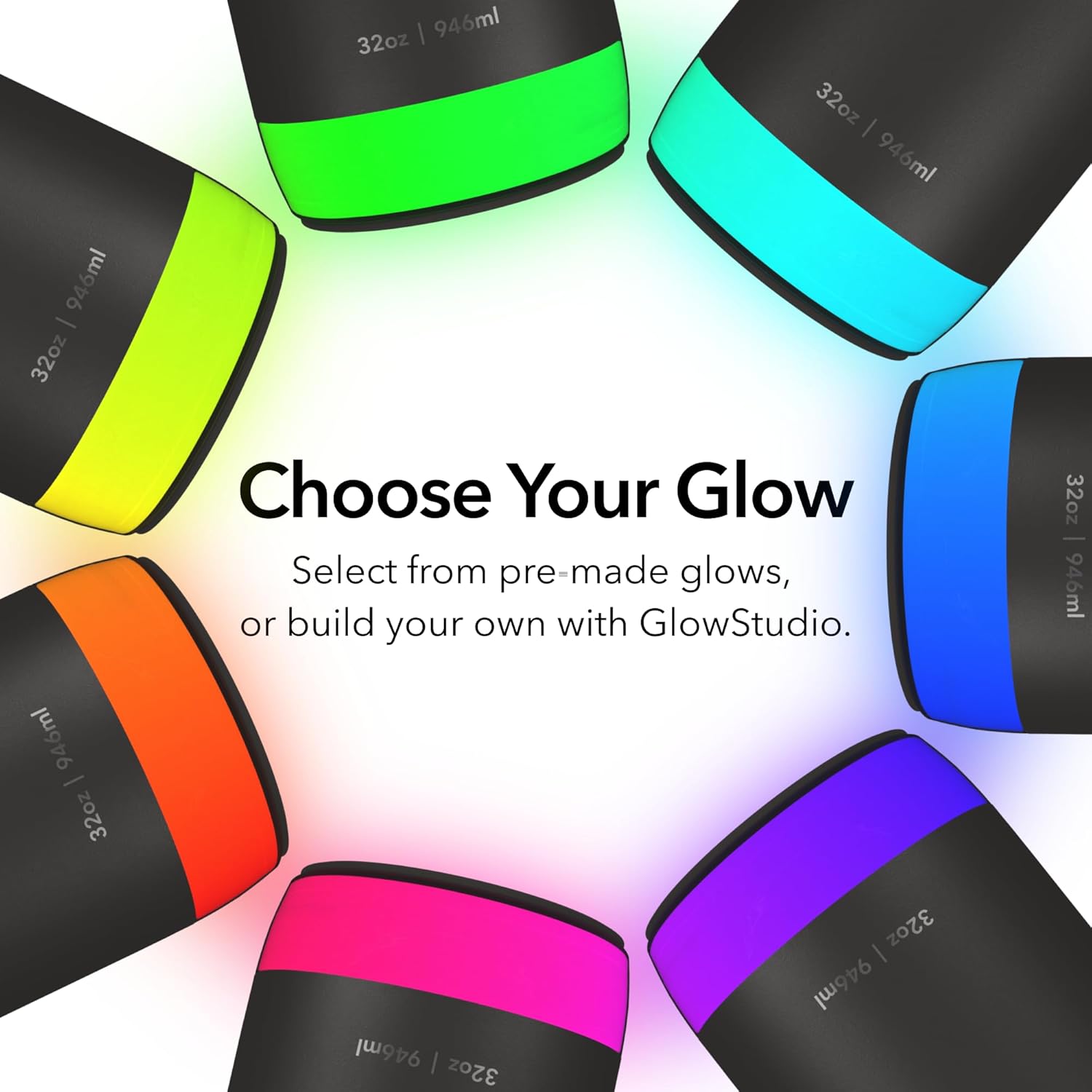
Image: Three pink HidrateSpark PRO 2 bottles demonstrating different lid configurations: straw, chug, and closed lid.
Maintenance
Cleaning Instructions
Bottle Body: Hand wash only. Do not place the bottle body in a dishwasher.
Sensor: The sensor should be removed before washing the bottle. Wipe the sensor clean with a damp cloth if necessary. Do not submerge the sensor in water or place it in a dishwasher.
Lid: The lid can be hand washed. Ensure all components are dry before reassembling.
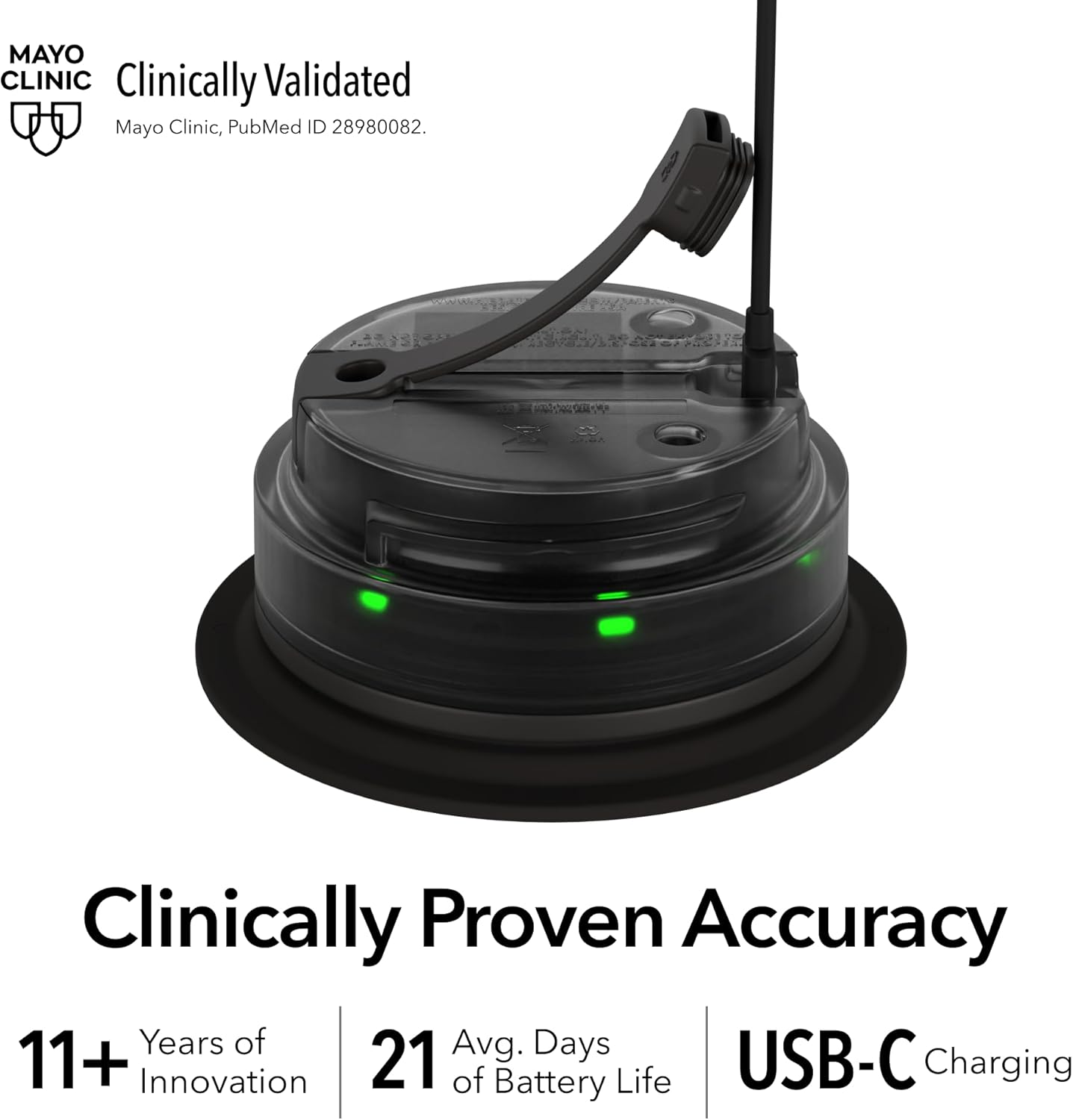
Image: An exploded diagram of the HidrateSpark PRO 2 bottle, showing its various components including the locking lid, recycled stainless steel body, double-wall vacuum insulation, SipSense technology, and USB-C charger.
Troubleshooting
Bottle Not Tracking Water
- Ensure the sensor is properly seated at the bottom of the bottle.
- Check if the sensor is charged. Recharge if necessary.
- Verify Bluetooth connection between the bottle and your device.
- Make sure the HidrateSpark app is open and running in the background.
Glow Reminders Not Working
- Confirm glow reminders are enabled and configured in the app settings.
- Check battery level of the sensor.
Cannot Locate Bottle with Apple Find My
- Ensure the bottle's sensor is charged and powered on.
- Verify that Apple Find My is enabled for your HidrateSpark PRO 2 in your device settings.
Specifications
| Feature | Detail |
|---|---|
| Brand | Hidrate Spark |
| Model Name | HidrateSpark PRO 2 |
| Capacity | 32 Ounces |
| Color | Flamingo |
| Material | Recycled 18/8 Stainless Steel |
| Insulation | Double-wall vacuum insulated (keeps cold for 24 hours) |
| Battery Life | Up to 21 days per charge |
| Charging | USB-C |
| Connectivity | Bluetooth |
| Special Features | Apple Find My Capability, Hydration Reminders (Glow, Sound, App notifications), SipSense Technology |
| Product Care | Hand Wash Only |
| Dimensions (W x H) | 3.75"W x 11.25"H |
| Item Weight | 0.94 Kilograms |
| UPC | 810099251654 |
| ASIN | B0FMKNMP31 |
Warranty and Support
For warranty information and customer support, please refer to the official HidrateSpark website or contact their customer service directly. Keep your proof of purchase for warranty claims.
For further assistance, visit the Hidrate Spark Store on Amazon.


