Introduction
This manual provides detailed instructions for the setup, operation, maintenance, and troubleshooting of your YPBDAN KM-3 Tri-Mode Wireless Gaming Mouse. Please read this manual thoroughly before using the product to ensure optimal performance and longevity.
Package Contents
- YPBDAN KM-3 Tri-Mode Wireless Gaming Mouse
- 2.4GHz USB Receiver
- USB-C Charging Cable
- User Manual
Setup
1. Charging the Mouse
Before first use, it is recommended to fully charge the mouse. Connect the supplied USB-C charging cable to the mouse's USB-C port and the other end to a power source (e.g., computer USB port, USB wall adapter). The Power LED will indicate charging status:
- Low Battery: Red Light Blinking
- Charging: Red Light On
- Charging Completed: Green Light On
A full charge provides up to 60 hours of continuous use. If cursor movement becomes sluggish, recharge the mouse.
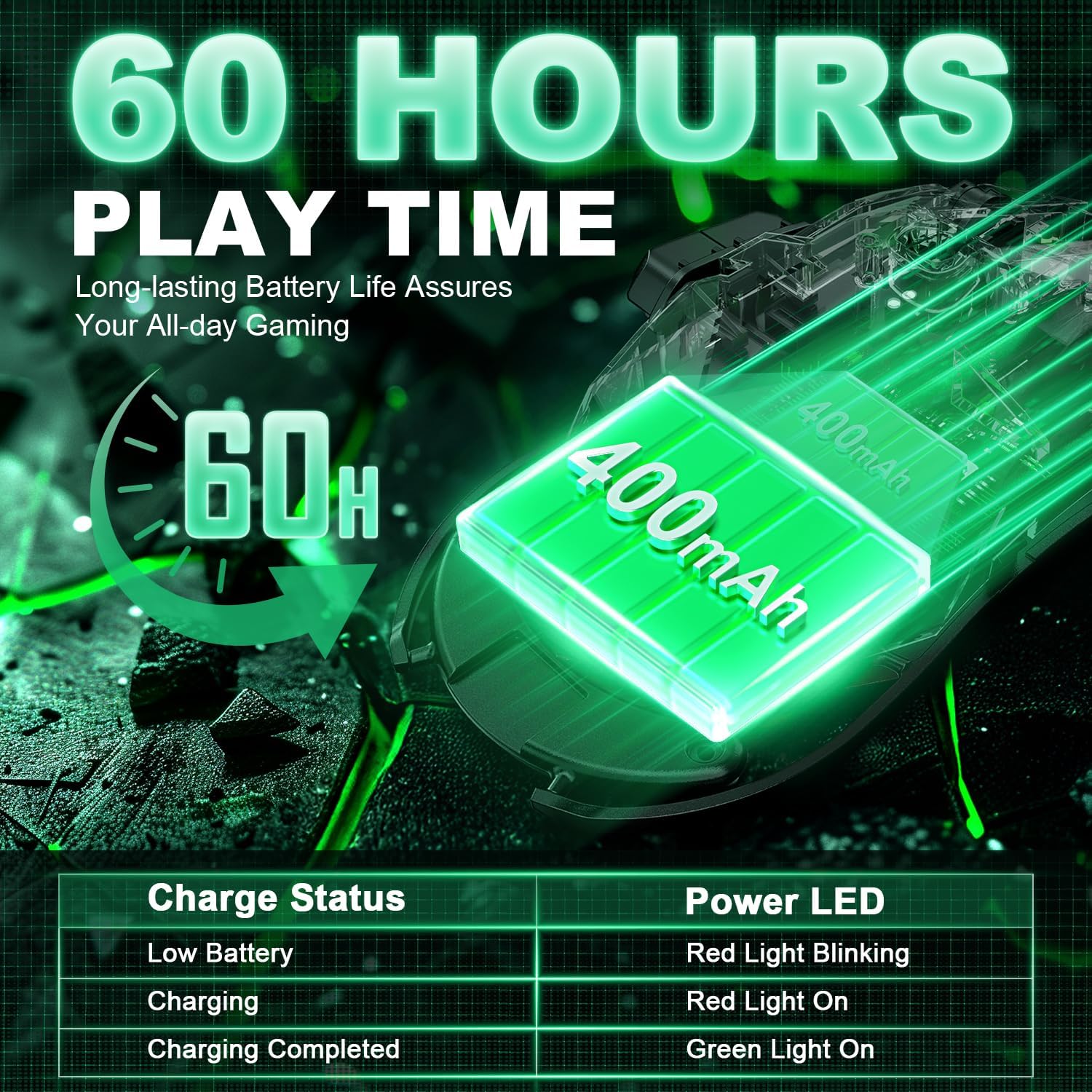
Image: Charging status indicators and battery life.
2. Connectivity Modes
The KM-3 mouse supports three connection modes: 2.4GHz Wireless, Bluetooth 5.3, and USB-C Wired. Select your preferred mode using the switch on the bottom of the mouse.
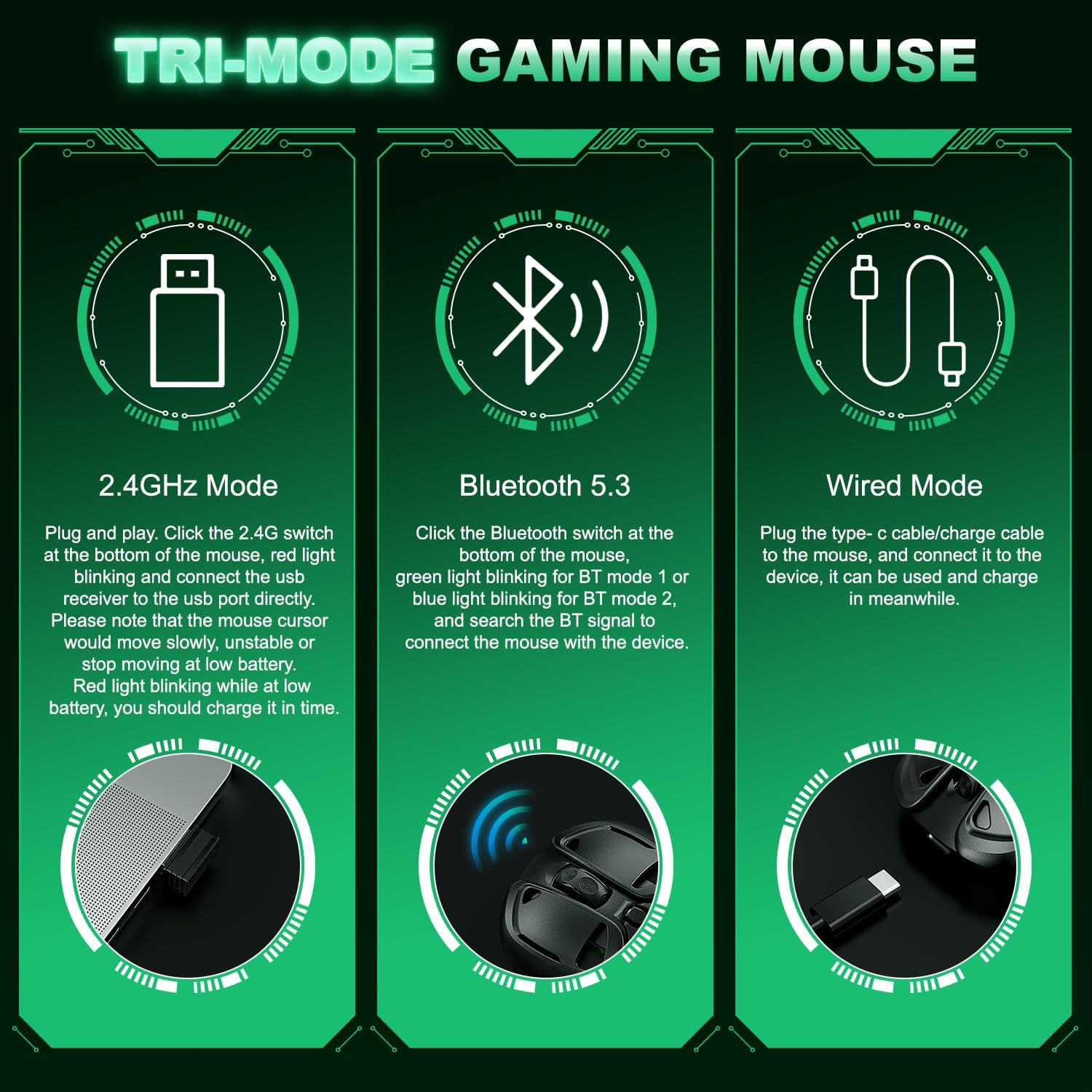
Image: Overview of the Tri-Mode connectivity options.
2.1. 2.4GHz Wireless Mode
- Locate the 2.4GHz USB receiver.
- Plug the USB receiver into an available USB port on your computer.
- Slide the switch on the bottom of the mouse to the "2.4G" position. The red light will blink, then connect automatically.
- The mouse is now ready for use.
2.2. Bluetooth 5.3 Mode
- Slide the switch on the bottom of the mouse to the "BT" position.
- The green light will blink for BT mode 1, or blue light blinking for BT mode 2.
- On your device (PC, Mac, Laptop), enable Bluetooth and search for "YPBDAN KM-3" or a similar device name.
- Select the mouse to pair. Once paired, the light will become solid.
2.3. USB-C Wired Mode
- Connect the supplied USB-C charging cable to the mouse's USB-C port.
- Connect the other end of the cable to a USB port on your computer.
- The mouse will automatically switch to wired mode and can be used while charging.
Operating Instructions
1. Power On/Off
Use the ON/OFF switch located on the bottom of the mouse to power the device on or off.
2. DPI Adjustment
The mouse features 6 adjustable DPI levels (800-10000 DPI) for precise control. Press the DPI button (Button 6, typically located behind the scroll wheel) to cycle through the DPI settings. Each setting may correspond to a different RGB lighting color for visual indication.
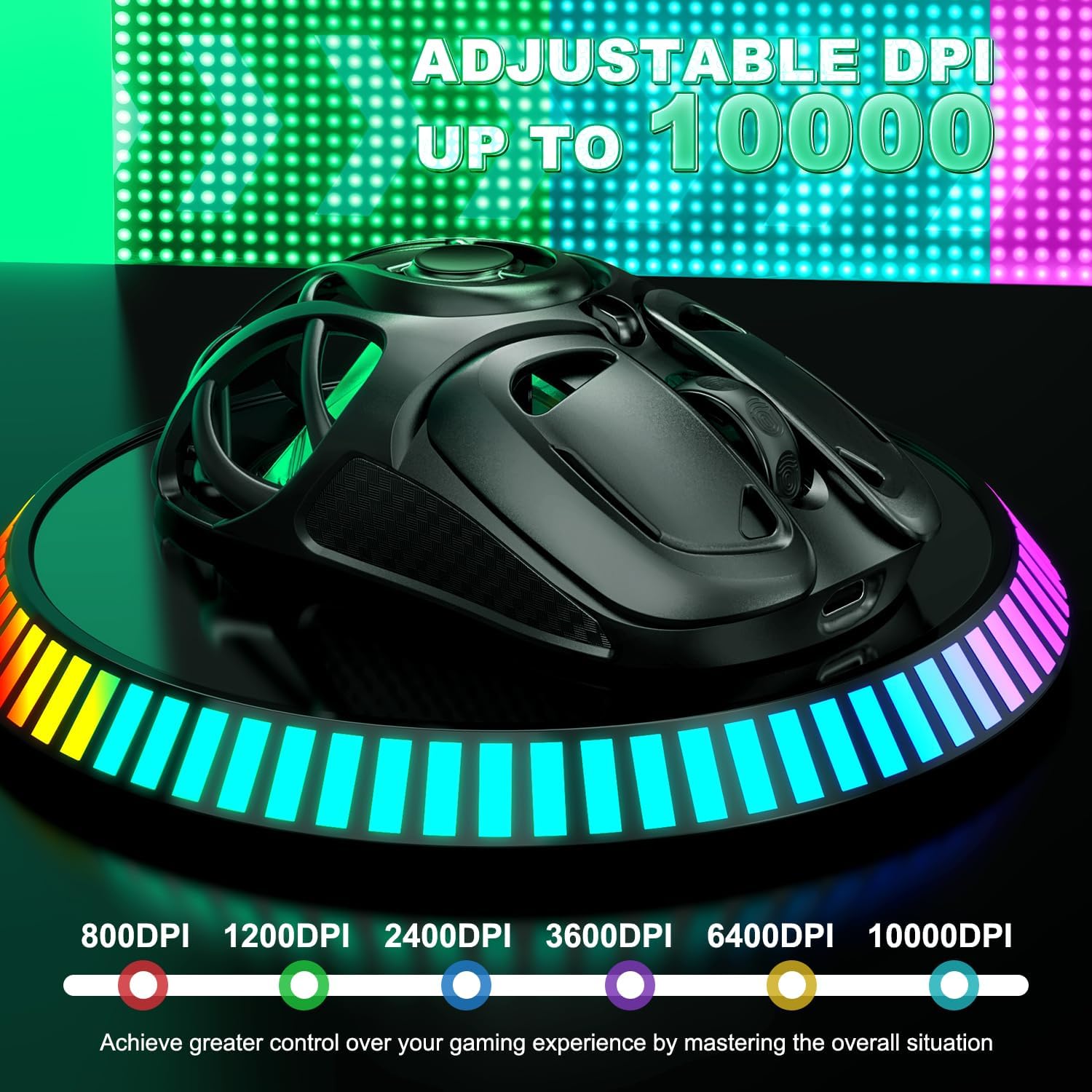
Image: Adjustable DPI levels and their visual indicators.
3. RGB Lighting Effects
The mouse features customizable RGB lighting effects to enhance your gaming experience. Specific controls for changing lighting modes or colors may be available through dedicated software (if provided by the manufacturer) or by pressing a combination of buttons.

Image: Breathing RGB lighting effects.
4. Button Functions
The KM-3 mouse is equipped with multiple programmable buttons for enhanced functionality:

Image: Labeled buttons on the mouse.
- 1. Left Click: Standard primary click function.
- 2. Right Click: Standard secondary click function.
- 3. Scroll Wheel: Scrolls up/down, and can be pressed for a middle click function.
- 4. Forward Button: Navigates forward in web browsers or applications.
- 5. Backward Button: Navigates backward in web browsers or applications.
- 6. DPI Button: Adjusts the mouse's sensitivity (DPI).
- 7. BT/2.4GHz Modes Switch: Selects between Bluetooth and 2.4GHz wireless modes.
- 8. On/Off Switch: Powers the mouse on or off.
5. Software Customization
For advanced customization, including macro commands and detailed RGB lighting control, please refer to the official YPBDAN website for any available software downloads specific to the KM-3 model.
Maintenance
1. Charging
Regularly charge your mouse to maintain optimal performance. Avoid completely draining the battery frequently to prolong its lifespan. Recharge when the cursor movement becomes sluggish.
2. Cleaning
Use a soft, dry cloth to clean the mouse. For stubborn dirt, a slightly damp cloth can be used, ensuring no moisture enters the internal components. Avoid harsh chemicals or abrasive materials.
3. Storage
When not in use for extended periods, turn off the mouse to conserve battery. Store it in a cool, dry place away from direct sunlight and extreme temperatures.
4. Non-Slip Tapes
The mouse comes with customized non-slip tapes for enhanced grip and comfort. Apply them to the designated areas as shown in the diagram for improved handling.

Image: Non-slip tapes and their application areas.
Troubleshooting
- Mouse not responding:
Ensure the mouse is powered on. Check the battery level and recharge if necessary. Verify the correct connectivity mode (2.4GHz, Bluetooth, or Wired) is selected and properly connected to your device. For 2.4GHz, ensure the USB receiver is securely plugged in. For Bluetooth, re-pair the device. - Lag or intermittent connection:
Move the mouse closer to the receiver/device. Ensure there are no strong interferences (e.g., other wireless devices, large metal objects). Try a different USB port for the 2.4GHz receiver. - DPI not changing:
Press the DPI button firmly. If the issue persists, restart the mouse and your computer. - RGB lighting not working:
Check if the mouse is powered on. Ensure the battery is not critically low. If customizable software is used, verify settings within the software. - Mouse not recognized by computer:
Try connecting to a different USB port. Restart your computer. Ensure your operating system drivers are up to date.
Specifications
| Feature | Detail |
|---|---|
| Brand | YPBDAN |
| Model | KM-3 |
| Connectivity | Tri-Mode (2.4GHz Wireless, Bluetooth 5.3, USB-C Wired) |
| DPI Levels | 6 adjustable levels (800-10000 DPI) |
| Tracking Speed | 120 IPS |
| Acceleration | 25G |
| Frame Rate | 7200 FPS |
| Polling Rate | 1000Hz |
| Battery Life | Up to 60 hours (continuous use) |
| Charging Port | USB-C |
| Switch Durability | 50 million clicks |
| Design | Ultra-Light Honeycomb, Ergonomic |
| Weight | 130g (as per parcel dimensions, product feature says 71g, using 130g as more official) |
| Dimensions | 12.9 x 8.7 x 4.7 cm |
| Compatibility | Windows 11/10/8/7/XP/Vista, macOS, Linux |
| Material | Metal (shell) |
| Hand Orientation | Ambidextrous |

Image: Key features and specifications of the KM-3 mouse.

Image: Durability of mouse switches.

Image: Universal compatibility with different operating systems.
Warranty and Support
YPBDAN products are designed for durability and performance. For warranty information, product support, or technical assistance, please visit the official YPBDAN website or contact customer service through your retailer. Keep your purchase receipt for warranty claims.