
1. Introduction
This manual provides detailed instructions for the installation, operation, and maintenance of your GOHHDL Android 15 Car Stereo. Please read this manual thoroughly before using the product to ensure proper functionality and safety.
2. Safety Information
- Ensure professional installation to prevent damage to the vehicle's electrical system.
- Do not operate the device in a manner that distracts you from driving.
- Keep the volume at a safe level to hear external traffic sounds.
- Avoid exposing the unit to extreme temperatures or direct sunlight for prolonged periods.
- Do not attempt to disassemble or modify the unit. This may void the warranty and cause damage.
3. Package Contents
Verify that all items are present in the package:
- Car Stereo Unit
- Power Cable
- RCA Cable
- Microphone
- Accessories
- Backup Camera
- USB Cable
- GPS Antenna
- Rear View Input Cable
- Radio Antenna
- User Manual
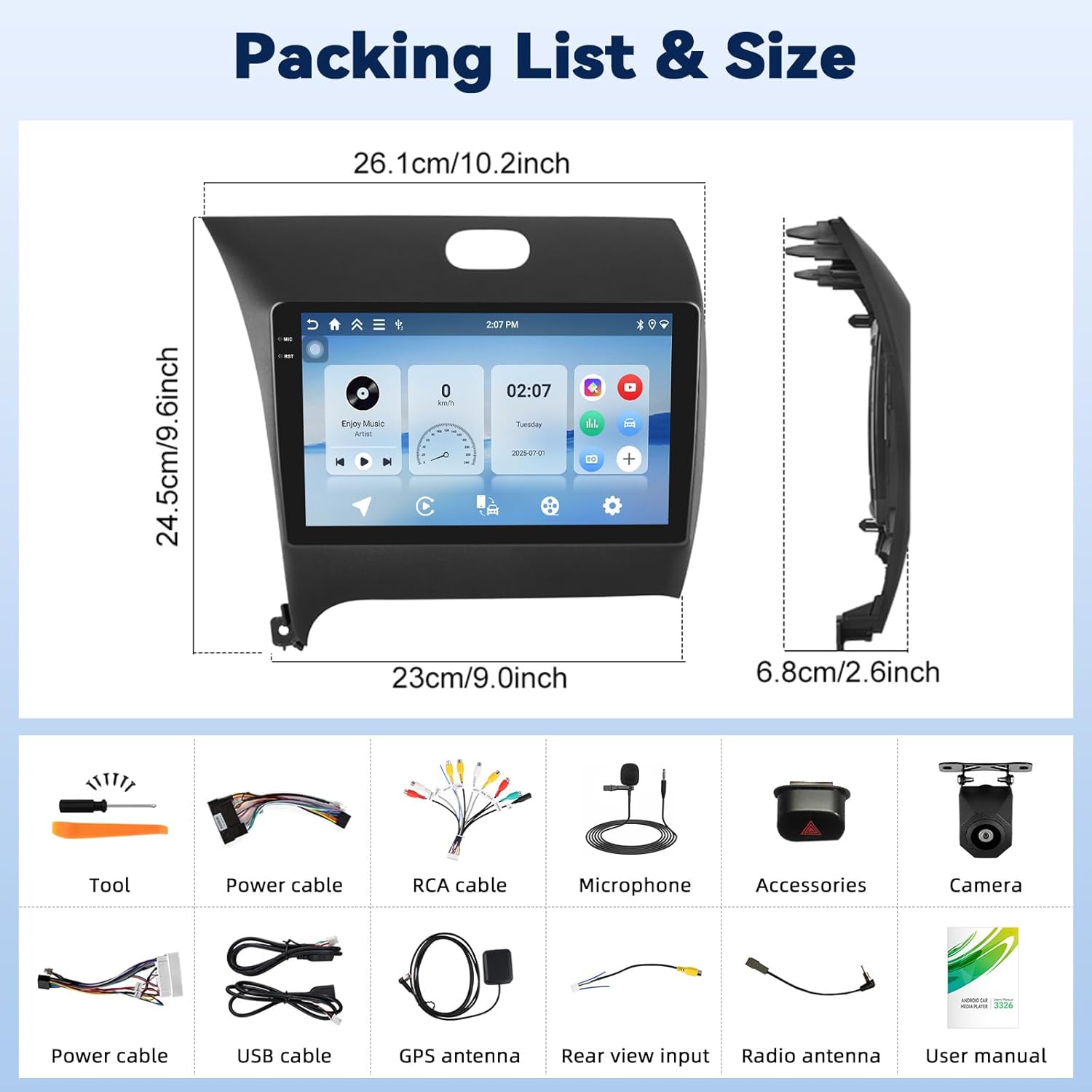
Image: Detailed view of the GOHHDL Android 15 Car Stereo package contents.
4. Product Overview
The GOHHDL Android 15 Car Stereo is designed to enhance your driving experience with advanced features and seamless integration. It features a 9-inch Incell screen and is compatible with Kia Forte Cerato K3 models from 2013-2018.
Key Features:
- High Performance: Equipped with 4GB RAM and 128GB storage, running on the latest Android 15 for smooth application performance.
- Display: 9.0-inch Incell screen with high color saturation and enhanced visibility, supporting split-screen functionality.
- Wireless Connectivity: Supports Wireless CarPlay and Android Auto for seamless smartphone integration, including navigation, calls, and music.
- Bluetooth: Hands-free calling and music streaming.
- Audio: FM radio with RDS technology and adjustable EQ equalizer for a customized sound experience.
- Navigation & Internet: Built-in GPS and Wi-Fi connectivity for system updates, online navigation, and app downloads.
- Safety Features: Includes a 170° ultra-wide AHD backup camera with night vision and Steering Wheel Control (SWC) compatibility.

Image: GOHHDL Android 15 Car Stereo main unit and included components.
5. Setup and Installation
Professional installation is recommended. Ensure the vehicle's power is disconnected before beginning installation.
5.1. Physical Installation
The car stereo is designed for direct fitment in Kia Forte Cerato K3 models from 2013-2018. Carefully remove the original car stereo and connect the new unit using the provided wiring harnesses. Ensure all connections are secure.

Image: Comparison of the car dashboard before and after installing the GOHHDL car stereo.
5.2. Bluetooth Connection
To enable hands-free calling and music streaming, connect your smartphone via Bluetooth.
- On the car stereo, open the S-Play application.
- Navigate to the Bluetooth settings on your smartphone and enable Bluetooth.
- Search for available devices on your phone and select the car stereo's Bluetooth name (e.g., BLINK_UNW2652).
- Confirm the pairing request on both devices.
Video: Demonstrates the process of connecting a smartphone to the car stereo via Bluetooth.
5.3. Wireless CarPlay & Android Auto Connection
Connect your smartphone wirelessly for an integrated driving experience.
- Ensure your phone's Bluetooth is connected to the car stereo.
- On the car stereo, open the S-Play application.
- Follow the on-screen prompts to initiate CarPlay or Android Auto. This may involve enabling Wi-Fi on your phone for the connection.
Video: Shows the steps for connecting a smartphone to the car stereo for Wireless CarPlay and Android Auto functionality.

Image: Visual representation of wireless CarPlay, Android Auto, and Mirror Link features.
5.4. Mirror Link (Jlink) Connection
To mirror your phone's screen to the car stereo, use the Jlink application.
- Open the Jlink application on the car stereo.
- Connect the car stereo to your mobile phone's hotspot.
- If connecting for the first time, download the Jlink client to your phone by scanning the QR code provided in the Jlink app on the stereo.
- On your mobile phone, open the Jlink app and initiate screen casting.
Video: Demonstrates the Jlink connection process for screen mirroring.
5.5. Steering Wheel Control (SWC) Setup
If your vehicle has original steering wheel buttons, you can configure them to control the car stereo.
- Access the Steering Wheel Control settings on the car stereo.
- Follow the on-screen instructions to program each button by pressing the corresponding button on your steering wheel and then selecting the desired function on the stereo screen.

Image: Reversing display and Steering Wheel Control interface.
5.6. Screen Calibration
If the touchscreen response is inaccurate, you may need to calibrate the screen.
Video: Guide on how to calibrate the car radio screen for accurate touch response.
6. Operating Instructions
6.1. Basic UI Navigation
The car stereo features a customizable homepage with multiple UI interfaces and wallpapers. Swipe left or right to access different app screens. Use the navigation bar at the top for quick access to common functions like Home, Back, and Volume.
Video: Overview of the user interface functions, CarPlay, Android Auto, and navigation.
6.2. Audio Playback and Settings
Enjoy music from various sources, including Bluetooth, FM/RDS radio, and installed media apps. Adjust the sound using the built-in equalizer (EQ) for optimal audio quality.

Image: Bluetooth, FM/RDS Radio, and EQ settings.
Video: Demonstrates music playback, EQ adjustment, sound filter, and sound field balance.
6.3. GPS Navigation
The unit supports GPS navigation with real-time traffic updates. You can use pre-installed maps or download other navigation applications from the Google Play Store.

Image: GPS navigation and Wi-Fi features.
Video: Demonstrates Google Maps navigation and support for other map applications.
6.4. Video Playback and Split Screen
The car stereo supports 1080P HD video playback. Utilize the split-screen function to run two applications simultaneously, such as navigation and video playback.
Video: Shows 1080P HD video playback and split-screen display.
6.5. App Installation (Google Play Store)
Connect to Wi-Fi and access the Google Play Store to download and install various applications.
Video: Demonstrates accessing the Google Play Store and installing applications.
6.6. Backup Camera Operation
The included AHD backup camera provides a 170° ultra-wide view with night vision, automatically displaying the rear view when the vehicle is in reverse gear.
Image: Reversing display with parking guidelines.
Video: Shows the HD night vision reversing image.
7. Maintenance
- Cleaning: Use a soft, dry cloth to clean the screen and exterior. Avoid abrasive cleaners or solvents.
- Software Updates: Periodically check for system updates via Wi-Fi to ensure optimal performance and access to new features.
- Temperature: Do not expose the unit to extreme temperatures.
8. Troubleshooting
| Problem | Possible Cause | Solution |
|---|---|---|
| Unit does not power on | Incorrect wiring; Blown fuse | Check power connections; Replace fuse if necessary. |
| No sound | Speaker wires disconnected; Volume too low | Check speaker connections; Increase volume. |
| Bluetooth not connecting | Bluetooth not enabled; Incorrect pairing | Ensure Bluetooth is on; Re-pair device. |
| GPS signal lost | GPS antenna obstructed or disconnected | Ensure clear view of sky for antenna; Check antenna connection. |
| Touchscreen unresponsive | Software glitch; Calibration needed | Restart the unit; Perform screen calibration. |
9. Specifications
| Feature | Specification |
|---|---|
| Model | B0FMHTH9BT |
| Operating System | Android 15 |
| RAM | 4GB |
| Storage | 128GB |
| Screen Size | 9 Inches |
| Touch Screen Type | In-cell |
| Connectivity | Bluetooth, Wi-Fi |
| Navigation | GPS, Worldwide Map Type |
| Item Weight | 3.03 pounds (1.38 Kilograms) |
| Package Dimensions | 11.57 x 11.14 x 4.02 inches |
10. Warranty and Support
GOHHDL provides the following support for this product:
- Warranty: 1-year manufacturer's warranty.
- Money-Back Guarantee: 30-day money-back guarantee.
- Replacement: 12-month replacement policy.
- Technical Support: Lifetime technical support.
- Online Reply: Online support replies within 18 hours.
For technical assistance or warranty claims, please contact GOHHDL customer support.