
Introduction
This manual provides essential instructions for setting up, operating, maintaining, and troubleshooting your JJGJ P80 11-inch Android 15 Tablet. Please read this guide thoroughly to ensure optimal performance and longevity of your device.
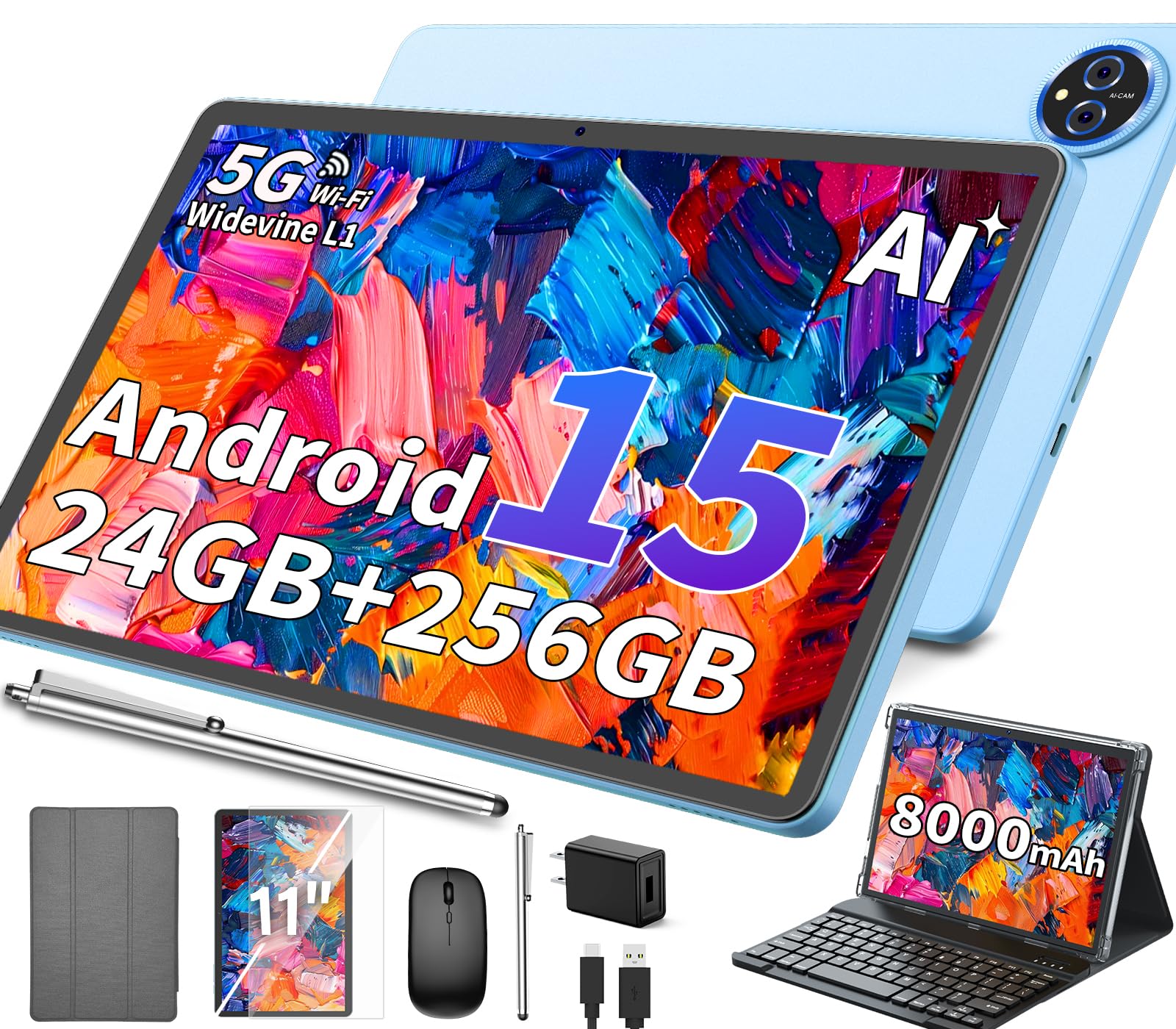
Image: The JJGJ P80 11-inch Android 15 Tablet, showcasing its sleek design.
Package Contents
Verify that all items are present in your package:
- 1 x JJGJ 11-inch Android 15 Tablet
- 1 x Keyboard
- 1 x Mouse
- 1 x Stylus Pen
- 1 x Foldable Protective Case
- 1 x Screen Protector
- 1 x Charging Head (Power Adapter)
- 1 x USB-C Charger Cable
- 1 x User Manual (this document)

Image: An illustration showing the tablet and all included accessories: keyboard, mouse, stylus, case, screen protector, charging head, USB-C cable, and user manual.
Setup Guide
1. Initial Charging
Before first use, fully charge the tablet. Connect the USB-C charger cable to the tablet's USB-C port and the charging head, then plug it into a power outlet. The battery indicator will show charging status.

Image: The tablet connected to a charger, illustrating the 8000mAh battery capacity.
2. Powering On/Off
- To Power On: Press and hold the Power Button located on the side of the tablet until the screen illuminates.
- To Power Off: Press and hold the Power Button, then select "Power off" from the options on the screen.
- To Restart: Press and hold the Power Button, then select "Restart" from the options on the screen.
3. Initial Setup Wizard
Upon first power-on, the Android 15 setup wizard will guide you through:
- Language selection
- Wi-Fi network connection
- Google account sign-in or creation
- Date and time settings
- Security settings (PIN, pattern, password, or Face Unlock)
4. Connecting Accessories
Your tablet comes with a keyboard, mouse, and stylus for enhanced productivity.
- Keyboard & Mouse: These accessories typically connect via Bluetooth.
- Ensure the keyboard/mouse are charged and powered on.
- On your tablet, go to Settings > Connected devices > Bluetooth.
- Turn on Bluetooth and scan for available devices.
- Select the keyboard or mouse from the list and follow on-screen pairing instructions.
- Stylus Pen: The stylus pen is generally passive and does not require pairing. Simply use it directly on the screen.
- Protective Case: Insert the tablet into the foldable protective case for protection and versatile viewing angles.

Image: The JJGJ P80 tablet shown with its accompanying keyboard, mouse, and stylus, demonstrating its 2-in-1 functionality.
Operating Your Tablet
1. Android 15 Interface
Your tablet runs on the Android 15 operating system, offering an intuitive user experience with enhanced privacy features and performance optimizations.
- Navigation: Use touch gestures (tap, swipe, pinch) or the connected mouse for navigation.
- Home Screen: Customize with widgets and app shortcuts.
- Notifications: Swipe down from the top of the screen to access notifications and quick settings.
- App Drawer: Swipe up from the bottom of the screen to view all installed applications.

Image: The Android 15 operating system interface, highlighting features like Widevine L1 support, parental controls, GPS navigation, and Face Unlock.
2. Display and Media
The 11-inch IPS display with 1280x800 resolution provides a clear visual experience. Widevine L1 certification allows for high-definition streaming from platforms like Netflix.
- Brightness Adjustment: Adjust screen brightness via quick settings or Settings > Display.
- Audio: Use the built-in speakers or connect headphones via the 3.5mm headphone jack or Bluetooth.
- Split Screen: Utilize the split-screen feature for multitasking by holding an app icon and dragging it to one side of the screen.

Image: A close-up of the tablet's 11-inch IPS display, emphasizing its clarity and 1280x800 resolution.
3. Storage and Performance
With 24GB RAM and 256GB internal storage, expandable up to 2TB via a Micro SD card (not included), your tablet offers ample space and smooth performance powered by the Octa-Core T615 processor.
- Expand Storage: Insert a Micro SD card into the TF/SIM card slot to expand storage.
- App Management: Regularly clear cache and close unused apps to maintain performance.

Image: Visual representation of the tablet's 24GB RAM, 256GB ROM, and 2TB expandable storage capacity.

Image: A detailed view of the Unisoc T615 Octa-core processor, highlighting its technical specifications.
4. Connectivity
- Wi-Fi: Connect to 2.4GHz or 5.0GHz Wi-Fi networks via Settings > Network & internet > Wi-Fi.
- Bluetooth: Pair with Bluetooth devices (headphones, speakers) via Settings > Connected devices > Bluetooth.
- GPS: The tablet supports GPS for navigation. Ensure location services are enabled in settings for optimal performance.
5. Camera Functionality
The tablet features a 13MP main camera and a 5MP front camera for photos and video calls.
- Open the Camera app to capture photos or record videos.
- Adjust settings like flash, timer, and mode within the camera interface.

Image: An overview of the tablet's 13MP main camera and 5MP front camera, along with other features like dual-band Wi-Fi and GPS positioning.
Maintenance
- Cleaning: Use a soft, lint-free cloth to clean the screen and body. Avoid abrasive cleaners or solvents.
- Software Updates: Regularly check for and install system updates via Settings > System > System update to ensure optimal performance and security.
- Battery Care:
- Avoid extreme temperatures.
- Do not let the battery fully discharge frequently.
- Use the provided charger for optimal charging.
- Storage Management: Periodically review and delete unnecessary files and applications to free up storage space and improve performance.
- Backup Data: Regularly back up important data to cloud storage or an external device to prevent data loss.
Troubleshooting
Common Issues and Solutions:
| Problem | Solution |
|---|---|
| Tablet does not power on. | Ensure the tablet is charged. Connect to the charger for at least 30 minutes, then try powering on again. If unresponsive, press and hold the power button for 10-15 seconds to force a restart. |
| Wi-Fi connection issues. | Restart your Wi-Fi router and the tablet. Go to Settings > Network & internet > Wi-Fi, forget the network, and reconnect. |
| Bluetooth device not pairing. | Ensure the Bluetooth device is in pairing mode and within range. On the tablet, go to Settings > Connected devices > Bluetooth, turn Bluetooth off and on, then rescan. |
| Tablet is slow or unresponsive. | Close unused applications. Clear app caches (Settings > Apps > select app > Storage & cache > Clear cache). Restart the tablet. Consider a factory reset if issues persist (backup data first). |
| Battery drains quickly. | Reduce screen brightness. Close background apps. Disable Wi-Fi/Bluetooth/GPS when not in use. Check battery usage in Settings > Battery to identify power-hungry apps. |
For persistent issues, contact customer support or refer to the official JJGJ website for further assistance.
Specifications
| Feature | Detail |
|---|---|
| Model Name | P80 |
| Operating System | Android 15 |
| Processor | Octa-Core T615 |
| Display Size | 11 Inches |
| Screen Resolution | 1280 x 800 Pixels (IPS) |
| RAM | 24GB (6GB fixed + 18GB virtual) |
| Internal Storage (ROM) | 256GB |
| Expandable Storage | Up to 2TB (Micro SD card not included) |
| Battery Capacity | 8000mAh |
| Wi-Fi | Dual-band (2.4GHz & 5.0GHz), 802.11ac, 802.11ax |
| Bluetooth | Bluetooth 5.0 |
| Front Camera | 5MP |
| Rear Camera | 13MP |
| Ports | USB-C, 3.5mm Headphone Jack, TF/SIM Card Slot |
| Special Features | Widevine L1 Support, GPS, Face Unlock, GMS Certified |
| Dimensions (LxWxH) | 15 x 12 x 10 inches |
| Item Weight | 3.19 pounds |
Warranty and Support
Your JJGJ P80 tablet is covered by a standard manufacturer's warranty. Please refer to the warranty card included in your package for specific terms and conditions.
Customer Support:
For technical assistance, troubleshooting, or warranty claims, please contact JJGJ customer support through the retailer where you purchased the device or visit the official JJGJ website.
Keep your purchase receipt and product serial number handy when contacting support.