
CiwDehuanle 20250814
Smart Tag GPS Locator User Manual
Model: 20250814
1. Introduction
The CiwDehuanle Smart Tag is a compact and reliable GPS locator designed to help iOS users easily find lost items such as keys, wallets, luggage, and more. This device integrates seamlessly with Apple's Find My network, offering precise positioning and instant alerts to prevent loss. Its durable, waterproof design and long-lasting replaceable battery ensure continuous functionality.
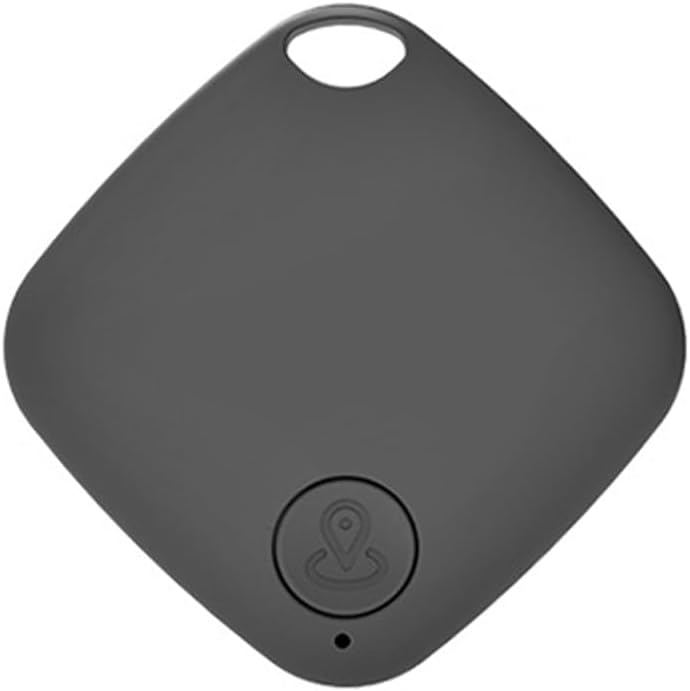
Figure 1: CiwDehuanle Smart Tag (A-1 Black)
This image displays the main unit of the Smart Tag, highlighting its compact, square design in black with a small loop for easy attachment to various items. A central button with a location icon is visible, indicating its primary function.
Have you ever experienced the frustration of misplacing essential items? The Smart Tag is engineered to alleviate this common problem, providing peace of mind by keeping track of your valuables.
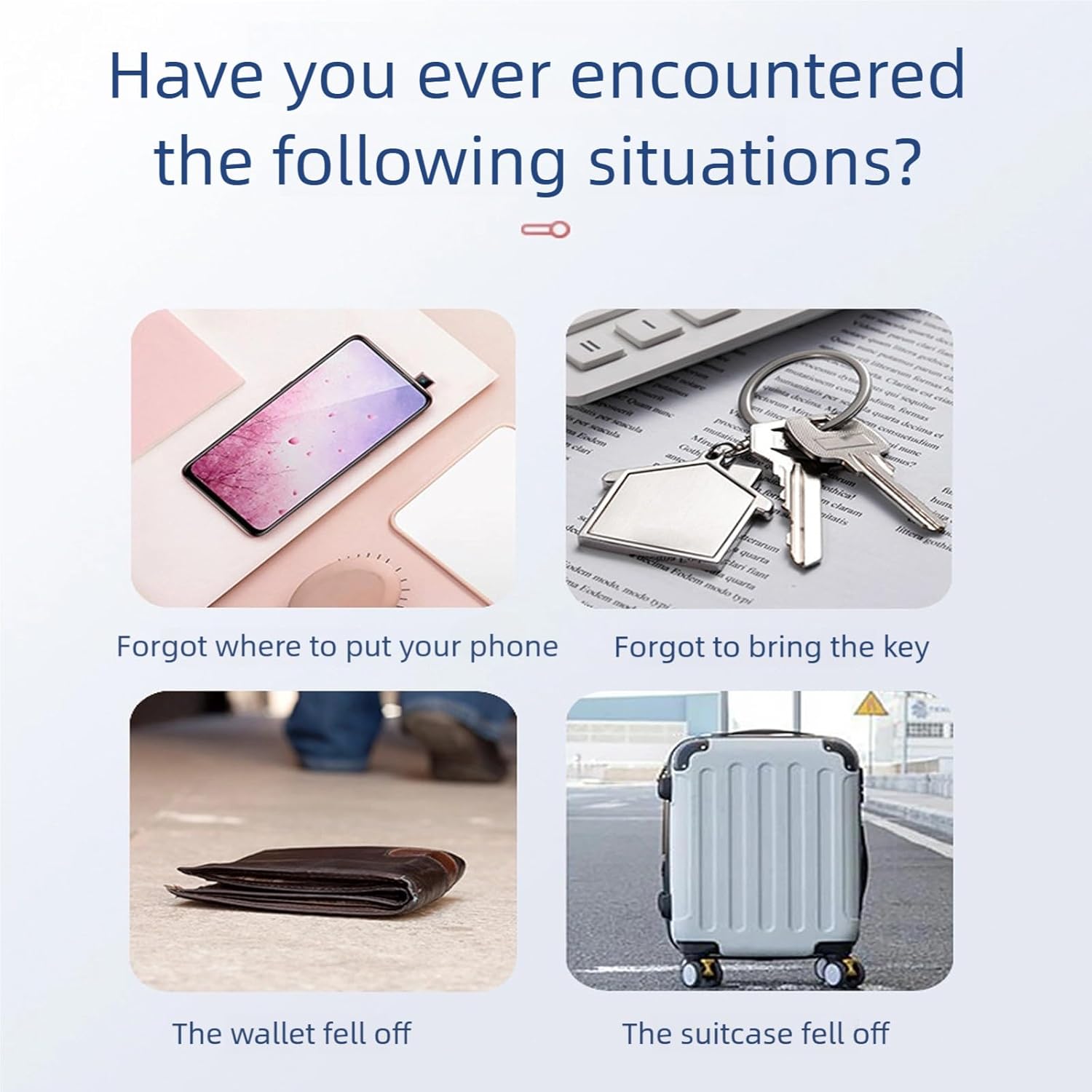
Figure 2: Common Scenarios for Lost Items
This image illustrates typical situations where the Smart Tag proves useful, showing a forgotten phone, misplaced keys, a dropped wallet, and lost luggage, emphasizing the product's utility in everyday life.
2. Key Features
- Easy Item Location: Utilizes Apple Find My network (iOS only) to locate items. The Smart Tag can play a 100dB sound, or you can ask Siri for its location. No subscriptions required.
- Instant Disconnection Alerts: Receive immediate notifications on your iOS device if your Smart Tag disconnects, reminding you if you leave an item behind.
- Lost Mode: If an item is lost, enable Lost Mode to allow other Apple devices to anonymously share its location, helping you retrieve it quickly.
- IP67 Waterproof: Designed to withstand splashes and temporary submersion, ensuring durability in various conditions.
- Replaceable Battery: Powered by a CR2032 battery with approximately 1 year of life. Low battery alerts simplify replacement.
- Privacy Focused: Features ISO encryption to secure location data, ensuring that even manufacturers cannot access your information. Anti-tracking alerts are provided for unknown tags.
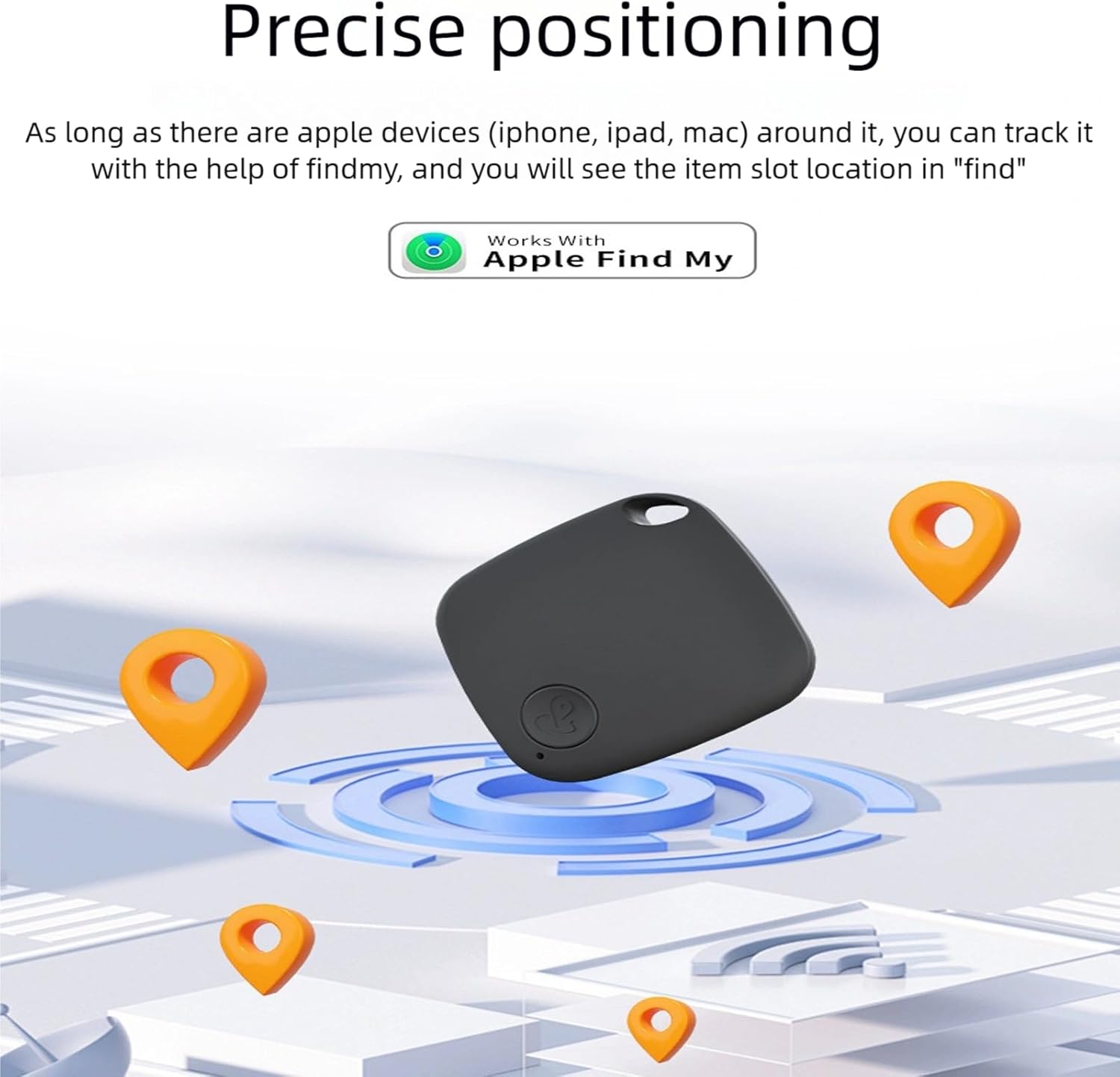
Figure 3: Precise Positioning with Apple Find My
This image illustrates the Smart Tag's capability for precise positioning, showing it integrated with the Apple Find My network, indicated by the "Works With Apple Find My" logo and surrounding location markers.
3. Setup Guide
- Power On: Ensure the Smart Tag has a working CR2032 battery installed. The device is typically ready for pairing upon activation.
- Enable Bluetooth: On your iOS device (iPhone, iPad, or Mac), ensure Bluetooth is enabled.
- Open Find My App: Launch the "Find My" application on your iOS device.
- Add Item: Navigate to the "Items" tab and tap the "+" icon. Select "Add Other Item."
- Pairing: Follow the on-screen instructions to pair your Smart Tag. This usually involves bringing the tag close to your device and pressing a button on the tag if prompted.
- Name Your Tag: Assign a name to your Smart Tag (e.g., "Keys," "Wallet," "Luggage") to easily identify it in the Find My app.
- Attach Tag: Securely attach the Smart Tag to the item you wish to track.
4. Operating Instructions
4.1 Locating a Lost Item
- Using Find My App: Open the Find My app on your iOS device. Select the Smart Tag you wish to locate from the "Items" tab.
- Play Sound: If the item is nearby, tap "Play Sound" to make the Smart Tag emit a loud 100dB sound, guiding you to its location.
- View on Map: If the item is out of Bluetooth range, the Find My app will display its last known location on a map, utilizing the Apple Find My network.

Figure 4: App Breakpoint Positioning
This image shows a smartphone screen displaying a map, illustrating how the Smart Tag's last known location can be viewed within the mobile application, allowing users to track and retrieve misplaced items.
4.2 Anti-Loss Alarm
- The Smart Tag is designed to automatically emit an alarm sound if it exceeds a certain distance from your paired iOS device (e.g., over 15 meters), reminding you that you may have left an item behind.
- Your iOS device will also receive a notification when the connection is lost.

Figure 5: Automatic Alarm to Prevent Loss
This diagram illustrates the anti-loss feature, showing the Smart Tag emitting an alarm when it moves beyond a set distance (e.g., 15 meters) from the paired mobile phone, preventing items from being forgotten.
4.3 Finding Your Phone (Reverse Function)
- If you cannot find your mobile phone, double-click the button on your Smart Tag. Your phone will then make a prompt sound, helping you locate it.

Figure 6: Bluetooth Alarm Reminder for Phone
This image demonstrates the reverse finding capability, where double-clicking the Smart Tag can make the paired mobile phone emit a sound, assisting users in locating their phone.
5. Maintenance
5.1 Battery Replacement
The Smart Tag uses a replaceable CR2032 coin cell battery, which typically lasts for about 1 year. You will receive a low battery alert on your iOS device when it's time to replace it.
- Locate the battery compartment on the Smart Tag.
- Carefully open the compartment using a small tool if necessary (refer to product diagram for specific opening mechanism).
- Remove the old CR2032 battery.
- Insert a new CR2032 battery with the positive (+) side facing up.
- Close the battery compartment securely.
5.2 Cleaning and Care
- Wipe the Smart Tag with a soft, dry cloth.
- Avoid using harsh chemicals or abrasive cleaners.
- While the device is IP67 waterproof, avoid prolonged submersion or exposure to high-pressure water jets.
6. Troubleshooting
| Problem | Possible Cause | Solution |
|---|---|---|
| Smart Tag not connecting to iOS device. | Bluetooth is off; battery is low/dead; tag is out of range; pairing issue. | Ensure Bluetooth is on. Replace battery. Bring tag closer to device. Re-pair the tag via the Find My app. |
| Sound not playing when trying to locate. | Tag is out of Bluetooth range; battery is low/dead. | Check the map for its last known location. Replace battery. |
| Anti-loss alarm not triggering. | Distance too short; feature disabled in app settings; interference. | Ensure sufficient distance. Check app settings for alarm preferences. Move away from sources of strong interference. |
| Phone not ringing when double-clicking tag. | Phone is on silent/Do Not Disturb; tag is not paired; tag battery is low. | Check phone's sound settings. Ensure tag is paired. Replace tag battery. |
7. Specifications
| Attribute | Detail |
|---|---|
| Brand | CiwDehuanle |
| Model Number | 20250814 |
| Dimensions | 37mm x 37mm x 8mm |
| Weight | 8.4g |
| Battery Type | CR2032 (replaceable) |
| Battery Life | Approximately 1 year |
| Water Resistance | IP67 (splash and temporary submersion resistant) |
| Compatibility | iOS devices only (Apple Find My network) |
| Alarm Sound Level | 100dB |

Figure 7: Product Parameters
This image provides a visual overview of the Smart Tag's physical specifications, including its dimensions (37mm x 37mm x 8mm), weight (8.4g), and the type of battery it uses (CR2032).
8. Warranty and Support
For warranty information and technical support, please refer to the official CiwDehuanle website or contact their customer service directly. Keep your purchase receipt as proof of purchase for any warranty claims.
For further assistance, please visit: CiwDehuanle Official Store on Amazon
Ask a question about this manual
Ask about setup, troubleshooting, compatibility, parts, safety, or missing instructions. Manuals+ will review the question and use this page’s manual context to help answer it.