
Introduction
Welcome to your new Generic TC41 AMOLED Smart Watch. This device combines advanced technology with a sleek design, offering a 2.2-inch curved AMOLED display, Android operating system, 5G connectivity, and a unique rotating camera. This manual provides essential information for setup, operation, and maintenance to ensure you get the most out of your smart watch.
Important Safety Information
Read all safety instructions before using your smart watch. Do not expose the device to extreme temperatures, direct sunlight for prolonged periods, or excessive moisture. Avoid disassembling the watch, as this will void the warranty and may cause damage. Use only approved chargers and accessories to prevent damage and ensure safe operation. Keep the device away from small children.
Package Contents
Your Generic TC41 AMOLED Smart Watch package should contain the following items:
- Generic TC41 AMOLED Smart Watch
- Orange Silicone Strap (may be pre-installed or separate)
- Two additional interchangeable straps
- Charging Cable
- User Manual (this document)

This image displays the TC41 AMOLED Smart Watch, highlighting its curved screen and the inclusion of three pairs of straps, indicating customization options.
Setup Guide
1. Charging the Smart Watch
Before first use, fully charge your smart watch. Connect the charging cable to the watch's charging port and a compatible USB power adapter. The screen will indicate the charging status. A full charge is recommended for optimal battery performance.
2. Installing the SIM Card
The TC41 Smart Watch supports 5G connectivity via a SIM card. Locate the SIM card slot on the side of the watch. Carefully insert a nano-SIM card with the gold contacts facing down, ensuring it clicks securely into place. Refer to the diagram for correct orientation.
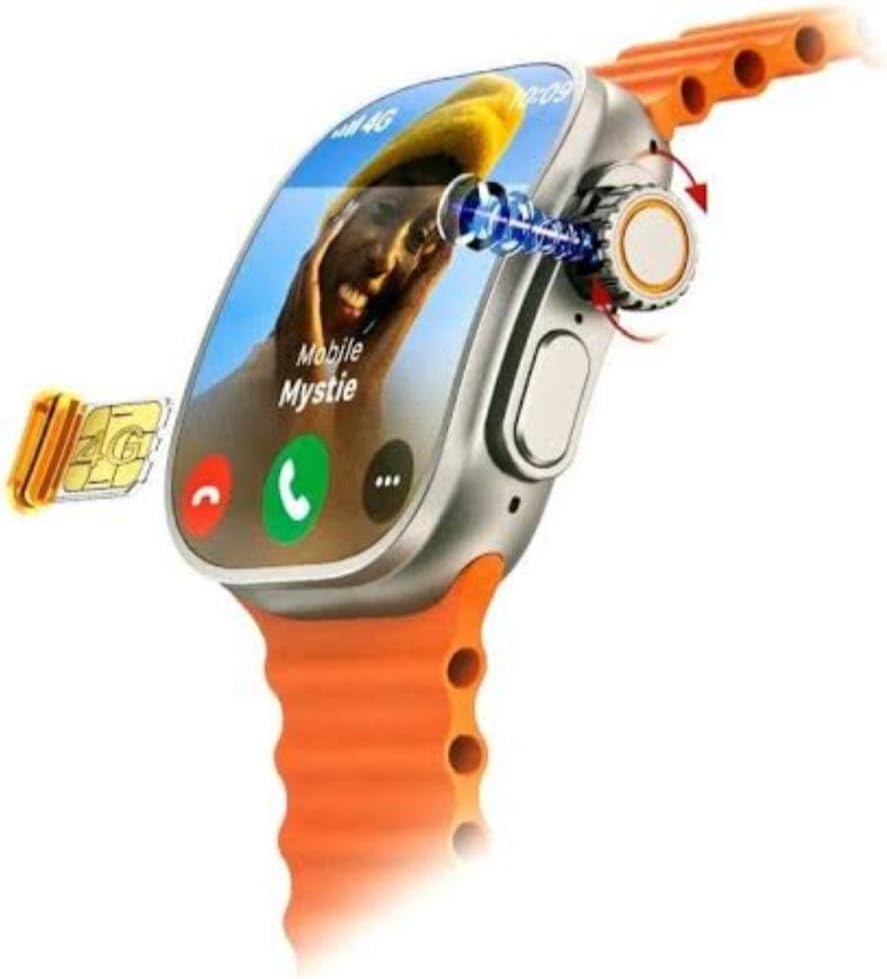
This image illustrates the side of the smart watch with an open slot for a SIM card, next to a display showing an active call, demonstrating its communication capabilities.

This image provides a clear view of the SIM card slot on the side of the watch, with the screen displaying a vibrant image, indicating the watch's display quality.
3. Attaching/Changing Straps
To attach a strap, align the spring bars with the lug holes on the watch body and slide them into place until they click. To change a strap, gently push the spring bar lever inwards and detach the strap. Repeat the process for the new strap, ensuring it is securely fastened.
4. Powering On/Off
To power on the watch, press and hold the power button (typically located on the side) until the screen illuminates. To power off, press and hold the power button again, then select 'Power Off' from the options displayed on the screen.
5. Initial Configuration
Upon first power-on, follow the on-screen prompts to select your preferred language, connect to a Wi-Fi network, and pair with your smartphone (if desired) via Bluetooth. Download the recommended companion app (if applicable) from the Google Play Store on your smartphone for full functionality and synchronization.
Operating Your Smart Watch
1. Navigation
The TC41 features a responsive 2.2-inch AMOLED touchscreen. Swipe left, right, up, or down to navigate through menus, applications, and notifications. The rotating crown on the side can also be used for scrolling through lists and selecting items with a press.
2. Using the Rotating Camera
Your smart watch is equipped with a unique rotating camera. To activate the camera, open the camera application from the app menu. You can then physically rotate the camera module to adjust the angle for taking photos or making video calls, offering flexibility in capturing moments.

This image highlights the innovative rotating camera feature of the smart watch, showing the camera lens extended from the side, ready for use.
3. Making and Receiving Calls
With a SIM card installed, you can make and receive calls directly from your watch. Use the dialer application to input numbers or select contacts. Answer incoming calls by tapping the green icon on the screen, and end calls by tapping the red icon.
4. Applications and Connectivity
The Android operating system allows access to a wide variety of applications. Connect to Wi-Fi for internet access or utilize 5G connectivity with your installed SIM card. Bluetooth enables connection to wireless headphones or seamless smartphone pairing. Access popular apps like YouTube, TikTok, GPS, and Deepseek directly from your watch's app menu, and download more from the Google Play Store.
Maintenance and Care
Cleaning
Wipe the watch screen and body with a soft, lint-free cloth. For stubborn marks or smudges, slightly dampen the cloth with water. Avoid using harsh chemicals, abrasive materials, or solvents, as these can damage the finish and internal components.
Storage
When not in use for extended periods, store the watch in a cool, dry place away from direct sunlight. Ensure the watch is partially charged (around 50%) to maintain optimal battery health over time.
Troubleshooting
If you encounter issues with your smart watch, please refer to the following common problems and solutions:
| Problem | Possible Solution |
|---|---|
| Watch does not power on | Ensure the watch is fully charged. Press and hold the power button for at least 10 seconds to attempt a forced restart. |
| Cannot connect to network (5G/Wi-Fi) | Check if the SIM card is correctly inserted. Verify the Wi-Fi password and ensure you are within network coverage. Restart the watch and try again. |
| Camera not working | Ensure the camera app is open. Check for any physical obstructions to the rotating mechanism. Restart the camera app or the watch. |
| Bluetooth pairing issues | Ensure Bluetooth is enabled on both your smart watch and the device you are trying to pair with. Restart both devices and attempt the pairing process again. |
Specifications
- Model: TC41 AMOLED
- Display: 2.2-inch Curved AMOLED
- Operating System: Android System
- Connectivity: 5G, Bluetooth, Wi-Fi
- Special Features: Rotating Camera, Google Play Store access, Curved Amoled Display
- Item Shape: Rectangular Curved Hem
- Screen Size: 2.2 Inches
- Manufacturer: tc41
- Country of Origin: China
Warranty and Support
For detailed warranty information and technical support, please refer to the documentation provided at the point of purchase or contact your retailer directly. It is recommended to keep your proof of purchase for any warranty claims or service requests.