
Introduction
Welcome to the user manual for your EXknight M4 Mini Bluetooth Keyboard. This compact and portable keyboard is designed to enhance your typing experience across various devices, including iOS, Android, and PC systems. Please read this manual carefully to ensure proper setup and operation of your new device.
Package Contents
Please verify that all items are present in your package:
- 1 x EXknight M4 Mini Bluetooth Keyboard
- 1 x USB Charging Cable
- 1 x User Manual (this document)
Product Overview
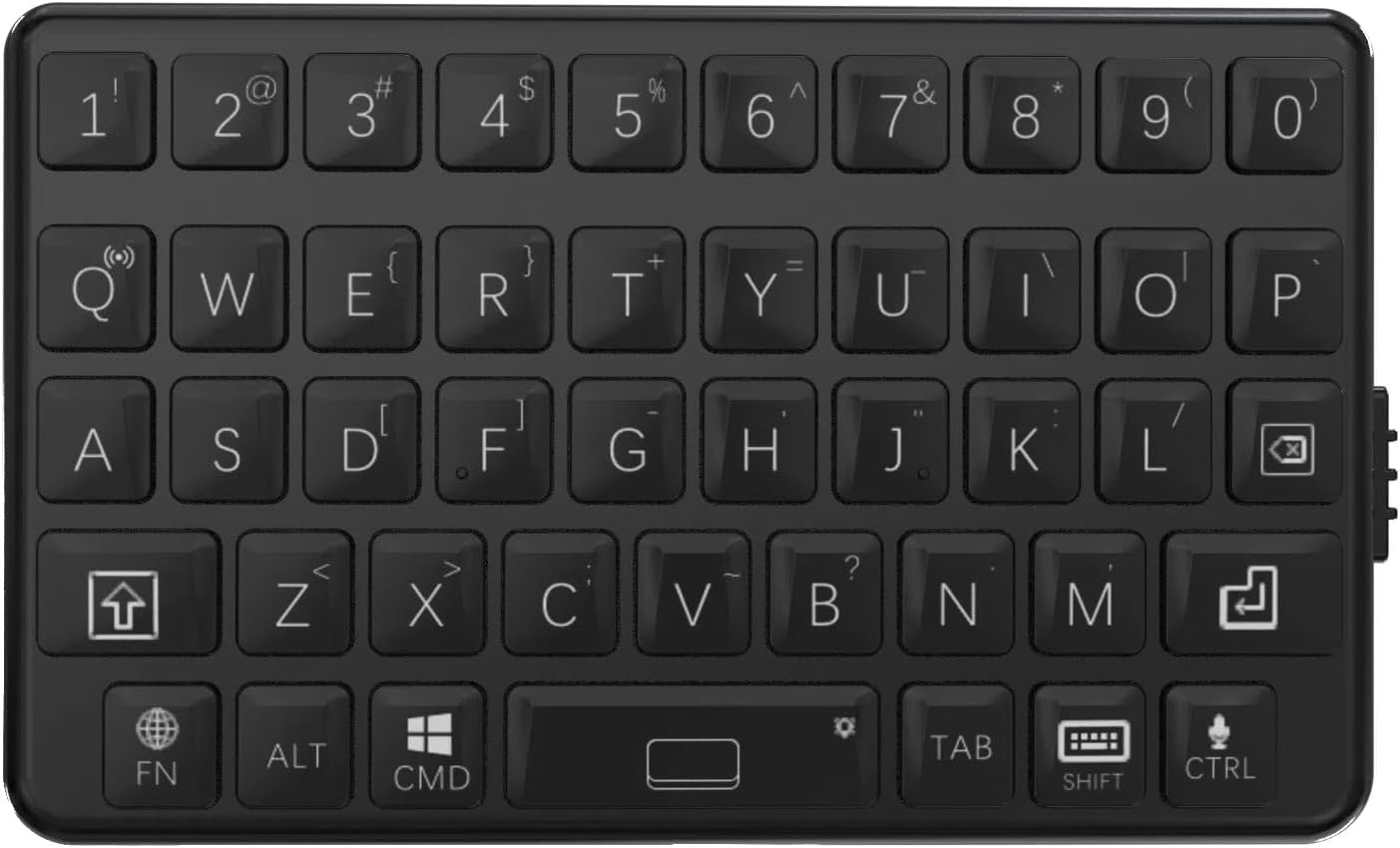
Familiarize yourself with the layout and components of your EXknight M4 Mini Bluetooth Keyboard.



Setup
1. Charging the Keyboard
Before initial use, ensure the keyboard is fully charged. Connect the provided USB charging cable to the keyboard's charging port and to a standard USB power source (e.g., computer USB port, USB wall adapter). The charging indicator light will illuminate during charging and typically turn off or change color when fully charged.
2. Bluetooth Pairing
- Power On: Locate the power switch on the side of the keyboard and slide it to the 'ON' position.
- Activate Bluetooth on Your Device: On your smartphone, tablet, or PC, navigate to the Bluetooth settings menu and ensure Bluetooth is enabled.
- Search for Devices: Your device will begin searching for nearby Bluetooth devices.
- Select Keyboard: Look for 'EXknight M4' or a similar name in the list of available devices and select it to initiate pairing.
- Confirm Pairing: Follow any on-screen prompts to complete the pairing process. Once successfully paired, the keyboard's indicator light may change or turn off, and your device will show it as connected.
Operating Instructions
Basic Typing
Once paired, you can use the keyboard for standard text input. The keyboard features a QWERTY layout with tactile keys for a comfortable typing experience.
Function Keys (FN Combinations)
The keyboard includes an 'FN' key, which, when pressed in combination with other keys, activates special functions or system-specific commands. Refer to the key legends for specific functions. Common combinations may include:
- FN + Q: Switch to iOS operating system mode.
- FN + W: Switch to Android operating system mode.
- FN + E: Switch to Windows operating system mode.
- Other FN combinations may control media playback, volume, or other system functions depending on your device and operating system.
Maintenance
Cleaning
To clean your keyboard, gently wipe the surface with a soft, dry, lint-free cloth. For stubborn dirt, slightly dampen the cloth with water. Avoid using harsh chemicals, abrasive cleaners, or solvents, as these can damage the keyboard's finish and internal components.
Storage
When not in use for extended periods, store the keyboard in a cool, dry place away from direct sunlight and extreme temperatures. Ensure the power is turned off to conserve battery life.
Troubleshooting
Keyboard Does Not Turn On
- Ensure the keyboard is fully charged. Connect it to a power source using the USB cable and allow it to charge for at least 30 minutes.
- Verify the power switch is in the 'ON' position.
Cannot Pair with Device
- Make sure Bluetooth is enabled on your device and the keyboard is within the typical Bluetooth range (up to 10 meters).
- Ensure the keyboard is in pairing mode (often indicated by a blinking Bluetooth light).
- Try restarting both the keyboard and your device.
- If previously paired, remove the keyboard from your device's Bluetooth list and attempt to pair again.
Keys Not Responding or Lagging
- Check the keyboard's battery level. A low battery can affect performance.
- Ensure there are no obstructions between the keyboard and your device that might interfere with the Bluetooth signal.
- Try re-pairing the keyboard with your device.
- Ensure the correct operating system mode (iOS, Android, Windows) is selected using the FN key combinations.
Specifications
| Feature | Detail |
|---|---|
| Model Number | M4 |
| Product Dimensions | 2.95 x 1.77 x 0.47 inches (7.5 x 4.5 x 1.2 cm) |
| Item Weight | 1.41 ounces (40 grams) |
| Connectivity Technology | Bluetooth 5.0 |
| Compatible Devices | Android, Laptop, PC, iPhone / iPad / Mac |
| Keyboard Description | Membrane |
| Battery | 1 Nonstandard Battery (included) |
| Material | Acrylonitrile Butadiene Styrene (ABS) |
| Included Components | USB Cable |
| Manufacturer | Elektronic X Technology Limited |
Warranty Information
This EXknight product comes with a standard manufacturer's warranty. For specific details regarding warranty coverage, duration, and terms, please refer to the warranty card included in your product packaging. Alternatively, you may contact EXknight customer support for further information.
Customer Support
If you encounter any issues or have questions not addressed in this manual, please contact EXknight customer support. You can typically find support contact information on the official EXknight website or through the platform where you purchased the product.
Please have your product model number (M4) and purchase details ready when contacting support.