1. Introduction
This manual provides essential information for setting up, operating, maintaining, and troubleshooting your ZER-LON Gaming PC Desktop Computer AOV2060. This high-performance system is equipped with an Intel Core i7 processor, NVIDIA GeForce RTX 2060 graphics card, 32GB DDR4 RAM, and a 1TB NVMe SSD, designed for a superior computing experience across gaming, professional, and everyday tasks.
Please read this manual thoroughly before using your new computer to ensure optimal performance and longevity.

Image 1.1: ZER-LON Gaming PC Desktop Computer AOV2060 with included RGB keyboard and mouse.
2. Initial Setup
2.1 Unboxing
- Carefully remove the computer tower and all accessories from the packaging.
- Verify that all components listed in the 'What's in the Box' section are present:
- ZER-LON Gaming PC Desktop Tower
- Gaming Keyboard
- Gaming Mouse
- Mouse Pad
- Power Cord
- Graphics Card Holder
- Retain the original packaging for future transport or warranty claims.

Image 2.1: Included accessories with the ZER-LON Gaming PC.
2.2 Connecting Peripherals
Connect your monitor, keyboard, mouse, and other peripherals to the appropriate ports on the back of the computer. Refer to the diagram below for port identification.
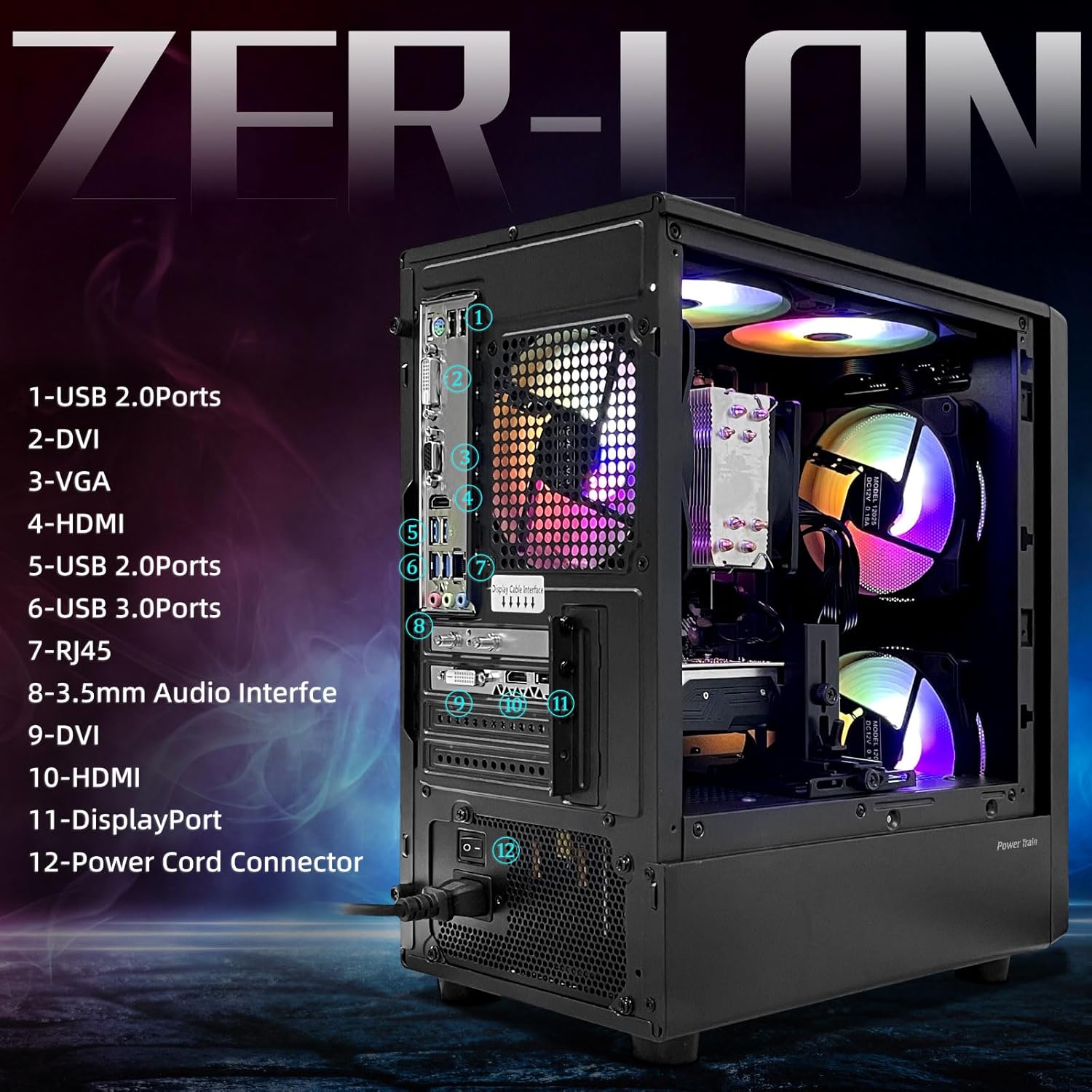
Image 2.2: Rear panel connectivity ports.
- USB 2.0 Ports (x6): For keyboard, mouse, and other standard USB devices.
- USB 3.0 Ports (x2): For high-speed devices like external hard drives or flash drives.
- RJ-45 (Ethernet) Port: For wired network connection.
- Audio Interface (3.5mm): For headphones, microphones, or speakers.
- Video Output Ports (HDMI, DisplayPort, DVI): Connect your monitor(s) to the graphics card ports. Ensure your monitor is connected to the dedicated graphics card (NVIDIA GeForce RTX 2060) for optimal performance.
- Power Cord Connector: Connect the provided power cord here and then to a wall outlet.
2.3 First Boot
- After connecting all peripherals and the power cord, press the power button located on the front of the computer tower.
- The system will boot up, and you may be prompted to complete the Windows 11 Home setup process. Follow the on-screen instructions to configure your operating system, including language, region, network connection, and user account.
- Once Windows is set up, ensure all drivers are installed and updated. You can check for updates via Windows Update or by visiting the ZER-LON support website.
3. Operating Instructions
3.1 Power On/Off
- Power On: Press the power button on the front of the PC.
- Power Off: Click the Start button in Windows, then select Power > Shut down. Avoid directly unplugging the power cord while the system is running to prevent data loss or system damage.
- Restart: Click the Start button, then select Power > Restart.
3.2 Network Connectivity
- Wired Connection: Connect an Ethernet cable from your router/modem to the RJ-45 port on the back of the PC.
- Wireless Connection (Wi-Fi 5.0): Windows 11 Home includes built-in Wi-Fi support. Click the network icon in the taskbar, select your Wi-Fi network, enter the password, and connect.
3.3 Gaming and Multifunctional Use
Your ZER-LON AOV2060 is optimized for a wide range of applications:
- Gaming: The NVIDIA GeForce RTX 2060 6GB graphics card and Intel Core i7 processor provide excellent performance for popular titles such as Fortnite, Call of Duty Warzone, GTA V, Apex Legends, and Elden Ring, often exceeding 60+ FPS at appropriate settings.
- Productivity: The 32GB DDR4 RAM and 1TB NVMe SSD ensure smooth multitasking and fast application loading for office work, web browsing, and general computing.
- Creative Tasks: The powerful hardware supports demanding applications for graphic design, video editing, and 3D rendering.

Image 3.1: The RTX 2060 graphics card supports a wide range of games.

Image 3.2: Versatile applications of the ZER-LON Gaming PC.
4. Maintenance
4.1 Cleaning
- Exterior: Use a soft, damp cloth to clean the exterior surfaces. Avoid abrasive cleaners.
- Dust: Periodically clean dust from the air vents and fan grilles using compressed air. Ensure the PC is powered off and unplugged before cleaning. Excessive dust can hinder airflow and lead to overheating.
4.2 Software Updates
- Regularly check for and install Windows updates to ensure system stability and security.
- Update graphics drivers (NVIDIA GeForce) from the official NVIDIA website for optimal gaming performance and compatibility.
- Keep other drivers (chipset, audio, network) updated as recommended by ZER-LON or component manufacturers.
4.3 System Backups
Regularly back up your important data to an external drive or cloud storage to prevent data loss in case of system failure.
5. Troubleshooting
This section addresses common issues you might encounter.
5.1 No Display on Monitor
- Ensure the monitor is powered on and correctly connected to the graphics card's video output port (HDMI, DisplayPort, or DVI).
- Check that the monitor's input source is set correctly (e.g., HDMI 1, DisplayPort).
- Try a different video cable or monitor if available.
5.2 Computer Does Not Power On
- Verify the power cord is securely connected to both the PC and the wall outlet.
- Ensure the power switch on the back of the power supply unit (if present) is in the 'On' position.
- Test the wall outlet with another device to confirm it has power.
5.3 Slow Performance
- Close unnecessary background applications.
- Check for malware or viruses using reputable antivirus software.
- Ensure Windows and graphics drivers are up to date.
- Monitor system temperatures to ensure the PC is not overheating. Clean dust from fans and vents if necessary.
5.4 Wi-Fi Connectivity Issues
- Restart your router and modem.
- Ensure Wi-Fi is enabled in Windows settings.
- Check if other devices can connect to the same Wi-Fi network.
6. Specifications
Detailed technical specifications for the ZER-LON Gaming PC Desktop Computer AOV2060:
| Component | Specification |
|---|---|
| Processor | Intel Core i7-7700 (3.6 GHz, up to 4.2 GHz) |
| Graphics Card | NVIDIA GeForce RTX 2060 6GB GDDR6 |
| RAM | 32GB DDR4 SDRAM |
| Storage | 1TB NVMe SSD |
| Operating System | Windows 11 Home |
| Wireless Connectivity | Wi-Fi 5.0 (5 GHz Radio Frequency) |
| USB 2.0 Ports | 6 |
| USB 3.0 Ports | 2 |
| Video Output | 1x HDMI, 1x DisplayPort, 1x DVI |
| Audio Ports | 3.5mm Audio Interface |
| Ethernet | 1x RJ-45 |
| Max Screen Resolution | 3840x2160 |
| Item Weight | 17.16 pounds |
| Package Dimensions | 17 x 17 x 9.75 inches |
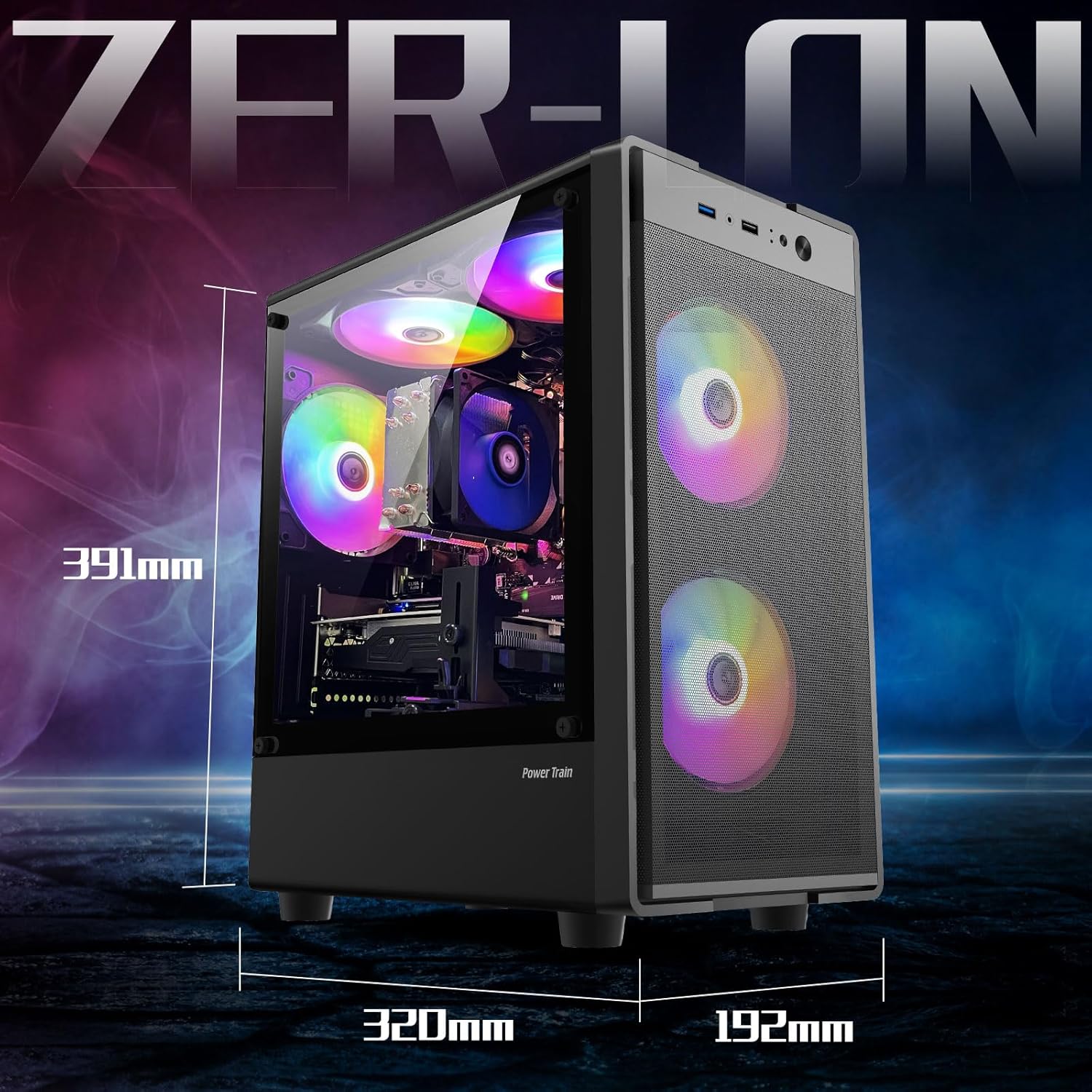
Image 6.1: Physical dimensions of the ZER-LON Gaming PC tower.

Image 6.2: Internal components of the ZER-LON Gaming PC.
7. Warranty and Support
7.1 Warranty Information
Your ZER-LON Gaming PC Desktop Computer AOV2060 comes with a standard manufacturer's warranty. Please refer to the warranty card included in your package or visit the official ZER-LON website for detailed terms and conditions regarding warranty coverage and duration.
7.2 Customer Support
For technical assistance, troubleshooting beyond this manual, or warranty inquiries, please contact ZER-LON customer support. Contact information can typically be found on the ZER-LON official website or on the documentation included with your product.
When contacting support, please have your product model (AOV2060) and serial number ready. The serial number is usually located on a sticker on the back or bottom of the PC tower.