
1. Introduction and Overview
The Zunfly W9 is a sophisticated 4-channel dash camera system designed to provide comprehensive 360-degree surveillance for your vehicle. Featuring 4K front recording, 1080P interior/rear cameras, and dual side cameras, it captures critical details from all angles. Equipped with advanced features like built-in GPS, 5G WiFi for app control, G-Sensor, loop recording, and 24/7 parking mode, the W9 ensures reliable protection and peace of mind on the road and while parked.

Image 1.1: Zunfly W9 4-Channel 4K Dash Cam with its integrated display and a smartphone showing the companion app interface, highlighting 4K Ultra HD, 4 channels, 5G, and GPS features.
2. What's in the Box
Please verify that all items listed below are included in your package:
- 4 Channel Dash Cam (main unit) x1
- 128GB MicroSD Card x1 (pre-installed or included separately)
- Electrostatic Stickers x2
- 3M Adhesive Stickers x2
- Guide Card x1
- Installation Pry Bar x1
- Instruction Manual x1
- Rear Camera x1
- Car Charger x1

Image 2.1: Visual representation of all items included in the Zunfly W9 Dash Cam package, such as the main dash cam unit, rear camera, car charger, 128GB card, electrostatic stickers, 3M adhesive stickers, guide card, installation pry bar, and instruction manual.
3. Product Features
3.1. Ultimate 360° 4K Protection with 4-Channel Recording
The Zunfly W9 dash cam offers comprehensive coverage with its four cameras: a 4K front lens, a 1080P rotatable interior/rear camera, and two 1080P side cameras. This setup monitors the front, rear, cabin, and both sides of your vehicle, eliminating blind spots and capturing license plates and critical details with exceptional clarity.

Image 3.1: Illustration of the Zunfly W9's high-definition recording capabilities, showing separate views from the Front (4K), Rear (1080P), Left (1080P), and Right (1080P) cameras.

Image 3.2: The Zunfly W9 dash cam with arrows indicating its four-lens shooting capability for 360-degree all-around travel safety, including a 128GB card, built-in 5G WiFi + GPS, and 4K Ultra HD front cam.
3.2. Crystal-Clear Night Vision
Equipped with an F1.8 aperture, Wide Dynamic Range (WDR) technology, and 8 IR lights, the dash cam automatically balances exposure to capture clear footage in low-light and dark environments, ensuring visibility even at night.

Image 3.3: A visual comparison demonstrating the effectiveness of Night Vision with 8 IR Lights, showing a clear image of a driver at night when the IR lights are active, versus a grainy, dark image without them.
3.3. Built-in GPS & 5G WiFi
The integrated GPS module embeds route, speed, and location data directly onto video footage. Built-in 5G WiFi allows for instant viewing, downloading, and sharing of videos to your smartphone via the dedicated app, eliminating the need for cables.
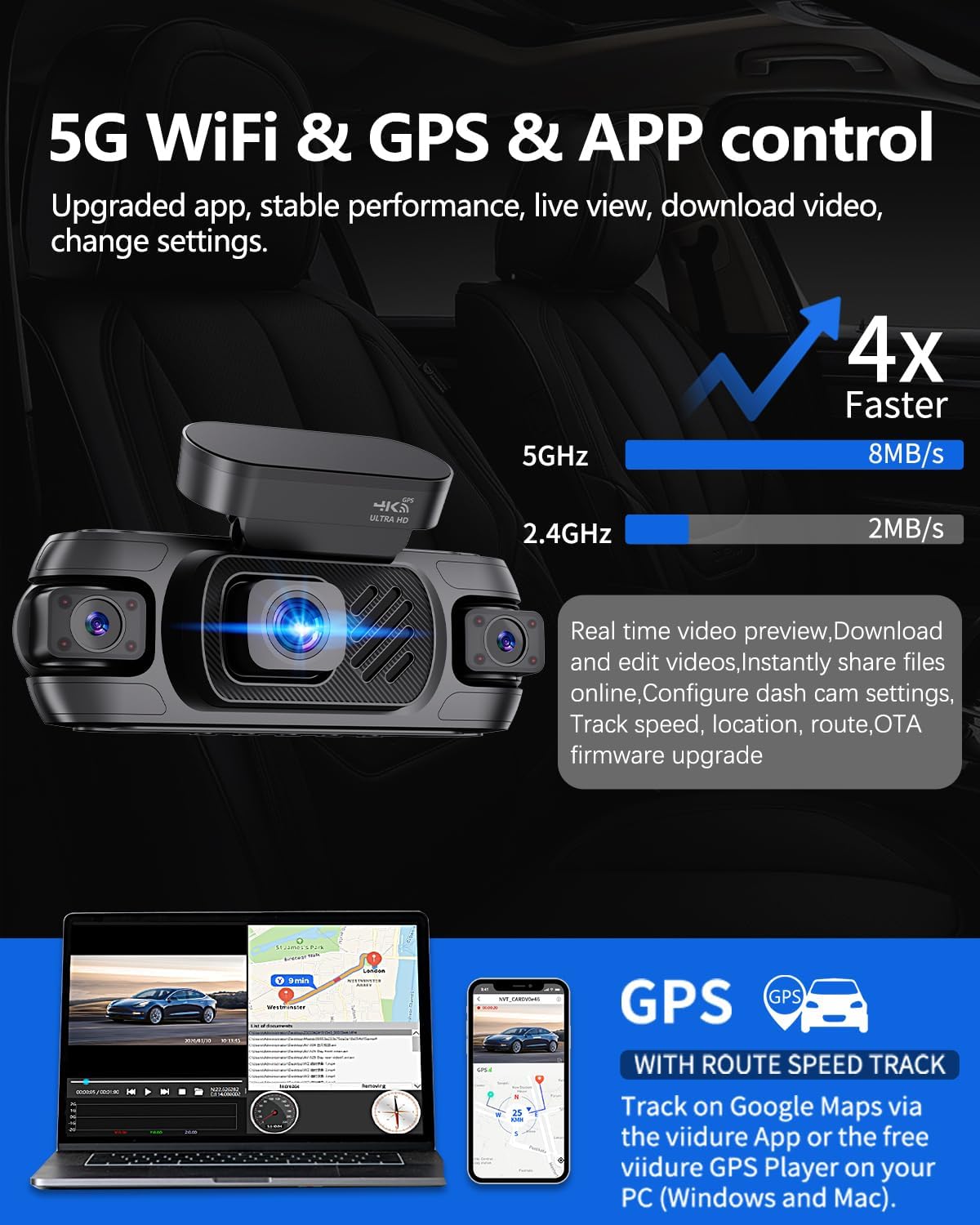
Image 3.4: Features of 5G WiFi, GPS, and App control, illustrating faster data transfer speeds, real-time video preview, instant file sharing, and detailed travel route playback on a smartphone and laptop.
3.4. G-Sensor & Loop Recording
The G-Sensor automatically detects collisions and locks crucial footage to prevent overwriting. Loop recording ensures continuous recording by automatically replacing the oldest files when the memory card is full, guaranteeing that you never miss important events.

Image 3.5: Illustration of Loop Recording with Collision Lock, showing a sequence of recorded events and how the G-Sensor activates to lock important footage during a collision, preventing it from being overwritten.
3.5. 24/7 Parking Mode
When hardwired (kit sold separately), the dash cam automatically activates parking mode when the vehicle is parked. Time-lapse recording (1fps) compresses hours into short videos, preserving storage while monitoring for impacts, break-ins, and vandalism.

Image 3.6: A graphic depicting the 24H Parking Monitor feature, showing a car under surveillance with icons for Parking Monitor, Time Lapse, and Collision Detection, indicating that this function requires a parking monitoring cable.
4. Setup and Installation
Follow these steps to install your Zunfly W9 Dash Cam:
- Prepare the Windshield: Clean the area on your windshield where you intend to mount the dash cam. Ensure it is free of dust and grease.
- Apply Electrostatic Sticker: Place one electrostatic sticker on the cleaned area of the windshield. This helps protect your windshield and makes removal easier.
- Attach Main Unit: Affix the main dash cam unit to the electrostatic sticker using a 3M adhesive sticker. Ensure the front camera has a clear view of the road.
- Connect Power: Connect the car charger to the dash cam and plug it into your vehicle's 12V power outlet. Route the cable neatly along the windshield edge and dashboard using the provided installation pry bar to tuck it away.
- Install Rear Camera: Mount the rear camera on your rear windshield using a 3M adhesive sticker. Connect the rear camera cable to the main unit and route it discreetly to the back of the vehicle.
- Adjust Cameras: Adjust the angles of the front, interior, and side cameras to ensure optimal coverage. The interior/rear camera is rotatable for flexible positioning.
- Power On: Start your vehicle. The dash cam should power on automatically and begin recording.
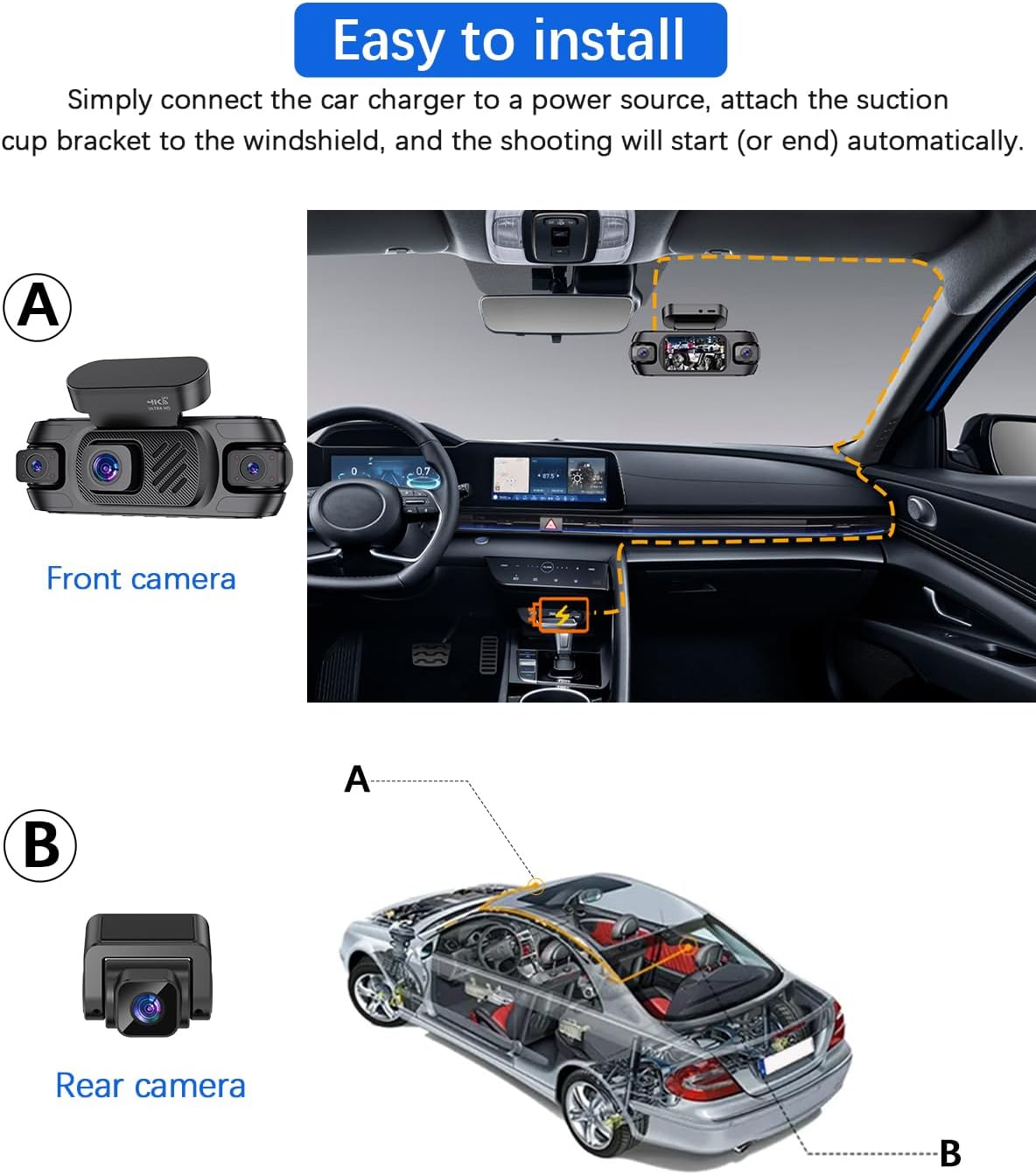
Image 4.1: A visual guide demonstrating the easy installation process of the Zunfly W9 dash cam, showing the placement of the front camera on the windshield and the rear camera at the back of the car, with cable routing indicated.

Image 4.2: A graphic emphasizing the 'Easy Installation' of the Zunfly W9 dash cam, featuring illustrations of the mounting process and quotes from users praising its simplicity and quick setup.
5. Operating Instructions
5.1. Basic Operation
- Power On/Off: The dash cam will automatically power on and begin recording when your vehicle starts. It will power off automatically when the vehicle is turned off.
- Manual Recording: Press the designated button (refer to your device's physical buttons) to manually start or stop recording.
- Screen Display: The 3.0'' IPS screen displays live views from the cameras. You can switch between different camera views or a multi-view display.
5.2. App Control & Connectivity
The Zunfly W9 features built-in 5G WiFi for seamless connection to its dedicated smartphone application. This app allows for advanced control and management of your dash cam.
- Download the App: Search for the Zunfly app on the App Store (iOS) or Google Play Store (Android).
- Connect via WiFi: Enable WiFi on your smartphone and connect to the dash cam's WiFi network (SSID and password can be found in the dash cam settings).
- Live Preview: View live footage from all four cameras directly on your phone.
- Video Management: Download recorded videos to your phone, adjust camera settings, and share clips easily.
- GPS Tracking: Review detailed travel routes, speed, and location data on a map within the app.

Image 5.1: A graphic illustrating the 'Simple Operation Built-in Wi-Fi' feature, showcasing smartphone app screenshots for adjusting settings, live previewing camera feeds, and viewing GPS data, with download links for Google Play and App Store.
Video 5.1: Official Zunfly video demonstrating the features and functionality of the Zunfly 4K 4 Channel Dash Cam, including its multi-camera views, night vision, and app connectivity.
6. Advanced Recording Features
6.1. Loop Recording
The dash cam continuously records in short segments (e.g., 1, 3, or 5 minutes). When the memory card reaches its capacity, the oldest unlocked files are automatically overwritten by new recordings. This ensures that you always have the most recent footage without manually managing storage.

Image 6.1: A graphic illustrating the Loop Recording feature, showing a sequence of recorded scenes (rain, parking lot, traffic) and a car with a lock icon, indicating that the oldest videos are automatically overwritten to ensure continuous recording.
6.2. G-Sensor (Emergency Lock)
The built-in G-Sensor detects sudden impacts or rapid acceleration/deceleration. In such events, the current recording segment is automatically locked and moved to a protected folder, preventing it from being overwritten by loop recording. This ensures critical incident footage is preserved.

Image 6.2: A graphic detailing the 'Built-in G-Sensor' feature, showing how it detects sudden impacts to automatically start emergency recording, locking the video to prevent overwriting, and supporting insurance claims with 10 seconds of buffered recording.
7. Maintenance
- Memory Card: Periodically format the 128GB MicroSD card (every 1-2 months) to maintain optimal performance and prevent data corruption. Back up any important files before formatting.
- Lens Cleaning: Regularly clean the camera lenses with a soft, lint-free cloth to ensure clear video quality. Avoid abrasive materials that could scratch the lenses.
- Firmware Updates: Check the Zunfly app periodically for available firmware updates. Keeping your dash cam's firmware up-to-date ensures optimal performance and access to new features.
- Cable Management: Ensure all cables are securely routed and not interfering with vehicle operation or visibility.
8. Troubleshooting
- Dash Cam Not Powering On: Ensure the car charger is properly connected to both the dash cam and the vehicle's power outlet. Check if the vehicle's 12V outlet is functioning.
- Recording Issues: If the dash cam is not recording, check if the MicroSD card is inserted correctly and formatted. Ensure loop recording is enabled. If the card is full, it should automatically overwrite, but a manual format might resolve issues.
- Poor Video Quality: Clean the camera lenses. Ensure the protective film has been removed from all lenses. Check settings in the app to confirm 4K/1080P resolution is selected.
- App Connection Problems: Ensure 5G WiFi is enabled on the dash cam and your smartphone. Verify you are connected to the correct dash cam WiFi network. Restart both the dash cam and your phone.
- GPS Not Working: Ensure the dash cam has a clear view of the sky for GPS signal acquisition. This may take a few minutes after startup.
- Parking Mode Not Activating: Confirm that the dash cam is properly hardwired (hardwiring kit sold separately) and that the parking mode feature is enabled in the settings.
9. Specifications
| Feature | Detail |
|---|---|
| Model Name | W9 |
| Product Dimensions | 6.9 x 6.1 x 3.1 inches |
| Item Weight | 2.56 ounces |
| Video Capture Resolution | Main Camera: 4K, Secondary Cameras: 1080P |
| Field Of View | 360 Degrees |
| Special Features | 170° Wide Angle, 3.0’’IPS Screen, 24/7 Recording Parking Mode, Built-In 5G WiFi, Free 128GB Card, GPS, 360°View, App Control, Loop Recording |
| Connectivity Technology | Wi-Fi |
| Mounting Type | Windshield suction mount (Front) + Adhesive (Rear) |
| Included Components | 4 Channel dash cam, 128GB Card, Electrostatic Stickers, 3M Adhesive Stickers, Guide Card, Installation pry bar, Instruction manual, Rear camera |
10. Warranty and Support
The Zunfly W9 Dash Cam comes with a 24-month warranty, ensuring peace of mind regarding product quality and performance. For any technical assistance, troubleshooting, or warranty claims, please contact Zunfly customer service. Refer to the guide card or the official Zunfly website for contact details.