
Introduction
Thank you for choosing the aopiata AP09 Bluetooth Wireless Earphones. This manual provides essential information for setting up, operating, and maintaining your new earphones. Please read it carefully before use to ensure optimal performance and longevity of your device.
The aopiata AP09 earphones feature Bluetooth 6.0 for stable connectivity, IPX7 waterproofing, intuitive touch controls, and an extended battery life for up to 60 hours of total playback with the charging case.
Package Contents
Please check the package for the following items:
- aopiata AP09 Wireless Earphones (Left and Right earbuds)
- Charging Case
- USB Type-C Charging Cable
- User Manual (this document)
Product Overview
The aopiata AP09 earphones are designed for comfort and high-fidelity audio. The compact and lightweight design ensures a secure fit without discomfort, even during extended use.

Image: aopiata AP09 Wireless Earphones and Charging Case. The image highlights key features such as IPX7 waterproofing, touch control, Type-C charging, LED display, high sound quality, AAC/SBC support, Bluetooth 6.0, clear calls, automatic pairing, and single/dual ear mode.
The charging case features an LED display that shows the battery level of both the charging case and each earbud, allowing you to easily monitor power status.
Setup
1. Charging the Earphones and Case
Before first use, fully charge the earphones and the charging case. Place the earbuds into the charging case. Connect the USB Type-C cable to the charging case and a power source. The LED display on the case will show the charging status. Once fully charged, the LED display will turn off.
Note: The charging case is not waterproof.
2. Pairing with Your Device
The aopiata AP09 earphones support instant automatic pairing for convenience.
- First-time Pairing:
- Take both earphones out of the charging case. They will automatically enter pairing mode.
- Enable Bluetooth on your smartphone, tablet, or other device.
- Search for "AP09" in the list of available Bluetooth devices and select it to connect.
- Automatic Reconnection: After the initial pairing, the earphones will automatically connect to the last paired device when you open the charging case lid (with the earphones inside) and Bluetooth is enabled on your device.

Image: A visual representation of the earphones pairing process with a smartphone, indicating a successful connection.
Operating Instructions
The aopiata AP09 earphones feature smart touch controls for easy management of calls, music, and voice assistant functions.
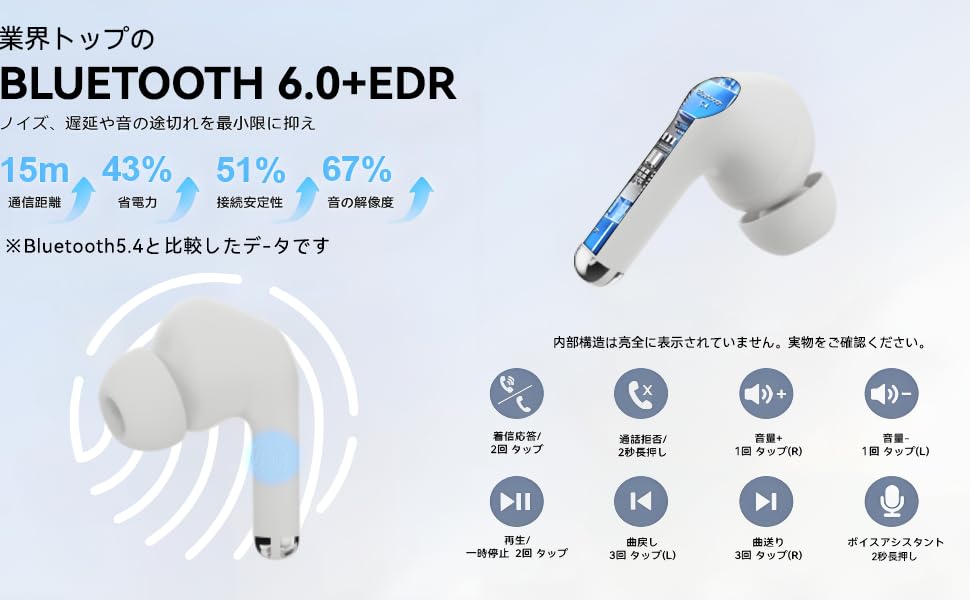
Image: A diagram illustrating the touch control areas on the earphones and their corresponding functions.
| Action | Function |
|---|---|
| Double tap (L or R) | Answer/End Call, Play/Pause Music |
| Long press 2 seconds (L or R) | Reject Call, Activate Voice Assistant |
| Single tap (R) | Volume Up |
| Single tap (L) | Volume Down |
| Triple tap (R) | Next Track |
| Triple tap (L) | Previous Track |
Maintenance
To ensure the longevity and optimal performance of your earphones, follow these maintenance guidelines:
- Cleaning: Regularly clean the earbuds and charging case with a soft, dry cloth. Avoid using harsh chemicals or abrasive materials.
- Water Resistance: The earbuds are IPX7 waterproof, meaning they can withstand submersion in up to 1 meter of water for 30 minutes. However, the charging case is not waterproof. Ensure the earbuds are completely dry before placing them back into the charging case to prevent damage.
- Storage: Store the earphones in their charging case when not in use to protect them from dust and damage.
- Charging: Use the provided USB Type-C cable for charging. Avoid using damaged cables or chargers.
Troubleshooting
If you encounter any issues with your aopiata AP09 earphones, please refer to the following common solutions:
| Problem | Solution |
|---|---|
| Earphones do not turn on. | Ensure the earphones are charged. Place them in the charging case and check the LED display. |
| Cannot pair with device. | Make sure Bluetooth is enabled on your device. Take both earphones out of the case. Forget "AP09" from your device's Bluetooth list and try pairing again. Ensure earphones are charged. |
| Only one earphone works. | Place both earphones back into the charging case, close the lid, then open it and take them out again. Ensure both earphones are charged. If the issue persists, try resetting the earphones (refer to specific reset instructions if available, or try forgetting the device and re-pairing). |
| Low volume or poor sound quality. | Adjust the volume on both your device and the earphones. Ensure the earbuds are clean and properly seated in your ears. Check for any obstructions in the earbud nozzles. |
| Earphones disconnect frequently. | Ensure the earphones are within the effective Bluetooth range (typically 10 meters) of your device. Avoid obstacles between the earphones and your device. Charge the earphones if the battery is low. |
Specifications
| Feature | Detail |
|---|---|
| Model Name | AP09 |
| Brand | aopiata |
| Connectivity Technology | Wireless (Bluetooth) |
| Wireless Communication Technology | Bluetooth 6.0 |
| Water Resistance Level | IPX7 (Earbuds only) |
| Control Method | Touch |
| Continuous Playback Time | Up to 6 hours (earbuds), up to 60 hours (with charging case) |
| Ear Placement | In-ear |
| Headphone Form Factor | True Wireless |
| Compatible Devices | Portable media players (iOS, Android, Windows, Tablets) |
| Dimensions (Charging Case) | Approx. 2 x 5 x 6 cm |
| Package Dimensions | 9.1 x 8 x 3.2 cm; 80 g |
Note: Playback time may vary depending on volume level, content, and usage environment.

Image: The aopiata AP09 earphones being used in different settings, including web conferences, commuting, studying, and exercising, highlighting their versatility and long battery life.
Warranty and Support
If you encounter any issues with your aopiata AP09 earphones, please contact us directly through your order history on Amazon. Our customer support team is ready to assist you.
Contact Method:
- Go to "Account Service" on Amazon.
- Select "Order History".
- Find your purchase of the aopiata AP09 earphones.
- Click on the "Seller" link.
- Select "Ask a Question" to send us a message.