
CuiSuto C-GV90
CuiSuto AI Translator Smart Glasses C-GV90 User Manual
Model: C-GV90
Introduction
Welcome to the CuiSuto AI Translator Smart Glasses C-GV90 user manual. These smart glasses integrate real-time AI translation, dynamic color-changing lenses, open-ear audio, and voice control for a seamless and connected experience. This manual provides detailed instructions for setup, operation, maintenance, and troubleshooting to ensure optimal use of your device.
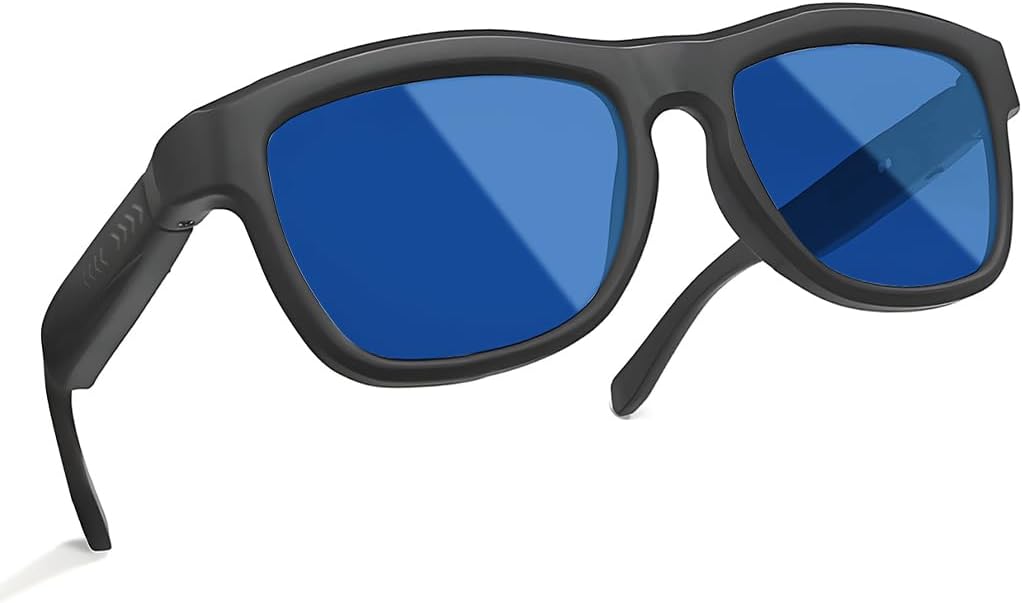
Image: CuiSuto AI Translator Smart Glasses C-GV90, showcasing the sleek design with blue lenses.
What's in the Box
Please verify that all items are present in your package:
- CuiSuto AI Translator Smart Glasses (C-GV90)
- Magnetic Charging Cable
- User Manual
- Eyeglasses Cleaning Cloth
- Packaging Box
Setup
1. Initial Charging
Before first use, fully charge your glasses. Connect the magnetic charging cable to the charging port on the glasses and to a USB power source. A full charge typically takes approximately 1 hour.

Image: Illustration of the magnetic charging process and battery life indicators (approximately 6 hours for listening to music, 5 hours for calls, 1 hour charging time).
2. Powering On/Off
- Power On: Press and hold the button on the temple for 3 seconds.
- Power Off: Press and hold the button on the temple for 5 seconds.
3. Bluetooth Pairing
After the first power-on, the glasses will automatically enter pairing mode. Ensure Bluetooth is enabled on your smartphone or device. Select "C-GV90" from the list of available devices to connect. Subsequent connections will be automatic once the glasses are powered on and within range of a previously paired device.
Operating Instructions
AI Translation
The CuiSuto AI Translator Smart Glasses support real-time AI translation for over 100 languages. For full functionality, it is recommended to use the companion application (e.g., "Hyper MZT app" as mentioned in user reviews) on your smartphone. During video or audio calls, bilingual subtitles can automatically display, enhancing communication without requiring an app for web users.
Smart Color-Changing Lenses
The lenses feature slidable color-changing technology with UV400 protection, blocking 99% of harmful light. This allows for easy adaptation to various lighting conditions.
- To Darken Lenses: Gently slide your finger backward along the temple.
- To Brighten Lenses: Gently slide your finger forward along the temple.

Image: Visual guide demonstrating the backward slide gesture to darken lenses and the forward slide gesture to brighten them.
Open-Ear Audio & HD Calls
Equipped with built-in air-conduction speakers and AI noise reduction, these glasses allow you to hear music and calls clearly while remaining aware of your surroundings. This eliminates the need for separate headphones.

Image: A woman wearing the smart glasses, with graphic elements illustrating the open-ear audio experience, allowing simultaneous awareness of ambient sounds and media.
Voice Control & Gesture Commands
The integrated button on the temple provides intuitive control over various functions:
- Answer/Hang Up Call: Click the button once.
- Reject Call: Long press the button for 1.5 seconds.
- Play/Pause Music: Click the button once during music playback.
- Wake Voice Assistant (Siri/Google): Click the button twice when not playing music.
- Remote Photography: Triple-press the button to remotely snap photos (requires camera to be turned on on the connected device).

Image: A detailed diagram showing the single button on the temple and its corresponding functions for power, calls, music, voice assistant, remote photography, and lens adjustment.
Maintenance
- Cleaning Lenses: Use the provided eyeglasses cleaning cloth to gently wipe the lenses. Avoid abrasive materials or harsh chemicals that could damage the lens coating.
- Cleaning Frame: Wipe the frame with a soft, damp cloth. Do not submerge the glasses in water.
- Storage: Store the glasses in their protective case when not in use to prevent scratches and damage.
- Charging: Always use the original magnetic charging cable to prevent damage to the charging port and battery.
Troubleshooting
- Glasses not powering on: Ensure the glasses are fully charged. Press and hold the power button for 3 seconds.
- Unable to pair via Bluetooth: Make sure Bluetooth is enabled on your device and the glasses are in pairing mode. Try turning off and on both the glasses and your device's Bluetooth.
- No audio: Check the volume level on both the glasses and your connected device. Ensure the glasses are properly paired.
- Lenses not changing color: Ensure the glasses are powered on. Verify that the sliding gesture on the temple is performed correctly.
- Translation not working: Confirm that the companion app is installed and configured correctly on your smartphone, and that the glasses are connected to the app. Ensure an active internet connection for AI translation services.
Specifications
| Feature | Detail |
|---|---|
| Model Number | C-GV90 |
| Connectivity Technology | Bluetooth 5.4 |
| Battery Capacity | 270 Milliamp Hours (Lithium Ion) |
| Charging Time | Approximately 1 hour |
| Battery Life (Music/Calls) | Approximately 5-6 hours |
| Frame/Temple Material | PC (Polycarbonate) |
| Lens Material | Glass liquid crystal lenses |
| Item Weight | 44g (0.1 Kilograms / 3.52 ounces) |
| Special Features | AI Translation, Slidable Color-Changing Lenses, Open-Ear Audio, Voice Assistant, Remote Photography, UV Protection |

Image: Detailed product parameters including type number, product name, Bluetooth version, charging interface, materials, charging time, and weight, alongside a diagram of the glasses with dimensions.
Warranty and Support
For warranty information and technical support, please refer to the documentation included with your purchase or contact CuiSuto customer service directly. Details for contacting support can typically be found on the manufacturer's official website or through the retailer where the product was purchased.
Ask a question about this manual
Ask about setup, troubleshooting, compatibility, parts, safety, or missing instructions. Manuals+ will review the question and use this page’s manual context to help answer it.