
1. Introduction
Thank you for choosing the Tkimat WiFi Repeater WLAN Amplifier. This device is designed to extend your existing wireless network coverage, eliminate Wi-Fi dead zones, and provide a stable, high-speed internet connection throughout your home or office. With its versatile operating modes and easy setup, you can enjoy seamless connectivity for all your devices.

Figure 1: Tkimat WiFi Repeater plugged into a wall socket, showing its compact design and indicator lights.
Key Features:
- Dual Operating Modes: Functions as a Repeater to extend existing Wi-Fi or as an Access Point (AP) to convert a wired connection into a wireless network.
- High-Speed Connectivity: Delivers data transfer rates up to 300 Mbps on the 2.4 GHz band, suitable for online gaming, video conferencing, and 4K HD streaming.
- Extensive Coverage: Boosts Wi-Fi signal to cover areas up to 5000 sq.ft, eliminating dead zones.
- Enhanced Security: Supports WPA/WPA2 wireless security protocols to protect your network and data.
- Wide Compatibility: Works with all standard wireless network devices, routers, modems, smartphones, tablets, laptops, and smart TVs.
- Easy Setup: Features a one-click WPS button for quick connection and a convenient wall-plug design.
2. Setup and Installation
The Tkimat WiFi Repeater offers a straightforward setup process, primarily through the WPS function or a web-based interface.
2.1. WPS (Wi-Fi Protected Setup) Method (Recommended for quick setup)
- Power On: Plug the Tkimat WiFi Repeater into an electrical outlet near your existing router. Wait for the power indicator light to turn on.
- Press Repeater WPS Button: Locate the WPS button on the Tkimat Repeater and press it. The WPS indicator light on the repeater will start blinking.
- Press Router WPS Button: Within two minutes, press the WPS button on your main Wi-Fi router. The WPS indicator on your router will also start blinking.
- Connection Confirmation: Once the WPS lights on both devices stop blinking and remain solid, the repeater has successfully connected to your router.
- Optimal Placement: Unplug the repeater and move it to a location halfway between your router and the Wi-Fi dead zone. Ensure the signal strength indicator on the repeater shows a good connection (typically green or multiple bars).
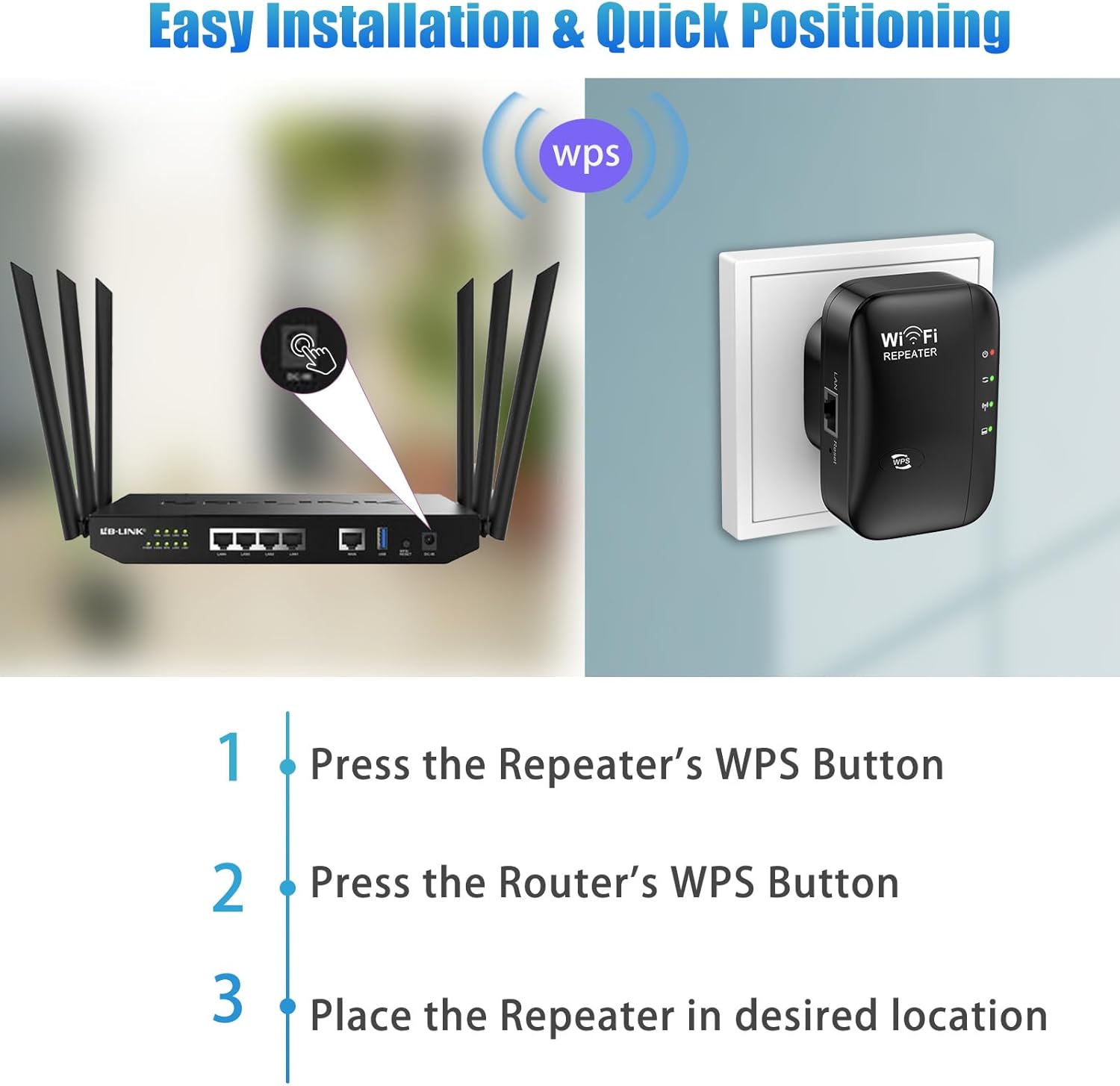
Figure 2: Visual guide for the WPS one-click setup process.
2.2. Web-Based Setup Method
- Power On: Plug the Tkimat WiFi Repeater into an electrical outlet.
- Connect to Repeater's Network: On your computer or smartphone, connect to the Wi-Fi network broadcast by the repeater (e.g., "Tkimat_Extender" or similar, without a password).
- Access Setup Page: Open a web browser and enter the default IP address (usually found in the included manual or on a sticker on the device, common examples are 192.168.1.254 or 192.168.10.1).
- Login: Enter the default username and password (commonly "admin" for both, or "admin" for username and leave password blank).
- Select Mode: Choose your desired operating mode (Repeater or AP).
- Configure Settings:
- Repeater Mode: Select your existing Wi-Fi network from the list, enter its password, and optionally change the extended network's name (SSID) and password.
- AP Mode: If connecting via Ethernet, configure the new wireless network's name (SSID) and password.
- Apply Settings: Save your configuration. The repeater will restart.
- Reconnect: Reconnect your devices to the newly configured extended or access point network.
3. Operating Modes
The Tkimat WiFi Repeater supports two primary operating modes to suit various network requirements:
3.1. Repeater Mode (Range Extender)
In Repeater Mode, the device wirelessly connects to your existing Wi-Fi network and re-broadcasts the signal, effectively extending its coverage area. This mode is ideal for eliminating Wi-Fi dead zones and improving signal strength in areas far from your main router.
3.2. Access Point (AP) Mode
In AP Mode, the device connects to your router or network switch via an Ethernet cable. It then creates a new wireless network, converting your wired internet connection into a wireless access point. This is useful for adding Wi-Fi capability to a wired-only network or creating a separate Wi-Fi network.
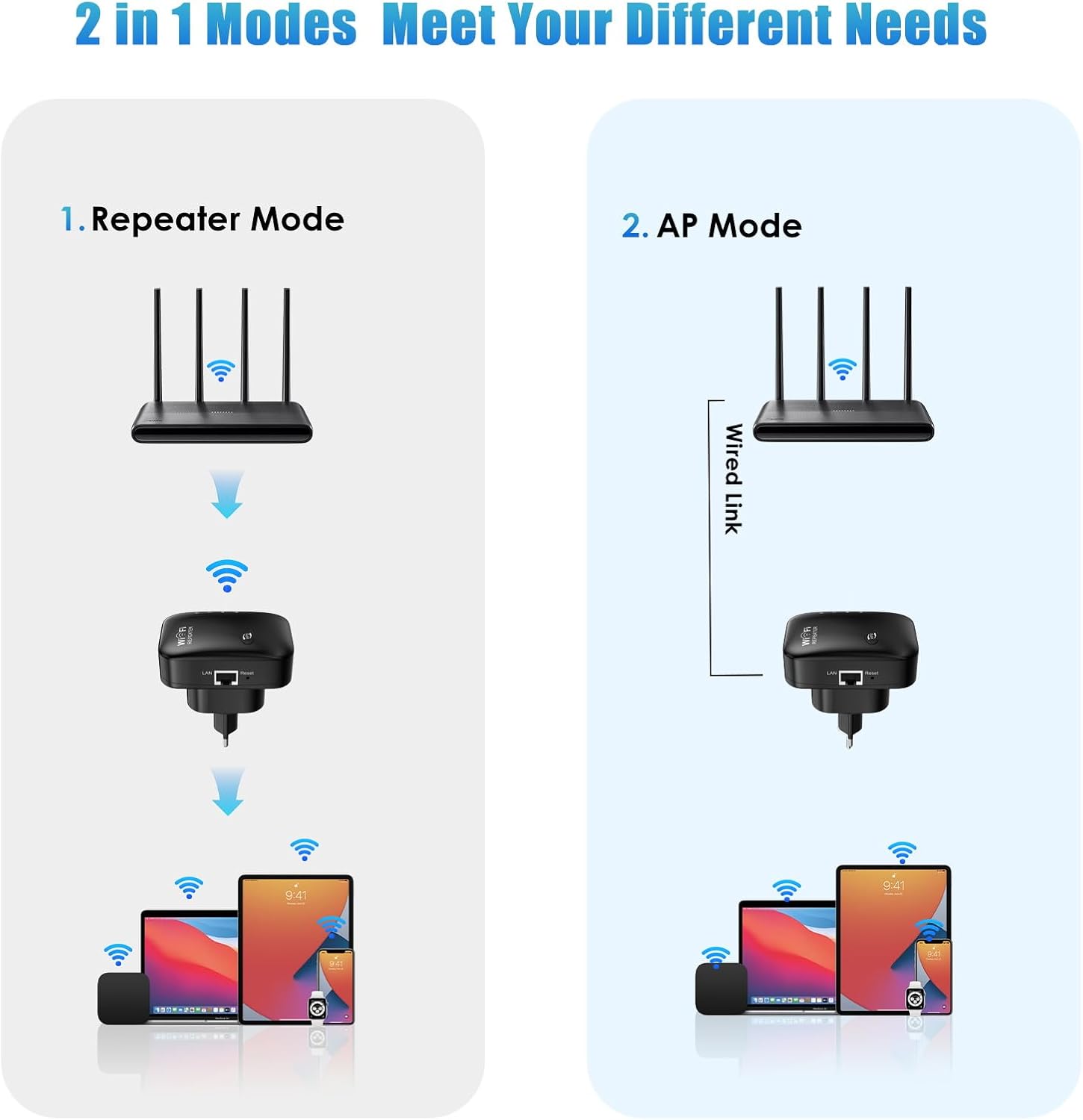
Figure 3: Comparison of Repeater Mode and AP Mode configurations.
3.3. Ethernet Port Functionality
The Tkimat WiFi Repeater includes an Ethernet port. This port can be used for:
- Connecting the repeater to a wired network in AP Mode.
- Providing a wired connection to a device (e.g., a desktop computer, smart TV, or gaming console) in Repeater Mode, offering a stable and potentially faster connection than Wi-Fi.
4. Performance and Coverage
The Tkimat WiFi Repeater is designed to significantly enhance your wireless network's reach and stability.
- Extended Range: Capable of extending Wi-Fi coverage up to 5000 sq.ft, ensuring a strong signal even in large homes or multi-story buildings.
- High Speed: With a data transfer rate of 300 Mbps, it supports demanding online activities without lag.
- Eliminate Dead Zones: Strategically placing the repeater can effectively eliminate areas with weak or no Wi-Fi signal.

Figure 4: Illustration of how the WiFi Repeater extends network coverage throughout a home.

Figure 5: The repeater provides strong and widespread Wi-Fi for multiple users and devices.

Figure 6: The Tkimat WiFi Repeater extends coverage to challenging areas like attics, basements, garages, and backyards.
5. Compatibility
The Tkimat WiFi Repeater is designed for broad compatibility with a wide range of network devices and standards.
- Network Standards: Fully compatible with 802.11n wireless standards.
- Devices: Works seamlessly with various Wi-Fi enabled devices, including:
- Smartphones (iPhone, Android)
- Tablets (iPad, Android tablets)
- Laptops and Desktop Computers
- Smart TVs
- Gaming Consoles
- Printers
- Other wireless network devices
- Routers/Modems: Compatible with most standard Wi-Fi routers and modems.

Figure 7: The Tkimat WiFi Repeater supports connection for up to 35 devices, including smartphones, tablets, laptops, and smart TVs.
6. Maintenance
To ensure optimal performance and longevity of your Tkimat WiFi Repeater, consider the following maintenance tips:
- Placement: Ensure the repeater is placed in a well-ventilated area, away from direct sunlight, heat sources, and obstructions that could block the signal.
- Cleaning: Periodically clean the exterior of the device with a soft, dry cloth. Do not use liquid cleaners or aerosols.
- Firmware Updates: Check the manufacturer's website periodically for any available firmware updates. Keeping the firmware updated can improve performance, security, and add new features.
- Restart: If you experience network issues, try restarting the repeater by unplugging it from the power outlet for 10 seconds and then plugging it back in.
- Reset: If persistent issues occur, you may perform a factory reset using the reset button (refer to Section 2.2 for general reset procedure). Note that a factory reset will erase all custom settings.
7. Troubleshooting
If you encounter issues with your Tkimat WiFi Repeater, refer to the following common problems and solutions:
| Problem | Possible Cause / Solution |
|---|---|
| No Internet Access after connecting to Repeater. |
|
| Weak signal from the Repeater. |
|
| Cannot access the web management page. |
|
| Network security concerns. |
|
8. Specifications
| Feature | Detail |
|---|---|
| Brand | Tkimat |
| Model | Tkimat-shanzhai |
| Manufacturer | Huizhou Xinshi Technology Co., Ltd |
| Data Transfer Rate | 300 Megabits per second |
| Wireless Type | 802.11n (2.4 GHz) |
| Operating Modes | Repeater Mode, Access Point (AP) Mode |
| Security Protocols | WPA/WPA2 |
| Ethernet Port | Yes (1x LAN port) |
| Setup Features | WPS (Wi-Fi Protected Setup), Web-based configuration |
| Compatible Peripherals | Wireless network devices, routers, modems, smartphones, tablets, laptops, smart TVs, etc. |
| Item Weight | 80 grams |
| Package Dimensions | 9.8 x 9.2 x 6.2 cm |
| Color | Black |
| Batteries Required | No |
9. Warranty and Support
For information regarding warranty coverage, technical support, or service inquiries, please refer to the documentation included with your purchase or visit the official Tkimat website. Specific warranty terms may vary by region and retailer.
Software Updates: Information regarding guaranteed software updates is currently unavailable. Please check the manufacturer's website for the latest information and firmware downloads.