
Introduction
This manual provides detailed instructions for the installation, operation, and maintenance of your Fuluku 4+64GB Android 15 Car Stereo. This unit is specifically designed for Jeep Wrangler (4 Doors) models manufactured between 2007 and 2010. Please read this manual thoroughly before using the product to ensure proper function and safety.
Safety Information
Always prioritize safety during installation and operation. Improper installation can lead to vehicle damage or personal injury. Consult a professional if you are unsure about any steps. Do not operate the device in a way that distracts you from driving. Keep the volume at a safe level to hear external traffic sounds.
Setup and Installation
1. Product Compatibility
This car stereo is compatible with Jeep Wrangler (4 Doors) models from 2007 to 2010. Verify your vehicle's center console matches the provided installation images before proceeding.

Image: Comparison of a Jeep Wrangler dashboard before and after the Fuluku car stereo installation, showing the integrated display.
2. Included Components
The package includes the following items:
- Android Car Radio Unit
- GPS Antenna
- AHD Rear View Camera
- Microphone
- Power Cable
- USB Cable
- Camera Input Cable
- RCA Cable
- User Manual
- Canbus Decoder (if applicable for your vehicle model)
- Installation Tool

Image: Diagram illustrating the dimensions of the car stereo unit and a visual representation of all included accessories such as cables, camera, and tools.
3. Wiring Harness Connection
The unit features a plug-and-play wiring harness for simplified installation. Connect the provided cables as follows:
- Power Cable: Connect to the vehicle's power supply.
- RCA Cable: For audio/video output and input connections.
- USB Cable: For data transfer and device charging.
- Camera Input: Connect the AHD Rear View Camera.
- GPS Antenna: Mount in a location with clear sky view for optimal signal reception.
- Radio Antenna: Connect for FM/RDS reception.
- Microphone: Connect for hands-free calling and voice commands.
- Canbus Decoder: Connect if your vehicle requires it for steering wheel controls or other integrated functions.

Image: Detailed diagram illustrating the connection points for the power cable, RCA cable, USB cable, camera input, GPS antenna, and Canbus decoder to the car stereo unit.
Operating Instructions
1. Android System and In-cell Touch Screen
The car stereo operates on the Android 15 system with 4GB RAM and 64GB ROM, providing a responsive user experience. The 9-inch In-cell touch screen integrates touch and display layers, offering improved clarity and responsiveness.

Image: Visual explanation of the In-cell screen technology, highlighting its thinner design, better color accuracy, higher contrast, 178-degree viewing angles, and improved brightness compared to On-cell screens.
2. Wireless CarPlay and Android Auto
Connect your iPhone or Android device wirelessly via Bluetooth to access CarPlay or Android Auto. This allows for seamless integration of navigation, music, and communication apps directly on the car stereo display.
- Wireless Connection: Pair your smartphone via Bluetooth for automatic connection.
- MirrorLink: Supports screen mirroring via WiFi or USB cable for displaying your phone's screen on the stereo.

Image: Screenshots showing the user interface for Wireless CarPlay and Android Auto, displaying various compatible applications like navigation, music players, and messaging apps.
3. GPS Navigation
The unit supports both online and offline GPS navigation. Utilize pre-installed maps or download your preferred navigation applications. Real-time traffic updates are available with an internet connection.
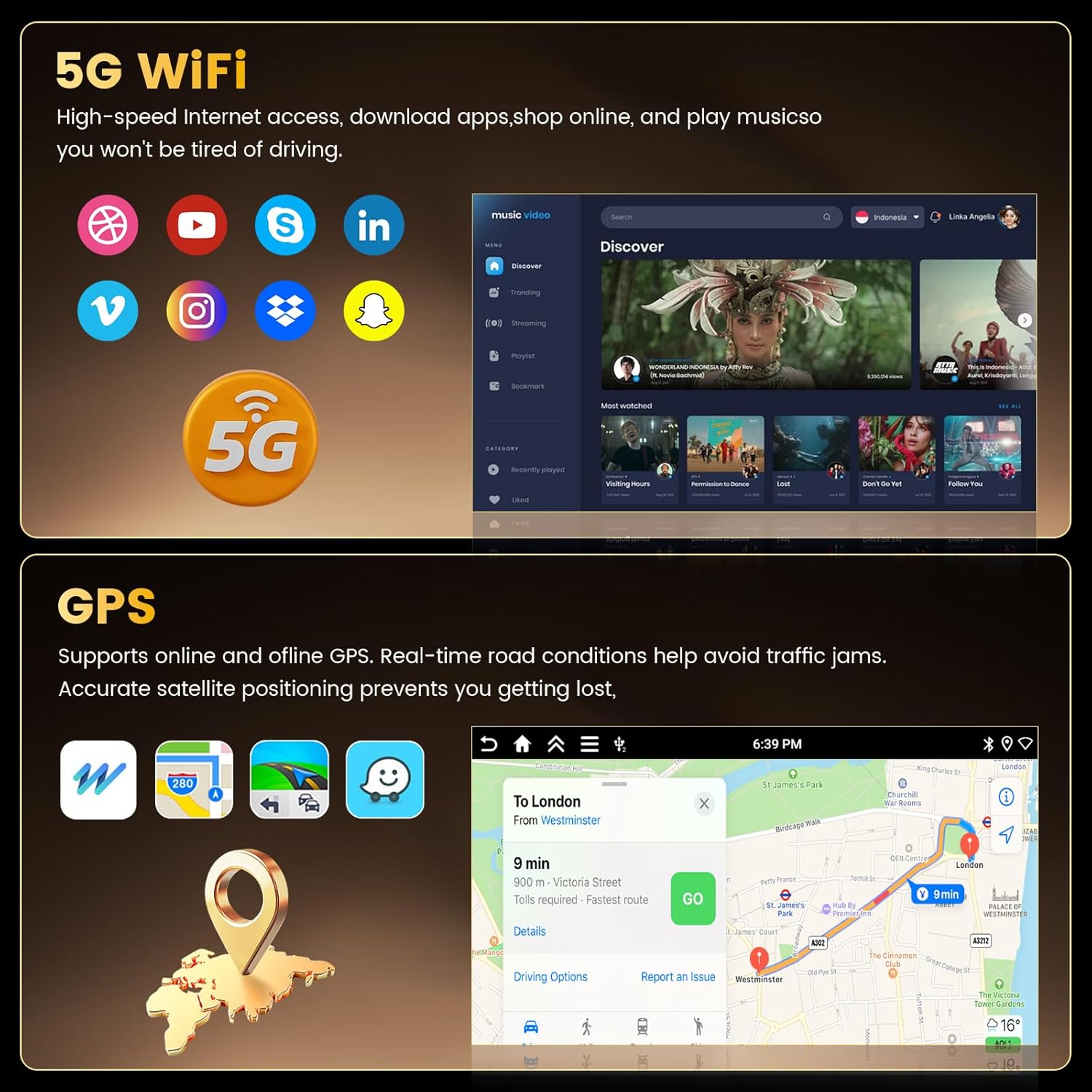
Image: Display of the GPS navigation interface showing a route map and the 5G WiFi connectivity icon, alongside various app icons.
4. 5G WiFi Connectivity
Access high-speed internet by connecting to a WiFi hotspot. This enables app downloads, online music streaming, and real-time data for navigation.
5. Bluetooth Functionality
The built-in Bluetooth module allows for hands-free calling and wireless audio streaming from your smartphone. This enhances safety by minimizing distractions while driving.

Image: Screenshots demonstrating the Bluetooth pairing interface, the graphic equalizer (EQ) settings, and the FM/RDS radio display with station frequencies.
6. EQ Sound Settings
Customize your audio experience with the integrated professional-grade equalizer. Adjust bass, midrange, and treble frequencies to achieve desired sound quality, reducing noise and distortion.
7. FM/RDS Radio
The high-quality FM/RDS radio receiver provides access to local radio stations. RDS (Radio Data System) displays station information, such as song titles or traffic updates, where available.
8. Steering Wheel Control (SWC)
Control essential functions like volume adjustment, track skipping, and mode switching directly from your vehicle's steering wheel buttons. This feature requires proper connection via the Canbus decoder (if applicable).

Image: A split image showing the AHD backup camera view with parking guidelines and the on-screen interface for programming steering wheel controls.
9. AHD Backup Camera
When the vehicle is shifted into reverse, the car stereo automatically displays the feed from the included AHD rear view camera, providing a clear view of the area behind your vehicle for safer parking and maneuvering.
10. Split Screen Functionality
The split-screen feature allows you to run two applications simultaneously on the display, such as navigation and music playback, for convenient multitasking.

Image: Screenshots demonstrating various user interface themes and the split-screen mode, showing two applications running side-by-side.
11. Multiple UI Themes
Personalize the appearance of your car stereo with a selection of multiple user interface themes.
Maintenance
To ensure the longevity and optimal performance of your car stereo, follow these maintenance guidelines:
- Cleaning: Use a soft, dry cloth to clean the screen and unit. Avoid abrasive cleaners or solvents.
- Software Updates: Periodically check for and install available software updates to improve performance and add new features.
- Environmental Conditions: Avoid exposing the unit to extreme temperatures, direct sunlight for prolonged periods, or excessive moisture.
Troubleshooting
If you encounter issues with your Fuluku car stereo, refer to the following common problems and solutions:
| Problem | Possible Cause | Solution |
|---|---|---|
| Unit does not power on. | Loose power connection, blown fuse, vehicle battery issue. | Check power cable connections. Inspect vehicle fuses. Ensure vehicle battery is charged. |
| No sound from speakers. | Volume too low, mute activated, incorrect wiring, speaker issues. | Increase volume. Check if mute is active. Verify speaker wiring. Test with different audio sources. |
| GPS signal lost or inaccurate. | GPS antenna obstruction, poor mounting location, software issue. | Ensure GPS antenna has a clear view of the sky. Relocate antenna if necessary. Restart the unit. |
| Wireless CarPlay/Android Auto disconnects frequently. | Bluetooth interference, outdated phone OS, app issues, weak signal. | Ensure no other Bluetooth devices are interfering. Update phone's operating system. Restart phone and stereo. Try a different USB cable for MirrorLink if wireless is unstable. |
| Backup camera not displaying. | Loose camera connection, incorrect wiring, camera malfunction. | Check camera input cable connection. Verify reverse trigger wire is correctly connected. |
| Steering Wheel Controls not working. | Canbus not connected, incorrect wiring, SWC learning not performed. | Ensure Canbus decoder is correctly installed. Perform SWC learning procedure in settings. |
Specifications
| Feature | Detail |
|---|---|
| Brand | Fuluku |
| Model Name | A7579A4291H6MI2 |
| Operating System | Android 15 |
| Memory Storage Capacity | 64 GB (ROM) |
| RAM | 4 GB |
| Screen Size | 9 Inches |
| Display Type | LCD In-cell Capacitive Touch Screen |
| Connectivity Technology | Bluetooth, Ethernet, USB, Wi-Fi (5G) |
| Special Features | Wireless CarPlay, Android Auto, GPS Navigation, WiFi, Bluetooth, EQ, FM RDS, AHD Backup Camera, SWC |
| Supported Satellite Navigation System | GPS |
| Map Type | North America, Worldwide |
| Human-Interface Input | Microphone, Touchscreen |
| Control Method | App, Remote (if applicable), Touch, Voice |
| Compatible Devices | Amplifier, Camera, Smartphone, Speaker |
| Item Weight | 2.53 Kilograms |
Warranty Information
This Fuluku car stereo is covered by a 2-Year Manufacturer Warranty. For warranty claims or details, please contact customer support.
Customer Support
For technical assistance, troubleshooting, or warranty inquiries, please contact Fuluku customer support:
Email: fulukusupports@126.com
Customer support typically provides a quick reply within 24 hours.

Image: Fuluku customer support details, including email address and service commitments like 24-hour reply, 60-day return policy, 365-day replacement, and lifetime technical support.