
Introduction
Thank you for choosing the INLAND XXL Wireless Charging Gaming Mouse Pad. This extra-large desk mat is designed to enhance your gaming and office experience with its smooth surface, integrated 15W Qi wireless charging, and durable construction. This manual provides essential information for setup, operation, maintenance, and troubleshooting to ensure optimal performance and longevity of your product.
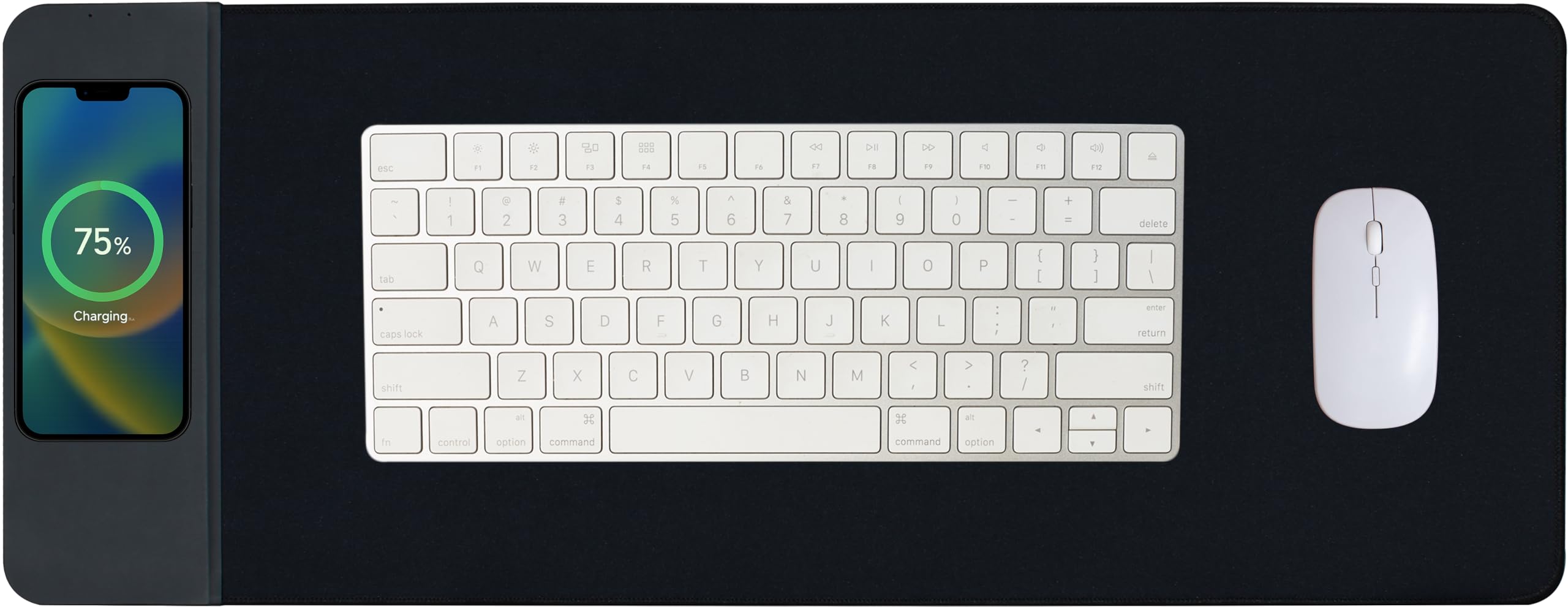
Image: The INLAND XXL Wireless Charging Gaming Mouse Pad, showcasing its large surface and integrated charging area.
Product Features
- 15W Fast Wireless Charging Pad: Built-in smart chip delivers up to 15W Qi wireless charging for compatible devices. Supports multiple power outputs (5W/7.5W/10W/15W) for safe and efficient charging.
- Smooth Fabric Surface for Precision: Micro-textured woven surface provides seamless mouse tracking, optimized for both optical and laser sensors.
- XXL Extended Desk Coverage: Oversized mouse pad (35.4" x 15.7") fits keyboard, mouse, laptop, and accessories, offering full-desk protection.
- Anti-Slip Rubber Base: High-density, thick rubber base securely grips any surface, preventing unwanted movement.
- Durable & Spill-Resistant Design: Water-resistant coating protects against accidental spills, and stitched edges resist fraying and deformation.
Setup Instructions
- Unpack the Mouse Pad: Carefully remove the mouse pad from its packaging. If the pad is rolled, allow it to lay flat for a few hours to remove any creases.
- Position on Desk: Place the mouse pad on a clean, flat, and stable desk surface. Ensure the wireless charging area is positioned conveniently for your device.
- Connect Power: Locate the USB-C port on the wireless charging section of the mouse pad. Connect the provided USB-C cable to this port and the other end to a compatible USB power adapter (not included) or a powered USB port on your computer. For optimal 15W charging, use a power adapter that supports Quick Charge 2.0/3.0 or Power Delivery.

Image: Close-up view of the flat, integrated USB-C power port for seamless connection.
Operating Instructions
Using the Wireless Charging Function
- Ensure the mouse pad is properly connected to a power source as described in the Setup section.
- Place your Qi-enabled smartphone or other compatible device directly onto the designated wireless charging area on the mouse pad. The charging area is typically marked with a wireless charging symbol.
- Your device should indicate that it is charging. If not, adjust the position of your device on the charging area.
- Remove any metallic objects, credit cards, or thick cases from your device before charging, as these can interfere with the wireless charging process.

Image: A smartphone displaying a charging indicator while placed on the wireless charging zone of the mouse pad.
Mouse Tracking
The micro-textured woven surface is engineered for precise and consistent mouse tracking. Simply place your mouse on the main surface of the pad for smooth and effortless movement, whether for gaming or general computer use.

Image: A detailed view of the mouse pad's smooth woven surface, optimized for precise mouse tracking.
Maintenance
- Cleaning: The mouse pad features a water-resistant coating. For minor spills, gently wipe the surface with a damp cloth. For deeper cleaning, use a mild soap solution and a soft brush, then air dry completely. Do not machine wash or tumble dry.
- Storage: When not in use or for transport, the mouse pad can be rolled up. Its design allows for rolling without creating permanent wrinkles or creases.
- Avoid Harsh Chemicals: Do not use abrasive cleaners, alcohol, or harsh chemicals on the mouse pad, as these can damage the surface and coating.
Troubleshooting
| Problem | Possible Cause | Solution |
|---|---|---|
| Device not charging wirelessly. | 1. Power cable not connected or loose. 2. Device not Qi-compatible. 3. Device not correctly positioned. 4. Obstruction (e.g., thick case, metal). 5. Insufficient power adapter. | 1. Ensure USB-C cable is securely connected to both the pad and a powered source. 2. Verify your device supports Qi wireless charging. 3. Reposition the device centrally on the charging area. 4. Remove cases or metallic objects. 5. Use a Quick Charge 2.0/3.0 or Power Delivery compatible adapter. |
| Mouse tracking is inconsistent or jumpy. | 1. Mouse pad surface is dirty. 2. Mouse sensor is dirty. | 1. Clean the mouse pad surface as per maintenance instructions. 2. Clean your mouse's optical or laser sensor. |
| Mouse pad slides on the desk. | 1. Desk surface is not clean or smooth. 2. Mouse pad base is dirty. | 1. Clean the desk surface thoroughly. 2. Wipe the rubber base of the mouse pad with a damp cloth to remove dust or debris. |
Specifications
| Feature | Detail |
|---|---|
| Model Number | 908277 |
| Dimensions (L x W) | 35.4" x 15.8" (900mm x 400mm) |
| Thickness | 3 mm |
| Material | Rubber (Base), Woven Fabric (Surface) |
| Wireless Charging Output | 5W / 7.5W / 10W / 15W (Max) |
| Input Port | USB-C |
| Features | Qi Wireless Charging, Non-Slip Base, Anti-Fray Stitched Edges, Water-Resistant Surface |
| UPC | 618996789085 |

Image: A diagram illustrating the dimensions of the INLAND XXL Wireless Charging Gaming Mouse Pad (35.43 inches by 15.74 inches).
Warranty Information
INLAND products are manufactured to high-quality standards. This product is covered by a limited warranty against defects in materials and workmanship. The specific terms and duration of the warranty may vary. Please retain your proof of purchase for warranty claims. For detailed warranty information, please visit the official INLAND website or contact customer support.
Support
If you encounter any issues or have questions regarding your INLAND XXL Wireless Charging Gaming Mouse Pad that are not addressed in this manual, please contact INLAND customer support. You can typically find contact information on the INLAND official website or through the retailer where you purchased the product.
Online Resources: For additional support, FAQs, and product registration, please visit the INLAND Brand Store on Amazon.