
1. Introduction
The Diydeg Foldable Bluetooth Keyboard is a versatile and portable input device designed for enhanced productivity across multiple platforms. Its compact, triple-fold design, integrated touchpad, and numeric keypad make it an ideal companion for tablets, laptops, and smartphones. This manual provides detailed instructions for setting up, operating, and maintaining your keyboard to ensure optimal performance.
2. Key Features
- Seamless Device Switching: Connects to up to three devices simultaneously (desktop, laptop, tablet, phone) with easy switching via FN+A, S, D keys.
- Enhanced Productivity: Features a full QWERTY layout with an integrated touchpad supporting gestures like click, zoom, and double tap, and a dedicated numeric keypad.
- Comfortable Typing: Utilizes quiet and responsive scissor switches for a smooth and comfortable typing experience.
- Wide Compatibility: Compatible with Windows, OS X, Android, and iOS operating systems.
- Compact & Portable: Triple-fold design with a protective PU cover for easy transport and protection against wear and scratches.
- Long Battery Life: Equipped with a built-in 200mAh rechargeable LiPo battery, offering extended usage and efficient charging via USB-C.
3. Package Contents
Please verify that all items are present in your package:
- 1 x Diydeg Foldable Keyboard
- 1 x USB-C Charging Cable
- 1 x User Manual (this document)

Image: The Diydeg Foldable Keyboard shown in its folded state alongside its USB-C charging cable, illustrating the compact design and included accessories.
4. Specifications
| Feature | Detail |
|---|---|
| Item Type | Foldable Keyboard |
| Material | ABS, PU |
| Bluetooth Version | 5.0 |
| Effective Distance | Approx. 10m / 32.8ft |
| Built-in Battery | 200mAh LiPo Battery |
| Connectivity Technology | Bluetooth |
| Number of Keys | 83 |
| Dimensions (Folded) | 7.48 x 4.33 x 0.79 inches (approx.) |
| Item Weight | 10.8 ounces (approx.) |
5. Setup Guide
5.1 Charging the Keyboard
Before first use, or when the battery is low, charge your keyboard using the provided USB-C cable.
- Connect the small end of the USB-C charging cable to the charging port on the keyboard.
- Connect the standard USB-A end of the cable to a USB power adapter (not included) or a computer's USB port.
- The charging indicator light will illuminate. Once fully charged, the light will change or turn off (refer to specific indicator behavior in the quick start guide if available).
A full charge typically takes approximately 1.5 hours. The keyboard supports charging while in use.
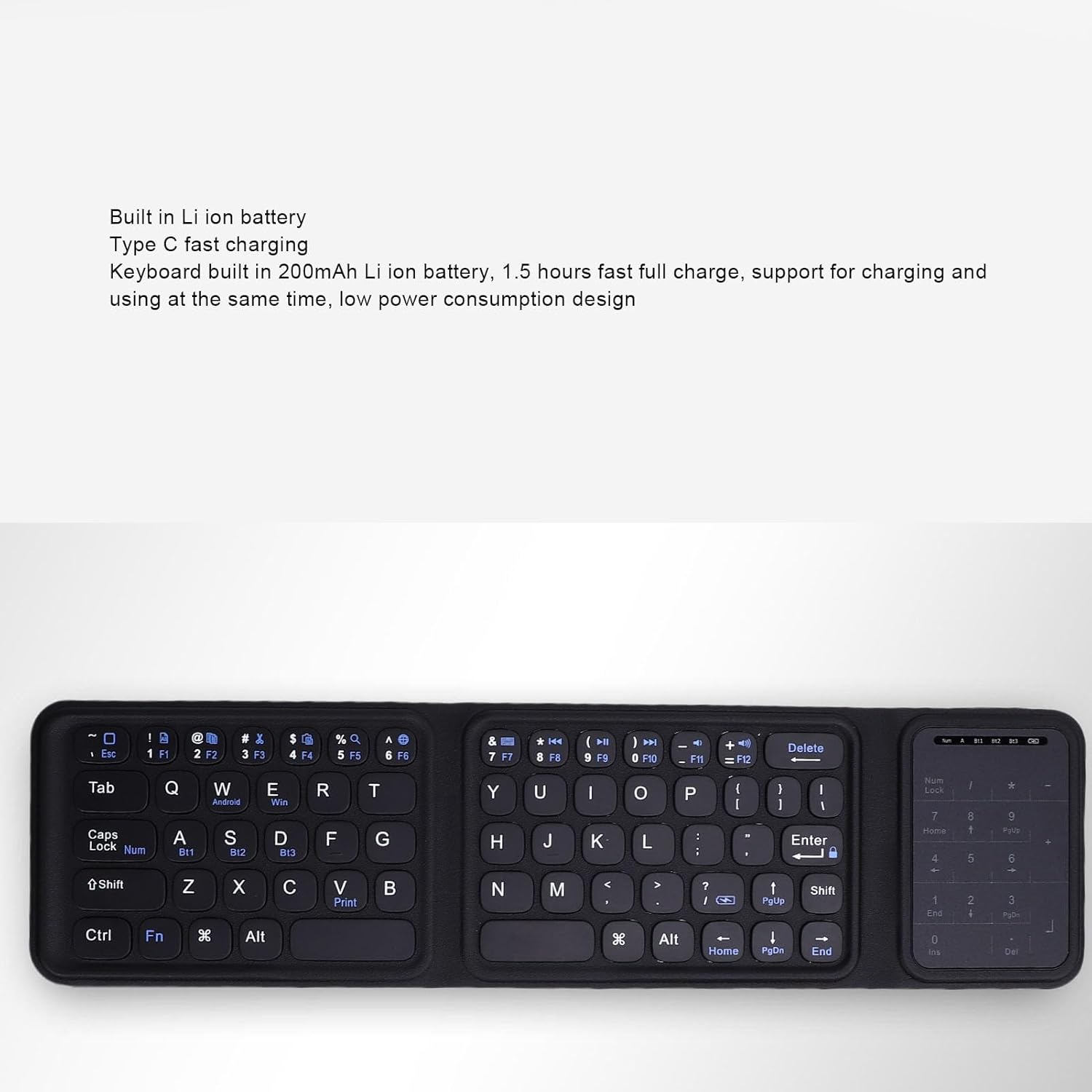
Image: A close-up of the keyboard with text highlighting its built-in Li-ion battery and Type-C fast charging capability, indicating its power features.
5.2 Bluetooth Pairing
The keyboard can pair with up to three devices simultaneously.
- Unfold the keyboard to power it on. The Bluetooth indicator light should start blinking, indicating it's in pairing mode. If not, press and hold the Bluetooth pairing button (often combined with a function key, refer to keyboard markings) until the light blinks.
- On your device (smartphone, tablet, laptop), enable Bluetooth and search for new devices.
- Select "Diydeg Keyboard" or a similar name from the list of available devices.
- If prompted, enter the pairing code displayed on your device using the keyboard and press Enter.
- Once paired, the Bluetooth indicator light will stop blinking and remain solid or turn off.
- To pair with a second or third device, repeat steps 1-5, but select a different Bluetooth channel (e.g., FN+A for device 1, FN+S for device 2, FN+D for device 3) before initiating pairing mode.
6. Operating Instructions
6.1 Switching Between Devices
After pairing with multiple devices, you can easily switch between them:
- Press FN + A to switch to the first paired device.
- Press FN + S to switch to the second paired device.
- Press FN + D to switch to the third paired device.
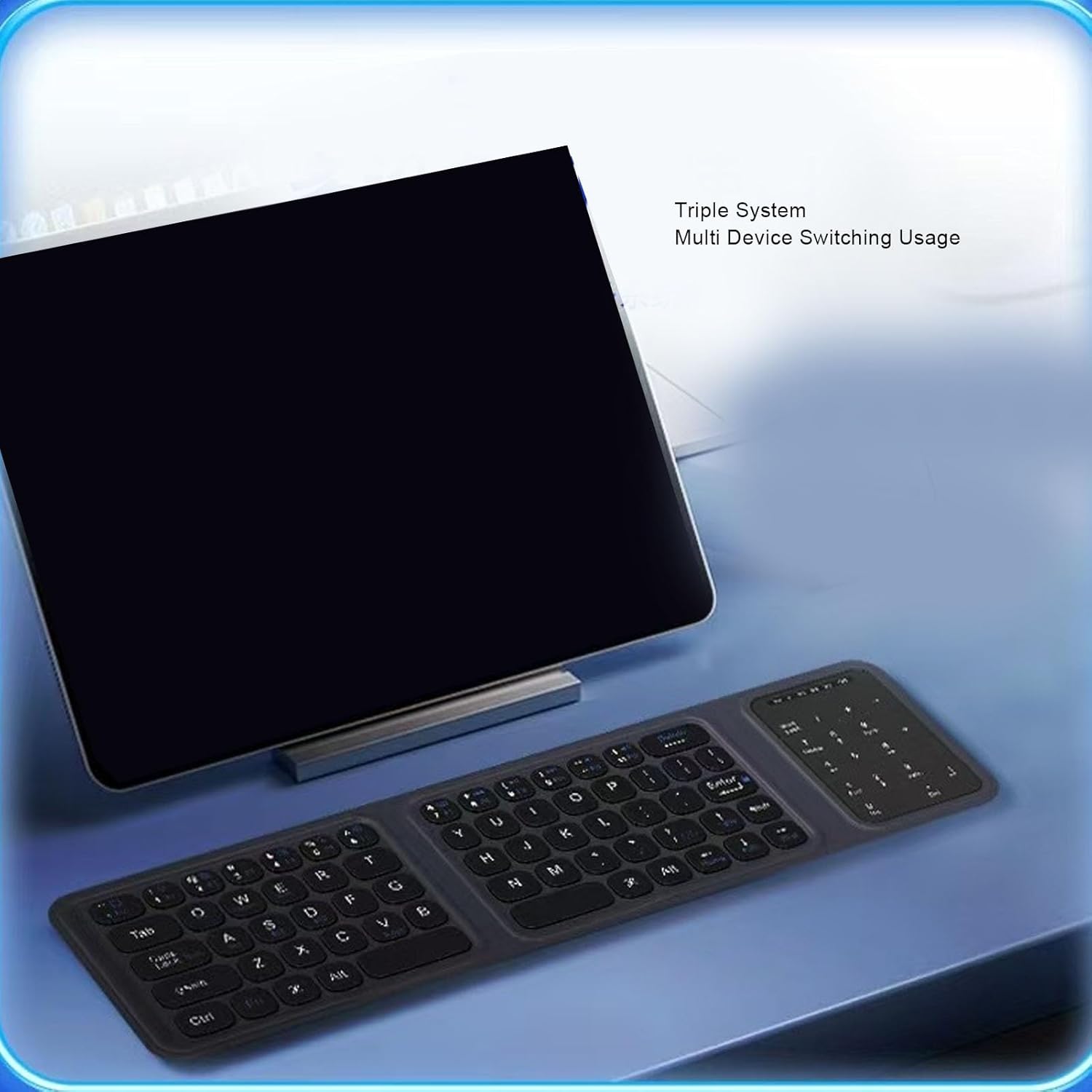
Image: The foldable keyboard connected to a tablet, demonstrating its capability for triple system and multi-device switching usage.
6.2 Using the Touchpad and Numeric Keypad
The keyboard features an integrated touchpad and a numeric keypad for enhanced functionality.
- Touchpad Gestures: The touchpad supports standard gestures such as single-finger tap for click, two-finger pinch for zoom, and double-tap for specific actions, depending on the operating system.
- Switching Modes: To switch between touchpad mode and numeric keypad mode, press FN + Caps Lock. This allows you to choose the input method that best suits your task.

Image: A user's hands interacting with the touchpad and numeric keypad section of the Diydeg Foldable Keyboard, illustrating the 'Touch and Numeric Control 2 in 1' feature.
6.3 General Typing and Function Keys
The keyboard provides a standard QWERTY layout with additional function keys (F1-F12) accessible via the FN key for media control, volume adjustment, and other system functions. Refer to the keycap legends for specific functions.
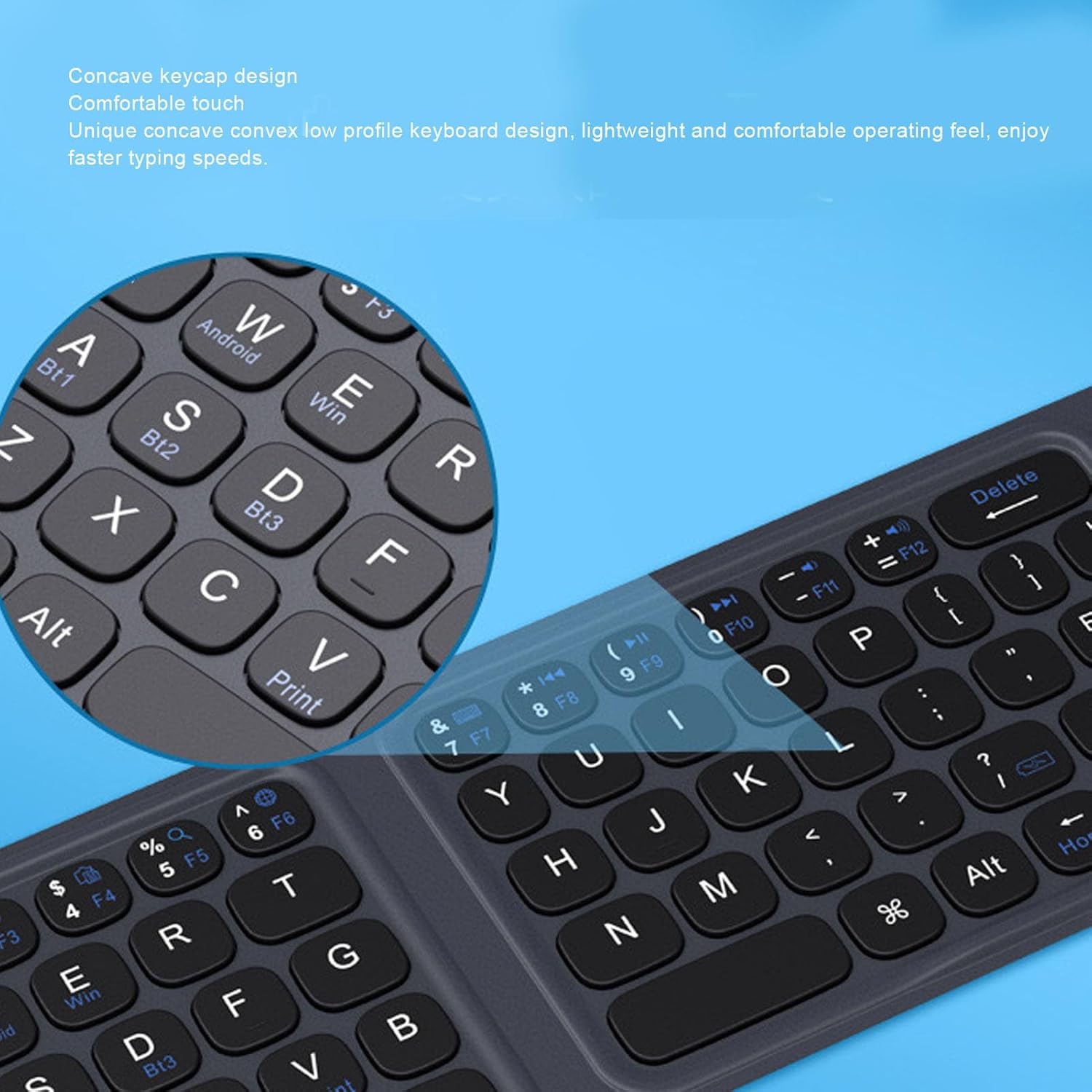
Image: A detailed view of the concave keycap design on the Diydeg Foldable Keyboard, highlighting its comfortable touch and low-profile design for improved typing speed.
7. Maintenance
To ensure the longevity and optimal performance of your Diydeg Foldable Bluetooth Keyboard, follow these maintenance guidelines:
- Cleaning: Use a soft, dry, lint-free cloth to wipe the surface of the keyboard. For stubborn dirt, slightly dampen the cloth with water or a mild, non-abrasive cleaner. Avoid excessive moisture.
- Storage: When not in use, fold the keyboard to protect the keys and touchpad. Store it in a cool, dry place away from direct sunlight and extreme temperatures. The protective PU cover helps prevent scratches and wear.
- Avoid Liquids: Do not expose the keyboard to liquids. In case of accidental spills, immediately power off the keyboard (by folding it) and allow it to dry completely before reuse.
- Handle with Care: Avoid dropping the keyboard or subjecting it to strong impacts, which can damage internal components.

Image: A close-up view of the Diydeg Foldable Keyboard's premium PU leather cover, emphasizing its non-slip, scratch-proof, fingerprint-proof, and waterproof properties for enhanced protection.
8. Troubleshooting
If you encounter issues with your Diydeg Foldable Bluetooth Keyboard, try the following solutions:
- Keyboard not connecting/pairing:
- Ensure the keyboard is charged.
- Make sure Bluetooth is enabled on your device.
- Ensure the keyboard is in pairing mode (blinking Bluetooth indicator).
- Forget the keyboard from your device's Bluetooth settings and try pairing again.
- Ensure you are within the effective range (approx. 10m / 32.8ft).
- Try restarting both the keyboard (fold and unfold) and your device.
- Keys not responding:
- Check battery level and charge if necessary.
- Ensure the keyboard is properly connected to your device.
- Clean any debris from around the keys.
- Touchpad not working:
- Ensure you are in touchpad mode (press FN+Caps Lock to toggle).
- Clean the touchpad surface.
- Lag or delayed input:
- Move closer to your device to reduce interference.
- Ensure no other strong wireless signals are interfering.
- Close unnecessary applications on your device.
9. Warranty and Support
Specific warranty details for the Diydeg Foldable Bluetooth Keyboard are not provided within this manual. For warranty claims, technical support, or further assistance, please refer to the product packaging, the retailer's return policy, or contact Diydeg customer service directly through their official website or the platform where the product was purchased.