
Freaks and Geeks 151000c
Freaks and Geeks Bluetooth Controller for PS5 LED (Black) User Manual
Model: 151000c
1. Introduction
This manual provides comprehensive instructions for the setup, operation, maintenance, and troubleshooting of your Freaks and Geeks Bluetooth Controller for PS5 LED (Black), Model 151000c. Please read this manual carefully before use to ensure optimal performance and longevity of your device.
2. Safety Information
- Do not expose the controller to extreme temperatures, humidity, or direct sunlight.
- Avoid dropping or subjecting the controller to strong impacts.
- Do not attempt to disassemble or modify the controller. This will void the warranty.
- Keep the controller away from water and other liquids.
- Use only the specified charging cable and power source.
3. Package Contents
- Freaks and Geeks Bluetooth Controller for PS5 LED (Black)
- USB Charging Cable (Type-C)
- User Manual

This image displays the controller inside its box, indicating the typical retail presentation and contents.
4. Product Overview
Familiarize yourself with the various components of your Freaks and Geeks Bluetooth Controller.

This image shows the front of the controller, highlighting the directional pad, action buttons, dual analog sticks with LED rings, Share and Options buttons, and the central PlayStation button.

This image displays the bottom edge of the controller, featuring the integrated LED light strip and the 3.5mm audio jack for headphones or headsets.

This image illustrates the rear of the controller, highlighting the ergonomic grip texture and the two programmable back buttons labeled MR and ML.
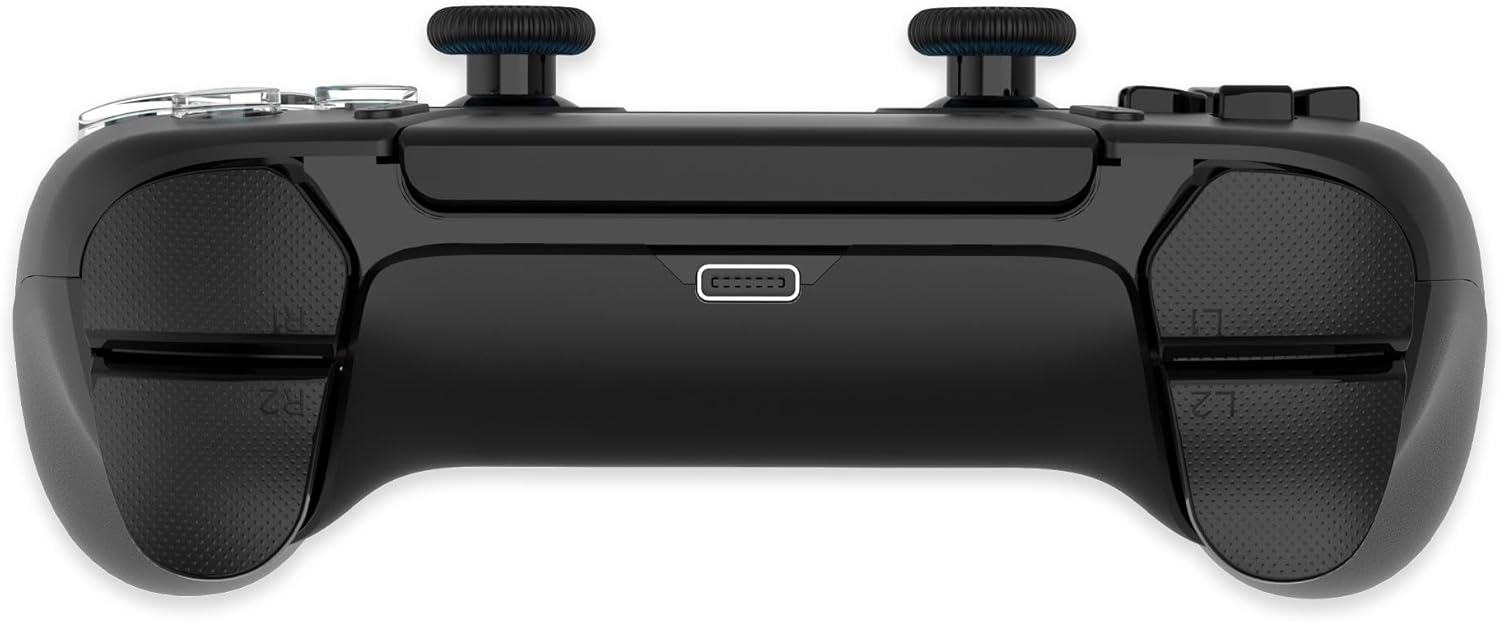
This image presents the top of the controller, featuring the L1, L2, R1, and R2 shoulder and trigger buttons, along with the USB-C charging port located centrally.
5. Setup
5.1. Charging the Controller
Before initial use, fully charge the controller. Connect the supplied USB-C cable to the controller's charging port and the other end to a compatible USB power source (e.g., PS5 console, PC, or USB wall adapter).
- The LED indicator will show charging status.
- A full charge typically takes approximately 2-3 hours.
- The controller can be used while charging.
5.2. Pairing with PS5 / PS5 Slim
- Ensure your PS5 console is powered on.
- Connect the controller to the PS5 console using the USB-C cable.
- Press the PlayStation button on the controller.
- Once recognized, you can disconnect the USB-C cable for wireless play. The controller should now be paired.
- For subsequent uses, simply press the PlayStation button to reconnect wirelessly.
5.3. Pairing with PC (Steam only)
- Ensure your PC has Bluetooth enabled.
- On the controller, press and hold the Share button and the PlayStation button simultaneously until the LED indicator starts flashing rapidly. This indicates pairing mode.
- On your PC, go to Bluetooth settings and search for new devices.
- Select "Freaks and Geeks Controller" (or similar name) from the list of available devices to pair.
- Once paired, the LED indicator on the controller will stop flashing and remain solid.
- For Steam compatibility, ensure Steam Input is enabled for PlayStation controllers in Steam settings.
5.4. Pairing with Android / iOS Devices
- Ensure Bluetooth is enabled on your Android or iOS device.
- On the controller, press and hold the Share button and the PlayStation button simultaneously until the LED indicator starts flashing rapidly.
- On your mobile device, go to Bluetooth settings and search for new devices.
- Select "Freaks and Geeks Controller" (or similar name) from the list to pair.
- Once paired, the LED indicator on the controller will stop flashing and remain solid.
- Compatibility may vary with specific games and applications.
6. Operating Instructions
6.1. Basic Controls
The controller features standard PlayStation layout buttons, including directional pad, action buttons (Triangle, Circle, Cross, Square), L1/R1 shoulder buttons, L2/R2 triggers, and dual analog sticks.
6.2. Special Features
- LED Lighting: The controller features customizable and elegant LED lighting on the analog sticks and along the bottom edge. Specific customization options may be available through connected devices or dedicated software (if applicable, refer to brand website for details).
- Programmable Back Buttons (MR/ML): The two buttons on the back of the controller (MR and ML) can be programmed to replicate other button inputs, allowing for enhanced control without removing your thumbs from the analog sticks. Refer to the brand's official website or support for instructions on programming these buttons.
- Haptic Feedback: Experience immersive haptic feedback that responds to in-game actions, providing a more engaging gaming experience.
- Motion Control: The integrated 3-axis accelerometer and 3-axis gyroscope enable precise motion tracking for compatible games.
- Integrated Speaker and Microphone: The controller includes an integrated speaker and microphone for in-game communication.
- 3.5mm Audio Jack: Connect your compatible headset or headphones to the 3.5mm audio jack for private audio and communication.
- Capacitive Two-Point Detection: The central touchpad supports capacitive two-point detection for versatile interaction in games.
- Audio Mute Function: A dedicated button or combination of buttons allows for instant audio muting. Refer to the controller's specific button layout for the mute control.
7. Maintenance
- Cleaning: Use a soft, dry cloth to clean the controller. Do not use harsh chemicals or abrasive materials.
- Storage: Store the controller in a cool, dry place away from direct sunlight and extreme temperatures.
- Battery Care: To prolong battery life, avoid fully discharging the controller frequently. Charge it regularly, even if not in use for extended periods.
8. Troubleshooting
| Problem | Possible Cause | Solution |
|---|---|---|
| Controller does not turn on. | Low battery. | Charge the controller using the supplied USB-C cable. |
| Controller does not pair. | Not in pairing mode; Bluetooth interference; already paired to another device. | Ensure controller is in pairing mode (flashing LED). Turn off Bluetooth on other nearby devices. Try re-pairing. For PS5, connect via USB-C first. |
| Input lag or disconnection. | Distance from console/device; low battery; wireless interference. | Move closer to the console/device. Charge the controller. Minimize other wireless devices nearby. |
| Audio jack not working. | Headset not fully inserted; headset incompatibility; audio settings. | Ensure headset is fully plugged in. Check console/device audio settings. Test with another headset. |
9. Specifications
- Model Number: 151000c
- Compatibility: PS5, PS5 Slim, PC (Steam only), Android, iOS
- Connectivity: Bluetooth Wireless, USB-C (for charging and wired connection)
- Battery: 1000 mAh (rechargeable)
- Motion Sensors: 3-axis accelerometer, 3-axis gyroscope
- Audio: Integrated speaker, integrated microphone, 3.5mm audio jack
- Dimensions: Approximately 17.5 x 16.9 x 7.3 cm
- Weight: Approximately 250 g
10. Warranty and Support
For warranty information and technical support, please refer to the official Freaks and Geeks website or contact their customer service directly. Keep your proof of purchase for warranty claims.
Related Documents - 151000c
 |
FG07A-150077 Wireless Controller User Manual User manual for the Freaks and Geeks FG07A-150077 wireless controller, detailing its features, layout, and compatibility with PS5, iOS, Android, and PC (Steam). Includes information on analog sticks, buttons, touchpad, and connectivity. |
 |
Freaks and Geeks Wireless PS4 Gamepad User Manual Official user manual for the Freaks and Geeks wireless gamepad compatible with PS4. Learn about features, usage, connection, LED indicators, firmware updates, and safety guidelines. |
 |
User Manual for Freaks and Geeks HG04D Wireless RGB Controller Detailed user manual for the Freaks and Geeks HG04D Wireless RGB Controller, covering setup, features, and compatibility for PS4, PS3, Android, iOS, and PC. |
 |
Freaks and Geeks Wired PS5 Controller FG07AYL02 User Manual User manual for the Freaks and Geeks Wired PS5 Controller (Model FG07AYL02), detailing button functions, connectivity options including a 3.5mm audio jack, and operational guidance. |
 |
Freaks and Geeks Wireless Gamepad for PS3 User Manual This user manual from Freaks and Geeks provides detailed instructions for the Wireless Gamepad for PS3 (Model 100242). Learn about product layout, setup, synchronization, charging, battery life, safety warnings, and technical specifications. Features include vibration feedback and 6-axis motion control for an immersive gaming experience. |
 |
MSwitch Wireless Controller User Manual - Freaks and Geeks User manual for the MSwitch Wireless Controller, providing instructions on first-time connection, subsequent connections, automatic sleep mode, charging indicators, and the Turbo function. Includes a description of controller layout. Compatible with Nintendo Switch. |
Ask a question about this manual
Ask about setup, troubleshooting, compatibility, parts, safety, or missing instructions. Manuals+ will review the question and use this page’s manual context to help answer it.