
1. Introduction
This manual provides detailed instructions for the MONSGEEK FUN68 Rapid Trigger Gaming Keyboard. The FUN68 is a high-performance 65% wired keyboard designed for gaming, featuring rapid trigger technology, magnetic switches, and customizable ARGB lighting. Please read this manual thoroughly to ensure proper use and to maximize your keyboard's potential.

Image 1.1: Overview of the MONSGEEK FUN68 HE keyboard highlighting its key features such as Rapid Trigger, DKS, Snap Key, Cross-compatibility, Web App, and 8K Polling Rate.
2. Setup Guide
2.1 Package Contents
- MONSGEEK FUN68 Rapid Trigger Gaming Keyboard
- USB-C Cable
- User Manual (this document)
2.2 Connecting the Keyboard
- Locate the USB-C port on the back or side of the MONSGEEK FUN68 keyboard.
- Connect one end of the provided USB-C cable to the keyboard.
- Connect the other end of the USB-C cable to an available USB port on your computer or gaming console.
- The keyboard will be automatically recognized by your operating system. No additional drivers are typically required for basic functionality.

Image 2.1: The MONSGEEK FUN68 keyboard demonstrating its USB-C connectivity with a laptop, tablet, and smartphone, indicating broad compatibility.
3. Operating Instructions
3.1 Basic Keyboard Layout
The FUN68 features a compact 65% layout, which includes essential keys and arrow keys while minimizing desk space. Familiarize yourself with the key positions for efficient use.
3.2 Function Key Combinations
Many secondary functions are accessed via the Fn key in combination with other keys. Refer to the keyboard's keycaps for specific Fn layer functions, which typically include media controls, lighting adjustments, and other system commands.
4. Advanced Features
4.1 Rapid Trigger Technology
The FUN68 keyboard incorporates ultra-precise rapid trigger technology, allowing for adjustable actuation distances down to 0.005mm. This feature enables faster response times and enhanced precision, particularly beneficial in competitive gaming scenarios. The actuation and release points can be fine-tuned via the MonsGeek Driver software.

Image 4.1: Visual representation of the 0.005mm rapid trigger adjustment capability, indicating precise control over key actuation.
4.2 DKS, Toggle Key, and Mod-Tap
The FUN68 supports advanced functions such as DKS (Dynamic Keystroke), Toggle Key, and Mod-Tap. These features allow for complex key bindings and behaviors, enhancing productivity and gaming performance. Configuration is performed through the MonsGeek Driver.

Image 4.2: Illustrates the various advanced functions of the FUN68 HE keyboard, including DKS, Toggle Key, and Mod-Tap, alongside Rapid Trigger and 8K Polling Rate.
4.3 Snap Key Functionality
The Snap Key feature allows for instant key release upon lifting, providing a competitive edge by eliminating any delay between key lift-off and action cessation. This can be configured to optimize movement and actions in games.

Image 4.3: A diagram demonstrating the effect of MonsGeek Snap Keys, showing how it allows for immediate cessation of action upon key release, compared to a standard key press.
4.4 Magnetic Switch Compatibility
The FUN68 keyboard is designed for cross-compatibility with various third-party magnetic switches. This allows users to customize their typing and gaming experience by swapping switches. Calibration after replacement is performed using the MonsGeek Driver software.

Image 4.4: Illustrates the compatibility of the FUN68 keyboard with different mainstream magnetic switch types, allowing for user customization.
4.5 16K Scan Rate and 8K Polling Rate
The keyboard features a 16K universal scan rate, which fully supports and unlocks the potential of an 8K polling rate. This ensures extremely low latency and highly responsive input, crucial for competitive gaming.
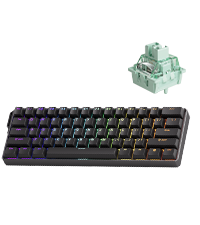
Image 4.5: A graphic illustrating the transition from 1K to 8K polling rate, emphasizing the high-performance data transmission of the keyboard.
4.6 ARGB Lighting
The FUN68 series features Addressable RGB (ARGB) lighting with individually controlled LEDs. This provides rich dynamic effects and a flicker-free experience, reducing visual fatigue. The 500Hz refresh rate further enhances the visual quality of the lighting.

Image 4.6: The MONSGEEK FUN68 keyboard displaying its customizable ARGB lighting, with a visual representation of a 500Hz refresh rate.
4.7 MonsGeek Driver Software
The MonsGeek Driver software provides comprehensive control over the keyboard's advanced features. This includes customizing rapid trigger settings, key remapping, DKS/Toggle Key/Mod-Tap configurations, ARGB lighting effects, and switch calibration. It is recommended to download the latest version of the software from the official MONSGEEK website for full functionality.

Image 4.7: A screenshot of the MonsGeek Driver software interface, showing options for configuration, key remapping, magnetic switch settings, and lighting adjustments.
5. Maintenance
5.1 Cleaning the Keyboard
- Disconnect the keyboard from your computer before cleaning.
- Use a soft, lint-free cloth slightly dampened with water or a mild cleaning solution to wipe the keycaps and chassis.
- For dust and debris between keys, use compressed air.
- Avoid harsh chemicals or abrasive materials.
5.2 Magnetic Switch Replacement
The magnetic switches are designed to be replaceable. To replace a switch:
- Gently pull the keycap off the switch using a keycap puller (if provided, or a suitable tool).
- Carefully remove the magnetic switch from the keyboard using a switch puller.
- Insert the new compatible magnetic switch, ensuring it is correctly aligned, and press firmly until it clicks into place.
- Replace the keycap.
- After replacing switches, use the MonsGeek Driver software to calibrate the new switches for optimal performance.

Image 5.1: A detailed view of a magnetic switch, illustrating its internal components and design.
6. Troubleshooting
6.1 Keyboard Not Responding
- Ensure the USB-C cable is securely connected to both the keyboard and the computer.
- Try connecting the keyboard to a different USB port on your computer.
- Test the keyboard on another computer to rule out system-specific issues.
- Restart your computer.
6.2 Lighting Issues
- Check the lighting settings in the MonsGeek Driver software.
- Ensure no Fn key combinations have turned off the lighting.
- If specific keys are not lighting up, consider if the switch or LED for that key might be faulty.
6.3 Inconsistent Key Response / Rapid Trigger Issues
- Open the MonsGeek Driver software and verify the rapid trigger settings.
- Perform a calibration of the magnetic switches through the software.
- Ensure the keyboard firmware is up to date.
- Clean any debris from around the affected switch.
7. Specifications
| Feature | Detail |
|---|---|
| Brand | MONSGEEK |
| Model | FUN68 |
| Layout | 65% (68-key) |
| Connectivity | Wired, USB-C |
| Switch Type | Glare Magnetic Switch (Compatible with mainstream magnetic switches) |
| Rapid Trigger | Adjustable actuation up to 0.005mm |
| Polling Rate | 8K |
| Scan Rate | 16K |
| Lighting | ARGB (Addressable RGB) with 500Hz refresh rate |
| Special Features | DKS, Toggle Key, Mod-Tap, Snap Key |
| Compatible Devices | PC, Gaming Console |
| Material | Magnetic and Plastic |
| Item Weight | 1.8 pounds |
| Package Dimensions | 14.21 x 7.8 x 2.4 inches |
8. Warranty and Support
8.1 Warranty Information
MONSGEEK products typically come with a limited manufacturer's warranty. Please refer to the warranty card included with your product or visit the official MONSGEEK website for detailed warranty terms and conditions specific to your region.
8.2 Customer Support
For technical assistance, troubleshooting, or general inquiries, please contact MONSGEEK customer support. You can usually find contact information, FAQs, and driver downloads on the official MONSGEEK website: www.monsgeek.com (Note: This is a placeholder URL, please refer to your product packaging or official brand channels for the correct support website.)


