
1. Introduction
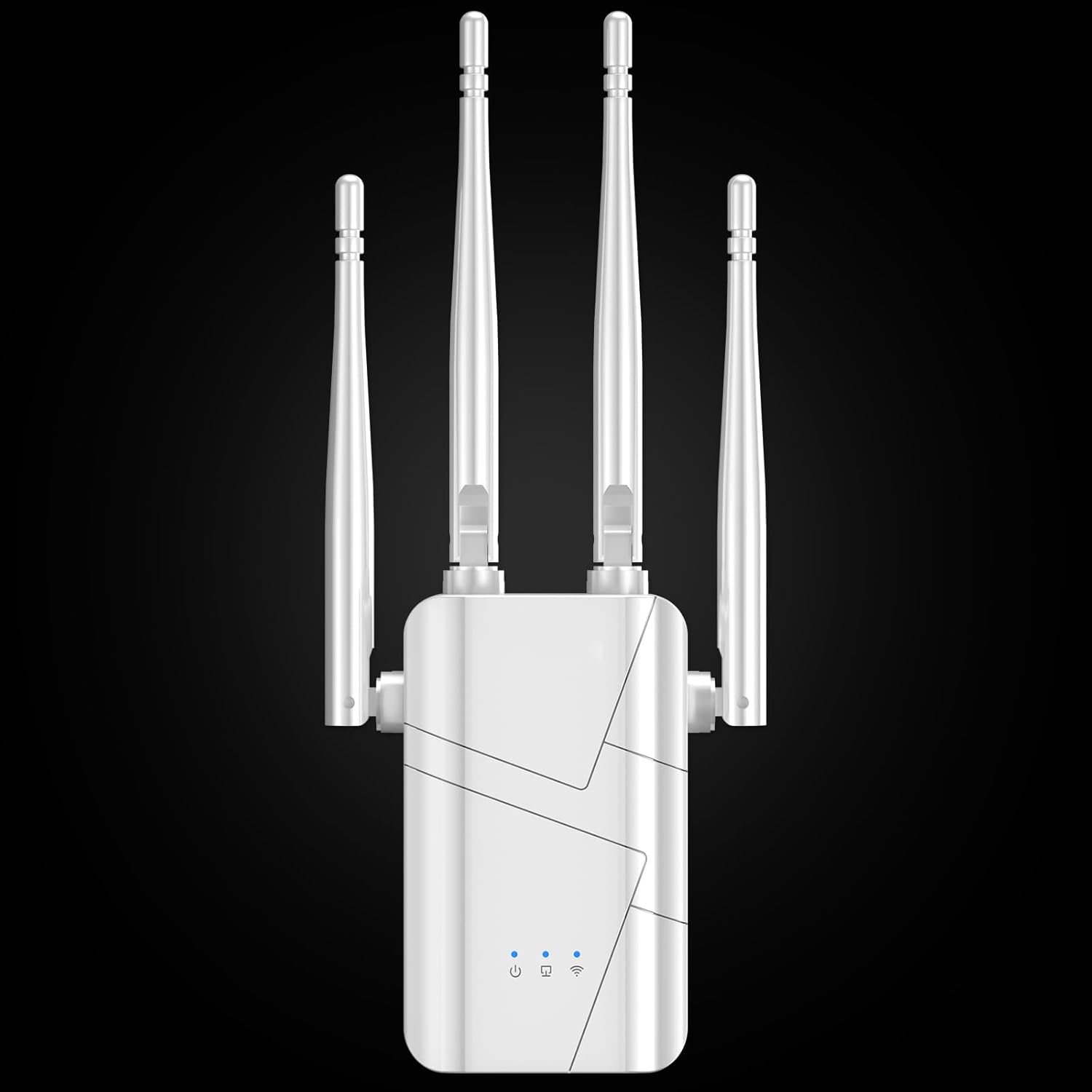
The Baetaey WiFi Extender, Model Router Booster, is designed to expand your existing wireless network coverage, eliminating Wi-Fi dead zones and providing a stronger, more reliable internet connection throughout your home or office. This device supports dual-band Wi-Fi (2.4 GHz and 5 GHz) and offers high-speed data transmission for multiple connected devices.
Key Features:
- Extended Coverage: Boosts existing Wi-Fi signals to cover areas up to 15,000 sq. ft.
- Dual Band Support: Compatible with both 2.4 GHz and 5 GHz networks for flexible connectivity.
- High-Performance Chip: Equipped with an advanced processor for stable and fast performance.
- Ethernet Port: Allows for wired connections to devices like smart TVs, gaming consoles, or PCs for enhanced stability.
- Powerful External Antennas: Four adjustable antennas centralize Wi-Fi to the device for stronger signal reception.
- Universal Compatibility: Connects to over 70 devices, compatible with all Wi-Fi enabled devices, routers, and access points.
2. Setup Guide
Setting up your Baetaey WiFi Extender is a straightforward process. Follow these steps to get your device up and running.
2.1. Placement
For optimal performance, place the Wi-Fi extender in an area where your existing Wi-Fi signal is still strong, but close enough to the dead zone you wish to cover. Avoid placing it near large metal objects, concrete walls, or other devices that may cause interference.

2.2. Power On
- Plug the Baetaey WiFi Extender into a power outlet.
- Wait for the indicator lights to illuminate, indicating the device is powered on.
2.3. Connection Methods
There are typically two methods to connect your extender to your existing Wi-Fi network: WPS (Wi-Fi Protected Setup) or via a web browser/mobile app.
2.3.1. WPS Setup (Recommended for quick setup)
- Press the WPS button on your existing Wi-Fi router.
- Within two minutes, press the WPS/Reset button on the Baetaey WiFi Extender.
- The indicator lights on the extender will flash and then turn solid, indicating a successful connection.
Video 1: Product Overview Video demonstrating the physical setup and WPS connection process for the WiFi Extender.
2.3.2. Web Browser/Mobile App Setup
- Connect your computer or mobile device to the extender's default Wi-Fi network (usually named "WiFi_Repeater" or similar, found on the device label).
- Open a web browser and enter the default IP address (e.g., 192.168.1.1) or domain name (e.g., repeater.net) provided in the user manual.
- Follow the on-screen instructions to create an admin password and select your existing Wi-Fi network to extend.
- Enter the password for your existing Wi-Fi network.
- The extender will restart and broadcast your extended Wi-Fi network.
Video 2: WiFi Extender Signal Booster for Home, demonstrating the setup process via a mobile application.
3. Operating Modes
The Baetaey WiFi Extender supports multiple operating modes to suit various network needs.
3.1. Repeater Mode (Default)
In Repeater Mode, the extender wirelessly connects to your existing router and amplifies its signal to cover a wider area. This is ideal for extending Wi-Fi coverage to dead zones.
3.2. Access Point (AP) Mode
In AP Mode, the extender connects to your wired network (via an Ethernet cable) and transforms it into a wireless access point. This is useful for adding Wi-Fi capability to a wired-only network or creating a new Wi-Fi network.

4. Connectivity and Coverage
The Baetaey WiFi Extender is designed for broad compatibility and extensive coverage.
4.1. Universal Compatibility
This extender is compatible with any standard Wi-Fi router or gateway. It supports simultaneous connections for over 70 devices, ensuring smooth internet access for all your smart devices, computers, and streaming gadgets without significant slowdowns.

4.2. Extended Range
The device is capable of extending Wi-Fi coverage up to 15,000 square feet, making it suitable for large homes or multi-story buildings where the main router's signal may not reach effectively.
5. Specifications
| Feature | Detail |
|---|---|
| Brand | Baetaey |
| Model Number | Router Booster |
| Package Dimensions | 10.2 x 3.66 x 2.13 inches |
| Item Weight | 7 ounces |
| Wi-Fi Bands | 2.4 GHz & 5 GHz (Dual Band) |
| Ethernet Port | Yes (Gigabit) |
| Antennas | 4 External Antennas |
| Max Coverage | Up to 15,000 sq. ft. |
| Max Devices | 70+ |
6. Troubleshooting
If you encounter issues with your Baetaey WiFi Extender, try the following troubleshooting steps:
- No Power: Ensure the extender is securely plugged into a working power outlet. Check if the power indicator light is on.
- No Connection/Weak Signal:
- Relocate the extender closer to your main router. The extender should be placed where it can receive a strong signal from the router.
- Ensure there are no major obstructions (thick walls, large metal objects) between the router and the extender.
- Check the signal indicator lights on the extender. If they are red or off, the extender is too far from the router.
- Incorrect Password: Double-check that you entered the correct Wi-Fi password for your main network during setup.
- Reset Extender: If issues persist, perform a factory reset by pressing and holding the WPS/Reset button for 5-10 seconds until the lights flash. Then, repeat the setup process.
- Interference: Move the extender away from other electronic devices (microwaves, cordless phones) that might cause interference.
7. Maintenance
To ensure the longevity and optimal performance of your Baetaey WiFi Extender, consider the following maintenance tips:
- Keep Clean: Regularly wipe the device with a soft, dry cloth to prevent dust buildup, which can affect performance.
- Ventilation: Ensure the extender's ventilation holes are not blocked to prevent overheating.
- Firmware Updates: Check the manufacturer's website periodically for firmware updates. Updating the firmware can improve performance, add new features, and fix bugs.
- Avoid Extreme Conditions: Do not expose the device to extreme temperatures, humidity, or direct sunlight.
8. Warranty and Support
For warranty information, technical support, or further assistance, please refer to the documentation included with your product or visit the official Baetaey website. Keep your purchase receipt for warranty claims.