
Qainerly UD310
Qainerly 512GB 4-in-1 USB Flash Drive User Manual
Brand: Qainerly | Model: UD310
1. Introduction
Thank you for choosing the Qainerly 512GB 4-in-1 USB Flash Drive. This versatile storage device is designed to provide expanded memory and easy file transfer for a wide range of devices, including iOS phones, Android phones, tablets, and computers. With its 4-in-1 design, it features connectors for iOS, standard USB, Micro USB, and Type-C, ensuring broad compatibility. This manual will guide you through the setup, operation, and maintenance of your new flash drive.

Image 1.1: The Qainerly 4-in-1 USB Flash Drive connected to a smartphone, showcasing its compact design and direct connectivity.
2. Setup Guide
Before using your Qainerly USB Flash Drive, please follow these steps to ensure proper setup, especially for iOS devices.
2.1. Initial Connection
Connect the appropriate connector of the flash drive to your device (iOS, Android, or computer). The device should recognize the flash drive automatically.
2.2. iOS Device Setup (App Installation)
For iOS devices, an application is required to manage files on the flash drive. Follow these steps:
- Download the App: Go to the App Store on your iOS device. Search for "LUV-share" (or the recommended app name provided with your product) and download it.
- Grant Permissions: Upon first connection of the flash drive after installing the app, a notice will appear asking for permission to communicate with the FlashDriver. Tap "Allow" to proceed. This permission is crucial for the app to access and manage files on the drive.

Image 2.1: Visual guide for iOS users to download the 'LUV-share' app and grant necessary permissions for the flash drive to function correctly.
2.3. Android/Computer Setup
For Android devices and computers, the flash drive typically operates as a standard USB storage device. No special app installation is usually required. Simply connect the appropriate USB or Type-C connector, and the device will appear in your file manager.
3. Operating Instructions
This section details how to use your Qainerly USB Flash Drive for various functions.
3.1. Wide Compatibility
The 4-in-1 design ensures compatibility with a broad range of devices:
- iOS: For iPhones and iPads (requires LUV-share app).
- USB: For standard USB ports on computers, laptops, and other devices.
- Micro USB: For older Android phones and tablets.
- Type-C: For newer Android phones, tablets, and modern laptops.

Image 3.1: An illustration demonstrating the four different connector types (iOS, USB, Micro USB, Type C) and their corresponding device compatibility.
3.2. File Transfer and Backup
To transfer photos, videos, and other files:
- For iOS Devices: Open the LUV-share app. Navigate to your device's internal storage or photo library. Select the files you wish to transfer and use the app's functions to copy or move them to the external storage (your flash drive). Similarly, you can transfer files from the flash drive to your iOS device. The app also supports contact backup and restore.
- For Android Devices/Computers: Once connected, the flash drive will appear as a removable storage device. Use your device's native file manager to drag and drop files between your device's internal storage and the flash drive.

Image 3.2: A visual representation of file transfer operations on a smartphone, highlighting the speed capabilities of USB 3.0 for efficient data movement.

Image 3.3: The Qainerly flash drive simultaneously connected to a smartphone and a laptop, demonstrating its cross-device compatibility for data transfer.
3.3. Secure Encrypted Backup (iOS Only)
For iOS devices, the LUV-share app supports secure encrypted backup. This feature allows you to protect sensitive files with a password or fingerprint. Only iOS devices support this encryption feature, as it relies on the app's functionality.
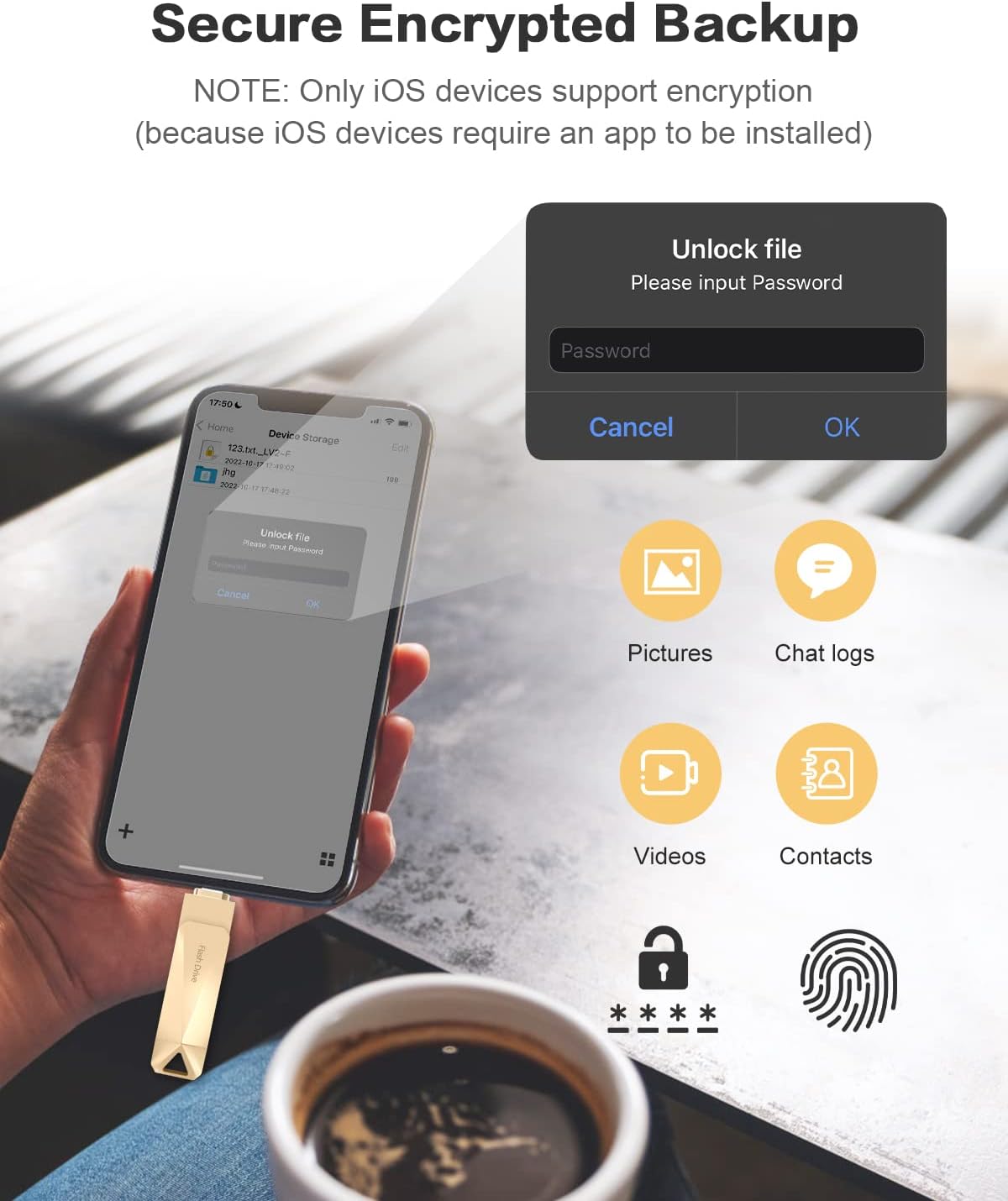
Image 3.4: An iOS screen displaying a password input prompt for unlocking encrypted files stored on the flash drive, emphasizing the secure backup feature.
3.4. Managing Storage Capacity
The 512GB capacity provides ample space for extensive photo, video, and document storage. If your device's internal storage is full, the flash drive offers a convenient solution to free up space.

Image 3.5: A visual representation of how the flash drive helps manage storage, showing a 'Storage Full' notification on a phone and highlighting the 512GB capacity as ideal for extensive media storage.
4. Maintenance
To ensure the longevity and optimal performance of your Qainerly USB Flash Drive, please observe the following maintenance guidelines:
- Handle with Care: Avoid dropping the device or subjecting it to strong impacts, which can damage internal components.
- Keep Dry: Protect the flash drive from water and moisture. While some models may have water-resistant features, prolonged exposure to liquids can cause irreparable damage.
- Avoid Extreme Temperatures: Do not expose the device to extremely high or low temperatures, as this can affect its performance and lifespan.
- Proper Ejection: Always safely eject the flash drive from your computer or device before physically removing it to prevent data corruption.
- Clean Connectors: If necessary, gently clean the connectors with a dry, lint-free cloth to ensure good contact.
5. Troubleshooting
If you encounter issues with your Qainerly USB Flash Drive, refer to the following common problems and solutions:
5.1. Device Not Recognized
- Check Connection: Ensure the flash drive is fully and correctly inserted into the port.
- Try Another Port/Device: Test the flash drive on a different USB port or another compatible device to rule out a port issue.
- Restart Device: Sometimes, a simple restart of your phone or computer can resolve recognition issues.
- For iOS: Verify that the LUV-share app is installed and that you have granted permission for the app to communicate with the flash drive (refer to Section 2.2).
5.2. Slow Transfer Speeds
- USB Port Type: Ensure you are using a USB 3.0 port on your computer for optimal speeds. USB 2.0 ports will result in slower transfers.
- File Size/Quantity: Transferring many small files can be slower than transferring a few large files of the same total size.
- Device Performance: The speed of your phone or computer can also affect transfer rates.
5.3. Cannot Write/Delete Files
- Check Permissions: Ensure you have the necessary read/write permissions on the device you are using.
- Drive Full: Verify that the flash drive is not full. Delete unnecessary files if needed.
- File System: If the drive was formatted on a different operating system, there might be compatibility issues. Consider backing up data and reformatting the drive to a common file system like exFAT or FAT32.
5.4. App Issues (iOS)
- Update App: Ensure your LUV-share app is updated to the latest version from the App Store.
- Reinstall App: If issues persist, try uninstalling and reinstalling the app.
- Check iOS Version: Ensure your iOS device meets the minimum operating system requirements for the app.
6. Specifications
Below are the technical specifications for the Qainerly UD310 USB Flash Drive:
| Feature | Detail |
|---|---|
| Brand | Qainerly |
| Model Number | UD310 |
| Capacity | 512GB |
| Connectivity Technology | USB (4-in-1: iOS, USB, Micro USB, Type-C) |
| Special Feature | Fingerprint (for iOS app encryption), Water Resistant (general characteristic, not for immersion) |
| Item Weight | 2.08 ounces |
| Package Dimensions | 3.5 x 2.48 x 0.67 inches |
7. Warranty and Support
Qainerly products are designed for reliability and performance. For specific warranty information regarding your UD310 USB Flash Drive, please refer to the warranty card included with your purchase or visit the official Qainerly website.
If you require technical assistance or have questions not covered in this manual, please contact Qainerly customer support through the contact information provided on the product packaging or their official website. Please have your model number (UD310) and purchase details ready when contacting support.
Ask a question about this manual
Ask about setup, troubleshooting, compatibility, parts, safety, or missing instructions. Manuals+ will review the question and use this page’s manual context to help answer it.