
Introduction
This manual provides detailed instructions for setting up, operating, and maintaining your flyEVfish 10.1 Inch Smart Electronic Desk Calendar. This device is designed to help families manage schedules, tasks, meal plans, and more through an interactive touchscreen display. Please read this manual thoroughly before using the device to ensure proper function and longevity.
1. Setup
1.1 Unboxing and Initial Power On
- Carefully remove the Digital Calendar from its packaging.
- Place the device on a stable, flat surface.
- Connect the provided power adapter to the device's power port and then to a standard US-style electrical outlet. The device will automatically power on.
1.2 Wi-Fi Connection
- Upon first boot, the device will guide you through the initial setup process. Select your preferred language.
- Follow the on-screen prompts to connect to your home Wi-Fi network. You will need your Wi-Fi network name (SSID) and password.
1.3 Calendar Sync and eCalendar App
The flyEVfish Digital Calendar supports seamless synchronization with popular calendar services.
- Supported Services: Google Calendar, Outlook Calendar, iCloud Calendar, Cozi, and Yahoo Calendar.
- Download the eCalendar app on your smartphone or tablet from the Google Play Store or Apple App Store.
- Open the eCalendar app and create an account or log in.
- Follow the app's instructions to link your desired external calendar accounts.
- On your Digital Calendar device, navigate to the 'Settings' menu and select 'Sync Calendars'. Follow the prompts to connect your device to your eCalendar app account.
- Events and schedules will begin to sync automatically.

Image 1.3.1: The flyEVfish Digital Calendar displaying its ability to sync with various popular calendar services, including Google, Outlook, iCloud, Cozi, and Yahoo, ensuring all your schedules are integrated.
2. Operating Instructions
The 10.1-inch HD touchscreen allows for intuitive interaction with all features.

Image 2.0.1: The main display of the flyEVfish Digital Calendar, showcasing a weekly schedule with color-coded entries for individual family members, along with weather information and current time.
2.1 Calendar Management
- Adding Events: Tap the '+' icon on the calendar view to add a new event. Enter details such as title, date, time, and participants.
- Assigning Colors: Assign unique colors to each family member for easy identification of their schedules. This can be done in the 'Family Members' section of the settings.
- Viewing Options: Switch between daily, weekly, or monthly views using the options at the top of the screen.
2.2 Task Chart & Rewards System
Motivate family members by assigning tasks and tracking their completion.
- Navigate to the 'Tasks' section from the main menu.
- Create new tasks, assign them to specific family members, and set due dates.
- In the 'Rewards' section, define custom rewards that can be earned upon task completion.
- Family members can mark tasks as complete on the device, earning stars towards their rewards.

Image 2.2.1: The flyEVfish Digital Calendar showing a task chart with assigned chores, alongside an image of a child receiving a reward, illustrating the interactive reward system.
2.3 Meal Planner
Plan and display your weekly meal schedule for the entire family.
- Access the 'Meals' section from the main menu.
- Add meals for each day of the week. This helps in planning and reduces mealtime questions.
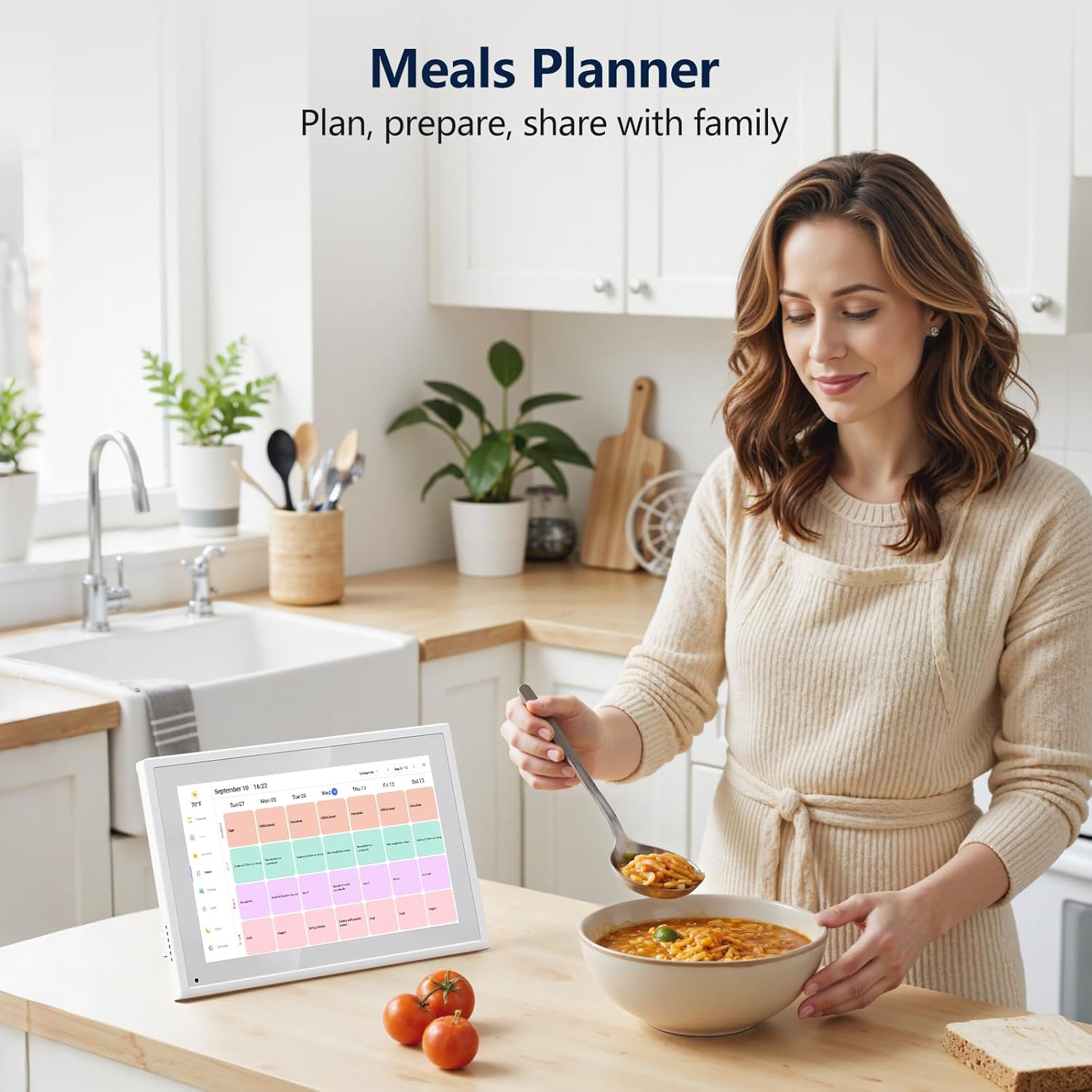
Image 2.3.1: The flyEVfish Digital Calendar displaying a clear weekly meal plan, positioned on a kitchen counter, demonstrating its utility in organizing family meals.
2.4 Photo Display
When not actively used for scheduling, the device can function as a digital picture frame.
- Upload your favorite photos through the eCalendar app.
- Organize photos into albums within the app.
- In the device settings, enable 'Photo Display' and select which albums to feature.

Image 2.4.1: The flyEVfish Digital Calendar showcasing a family photo, with a smartphone screen illustrating the process of uploading and managing photos for the display.
2.5 Custom Lists
Create and manage various lists directly on the device or through the eCalendar app.
- Access the 'Lists' section from the main menu.
- Create lists for groceries, packing, to-dos, or any other reminders.
- Items can be checked off as completed.

Image 2.5.1: The flyEVfish Digital Calendar displaying a grocery list, complemented by a smartphone showing the eCalendar app's interface for managing various custom lists.
2.6 Weather Display
Stay informed with precise weather forecasts.
- The device displays real-time weather and temperature for your location.
- It provides weather forecasts for the next three days, visible on the main calendar screen.
2.7 Sleep Mode
Conserve energy and ensure undisturbed sleep.
- In the 'Settings' menu, navigate to 'Sleep Mode'.
- Set specific times for the screen to automatically go to sleep and wake up.
2.8 Automatic Brightness and Auto Rotate
- Automatic Brightness: The device automatically adjusts screen brightness based on ambient light conditions for optimal viewing comfort.
- Auto Rotate: The display supports automatic rotation, allowing you to use the calendar in both landscape and portrait orientations.

Image 2.8.1: An illustration highlighting key features of the flyEVfish Digital Calendar, including weather display, automatic brightness adjustment, auto-rotate function, touchscreen capabilities, and programmable sleep mode.
2.9 Device Sharing
Invite family members to synchronize schedules and manage content.
- Through the eCalendar app, you can send invitations to other family members.
- Once accepted, they can view and contribute to the shared calendar, tasks, and lists.

Image 2.9.1: The flyEVfish Digital Calendar demonstrating its device sharing capability, allowing multiple family members to synchronize and manage schedules collaboratively.
3. Maintenance
3.1 Cleaning the Device
- Ensure the device is powered off and unplugged before cleaning.
- Use a soft, lint-free cloth slightly dampened with water to clean the screen and exterior.
- Avoid using harsh chemicals, abrasive cleaners, or aerosol sprays, as these can damage the screen and finish.
3.2 Software Updates
- The device may periodically receive software updates to improve performance and add new features.
- When an update is available, a notification will appear on the screen. Follow the on-screen instructions to install the update. Ensure the device is connected to power during updates.
4. Troubleshooting
4.1 Common Issues and Solutions
- Device not powering on:
Ensure the power adapter is securely connected to both the device and a working electrical outlet. Try a different outlet. - Wi-Fi connectivity issues:
Check if your Wi-Fi router is working correctly. Restart the device and your router. Ensure you have entered the correct Wi-Fi password. - Calendar not syncing:
Verify that your device is connected to Wi-Fi. Check the eCalendar app to ensure your external calendar accounts are properly linked. Restart both the device and the eCalendar app. - Touchscreen unresponsive:
Restart the device. If the issue persists, perform a factory reset (see section 4.2). - Screen too dim/bright:
Check the 'Automatic Brightness' setting in the device menu. You can also manually adjust brightness.
4.2 Factory Reset
A factory reset will erase all personal data and settings, restoring the device to its original state. Use this as a last resort for persistent issues.
- Navigate to 'Settings' on your device.
- Select 'System' or 'About Device'.
- Choose 'Factory Reset' or 'Erase all data'.
- Confirm your choice. The device will restart and begin the reset process.
5. Specifications
Image 5.0.1: The flyEVfish Digital Calendar highlighting its 10.1-inch HD display and physical dimensions for reference.
| Feature | Detail |
|---|---|
| Brand | flyEVfish |
| Model Number | JT101M-H01 |
| Screen Size | 10.1 Inches |
| Material | ABS |
| Item Weight | 2.57 pounds |
| Package Dimensions | 13.23 x 7.72 x 1.34 inches |
| Mounting Type | Desk Mount |
| UPC | 199284136571 |
6. Warranty and Support
6.1 Product Warranty
For detailed information regarding the product warranty, please refer to the warranty card included in your product packaging or visit the official flyEVfish website.
6.2 Customer Support
If you encounter any issues not covered in this manual or require further assistance, please contact flyEVfish customer support through the contact information provided on the official website or your purchase documentation.