
1. Introduction
The flyEVfish 15.6 Inch Digital Calendar is a smart touchscreen display designed to help families organize schedules, manage tasks, and plan routines efficiently. This device integrates various features such as calendar synchronization, chore charts, meal planning, photo display, and custom lists to streamline household management.
This manual provides detailed instructions for setting up, operating, and maintaining your digital calendar. Please read it thoroughly before use to ensure optimal performance and longevity of your device.
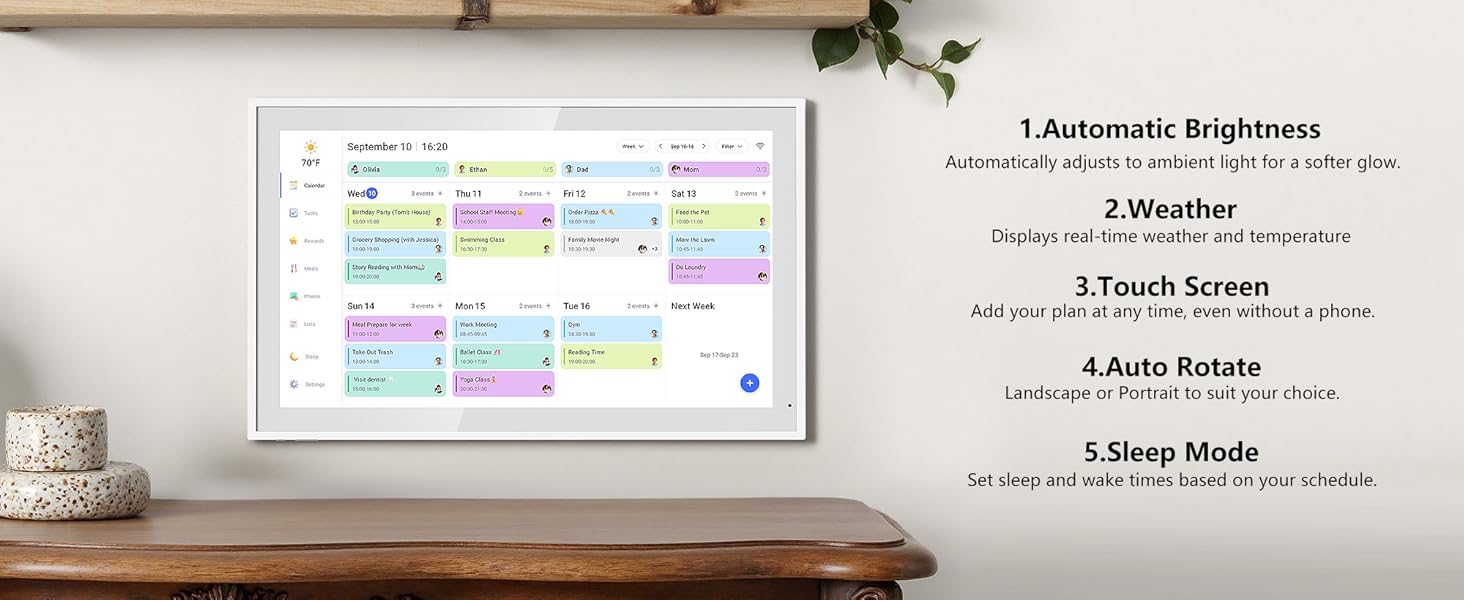
Image: The flyEVfish Digital Calendar displaying a weekly schedule with tasks and events, emphasizing its role in planning and enjoying life.
2. Setup Guide
Follow these steps to set up your flyEVfish Digital Calendar for the first time:
- Power Connection: Plug the device into a standard US-style power outlet.
- Wi-Fi Connection: On the device's screen, navigate to the settings and connect to your home Wi-Fi network.
- Calendar Synchronization: The device supports synchronization with popular calendar services such as Google, Outlook, iCloud, Cozi, and Yahoo. Follow the on-screen prompts to link your preferred calendar accounts.
- eCalendar App: Download the eCalendar app on your smartphone or tablet. This app allows for remote management and additional features.
- Add Events: Once synced, you can add events directly on the device's touchscreen or through the eCalendar app.

Image: A user syncing their digital calendar with their phone, illustrating the ease of setup and compatibility with Google, Outlook, iCloud, Cozi, and Yahoo calendars.
3. Operating Instructions
3.1 Smart Digital Calendar Features
The 15.6-inch HD touchscreen allows for intuitive interaction. You can assign different colors to family members or event types for easy visual identification. Add tasks and manage events across various views and features without any subscription fees.
3.2 Interactive Task Chart & Meal Plans
Utilize the interactive task chart to assign routines and to-do lists. Children can earn stars and unlock custom rewards, fostering engagement and motivation. The device also supports displaying weekly meal plans, simplifying mealtime decisions for the entire family.
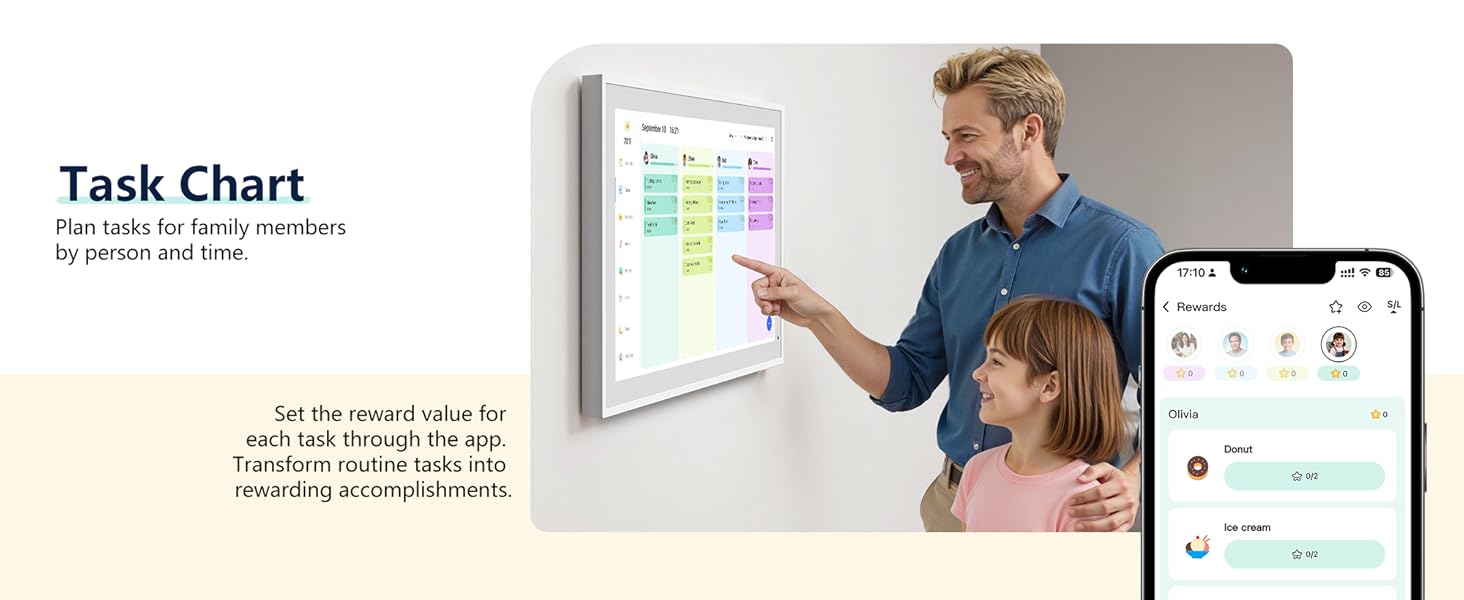
Image: A mother and child engaging with the digital calendar's task chart, demonstrating how tasks can be completed and rewards redeemed.
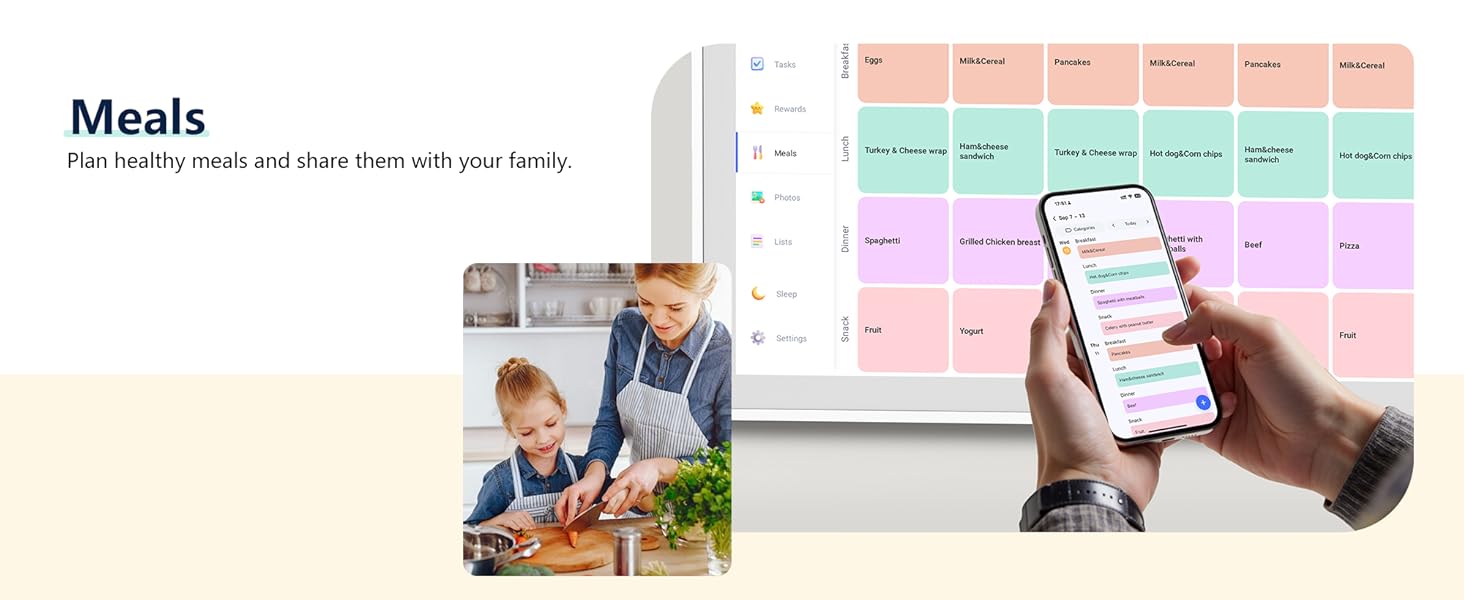
Image: Two women in a kitchen setting, one pointing to the digital calendar displaying meal plans, illustrating how the device helps organize daily meals.
3.3 Photo Display & Custom Lists
When not actively used as a calendar, the device can function as a digital photo frame, displaying your favorite photographs. You can organize photos into albums to curate what is featured. Additionally, create custom lists for various purposes, such as packing lists for trips or grocery lists, ensuring you remember everything.

Image: An older couple enjoying family photos displayed on the digital calendar, with an inset showing how photos can be uploaded from a smartphone.

Image: A visual comparison showing a cluttered refrigerator covered in handwritten notes and lists, contrasted with a clean refrigerator next to the digital calendar displaying an organized schedule.
3.4 Weather & Sleep Mode
Stay informed with precise weather forecasting for the next three days, displayed directly on the calendar. The device also features a customizable sleep mode, allowing you to set specific times for the screen to turn off at night and wake up in the morning, conserving energy and reducing light pollution.
3.5 Device Sharing
Invite family members to synchronize their schedules and changes through eCalendar invitations. This ensures everyone has access to the latest updates and contributes to a unified family schedule.
3.6 eCalendar App
The dedicated eCalendar app, available for free download on Google Play and the Apple App Store, provides comprehensive control and synchronization capabilities. Manage your calendar, tasks, and settings from your mobile device.
- Automatic Brightness: Adjusts to ambient light for a softer glow.
- Weather: Displays real-time weather and temperature.
- Touch Screen: Add your plan at any time, even without a phone.
- Auto Rotate: Supports both landscape and portrait orientations.
- Sleep Mode: Set sleep and wake times based on your schedule.
4. Mounting Options
The flyEVfish Digital Calendar offers versatile mounting options to suit your space:
- Wall Mount: The device can be easily mounted to any wall. Secure the provided screws to the wall, and then hang the calendar directly.
- Desk Mount: Alternatively, the calendar can sit beautifully on a desktop using its integrated stand.
Choose the placement that best integrates into your kitchen, hallway, dining room, or living room.
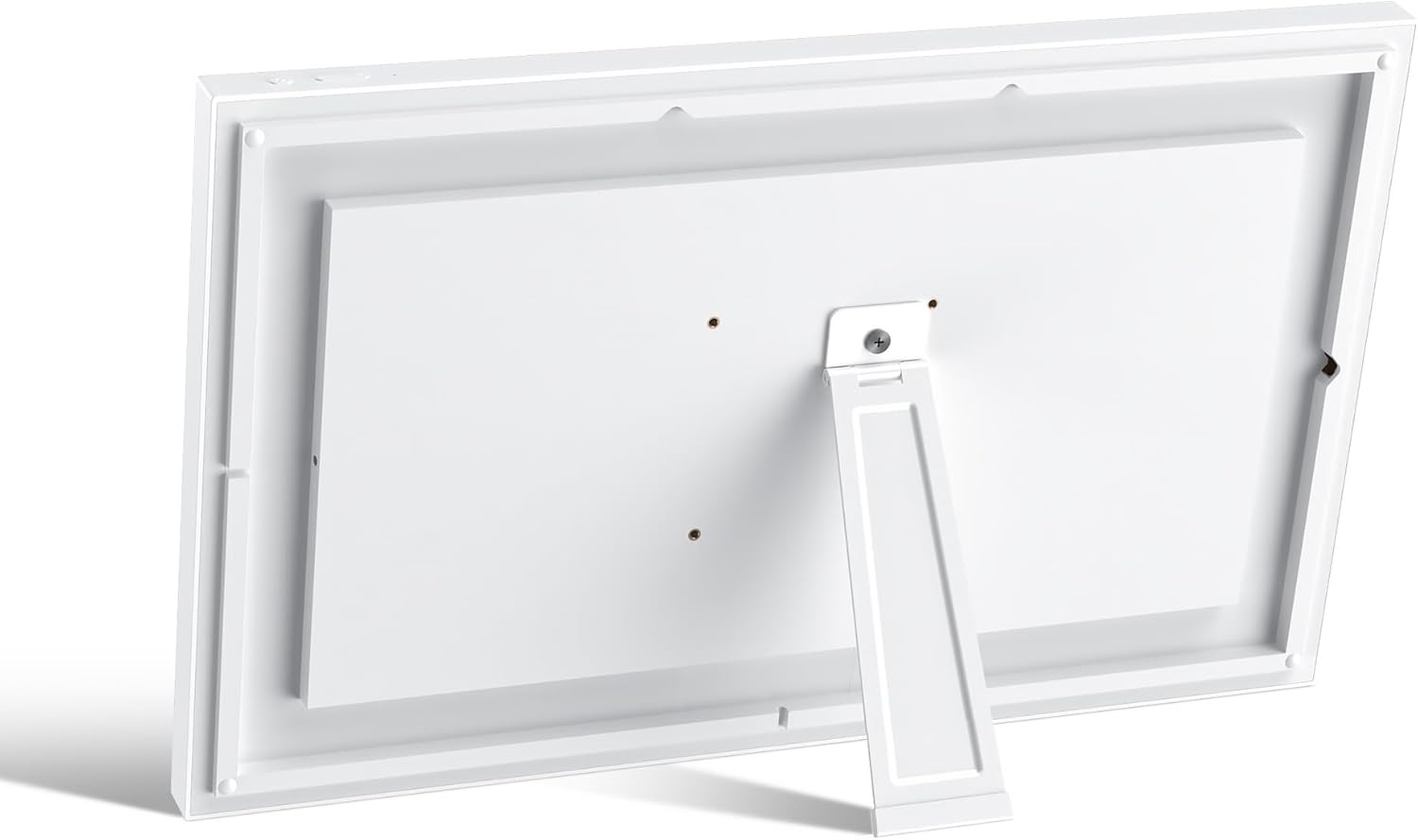
Image: The rear view of the digital calendar, highlighting the built-in kickstand for desk placement and the mounting points for wall installation.
5. Specifications
Key technical specifications for the flyEVfish 15.6 Inch Digital Calendar:

Image: A diagram illustrating the physical dimensions of the 15.6-inch HD touchscreen digital calendar.
| Feature | Detail |
|---|---|
| Brand | flyEVfish |
| Model Number | JT156M-H01 |
| ASIN | B0FLXL6JTN |
| Size | 15.6 Inch |
| UPC | 199284115835 |
| Item Weight | 1.54 kg |
| Parcel Dimensions | 44.2 x 29.49 x 8.2 cm |
| Number of Items | 1 |
6. Troubleshooting
If you encounter any issues with your flyEVfish Digital Calendar, please refer to the following common troubleshooting steps:
- Device Not Powering On: Ensure the power adapter is securely connected to both the device and a working power outlet.
- Wi-Fi Connection Issues: Verify your Wi-Fi network is active and the password is correct. Try restarting your router and the digital calendar.
- Calendar Not Syncing: Check your internet connection. Confirm that your calendar accounts (Google, Outlook, etc.) are correctly linked in the device settings and the eCalendar app. Ensure the eCalendar app is updated to the latest version.
- Touchscreen Unresponsive: Restart the device. If the issue persists, ensure the screen is clean and free of debris.
- Duplicate Events: If you experience duplicate events, check for any conflicting calendar synchronizations or settings within the eCalendar app. Sometimes, a forced update from customer service can resolve this.
For further assistance, please contact flyEVfish customer support. Contact information is typically provided within the device's settings or on the manufacturer's official website.
7. Warranty and Support
Warranty information for your flyEVfish Digital Calendar is typically included with the product packaging or available on the official flyEVfish website. Please retain your proof of purchase for warranty claims.
For technical support, product inquiries, or warranty service, please refer to the contact details provided in your product documentation or visit the flyEVfish support page online. Customer service is available to assist with setup, troubleshooting, and feature guidance.