
CAMECHO 4+64G 8-Core Android 15
CAMECHO Android 15 Qualcomm Car Radio User Manual
Model: 4+64G 8-Core Android 15
1. Introduction
This manual provides detailed instructions for the installation, operation, and maintenance of your CAMECHO Android 15 Qualcomm Car Radio. This device is designed to enhance your in-car entertainment and navigation experience with advanced features such as Wireless Carplay, Android Auto, GPS, and a high-resolution IPS touchscreen.

Image 1.1: CAMECHO Android 15 Car Radio main unit with included Canbus module and a smartphone demonstrating wireless connectivity.
2. Package Contents
Please verify that all items listed below are included in your package:
- 1 x Android Player (Main Unit)
- 2 x Power Cables
- 2 x USB Cables
- 1 x Cable for Rear View Camera
- 2 x Radio Antennas
- 1 x Canbus Module
- 1 x GPS Antenna
- 1 x RCA Input/Output Cable
- 1 x User Manual

Image 2.1: Overview of the CAMECHO Android Car Radio dimensions and all included components.
3. Specifications
The CAMECHO Android Car Radio features advanced hardware for optimal performance:
- System: Android 15
- Chipset: SM4250 Qualcomm Snapdragon (8-Core, 1.8 GHz CPU)
- Memory: 4GB RAM + 64GB ROM
- Screen Size: 7 inches IPS Touchscreen
- Display Resolution: 1024 x 600
- Radio Chip: 8035 (FM/RDS)
- Output Power: MOSFET 4*50W
- Bluetooth Version: 5.1
- Operating Temperature: -20°C to 70°C
- Power Amplifier Chip: AC7315
- GPS: Supported (Integrated offline maps, Wi-Fi for online maps)
- Connectivity: Wi-Fi, Dual USB Interface, Bluetooth
- Rear View Camera Input: AHD/CVBS Supported
- Special Features: Wireless Carplay, Android Auto, Mirror Link, Built-in DSP, Steering Wheel Control, Cooling Fan, UI Color Customization
- Product Dimensions: 21 x 29.5 x 10.5 cm
- Weight: 1.32 kg

Image 3.1: Illustration of the Qualcomm Snapdragon 8-Core chip, the core component of the car radio.
4. Vehicle Compatibility
This CAMECHO car radio is specifically designed for various VW, Skoda, and Seat models. Please ensure your vehicle's dashboard configuration matches the compatible examples before installation.

Image 4.1: Examples of compatible vehicle dashboards where the CAMECHO car radio can be installed.
Important Note:
Before purchasing and installing, it is crucial to confirm your original car system's configuration, year, and central control map. Mismatched products may lead to installation incompatibility. Refer to the images below for visual guidance on compatible and incompatible dashboard types.
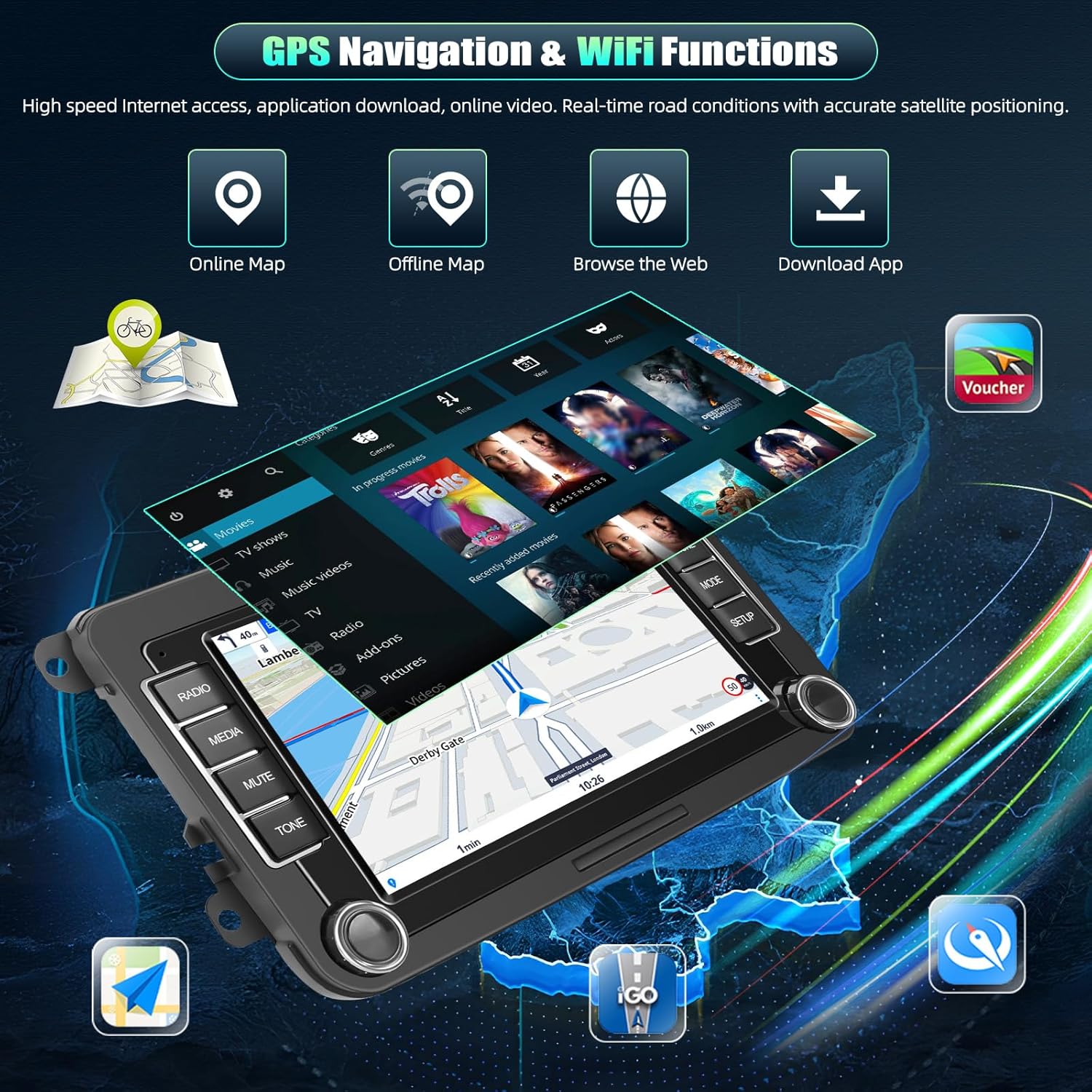
Image 4.2: Visual guide for checking car dashboard compatibility.
5. Setup and Installation
Installation of the CAMECHO car radio requires basic automotive electrical knowledge. If you are unsure, professional installation is recommended.
5.1. Pre-Installation Checklist
- Ensure the vehicle's ignition is off and the battery is disconnected.
- Gather all necessary tools (e.g., trim removal tools, screwdrivers).
- Verify all components listed in the 'Package Contents' section are present.
5.2. Wiring Connections
Refer to the wiring diagram provided in Image 2.1 and the included user manual for specific connection details. Key connections include:
- Power Cables: Connect to the vehicle's power harness. The Canbus module should be integrated here if your vehicle requires it for steering wheel controls or other vehicle data.
- USB Cables: Route to a convenient location for connecting USB devices.
- Rear View Camera Cable: Connect to your aftermarket or compatible OEM rear view camera.
- Radio Antennas: Connect the primary radio antenna and any secondary antennas if applicable.
- GPS Antenna: Mount the GPS antenna in a location with a clear view of the sky, typically on the dashboard or under the windshield.
- RCA Input/Output: For connecting external amplifiers, subwoofers, or other audio/video devices.
5.3. Mounting the Unit
Carefully insert the car radio into the dashboard opening, ensuring all cables are properly routed and not pinched. Secure the unit using the provided mounting brackets and screws.
5.4. Post-Installation
Reconnect the vehicle's battery and turn on the ignition. The unit should power on. Follow the on-screen prompts for initial setup.
6. Operating Instructions
6.1. Basic Navigation and Touchscreen
The unit features a 7-inch 1024x600 HD IPS touchscreen. Navigate through menus by tapping icons and swiping. The display supports split-screen functionality, allowing two applications to run simultaneously.

Image 6.1: High-definition IPS touchscreen features and UI customization options.
6.2. Wireless Carplay, Android Auto, and Mirror Link
Connect your smartphone wirelessly for seamless integration:
- Wireless Carplay: For iOS devices, access navigation, music, calls, and messages via the car radio interface.
- Wireless Android Auto: For Android devices, enjoy similar functionalities including Google Maps, Spotify, and voice commands.
- Wireless Mirror Link: Display your smartphone's screen directly on the car radio, compatible with both iOS and Android.
To activate, ensure Bluetooth and Wi-Fi are enabled on your smartphone and follow the pairing instructions on the car radio's screen.

Image 6.2: Wireless Carplay, Android Auto, and Mirror Link interfaces.
6.3. GPS Navigation and Wi-Fi Functions
The unit supports accurate GPS navigation with integrated offline maps. Connect to a Wi-Fi hotspot (e.g., from your smartphone) to access online maps, real-time traffic data, browse the web, and download applications from the app store.

Image 6.3: GPS navigation and Wi-Fi capabilities.
6.4. Bluetooth 5.1 and FM/RDS Radio
- Bluetooth 5.1: Pair your smartphone for hands-free calling, audio streaming, and access to your phone's contacts.
- FM/RDS Radio: Tune into your favorite FM radio stations. RDS (Radio Data System) provides additional information such as station name and program type.

Image 6.4: Bluetooth, FM/RDS Radio, and Steering Wheel Control interfaces.
6.5. Steering Wheel Control
If your vehicle supports it and the Canbus module is correctly installed, you can configure the car radio to respond to your vehicle's steering wheel controls. This allows for safe and convenient operation of volume, track changes, and other functions without taking your hands off the wheel.
6.6. UI Customization
The unit allows for customization of the user interface (UI) colors and themes. Access the settings menu to personalize the appearance of your car radio to match your preferences or vehicle interior.
7. Maintenance
To ensure the longevity and optimal performance of your CAMECHO car radio, follow these maintenance guidelines:
- Cleaning: Use a soft, dry cloth to clean the screen and exterior. For stubborn smudges, a slightly damp cloth with a mild, non-abrasive cleaner can be used. Avoid harsh chemicals.
- Temperature: Operate the unit within the specified temperature range (-20°C to 70°C). Extreme temperatures can affect performance and lifespan.
- Cooling Fan: The built-in cooling fan helps maintain optimal operating temperature. Ensure the fan vents are not obstructed.
- Software Updates: Periodically check for software updates via Wi-Fi to ensure you have the latest features and performance enhancements.
8. Troubleshooting
If you encounter issues with your CAMECHO car radio, refer to the following common problems and solutions:
| Problem | Possible Cause | Solution |
|---|---|---|
| Unit does not power on | Loose power connection, blown fuse, incorrect wiring. | Check power cables, vehicle fuses, and wiring connections. Ensure the battery is reconnected. |
| No sound | Volume too low, mute activated, speaker wiring issue. | Increase volume, check mute status, verify speaker connections. |
| GPS signal weak or lost | GPS antenna obstructed or improperly mounted, poor satellite coverage. | Ensure GPS antenna has a clear view of the sky. Check antenna connection. Move to an open area. |
| Wireless Carplay/Android Auto not connecting | Bluetooth/Wi-Fi off on phone, incorrect pairing, software glitch. | Ensure phone's Bluetooth/Wi-Fi is on. Re-pair the device. Restart both phone and car radio. |
| Steering wheel controls not working | Canbus module not connected or configured, vehicle incompatibility. | Verify Canbus connection and configuration in settings. Confirm vehicle compatibility. |
9. Warranty and Support
For warranty information and technical support, please refer to the documentation provided with your purchase or contact CAMECHO customer service. Keep your proof of purchase for warranty claims.