Introduction
This manual provides detailed instructions for the setup, operation, and maintenance of your Generic WD139 Wireless Gaming Mouse. Please read this manual thoroughly before using the product to ensure optimal performance and longevity.
The WD139 is a dual-mode wireless gaming mouse featuring 2.4GHz wireless and Bluetooth connectivity, an optical sensor with adjustable DPI, and a convenient magnetic charging dock.
Package Contents
Verify that all items listed below are present in your product package:
- WD139 Wireless Gaming Mouse
- Magnetic Charging Dock
- USB Charging Cable
- 2.4GHz USB Receiver
- Instruction Manual (this document)
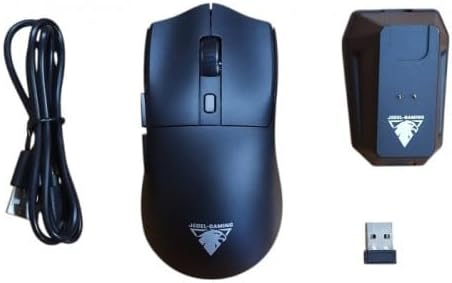
Image: The package contents, showing the WD139 mouse, its magnetic charging dock, a USB charging cable, and the 2.4GHz USB receiver.
Product Overview
The WD139 mouse is designed for ergonomic comfort and versatile connectivity. It features a total of 6 buttons for enhanced control.

Image: The WD139 mouse positioned on its magnetic charging dock, connected to a laptop, illustrating its operational setup.
Setup
1. Charging the Mouse
Before initial use, fully charge the mouse. Connect the USB charging cable to the magnetic charging dock and then to a USB power source (e.g., computer USB port, USB wall adapter). Place the mouse onto the magnetic charging dock. The mouse has a 300mAh rechargeable battery.

Image: The WD139 mouse actively charging on its magnetic dock, indicated by glowing lights.
2. Connecting via 2.4GHz Wireless
- Locate the 2.4GHz USB receiver. It is typically stored in a compartment on the underside of the mouse or within the packaging.
- Plug the USB receiver into an available USB port on your computer.
- Turn on the mouse using the power switch located on its underside.
- The mouse should automatically connect to your computer. If not, press the pairing button (if available) on the mouse or refer to the troubleshooting section.
3. Connecting via Bluetooth
The WD139 supports Bluetooth connectivity for devices that do not have a USB port or for a more streamlined setup.
- Ensure your device's Bluetooth is enabled.
- Switch the mouse to Bluetooth mode using the mode switch on the underside of the mouse (if applicable).
- Press and hold the Bluetooth pairing button on the mouse until the indicator light flashes, signifying it is in pairing mode.
- On your device, search for Bluetooth devices and select "WD139" or a similar name from the list.
- Once connected, the indicator light on the mouse will become solid or turn off.
Operating Instructions
DPI Adjustment
The mouse features adjustable DPI (Dots Per Inch) settings, allowing you to change cursor sensitivity. The available DPI settings are 800, 1200, and 1800 DPI. To adjust the DPI, press the DPI button, usually located near the scroll wheel. Each press will cycle through the available settings.
Button Functions
The WD139 mouse has 6 buttons. Standard functions include left-click, right-click, scroll wheel click, and DPI adjustment. Additional buttons may be programmable depending on your operating system and installed software.
Power Saving Mode
To conserve battery life, the mouse may enter a power-saving mode after a period of inactivity. Move the mouse or click any button to wake it up.
Maintenance
- Cleaning: Use a soft, dry cloth to clean the mouse and charging dock. Avoid using harsh chemicals or abrasive materials.
- Storage: When not in use for extended periods, store the mouse in a cool, dry place.
- Battery Care: To prolong battery life, avoid fully discharging the mouse frequently. Charge it when the battery indicator is low.
Troubleshooting
Mouse Not Responding
- Ensure the mouse is powered on.
- Check the battery level and charge the mouse if necessary.
- For 2.4GHz connection: Ensure the USB receiver is securely plugged into a working USB port. Try a different USB port.
- For Bluetooth connection: Ensure Bluetooth is enabled on your device and the mouse is correctly paired. Try re-pairing the mouse.
- Move the mouse closer to the receiver/device to rule out range issues (maximum transmission distance is 10 meters).
Cursor Movement is Erratic or Inaccurate
- Clean the optical sensor on the underside of the mouse.
- Ensure you are using the mouse on a suitable surface. Avoid highly reflective or transparent surfaces.
- Adjust the DPI setting to a level that suits your preference.
Charging Issues
- Ensure the USB charging cable is properly connected to both the dock and the power source.
- Verify that the mouse is correctly seated on the magnetic charging dock.
- Try a different USB port or power adapter.
Specifications
| Model Number | WD139 |
| Connectivity Technology | Bluetooth, 2.4GHz Wireless |
| DPI Settings | 800 / 1200 / 1800 DPI |
| Number of Buttons | 6 |
| Movement Detection | Optical |
| Battery Capacity | 300mAh Rechargeable |
| Switch Life | 3 Million Clicks |
| Transmission Distance | 10 meters |
| Mouse Dimensions | 120 x 63 x 38 mm |
| Item Weight | 100 grams |
| Compatible Operating Systems | Windows, Mac OS, iOS, Android |
| Special Features | Magnetic Charging Dock |
Safety Information
- Do not expose the mouse or charging dock to extreme temperatures, direct sunlight, or moisture.
- Avoid dropping or subjecting the device to strong impacts.
- Do not attempt to disassemble or repair the device yourself. This will void the warranty.
- Keep out of reach of children.
Warranty and Support
For warranty information and technical support, please refer to the contact details provided by your retailer or visit the manufacturer's official website. Keep your proof of purchase for warranty claims.
